> ## Documentation Index
> Fetch the complete documentation index at: https://docs.gc.ai/llms.txt
> Use this file to discover all available pages before exploring further.
# API Keys
GC AI has two kinds of API key: **organization keys** and **personal keys**. They authenticate almost the same surface, but they differ in who creates them, who can revoke them, whose identity the request carries, and which resources they can reach — and a few user-centric endpoints require a personal key (see below). Picking the right one is a governance decision, not just a setup step.
In GC AI, an **organization** is your GC AI workspace: the people you have invited into GC AI, not your entire company headcount. If only two legal-ops people have GC AI accounts, your organization is those two people.
## Organization keys
An organization key belongs to the whole organization. It has no individual owner; it carries the organization's identity on every request, and nothing about a particular person.
* **Admin-only.** Only an org admin can create or revoke organization keys.
* **Shared across admins.** Organization keys are listed and revoked by organization, not by creator. Every admin sees every organization key and can revoke any of them. There is no "this is my key"; they are shared infrastructure for the org.
* **No user attribution.** Requests made with an organization key are attributed to the organization, not to the admin who created the key. The key record does not track which admin created it.
* **Reaches non-access-controlled resources only.** An organization key sees org-wide resources: it searches files that are not access-controlled and lists projects that are not access-controlled. It cannot reach files or projects shared privately with specific members. A personal key, by contrast, sees everything its owner can read. If an integration needs privately shared files or projects, use a personal key belonging to a member who has access.
* **A few endpoints require a personal key.** Endpoints that resolve "what this user can access" reject organization keys because there is no individual to scope to. [`GET /chat/search`](/api-reference/search-chats) returns `400` for an organization key — chat search is inherently per-user. The user-scoped `scope` filter on the [files](/api-reference/search-files) and [folders](/api-reference/list-folders) endpoints likewise requires a personal key. Use a personal key for these.
Reach for an organization key when the integration belongs to the company rather than a person: a backend service, a scheduled job, a shared automation in Zapier or Make. Use one anywhere you'd set up a **system user** or **service account**: it represents the application itself, not an individual. Because any admin can rotate it and no single person owns it, it survives staff changes.
An admin creates one under **Settings → API → Organization API Keys**:
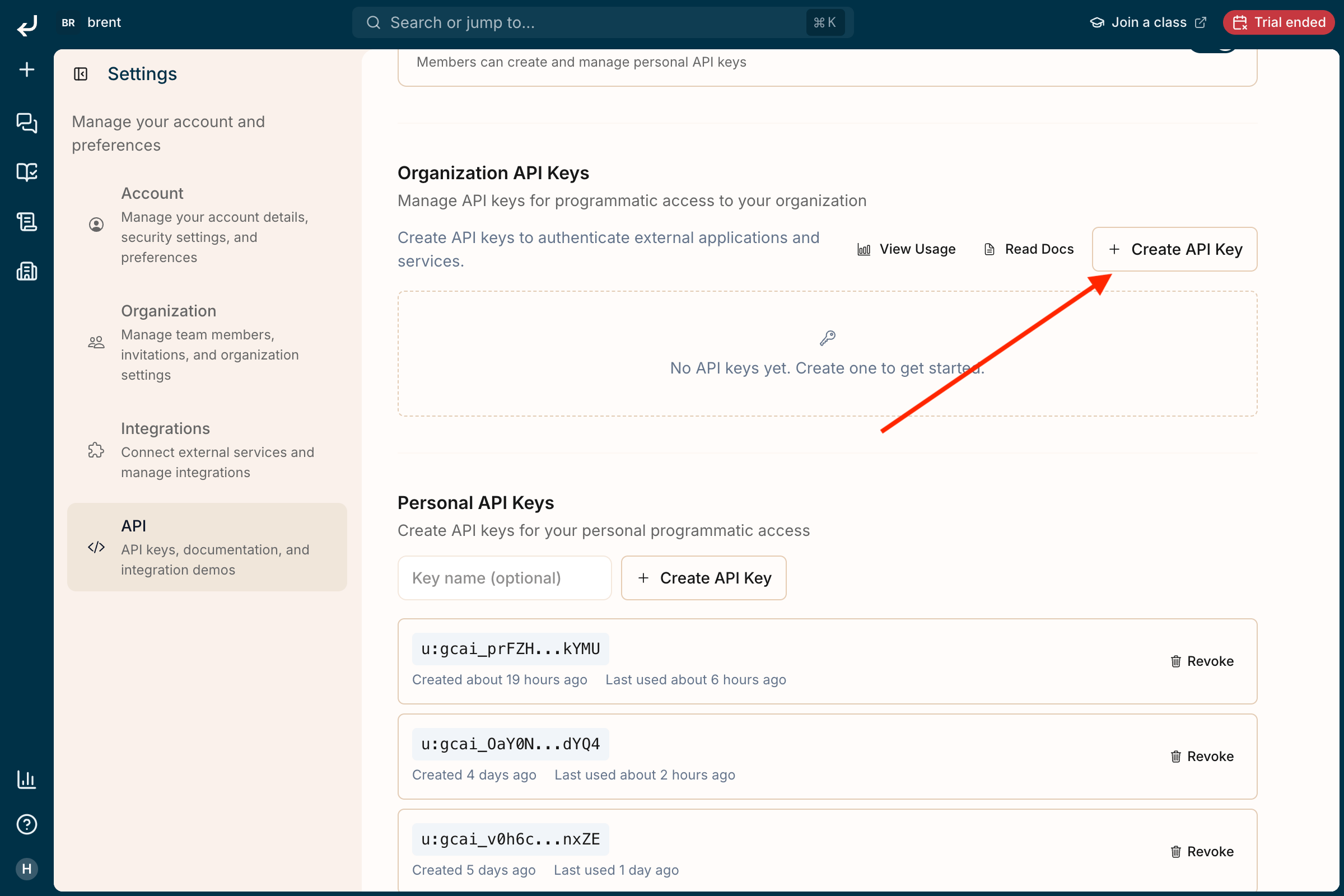 Anyone holding an organization key can make requests on behalf of your entire organization. Store it in a secret manager, never in client-side code or a committed file, and rotate it if it may have leaked.
## Personal keys
A personal key belongs to one member. Every request made with it carries that member's identity (their user ID and email), so activity is attributable to a person.
* **Gated by an org policy.** Personal keys can only be created when an admin has turned on **User API Keys Policy** for the organization (see [Enabling personal keys](#enabling-personal-keys)). The policy is off by default.
* **Self-service, self-owned.** Once the policy is on, any member can create their own personal keys from **Settings → API**. Each member sees and revokes **only their own** keys.
* **User attribution.** Because the request carries the member's identity, a personal key is the right choice when you want actions traced back to an individual.
Reach for a personal key when an individual is scripting against their own access (a one-off analysis, a personal workflow, an experiment) and you want that activity tied to them.
## Scopes at a glance
| | Organization key | Personal key |
| ------------------------ | ------------------------------------------ | ------------------------------------------------ |
| Prefix | `gcai_…` | `u:gcai_…` |
| Tied to | The organization | A specific user, within the organization |
| Who can create | Org admins only | Any member, once an admin enables the org policy |
| Who can revoke | Any org admin | Only the member who owns the key |
| Identity on each request | The organization (no individual user) | The individual user (`userId` + email) |
| Where you manage them | **Settings → API → Organization API Keys** | **Settings → API → Personal API Keys** |
| Billing | The organization | The organization |
Both scopes bill usage to the organization. The difference is about attribution and control, not cost.
## Enabling personal keys
Personal keys are off until an admin opts the organization in. An admin enables them under **Settings → API**:
Anyone holding an organization key can make requests on behalf of your entire organization. Store it in a secret manager, never in client-side code or a committed file, and rotate it if it may have leaked.
## Personal keys
A personal key belongs to one member. Every request made with it carries that member's identity (their user ID and email), so activity is attributable to a person.
* **Gated by an org policy.** Personal keys can only be created when an admin has turned on **User API Keys Policy** for the organization (see [Enabling personal keys](#enabling-personal-keys)). The policy is off by default.
* **Self-service, self-owned.** Once the policy is on, any member can create their own personal keys from **Settings → API**. Each member sees and revokes **only their own** keys.
* **User attribution.** Because the request carries the member's identity, a personal key is the right choice when you want actions traced back to an individual.
Reach for a personal key when an individual is scripting against their own access (a one-off analysis, a personal workflow, an experiment) and you want that activity tied to them.
## Scopes at a glance
| | Organization key | Personal key |
| ------------------------ | ------------------------------------------ | ------------------------------------------------ |
| Prefix | `gcai_…` | `u:gcai_…` |
| Tied to | The organization | A specific user, within the organization |
| Who can create | Org admins only | Any member, once an admin enables the org policy |
| Who can revoke | Any org admin | Only the member who owns the key |
| Identity on each request | The organization (no individual user) | The individual user (`userId` + email) |
| Where you manage them | **Settings → API → Organization API Keys** | **Settings → API → Personal API Keys** |
| Billing | The organization | The organization |
Both scopes bill usage to the organization. The difference is about attribution and control, not cost.
## Enabling personal keys
Personal keys are off until an admin opts the organization in. An admin enables them under **Settings → API**:
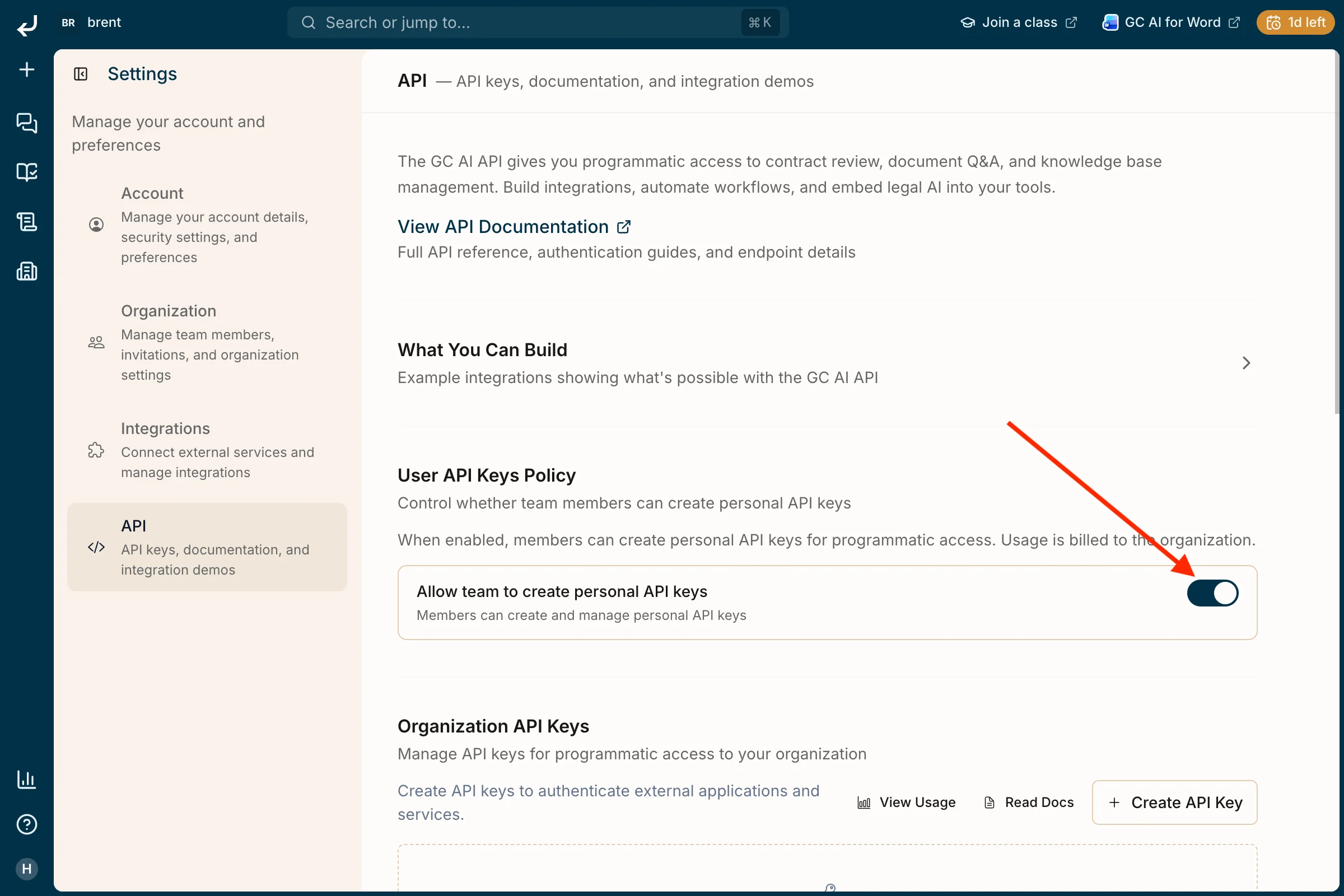 A few things worth knowing about this policy:
* **It is all-or-nothing for the organization.** The toggle is a single organization-wide setting. When it is on, every member may create personal keys; when it is off, none may.
* **It gates admins too.** There is no admin exception. An admin who wants a personal key for themselves must first turn the policy on for the whole organization, which turns it on for everyone. (If you want a company-owned key without enabling personal keys org-wide, use an [organization key](#organization-keys) instead.)
* **Turning it off does not revoke existing keys.** Disabling the policy stops new personal keys from being created. Keys that already exist keep working until they are revoked.
Once the policy is on, each member creates and manages their own keys:
A few things worth knowing about this policy:
* **It is all-or-nothing for the organization.** The toggle is a single organization-wide setting. When it is on, every member may create personal keys; when it is off, none may.
* **It gates admins too.** There is no admin exception. An admin who wants a personal key for themselves must first turn the policy on for the whole organization, which turns it on for everyone. (If you want a company-owned key without enabling personal keys org-wide, use an [organization key](#organization-keys) instead.)
* **Turning it off does not revoke existing keys.** Disabling the policy stops new personal keys from being created. Keys that already exist keep working until they are revoked.
Once the policy is on, each member creates and manages their own keys:
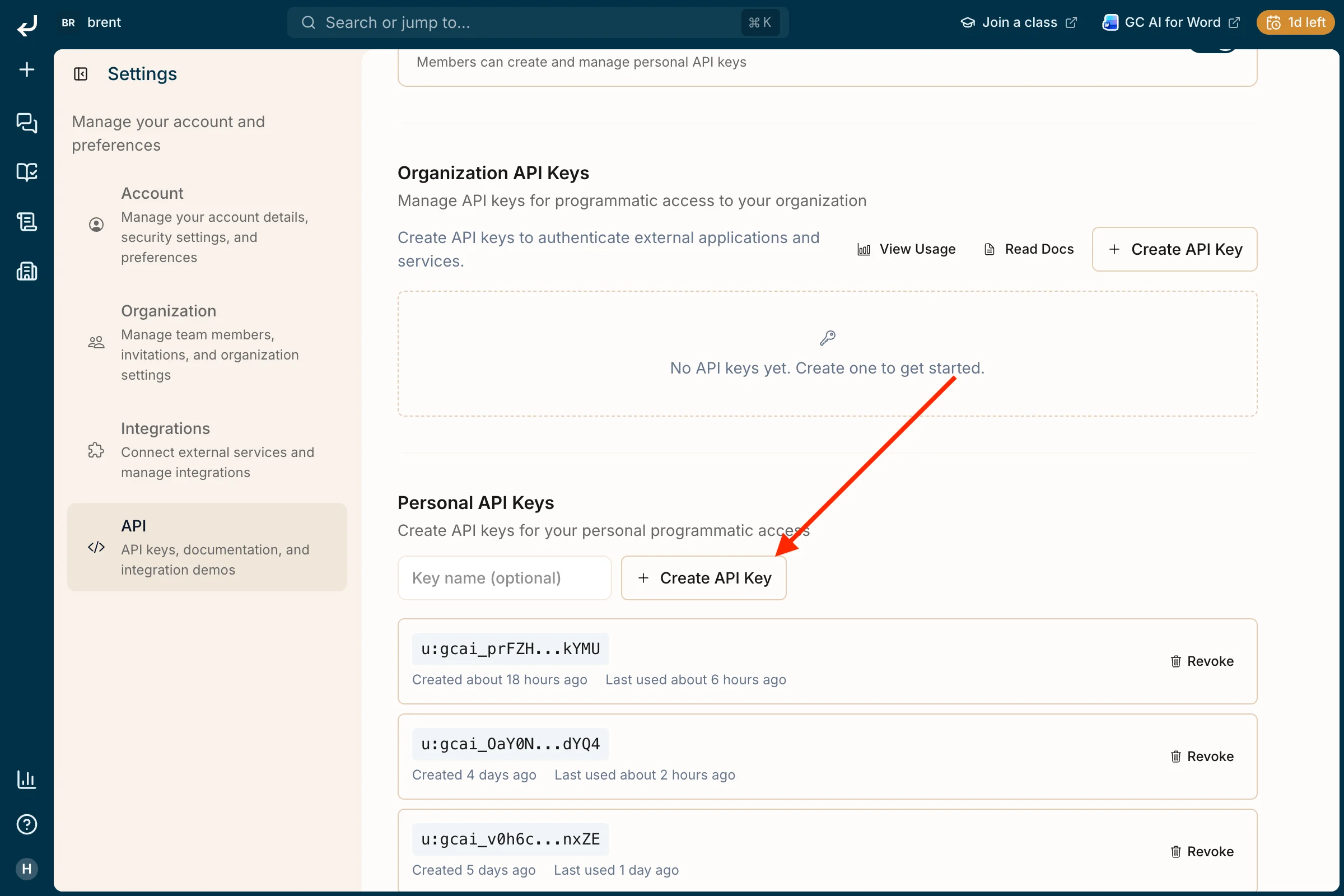 The full key is shown only once, at creation. Copy it and store it somewhere safe immediately. GC AI cannot show it to you again.
## Current limitations
A few governance behaviors are worth planning around:
* **Personal-key revocation is self-service only.** A member can revoke their own keys, but an admin cannot revoke another member's personal key from the settings UI.
* **Organization keys have no per-admin attribution.** The system records that an organization key exists, but not which admin created it. Track ownership and purpose out of band (for example, a note in your secret manager) if you need it.
* **The personal-key policy has no per-member granularity.** You cannot enable personal keys for some members but not others; it is a single org-wide switch.
Removing a member from the organization does not revoke their personal keys. A removed member's keys keep authenticating against the organization until that user's account is fully deleted or the keys are revoked, and an admin cannot revoke another member's keys from the UI. When offboarding someone who held personal keys, revoke those keys as a separate step (contact support if needed).
## Choosing a scope
* **Company-owned integration, shared service, scheduled job** → [organization key](#organization-keys). Any admin can rotate it, and it outlives individuals. Note that an organization key only reaches non-access-controlled resources, and a few per-user endpoints (chat search, the `scope` filter on files/folders) reject organization keys; if your integration needs privately shared files or projects, or any of those endpoints, use a personal key instead.
* **An individual scripting against their own access, where you want activity attributed to them** → [personal key](#personal-keys) (after an admin enables the org policy).
## Related
* [How to enable API access](/api-reference/how-to-enable): step-by-step setup for the **personal-key** path (enabling the org policy and creating a personal key). For an organization key, an admin creates one directly under **Settings → API → Organization API Keys** — see [Organization keys](#organization-keys) above.
* [API Introduction](/api-reference/introduction): base URL, authentication header, and a quick-start request.
The full key is shown only once, at creation. Copy it and store it somewhere safe immediately. GC AI cannot show it to you again.
## Current limitations
A few governance behaviors are worth planning around:
* **Personal-key revocation is self-service only.** A member can revoke their own keys, but an admin cannot revoke another member's personal key from the settings UI.
* **Organization keys have no per-admin attribution.** The system records that an organization key exists, but not which admin created it. Track ownership and purpose out of band (for example, a note in your secret manager) if you need it.
* **The personal-key policy has no per-member granularity.** You cannot enable personal keys for some members but not others; it is a single org-wide switch.
Removing a member from the organization does not revoke their personal keys. A removed member's keys keep authenticating against the organization until that user's account is fully deleted or the keys are revoked, and an admin cannot revoke another member's keys from the UI. When offboarding someone who held personal keys, revoke those keys as a separate step (contact support if needed).
## Choosing a scope
* **Company-owned integration, shared service, scheduled job** → [organization key](#organization-keys). Any admin can rotate it, and it outlives individuals. Note that an organization key only reaches non-access-controlled resources, and a few per-user endpoints (chat search, the `scope` filter on files/folders) reject organization keys; if your integration needs privately shared files or projects, or any of those endpoints, use a personal key instead.
* **An individual scripting against their own access, where you want activity attributed to them** → [personal key](#personal-keys) (after an admin enables the org policy).
## Related
* [How to enable API access](/api-reference/how-to-enable): step-by-step setup for the **personal-key** path (enabling the org policy and creating a personal key). For an organization key, an admin creates one directly under **Settings → API → Organization API Keys** — see [Organization keys](#organization-keys) above.
* [API Introduction](/api-reference/introduction): base URL, authentication header, and a quick-start request.