> ## Documentation Index
> Fetch the complete documentation index at: https://docs.gc.ai/llms.txt
> Use this file to discover all available pages before exploring further.
# Slack Triage Bot
> Automate legal request triage in Slack with a Zapier workflow, no code required.
export const WebhookTestUrl = ({showJobId}) => {
const [url, setUrl] = useState('');
const [jobId, setJobId] = useState('');
const [status, setStatus] = useState('idle');
var jobUrl = showJobId ? 'https://app.gc.ai/api/external/v1/jobs/' + jobId.trim() : 'https://app.gc.ai/api/external/v1/jobs/test-id';
var qs = '?job_url=' + encodeURIComponent(jobUrl) + '&attempt_number=1&channel=C0123ABCDEF&message-ts=1234567890.123456';
var full = url.trim().replace(/\/+$/, '') + qs;
var ready = url.trim().length > 0 && (!showJobId || jobId.trim().length > 0);
var busy = status === 'sending';
var send = function () {
if (!ready || busy) return;
setStatus('sending');
fetch(full, {
mode: 'no-cors'
}).then(function () {
setStatus('sent');
}).catch(function () {
setStatus('error');
});
};
var label = status === 'sending' ? 'Sending...' : status === 'sent' ? 'Sent!' : status === 'error' ? 'Failed' : 'Send test request';
var inputStyle = {
flex: 1,
padding: '8px 12px',
border: '1px solid #e2e8f0',
borderRadius: '6px',
fontSize: '14px',
background: 'transparent',
color: 'inherit'
};
var jobIdStyle = {
flex: 'none',
width: '280px',
padding: '8px 12px',
border: '1px solid #e2e8f0',
borderRadius: '6px',
fontSize: '14px',
background: 'transparent',
color: 'inherit'
};
return
{showJobId ? : null}
;
};
**No code required.** This tutorial uses Zapier's point-and-click builder. No programming experience needed.
Set up a Zapier automation that watches a Slack channel for legal requests, sends them to GC AI for classification, and replies in-thread with a structured triage report.
## What you'll build
A Zapier "Zap" that monitors a Slack channel (e.g. `#legal-requests`). When someone posts a message describing a legal need, the automation:
1. Sends the message to GC AI for classification
2. Replies in the same Slack thread with a structured triage: category, risk level, urgency, a summary, recommended next steps, and which playbook to use in GC AI
## API endpoints
| Method | Endpoint | What it does |
| ------ | --------------------------------------------------------------- | ----------------------------------------------------------------------- |
| `POST` | [`/v1/chat/completions`](/api-reference/create-chat-completion) | Classifies the request |
| `GET` | [`/v1/jobs/:id`](/api-reference/get-async-job) | Polls for the result when the classification takes longer than expected |
## Prerequisites
* A [GC AI API key](/api-reference/introduction#authentication) (get one from **Settings > API** in the app)
* A [Zapier](https://zapier.com) account (the free plan works for testing; a paid plan is needed for multi-step Zaps to run automatically)
* Admin access to a Slack workspace
## Part 1: The basic Zap
Create a dedicated channel for incoming legal requests, something like `#legal-requests`. This is the channel the bot will watch.
If your team already has a channel for this purpose, you can use that instead.
Go to [zapier.com](https://zapier.com) and click **Create** → **New Zap**. You'll see an empty canvas with a trigger step.
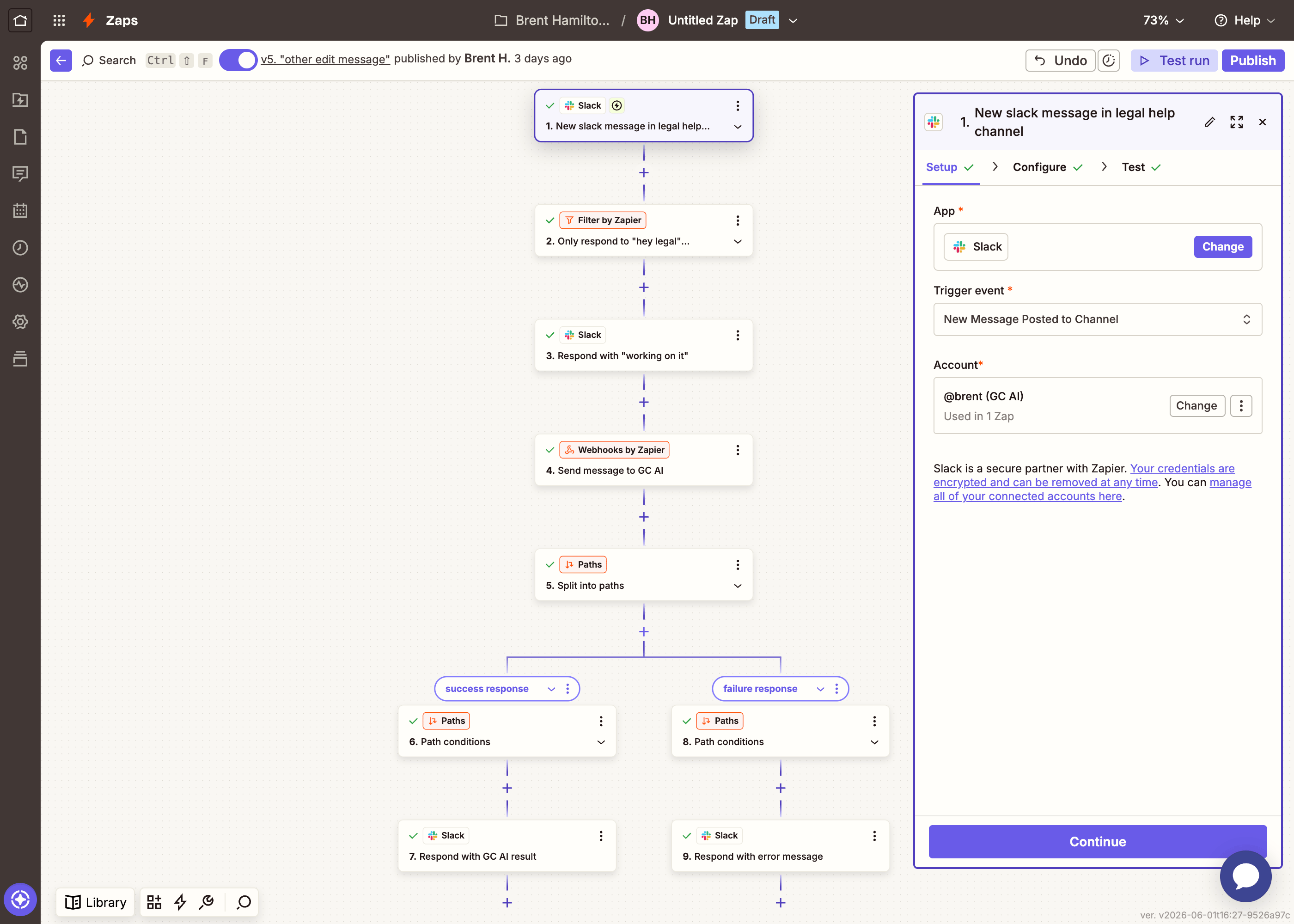
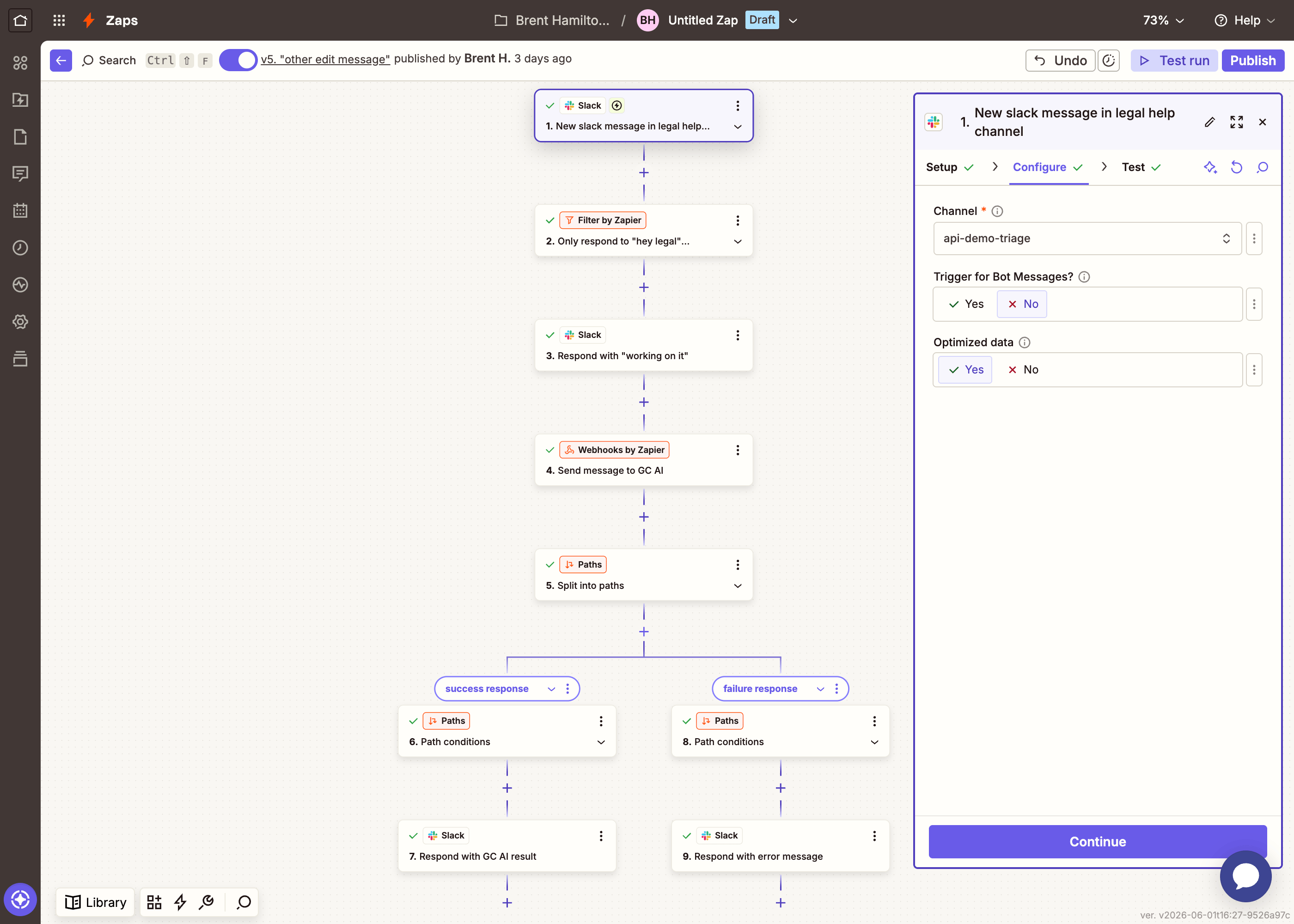
Click the trigger step and configure it:
1. **App**: Search for **Slack** and select it
2. **Event**: Choose **New Message Posted to Channel**
3. **Account**: Connect your Slack workspace (Zapier will walk you through the OAuth flow)
4. **Channel**: Select your `#legal-requests` channel
5. **Trigger on bot messages**: Set to **No** (this prevents the bot from responding to its own replies)
6. Click **Test trigger** to pull in a sample message
Post a test message in the channel before testing the trigger so Zapier has sample data to work with.
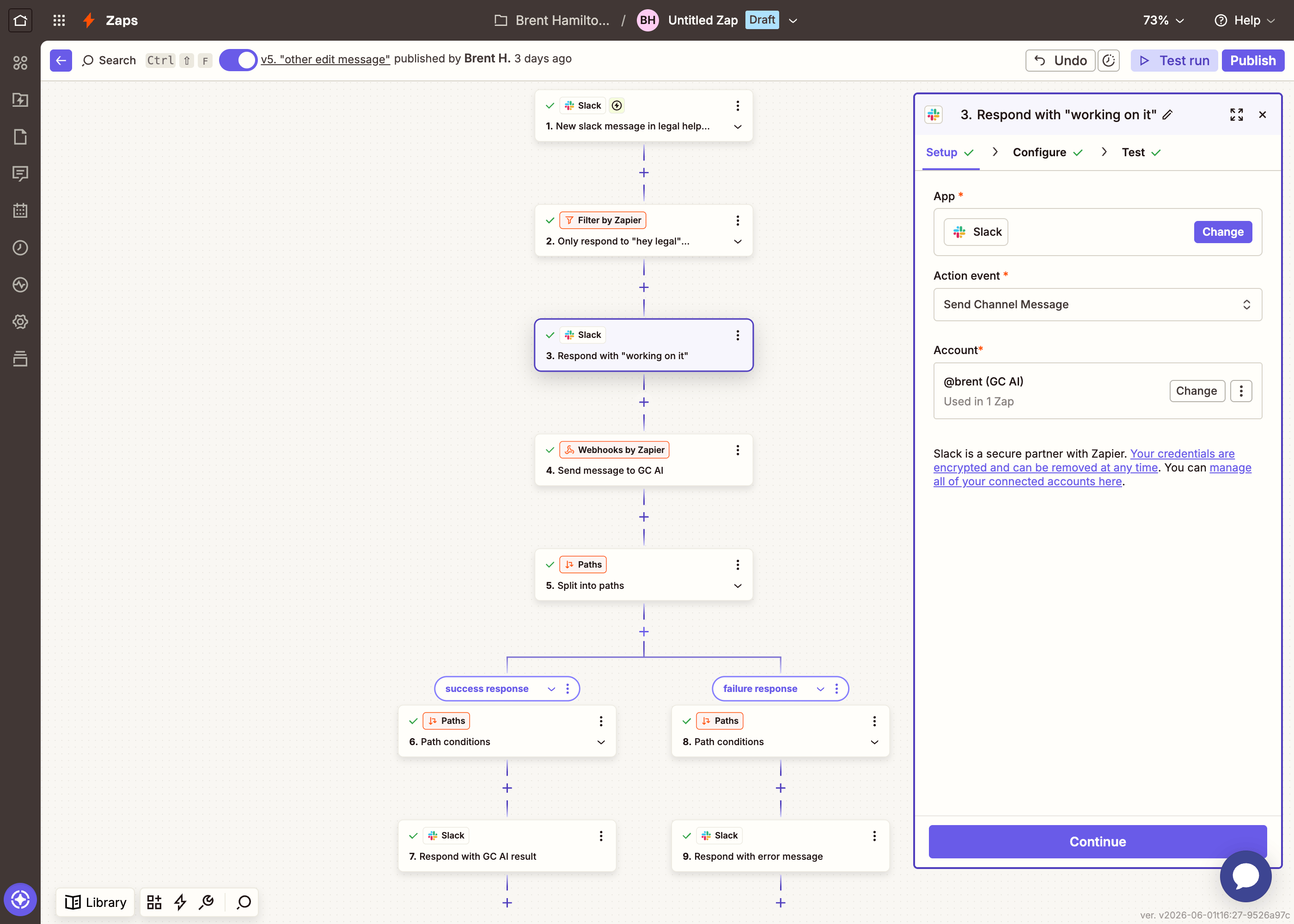
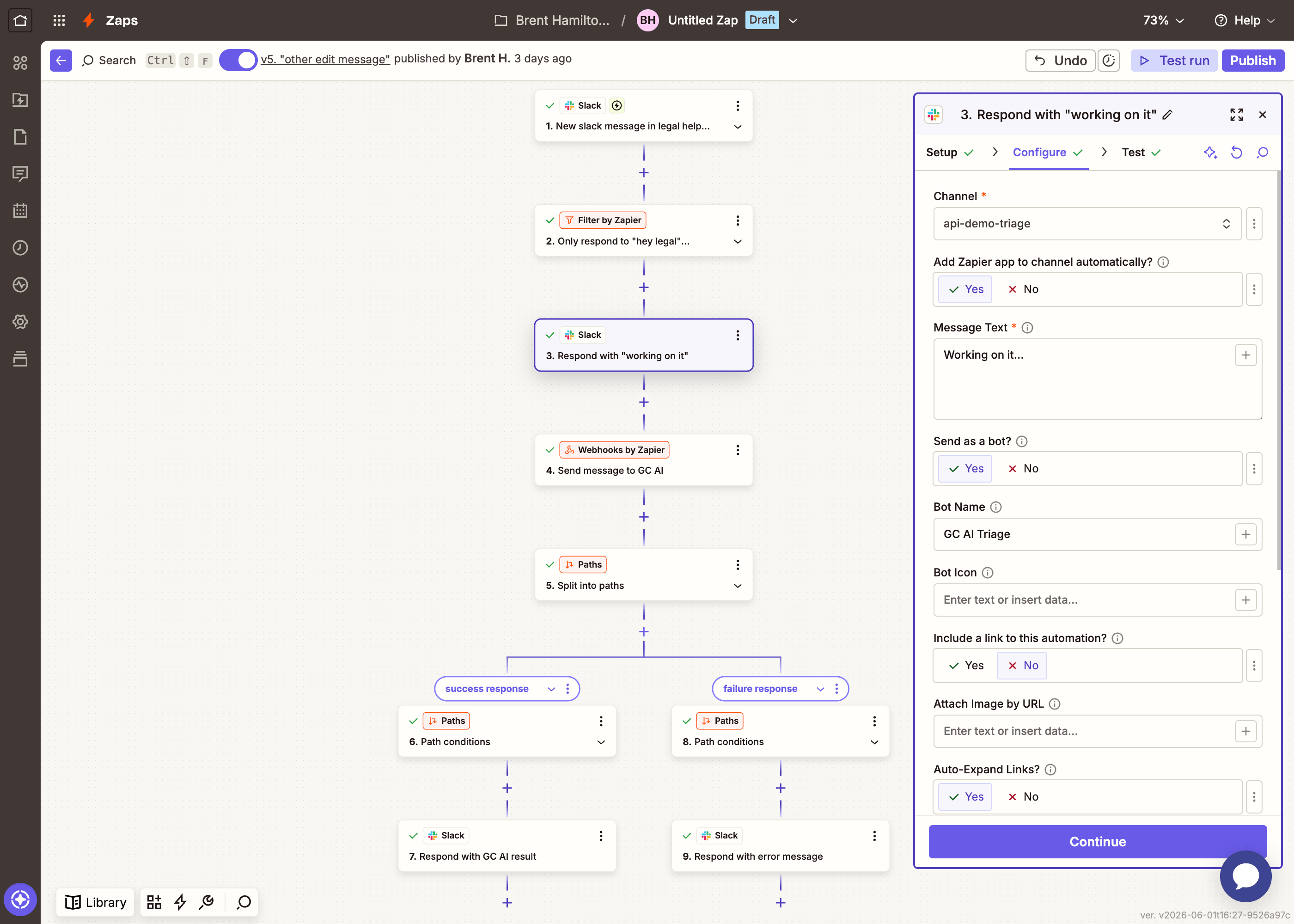
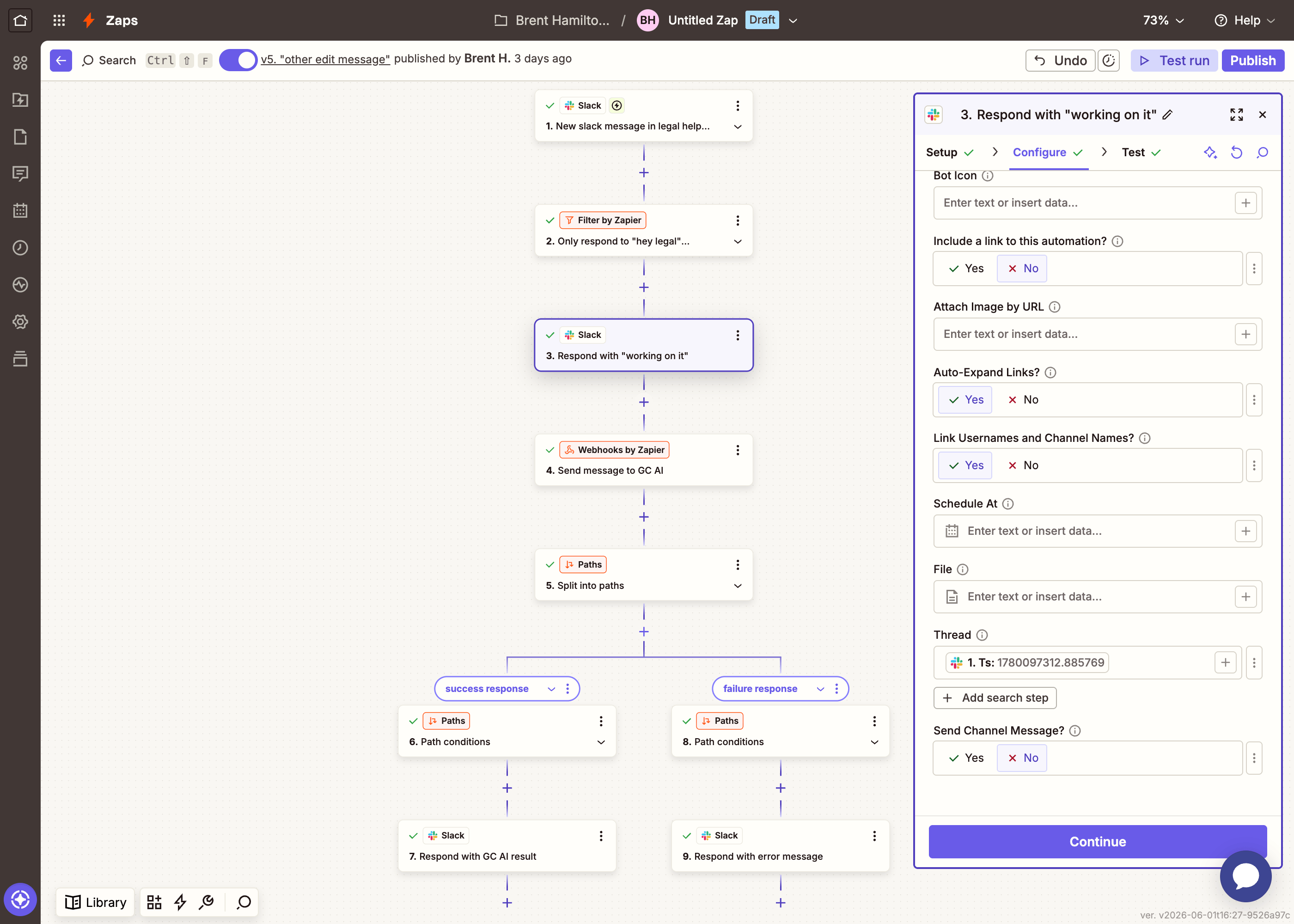
Add a new step: **Slack** → **Send Channel Message**.
| Field | Value |
| ---------------- | ----------------------------------------------------------------------------------- |
| **Channel** | Select `#legal-requests` (or map the **Channel ID** from the trigger) |
| **Message Text** | `Working on it...` |
| **Thread** | Map the **Ts** field from the Slack trigger (this makes the reply appear in-thread) |
| **Bot Name** | `GC AI Triage` (optional) |
This gives the requester instant feedback while the API processes their request. We'll update this message with the actual result in a later step.
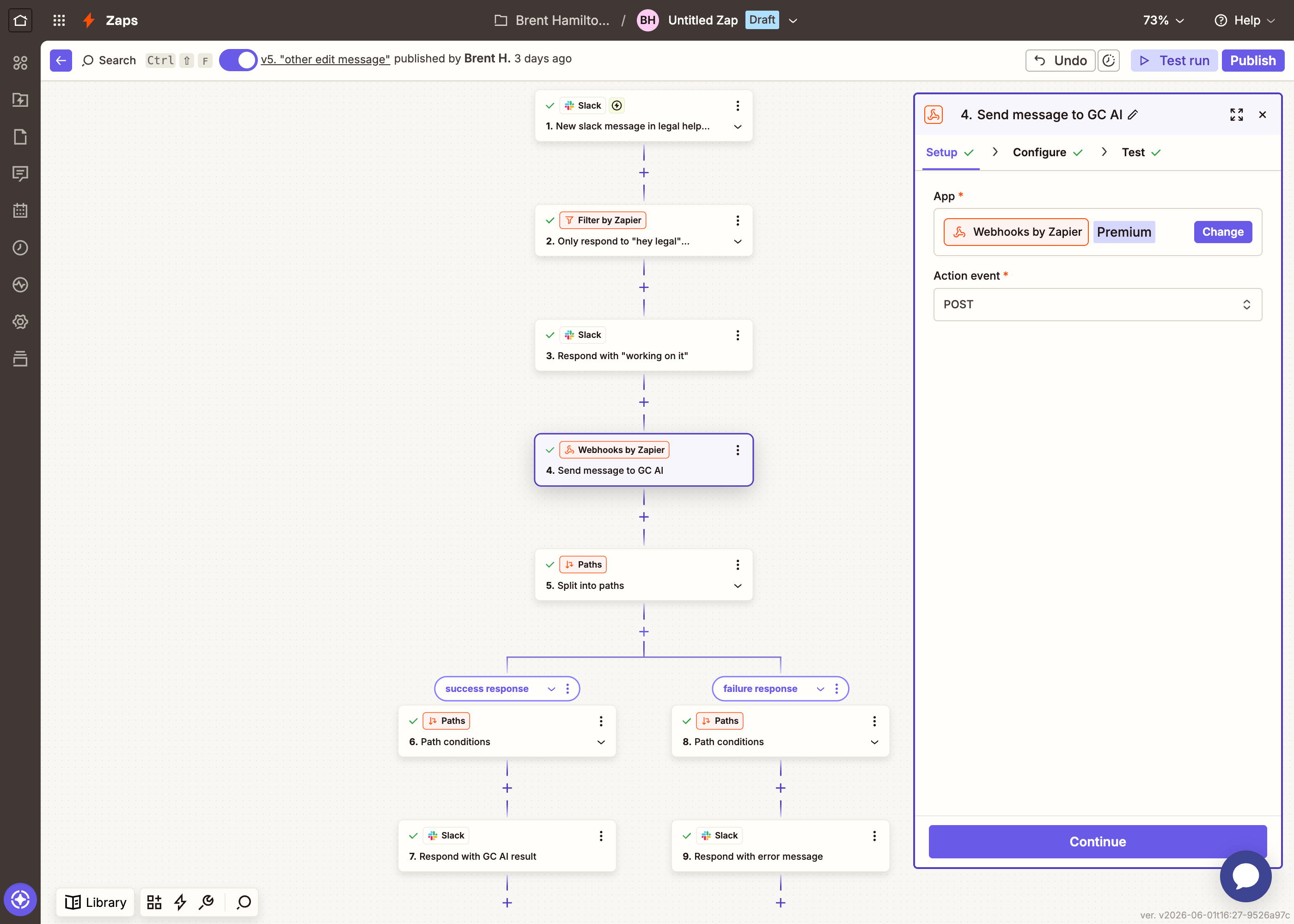
Add a new step: **Webhooks by Zapier** → **POST**.
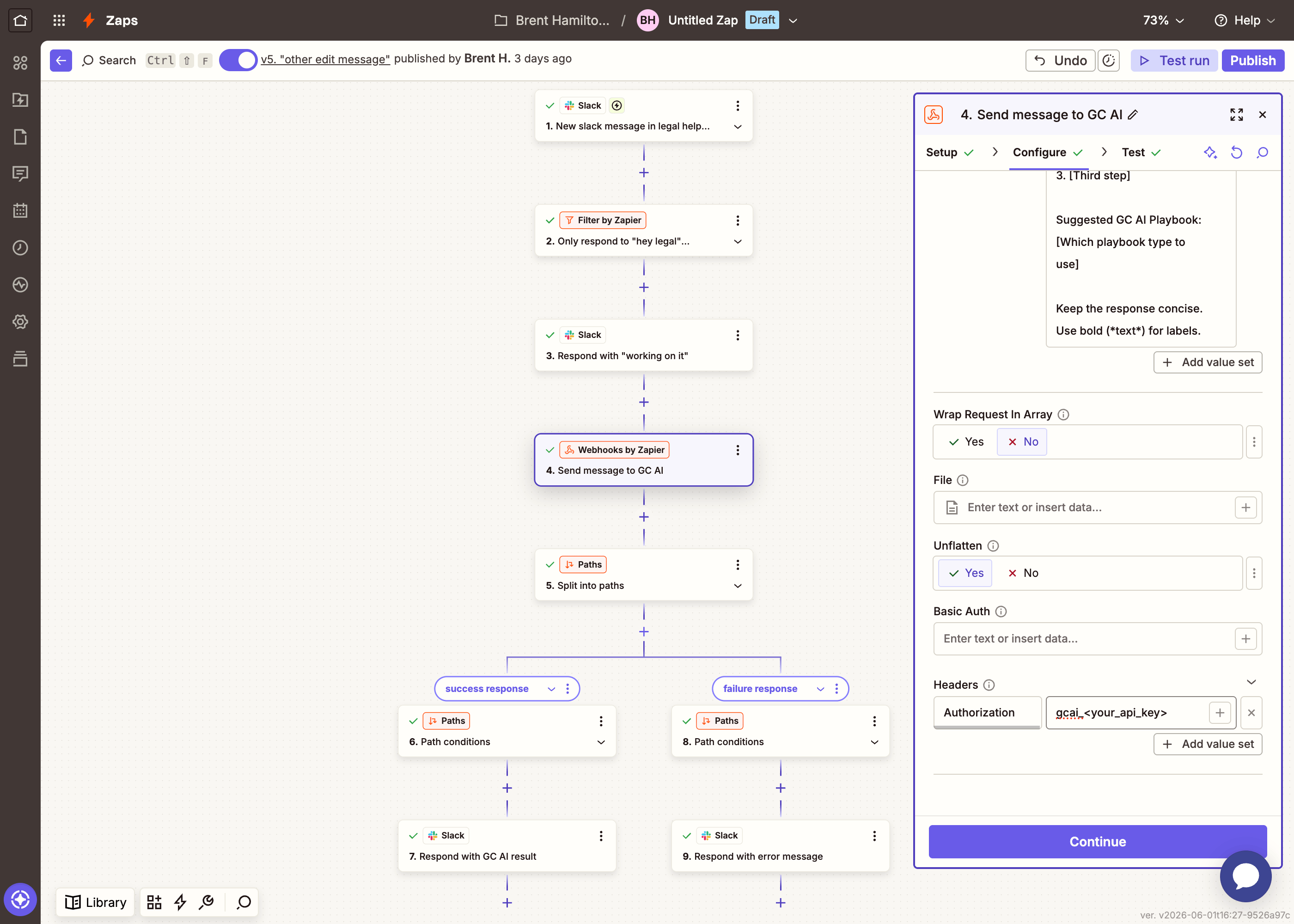
| Field | Value |
| ------------------------- | ------------------------------------------------------------ |
| **URL** | `https://app.gc.ai/api/external/v1/chat/completions?wait=30` |
| **Payload Type** | `Json` |
| **Data** | Key: `message` / Value: see below |
| **Wrap Request In Array** | `No` |
| **Unflatten** | `Yes` |
| **Headers** | Key: `Authorization` / Value: `YOUR_API_KEY` |
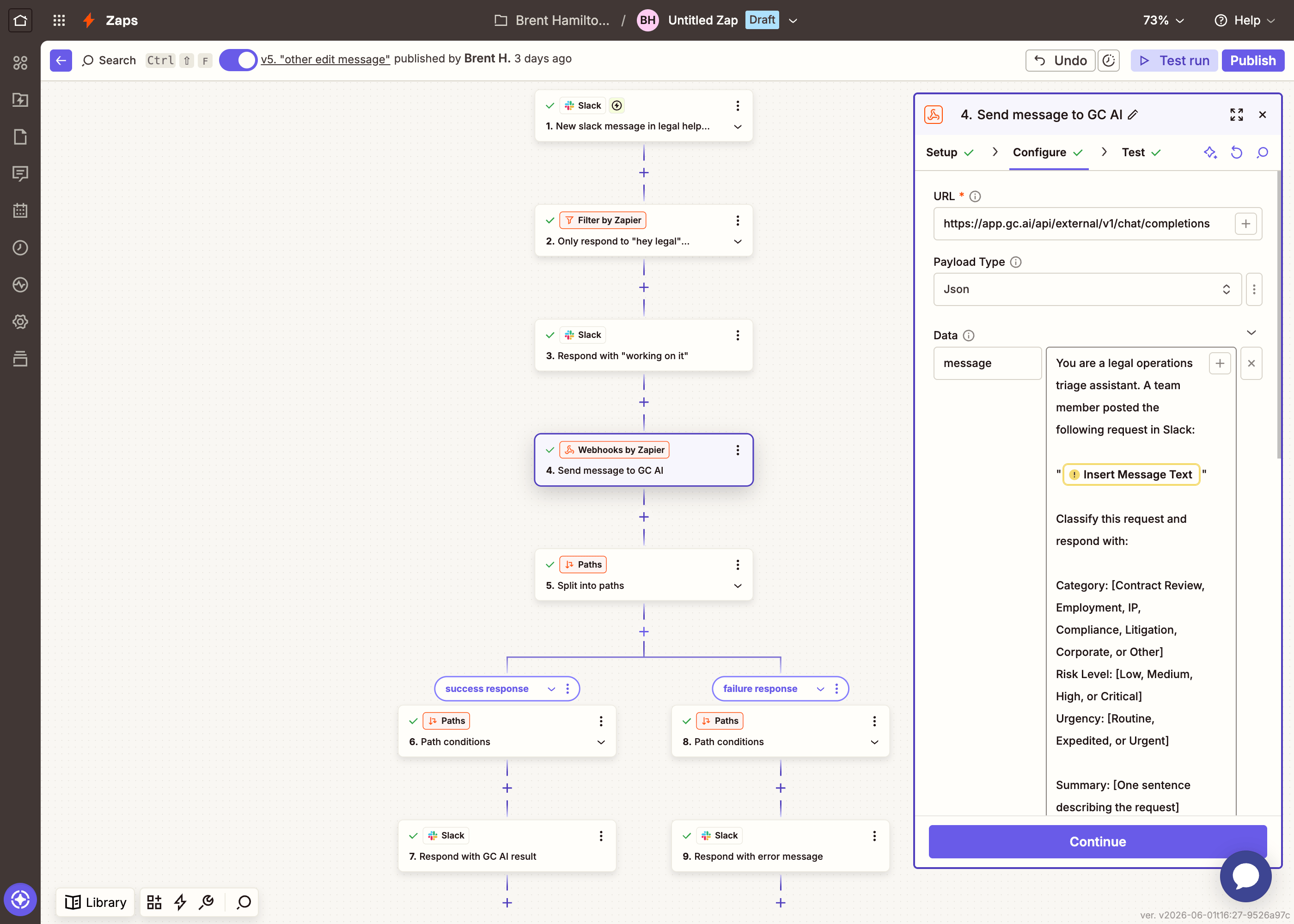
For the **Data** value, paste the following prompt. Replace `{{insert Message Text}}` with the mapped field from your Slack trigger (click the **+** button in the value field, then select **Message Text** from the Slack trigger data):
```
You are a legal operations triage assistant. A team member posted the following request in Slack:
"{{insert Message Text}}"
Classify this request and respond with:
Category: [Contract Review, Employment, IP, Compliance, Litigation, Corporate, or Other]
Risk Level: [Low, Medium, High, or Critical]
Urgency: [Routine, Expedited, or Urgent]
Summary: [One sentence describing the request]
Recommended Next Steps:
1. [First step]
2. [Second step]
3. [Third step]
Suggested GC AI Playbook: [Which playbook type to use]
Keep the response concise. Use bold (*text*) for labels.
```
The `?wait=30` on the URL tells the API to hold the connection for up to 30 seconds while it works, comfortably inside Zapier's 30-second limit for action steps, so the step returns cleanly instead of erroring out. (The API reads `wait` from the query string or a `Prefer: wait=30` header, not the JSON body, so it must live on the URL here.) Click **Test step**. Quick classifications come back with `status: "succeeded"` and the text inside `result` → `result`. If the request needs longer than 30 seconds, the call returns with a non-`succeeded` status and a `job_id`; the next step handles that case (and Part 2 polls the job to completion).
Add a new step: **Paths by Zapier**.
The API usually finishes within the wait window, but longer queries can time out. This step handles both cases.
**Path A: Classification ready**
| Field | Value |
| ------------- | ------------------------------------------------------------- |
| **Condition** | `Status` (from the Webhooks step) exactly matches `succeeded` |
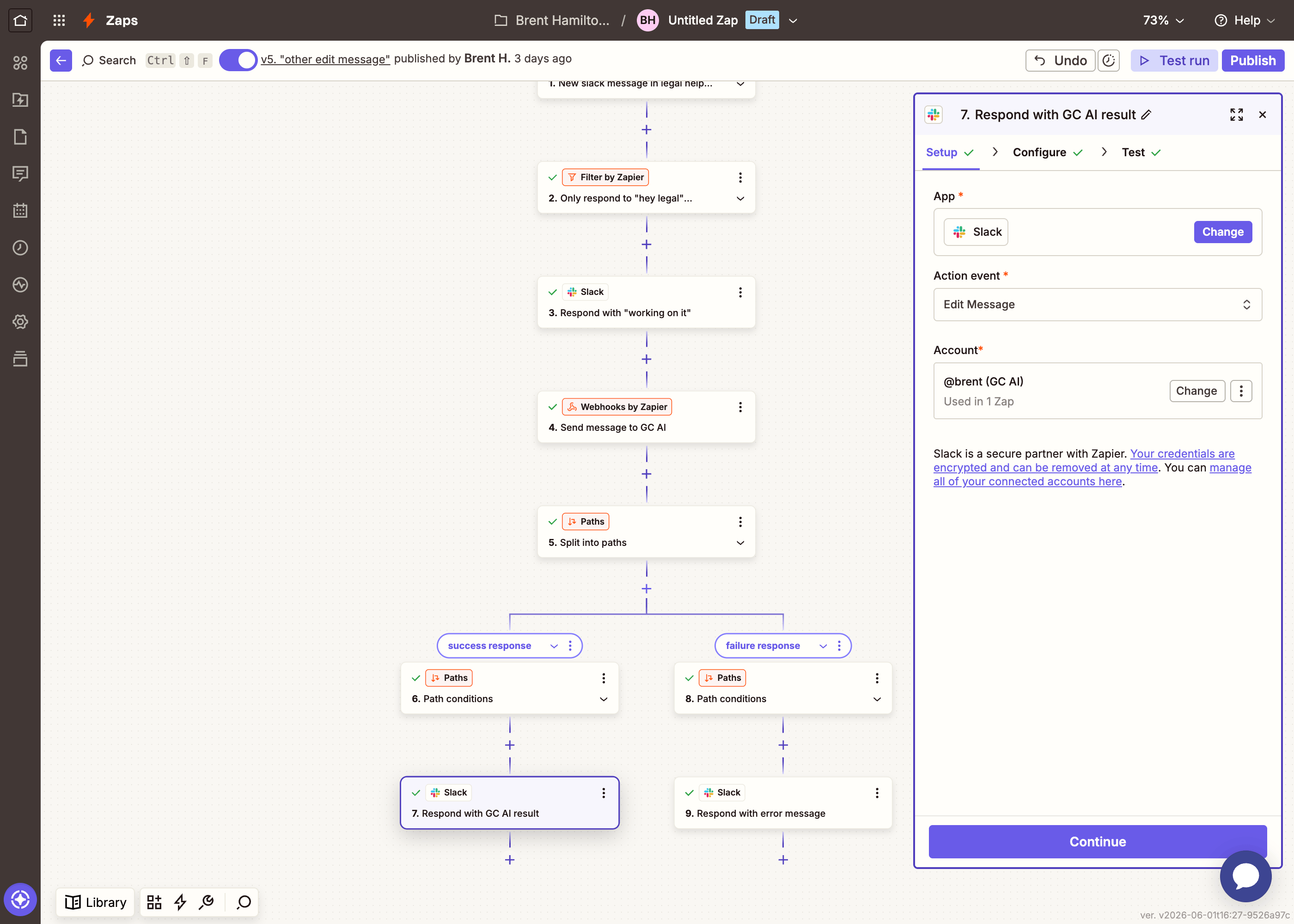
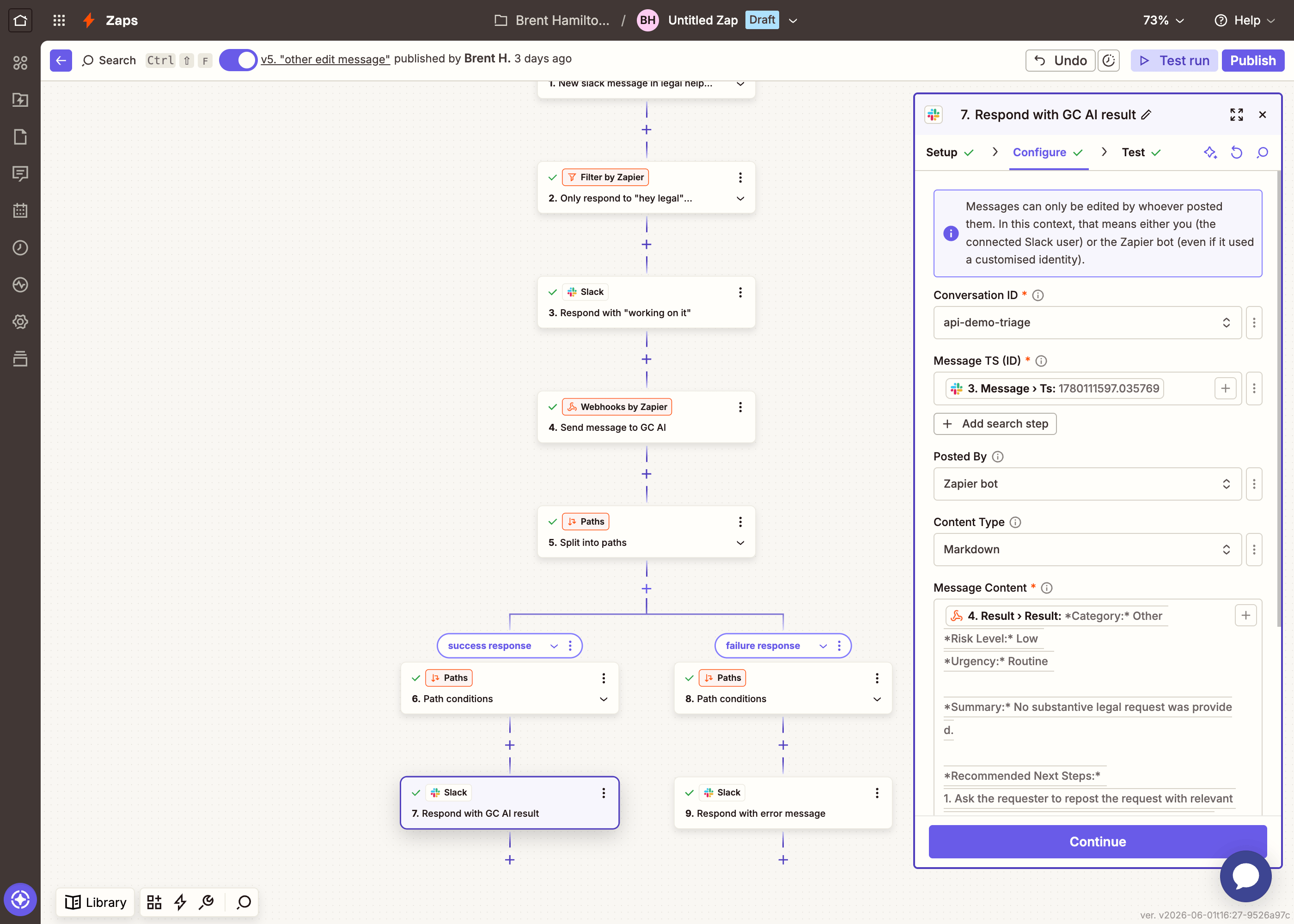
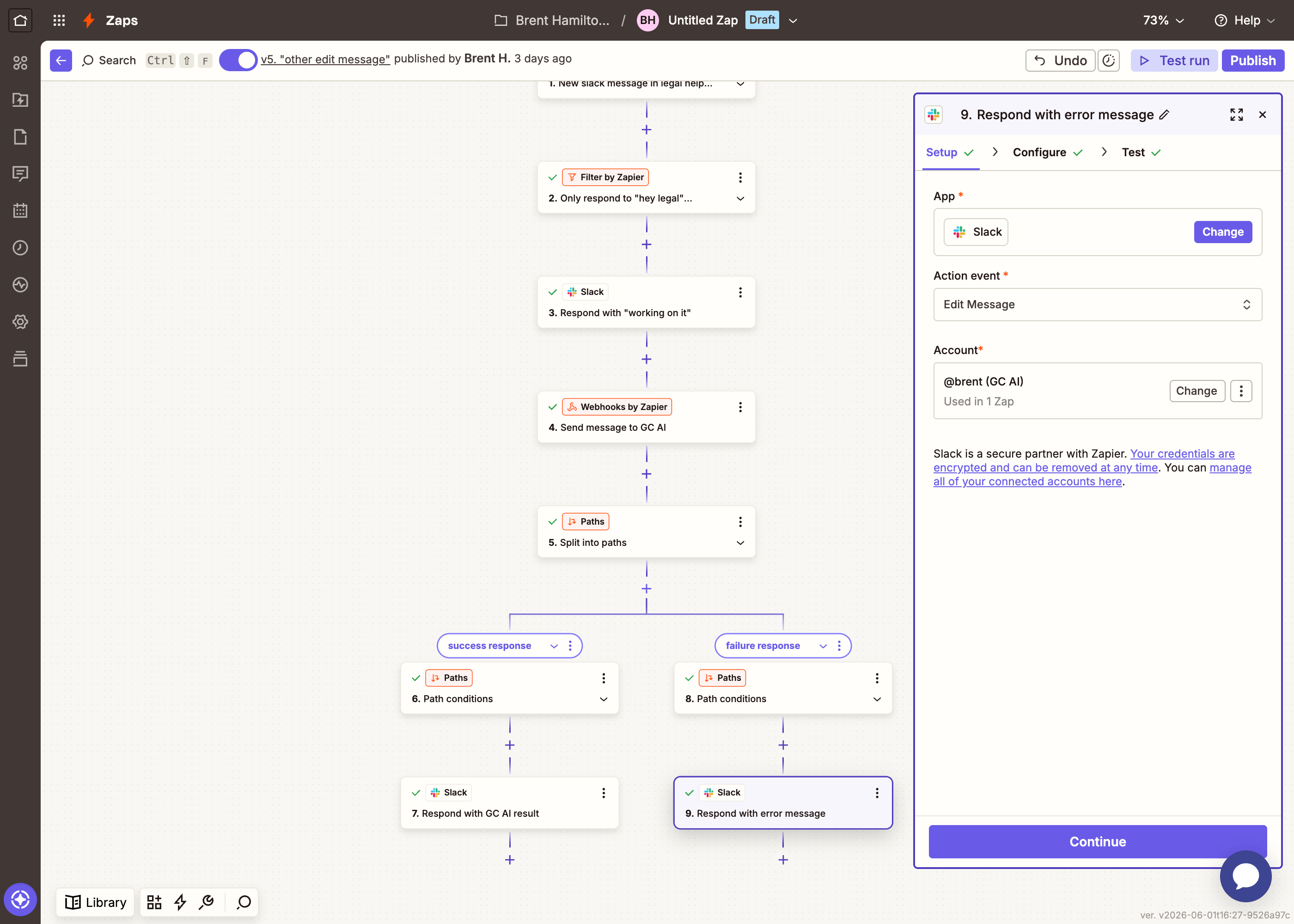
Add a **Slack** → **Edit Message** step inside this path. When searching for the action, choose the first "Edit Message" option (the one with just "Edits a message." as the description).
| Field | Value |
| ------------------- | ---------------------------------------------------------------------------------------------------------------------- |
| **Conversation ID** | Your `#legal-requests` channel |
| **Message TS (ID)** | Map the **Ts** from the "Working on it..." step (this identifies which message to update) |
| **Message Content** | Map the **Result Result** field from the Webhooks step (the AI's classification text, found under `result` → `result`) |
| **Content Type** | `Markdown` |
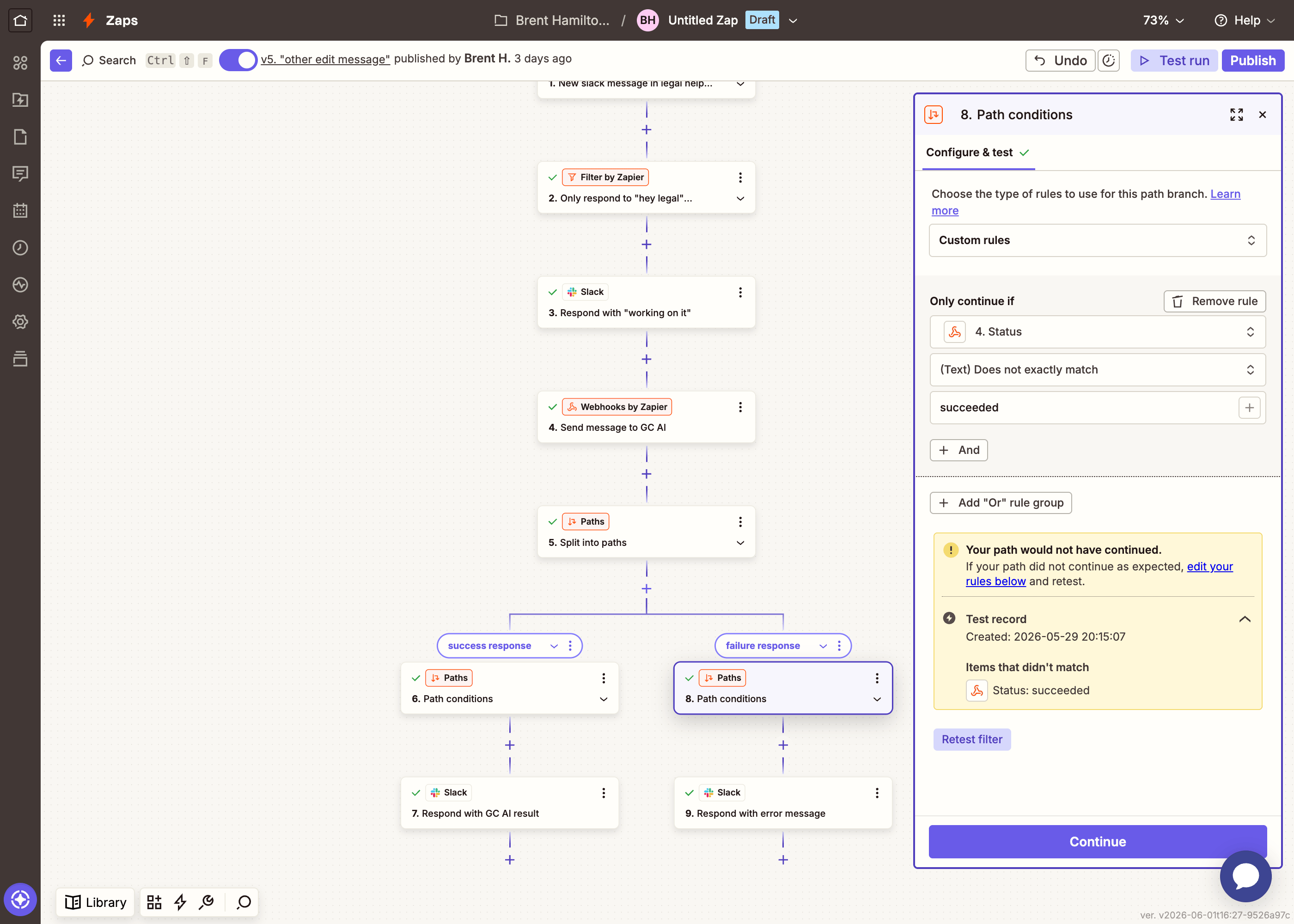
**Path B: Timed out**
| Field | Value |
| ------------- | -------------------------------------------------------------------- |
| **Condition** | `Status` (from the Webhooks step) does not exactly match `succeeded` |
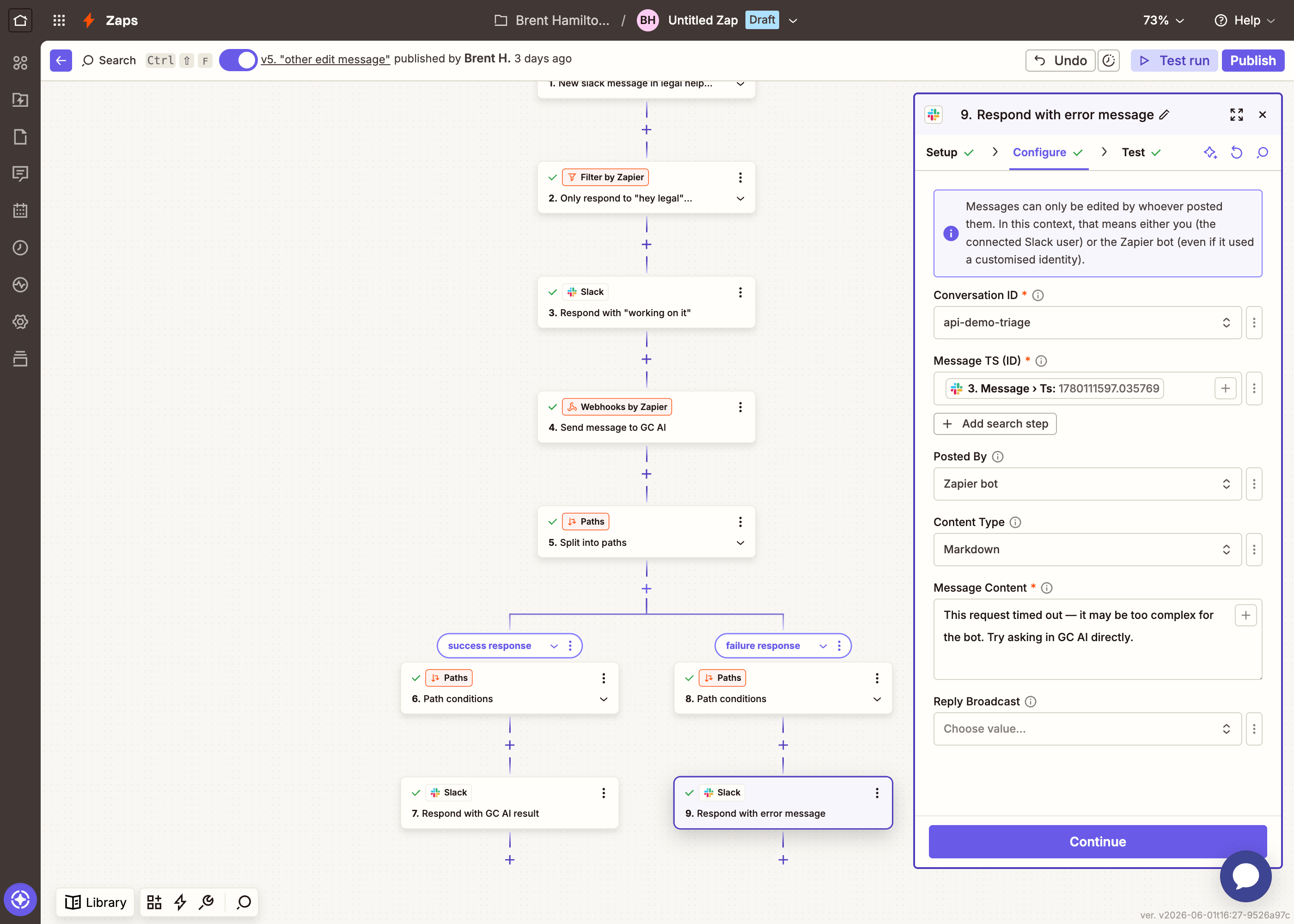
Add a **Slack** → **Edit Message** step inside this path (same first option):
| Field | Value |
| ------------------- | ------------------------------------------------------------------------------------------ |
| **Conversation ID** | Your `#legal-requests` channel |
| **Message TS (ID)** | Map the **Ts** from the "Working on it..." step |
| **Message Content** | `This request timed out. It may be too complex for the bot. Try asking in GC AI directly.` |
| **Content Type** | `Markdown` |
1. Post a test message in `#legal-requests`:
> We just signed a new vendor and need their MSA reviewed before onboarding. It's a 3-year SaaS agreement with auto-renewal and an uncapped indemnification clause. Timeline is end of week.
2. Click **Test** on each step to run the Zap manually, or click **Publish** and post the message to see it run automatically.
3. You should see a threaded reply with the structured triage.
Once it's working, click **Publish** to turn the Zap on. Every new message in the channel will now be triaged automatically.
### Exercise: trigger the bot only on certain messages
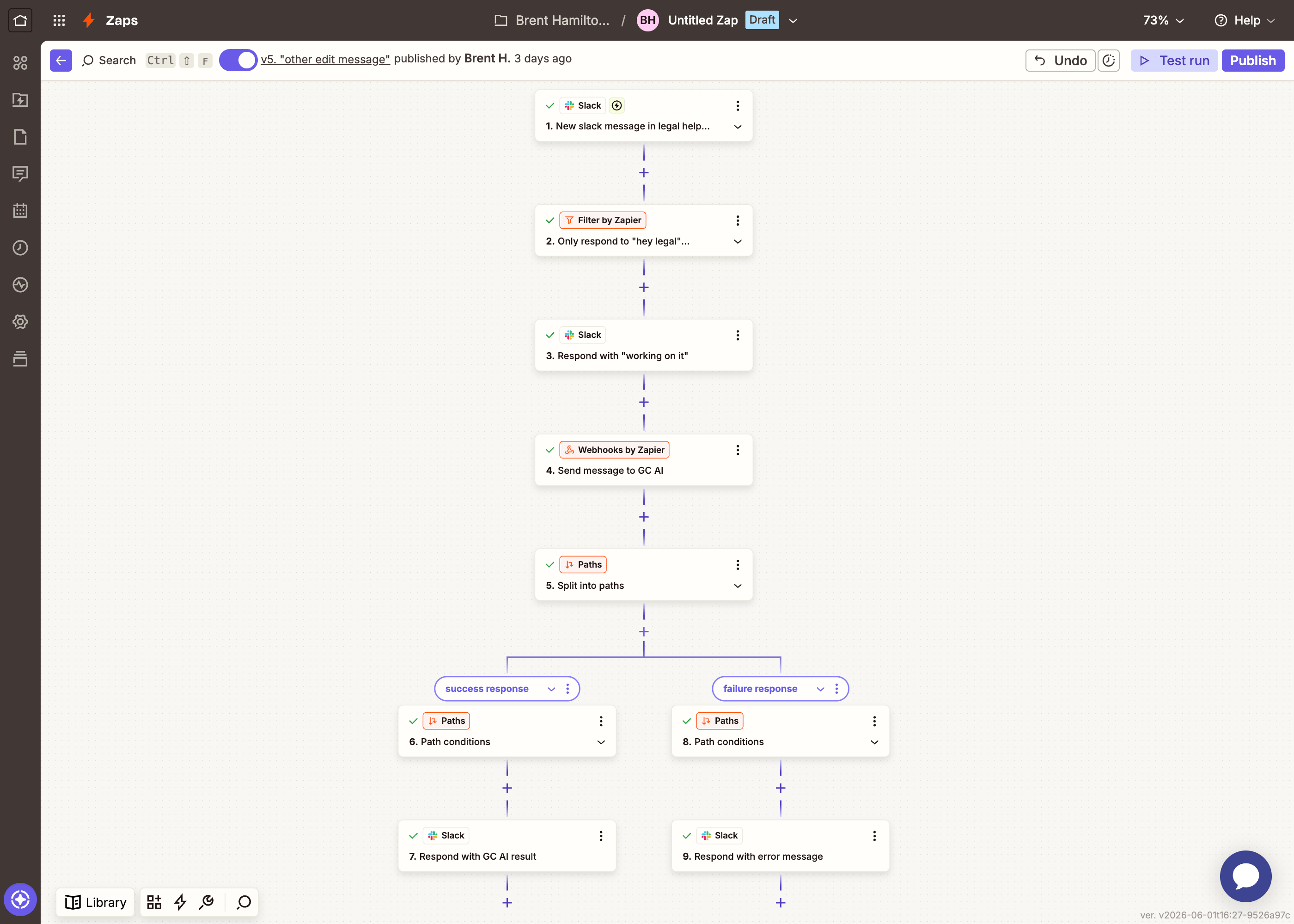
Right now the bot triages every message posted in the channel. How would you configure it so the bot only runs when someone specifically addresses it, for example by starting their message with "hey legalbot"?
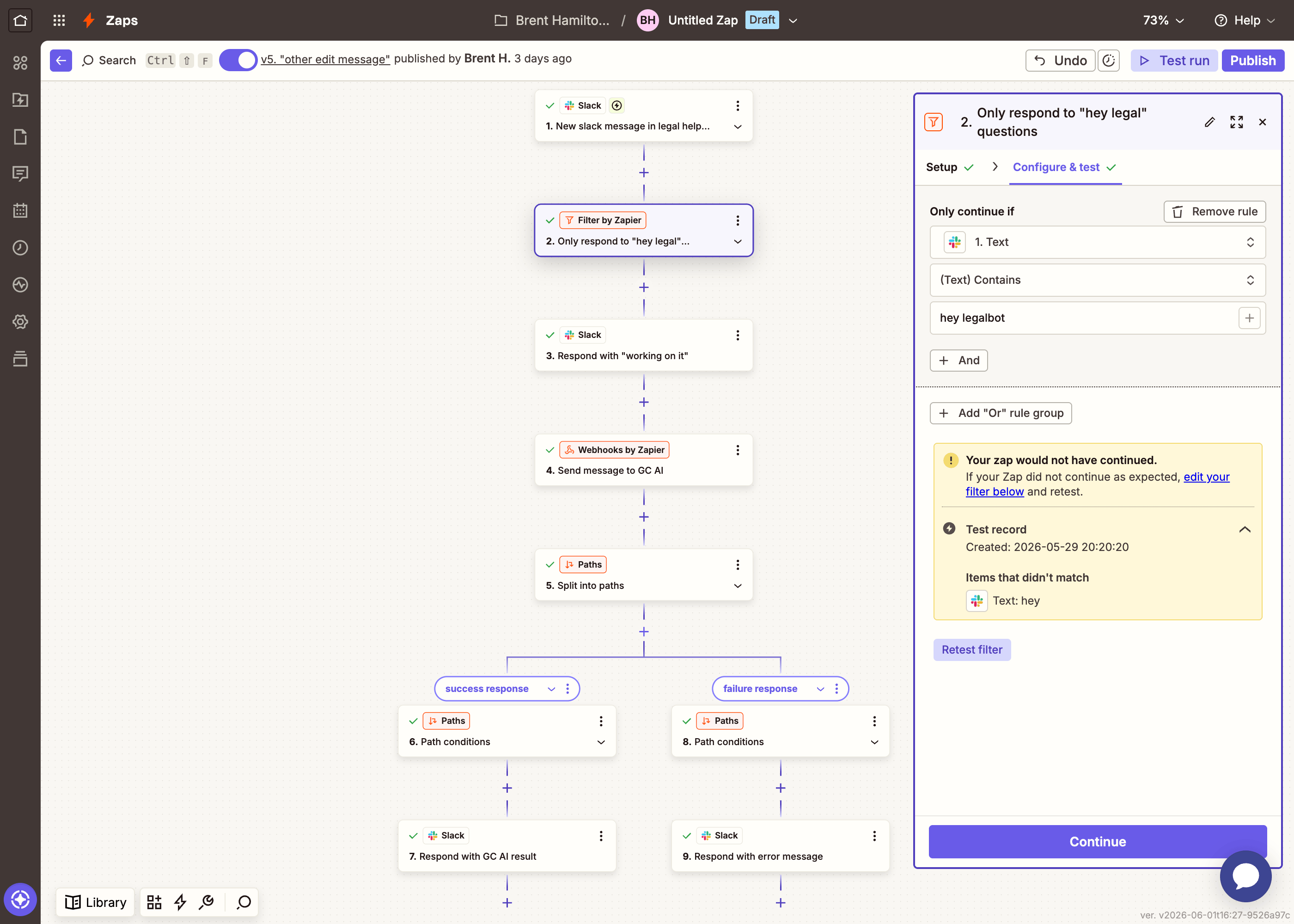
Add a **Filter by Zapier** step between the Slack trigger and the Webhooks POST. Set the condition to only continue if **Message Text** contains `hey legalbot`. Every other message in the channel will be ignored.
## Part 2: Handling long-running queries
The basic Zap works well for quick classifications, but some queries, especially those involving large documents or complex analysis, can take longer than the API's wait window. When that happens, Path B fires and the user sees "Your request is taking longer than expected."
To actually follow up with the result, we'll build a **second Zap** that polls for the completed job. The main Zap calls this sub-Zap when a query times out, and the sub-Zap keeps checking until the result is ready.
### How it works
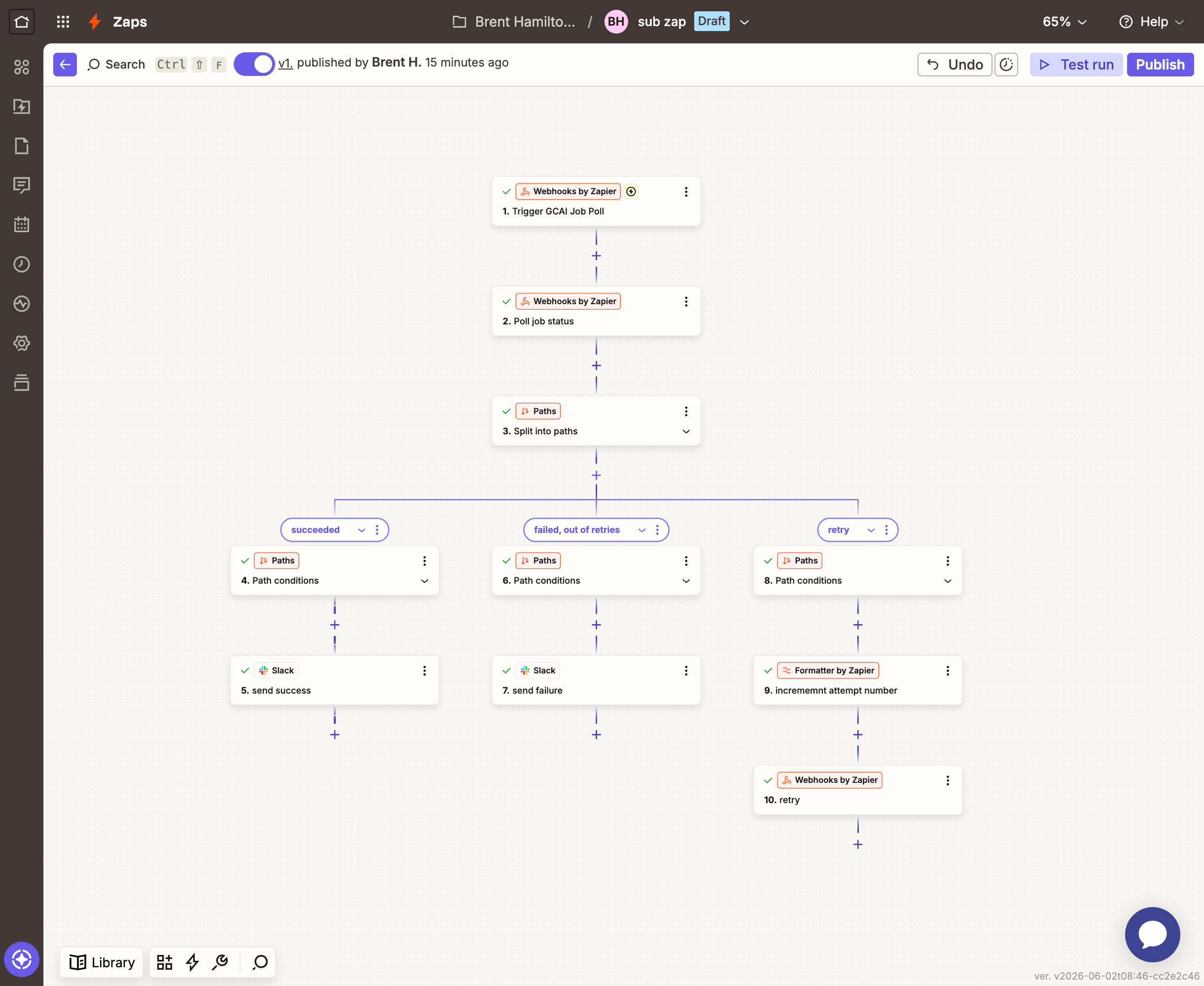
The sub-Zap receives a `job_url`, an `attempt_number`, and the Slack context needed to update the "Working on it..." message. It waits, checks the job status, and then:
* **Job succeeded** → updates the "Working on it..." message with the result
* **Max attempts reached** → updates the message with an error
* **Still running** → calls itself again with `attempt_number + 1`
This is recursion: the sub-Zap calls itself with an incremented counter until it either gets a result or hits the retry limit.
### Build the polling sub-Zap
Create a second Zap. For the trigger, choose **Webhooks by Zapier** → **Catch Hook**.
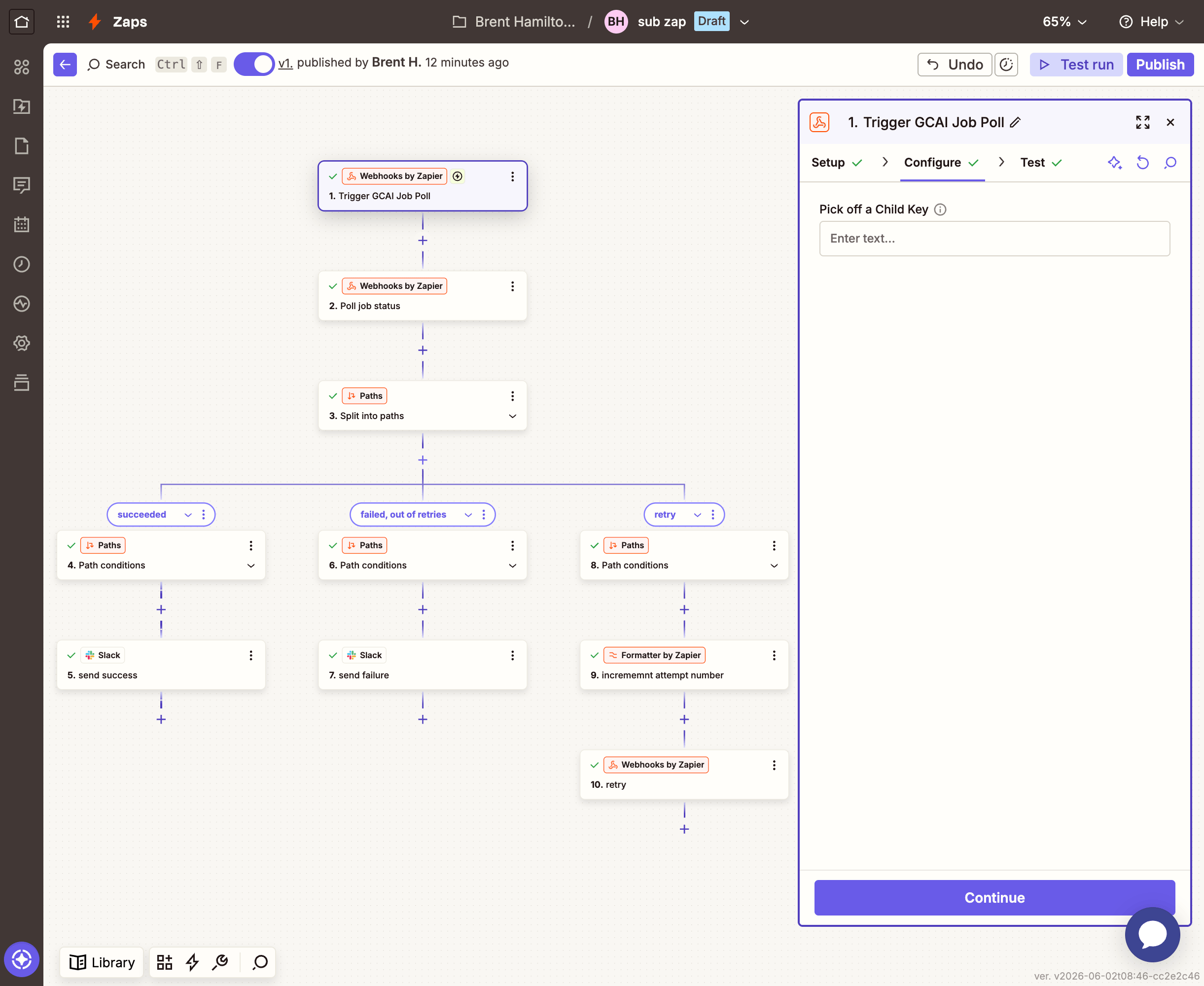
In the **Configure** tab, leave **Pick off a Child Key** empty and click **Continue**.
Zapier will give you a unique webhook URL (something like `https://hooks.zapier.com/hooks/catch/123456/abcdef/`). Copy this URL; the main Zap will call it.
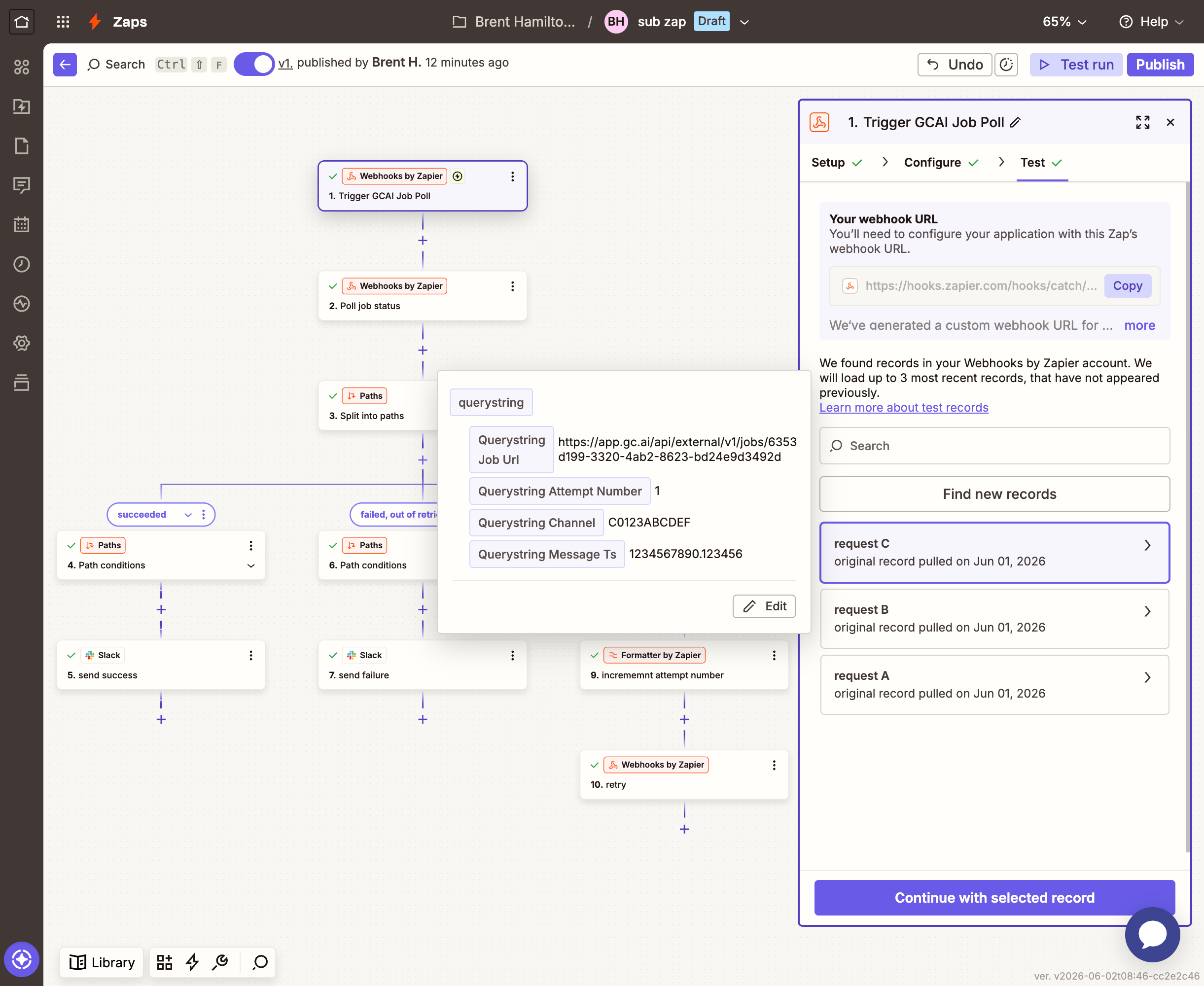
In the **Test** tab, click **Test trigger**. Zapier will wait for a request. To send test data, you'll need a real Job Id. Go to your main Zap, open the Webhooks POST step, and copy the **Job Id** from its test results.
Then paste both values below and click **Send test request**:
Go back to Zapier. It should pick up the request and show the four fields: `job_url`, `attempt_number`, `channel`, and `message-ts`. Once the request appears, select the record and click **Continue with selected record**.
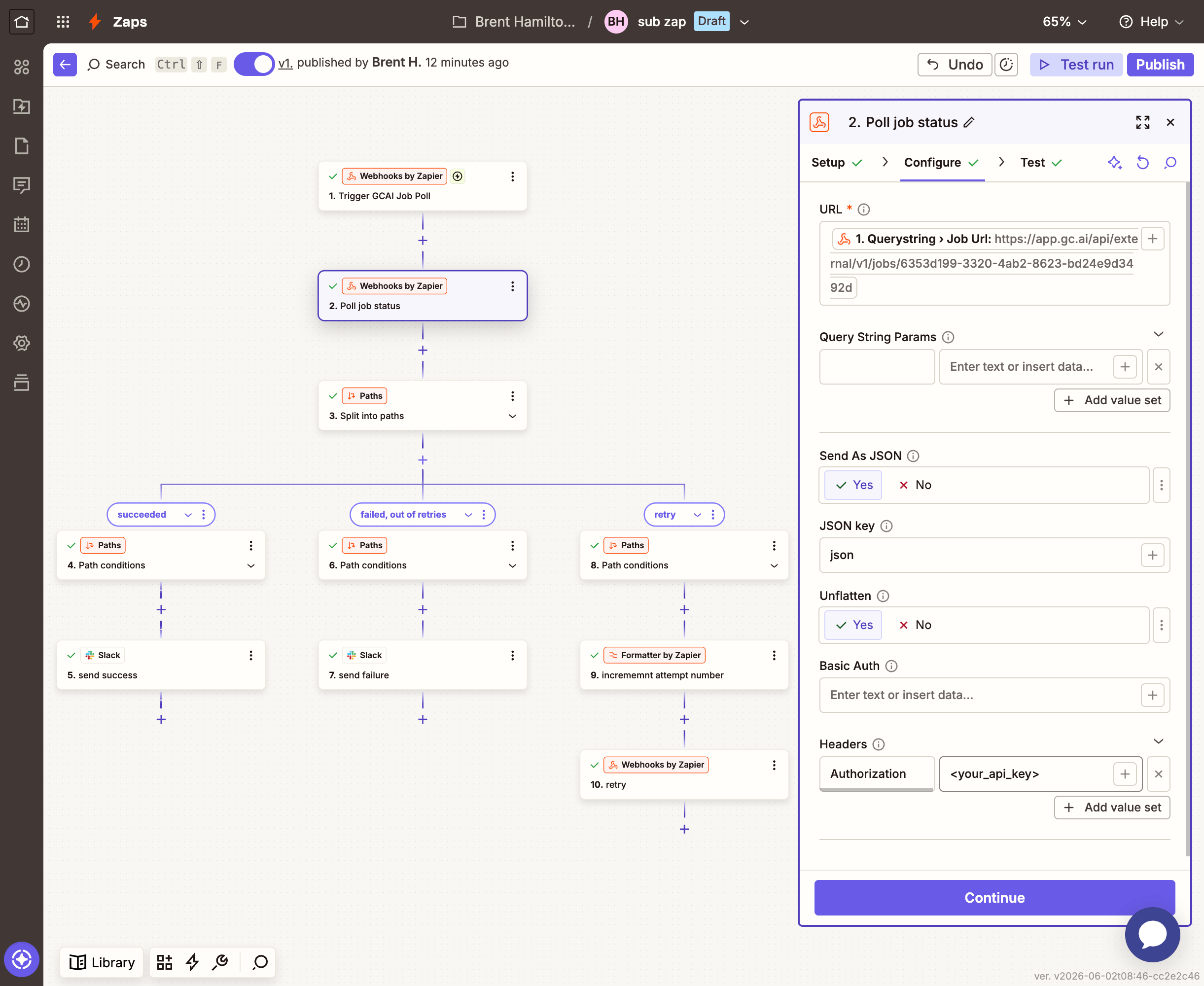
Add a step: **Webhooks by Zapier** → **GET**.
| Field | Value |
| ----------------------- | -------------------------------------------- |
| **URL** | Map `job_url` from the Catch Hook trigger |
| **Send As JSON** | `Yes` |
| **Unflatten** | `Yes` |
| **Query String Params** | Key: `wait` / Value: `30` |
| **Headers** | Key: `Authorization` / Value: `YOUR_API_KEY` |
The `wait` parameter makes this GET long-poll the job for up to 30 seconds, so each attempt gives GC AI real processing time before the path branches. It also paces the recursion: there's no need for a separate Delay step, since every loop spends up to 30 seconds here before deciding whether to try again.
Add a step: **Paths by Zapier** with three paths.
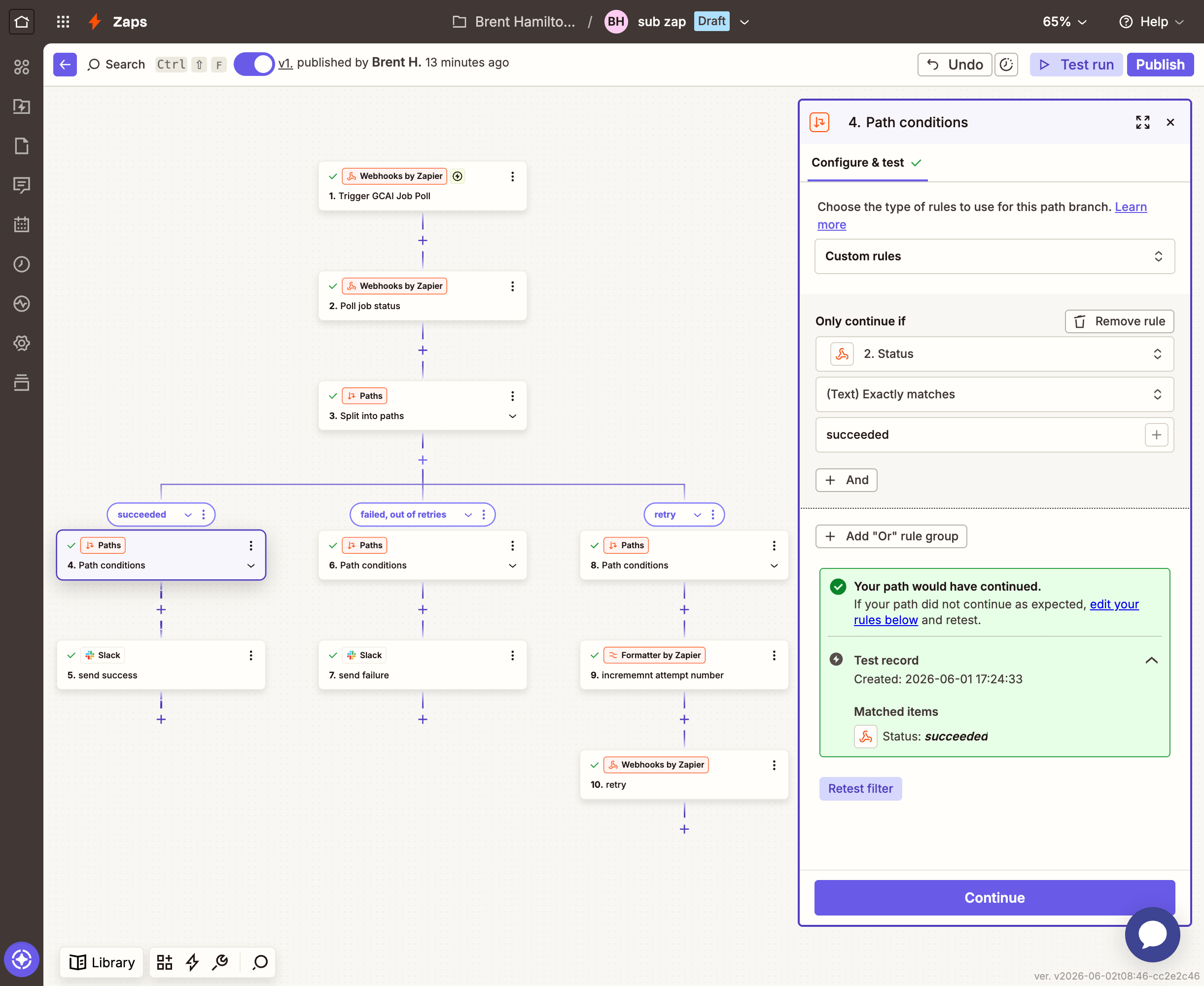
**Path A: Job succeeded**
| Field | Value |
| ------------- | ----------------------------------------------- |
| **Condition** | `Status` (from the GET step) equals `succeeded` |
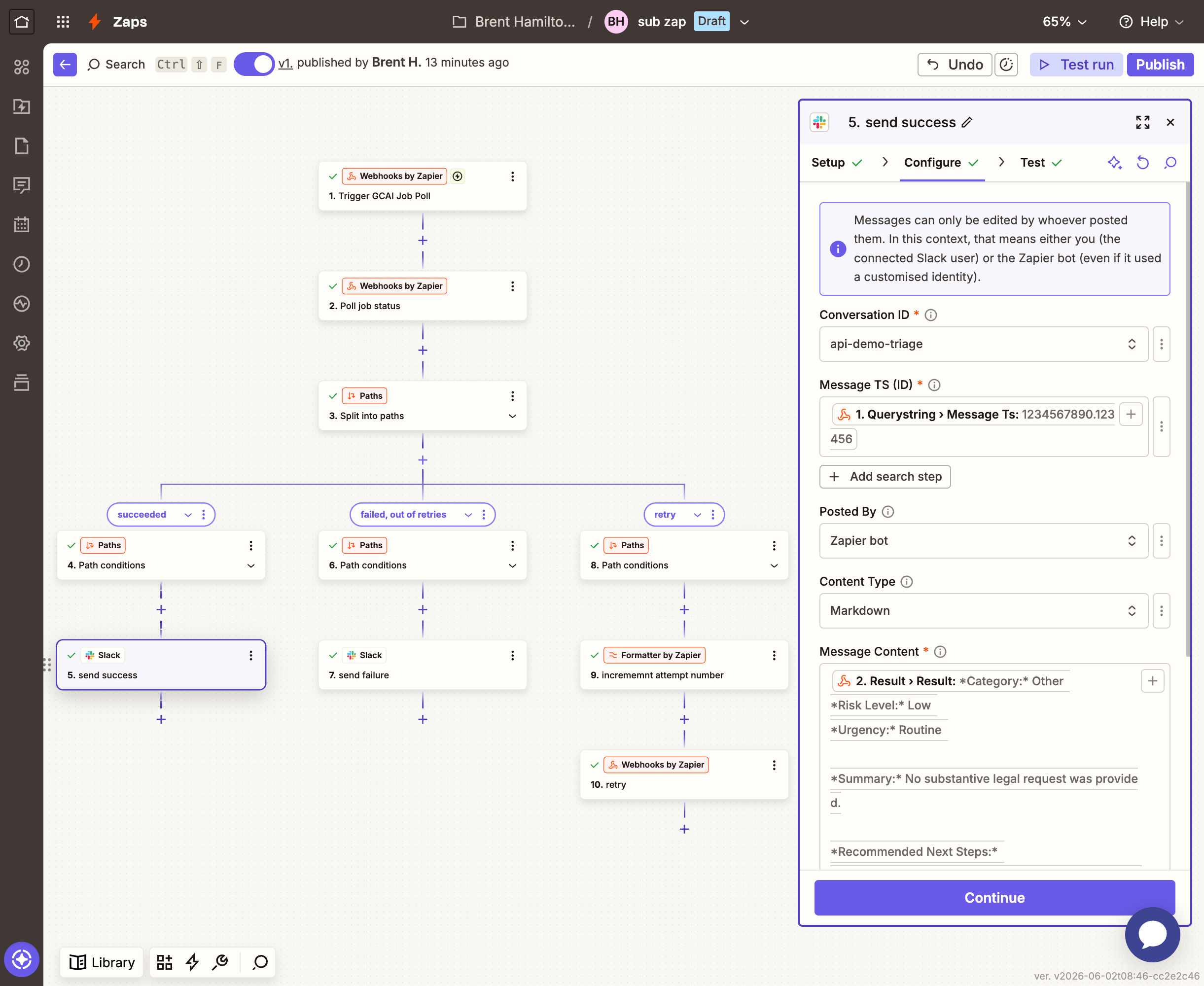
Add a **Slack** → **Edit Message** step (the first option):
| Field | Value |
| ------------------- | -------------------------------------------- |
| **Conversation ID** | Map `channel` from the Catch Hook trigger |
| **Message TS (ID)** | Map `message-ts` from the Catch Hook trigger |
| **Message Content** | Map **Result Result** from the GET step |
| **Content Type** | `Markdown` |
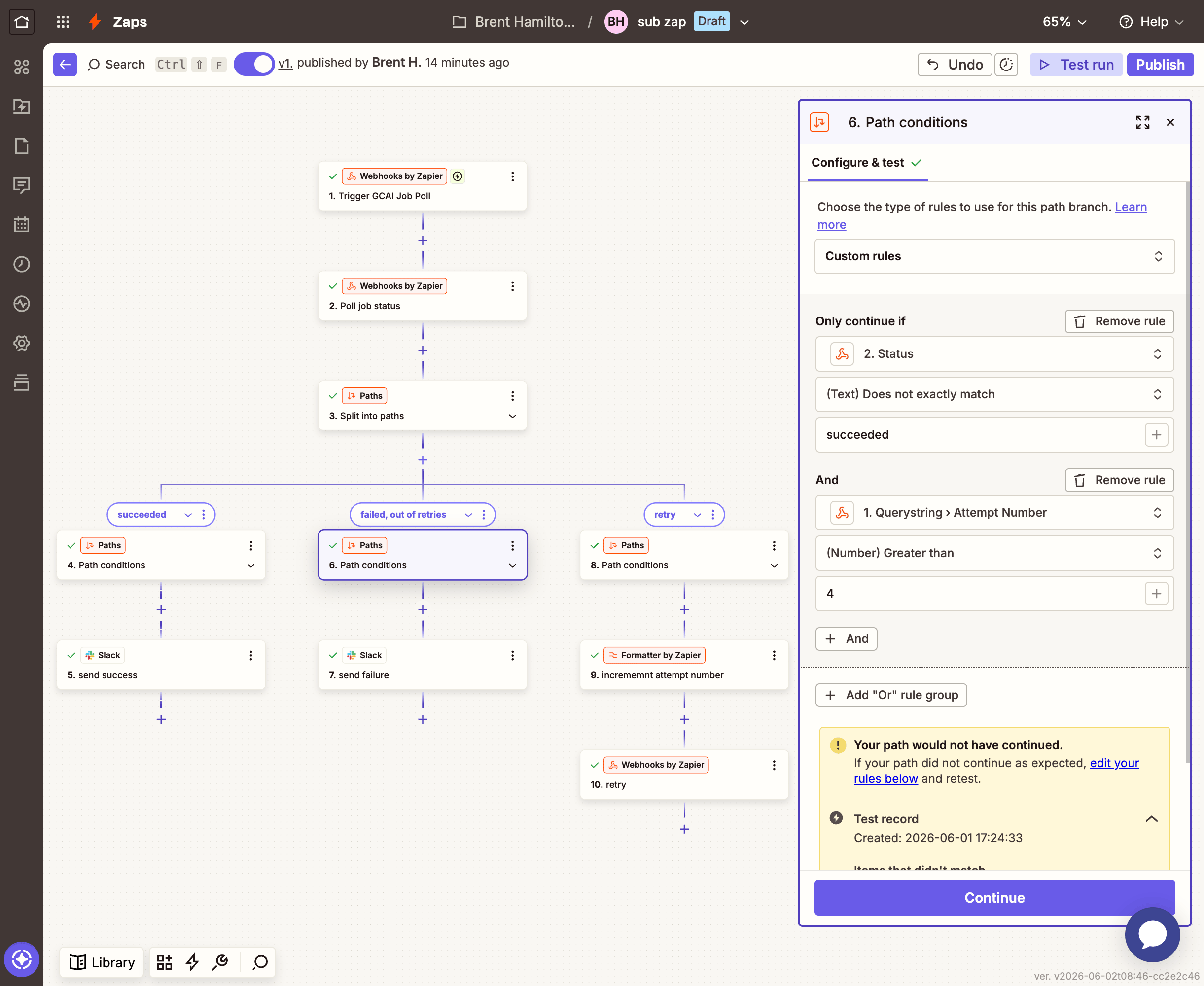
**Path B: Max attempts reached**
Without this path, a job that never completes would recurse forever. This is the safety valve: after 4 attempts, stop and tell the user.
| Field | Value |
| --------------- | ------------------------------------------------------------------------------ |
| **Condition 1** | `Status` (from the GET step) does not equal `succeeded` |
| **Condition 2** | `Attempt Number` (from the Catch Hook trigger) is greater than or equal to `4` |
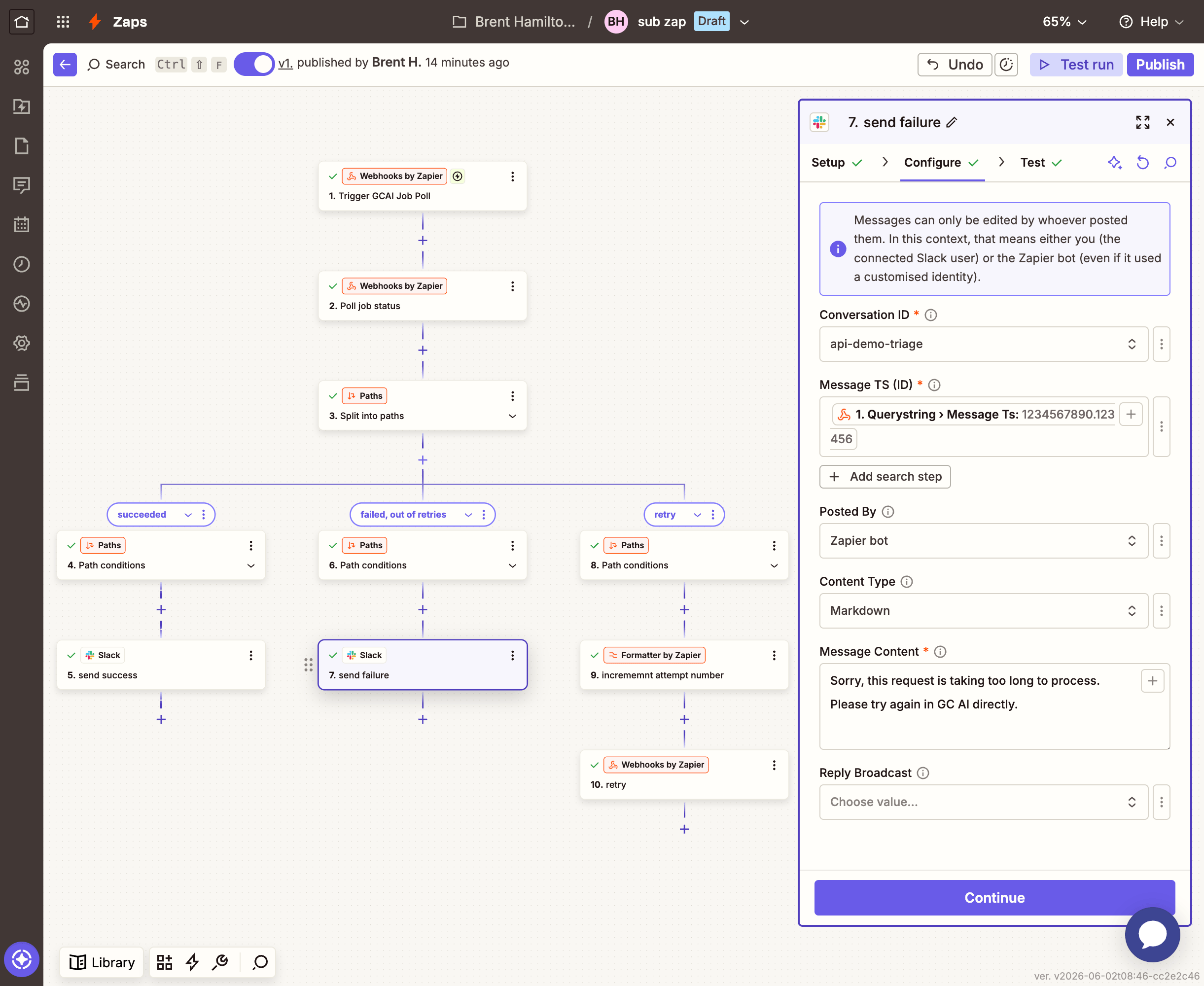
Add a **Slack** → **Edit Message** step (the first option):
| Field | Value |
| ------------------- | ---------------------------------------------------------------------------------------- |
| **Conversation ID** | Map `channel` from the Catch Hook trigger |
| **Message TS (ID)** | Map `message-ts` from the Catch Hook trigger |
| **Message Content** | `Sorry, this request is taking too long to process. Please try again in GC AI directly.` |
| **Content Type** | `Markdown` |
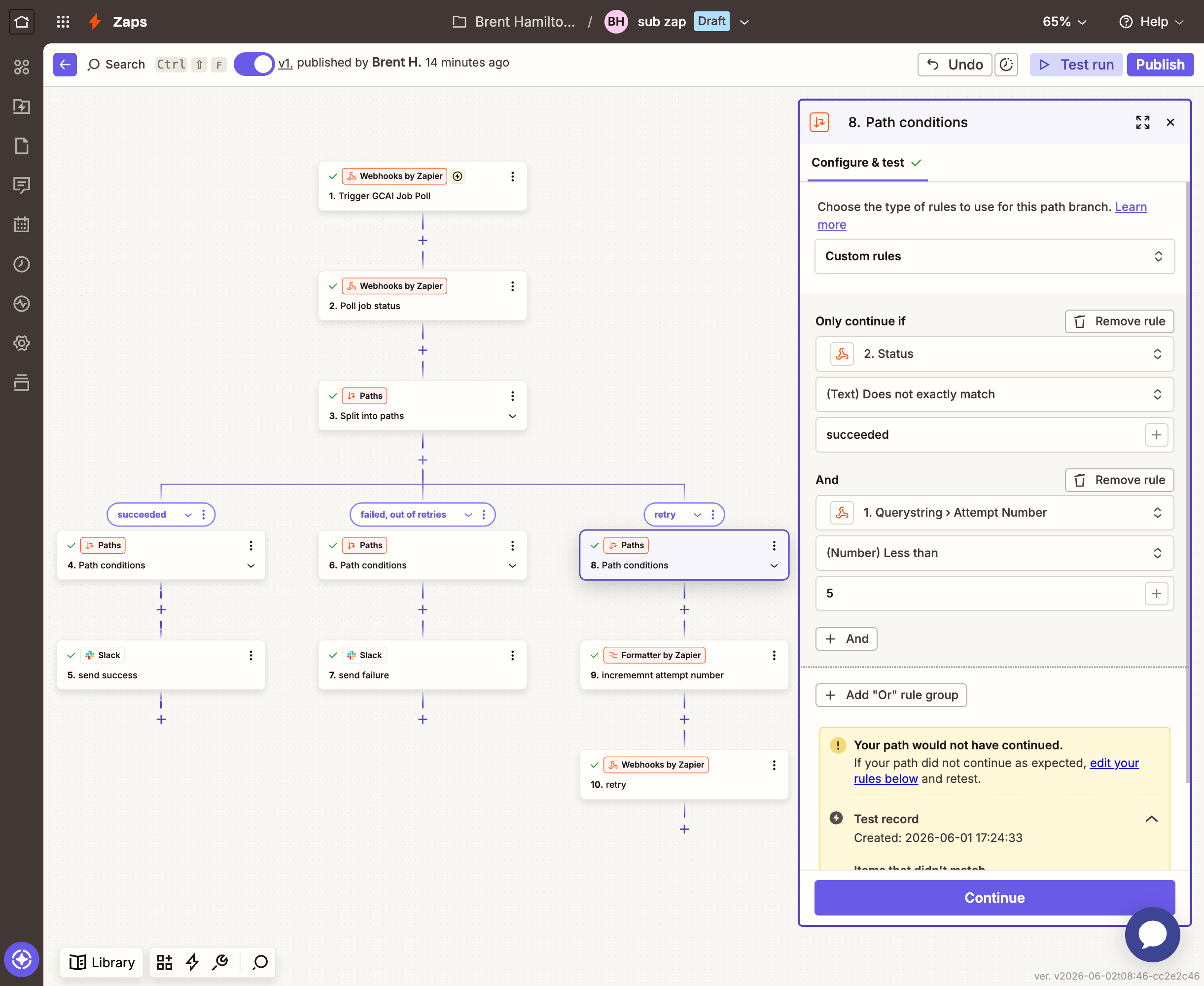
**Path C: Try again (recurse)**
| Field | Value |
| --------------- | --------------------------------------------------------------- |
| **Condition 1** | `Status` (from the GET step) does not equal `succeeded` |
| **Condition 2** | `Attempt Number` (from the Catch Hook trigger) is less than `4` |
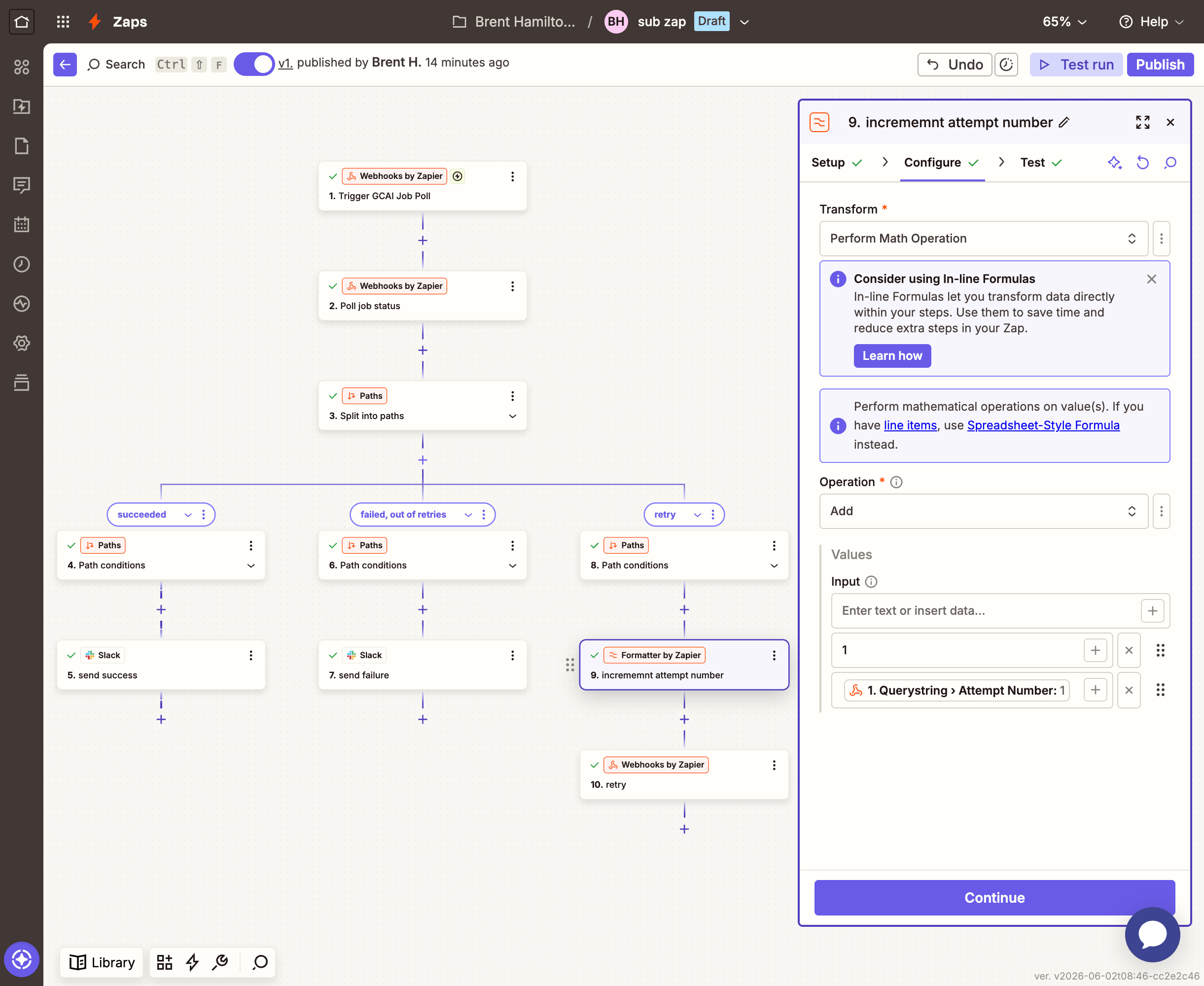
First, add a **Formatter by Zapier** → **Numbers** step:
| Field | Value |
| ------------- | -------------------------------------------------------- |
| **Transform** | `Perform Math Operation` |
| **Operation** | `Add` |
| **Values** | `1` and map `attempt_number` from the Catch Hook trigger |
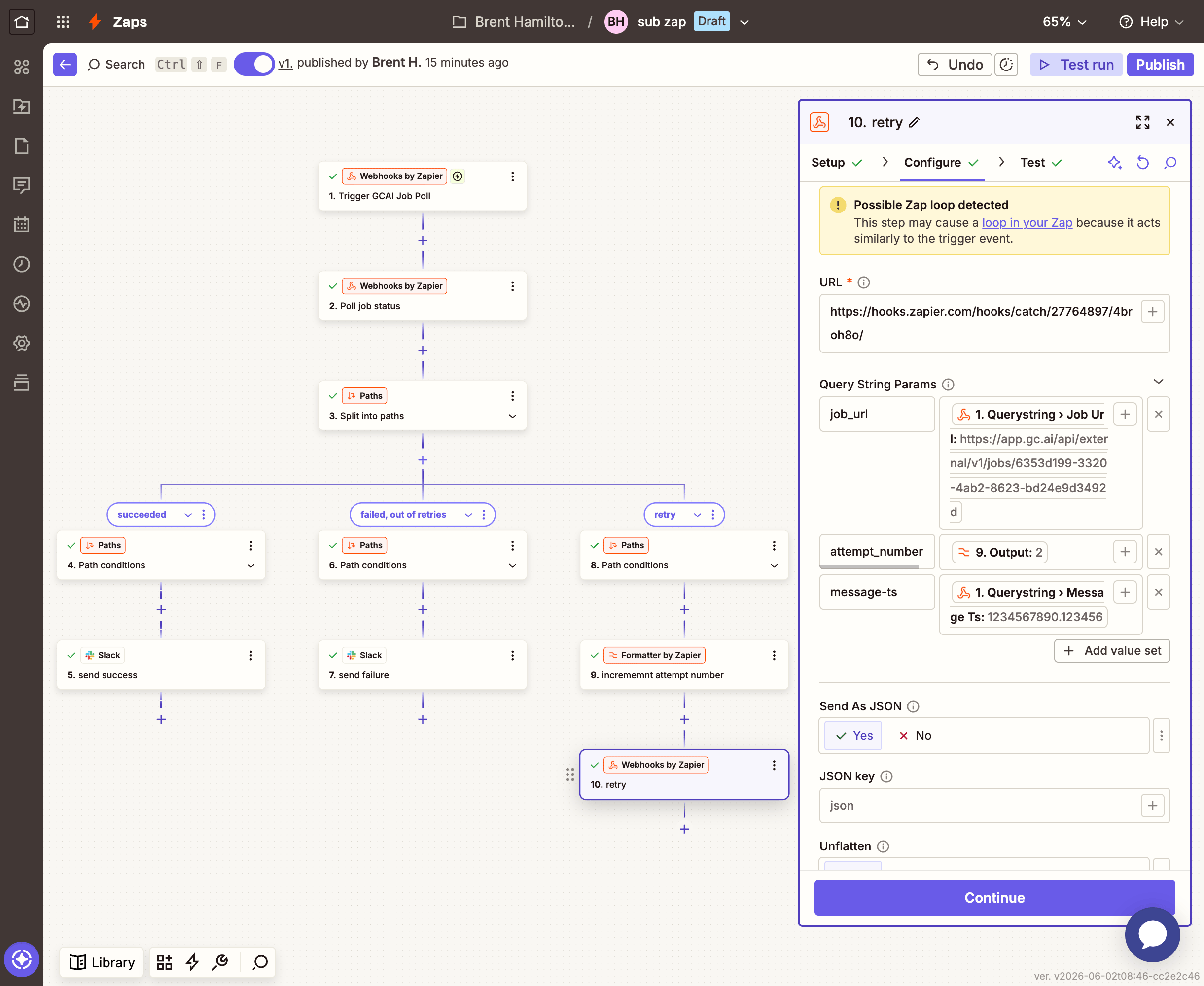
Then add a **Webhooks by Zapier** → **GET** step that calls the sub-Zap's own webhook URL:
| Field | Value |
| ----------------------- | ------------------------------------------------------------ |
| **URL** | Your sub-Zap's Catch Hook URL (the one from Step 1) |
| **Query String Params** | `job_url`: map from Catch Hook trigger |
| | `attempt_number`: map the **Output** from the Formatter step |
| | `channel`: map from Catch Hook trigger |
| | `message-ts`: map from Catch Hook trigger |
### Wire the sub-Zap into the main Zap
Go back to your main Zap and update **Path B** (the timed-out branch). Replace the **Edit Message** step with a **Webhooks by Zapier** → **GET** step (keep the Edit Message that says "This request timed out..."; the sub-Zap will update it again when the result is ready):
| Field | Value |
| ----------------------- | --------------------------------------------------------------------------------------------------------------------------------------- |
| **URL** | Your sub-Zap's Catch Hook URL |
| **Query String Params** | `job_url`: type `https://app.gc.ai/api/external/v1/jobs/` then map **Job Id** from the main Zap's Webhooks step (it appends to the URL) |
| | `attempt_number`: `1` |
| | `channel`: map **Channel ID** from the Slack trigger |
| | `message-ts`: map **Ts** from the "Working on it..." step |
Now when a classification times out, the main Zap updates the message to say it's still working and kicks off the polling sub-Zap. The sub-Zap polls (up to 4 times) and updates the same message with the result when it's ready.
## Customizing the prompt
The classification prompt in Step 4 is fully customizable. Here are some ideas:
* **Add your team's categories**: replace the generic list with your actual practice areas
* **Include routing rules**: tell the model which attorney or team handles which category
* **Reference your playbooks by name**: if you know your GC AI playbooks, list them in the prompt so the model suggests a specific one
* **Change the output format**: ask for a numbered priority score, a deadline estimate, or a link to the relevant GC AI playbook page
## Going further
Upload attachments from Slack to GC AI using the [file upload endpoint](/api-reference/upload-file), wait for processing, then include the file in the classification prompt via `file_ids`. Reuse the polling sub-Zap pattern to wait for file processing.
After classification, use the [run playbook endpoint](/api-reference/run-playbook) to execute a full playbook review against the attached document. Post the check results back to Slack.
Add a lookup table in Zapier that maps categories to Slack users. After classification, `@mention` the right attorney in the thread reply so they know to pick it up.
Add a Google Sheets step to log every triage (timestamp, requester, category, risk, urgency) for reporting and SLA tracking.
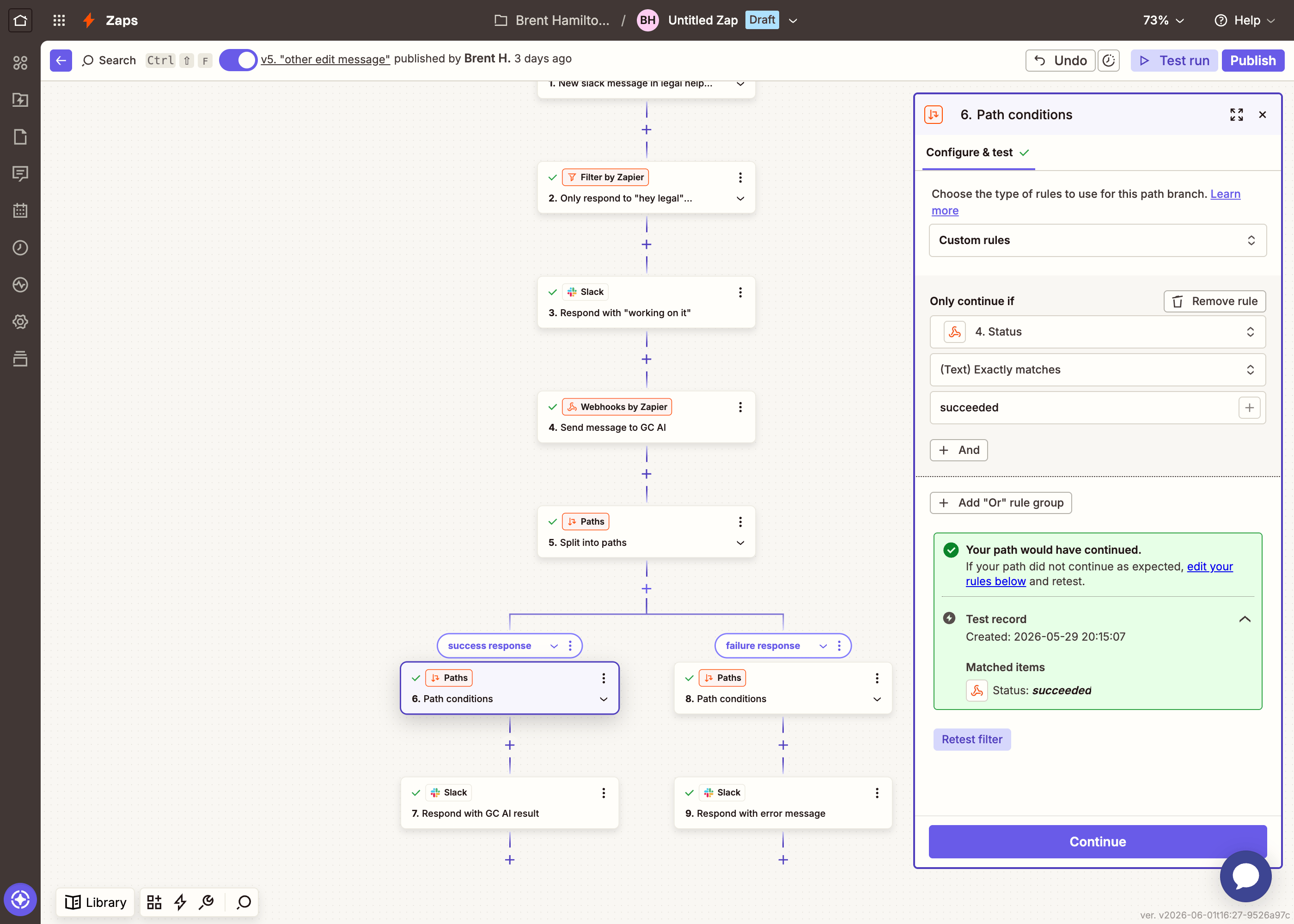 Add a **Slack** → **Edit Message** step inside this path. When searching for the action, choose the first "Edit Message" option (the one with just "Edits a message." as the description).
| Field | Value |
| ------------------- | ---------------------------------------------------------------------------------------------------------------------- |
| **Conversation ID** | Your `#legal-requests` channel |
| **Message TS (ID)** | Map the **Ts** from the "Working on it..." step (this identifies which message to update) |
| **Message Content** | Map the **Result Result** field from the Webhooks step (the AI's classification text, found under `result` → `result`) |
| **Content Type** | `Markdown` |
Add a **Slack** → **Edit Message** step inside this path. When searching for the action, choose the first "Edit Message" option (the one with just "Edits a message." as the description).
| Field | Value |
| ------------------- | ---------------------------------------------------------------------------------------------------------------------- |
| **Conversation ID** | Your `#legal-requests` channel |
| **Message TS (ID)** | Map the **Ts** from the "Working on it..." step (this identifies which message to update) |
| **Message Content** | Map the **Result Result** field from the Webhooks step (the AI's classification text, found under `result` → `result`) |
| **Content Type** | `Markdown` |
 **Path B: Timed out**
| Field | Value |
| ------------- | -------------------------------------------------------------------- |
| **Condition** | `Status` (from the Webhooks step) does not exactly match `succeeded` |
**Path B: Timed out**
| Field | Value |
| ------------- | -------------------------------------------------------------------- |
| **Condition** | `Status` (from the Webhooks step) does not exactly match `succeeded` |
 Add a **Slack** → **Edit Message** step inside this path (same first option):
| Field | Value |
| ------------------- | ------------------------------------------------------------------------------------------ |
| **Conversation ID** | Your `#legal-requests` channel |
| **Message TS (ID)** | Map the **Ts** from the "Working on it..." step |
| **Message Content** | `This request timed out. It may be too complex for the bot. Try asking in GC AI directly.` |
| **Content Type** | `Markdown` |
Add a **Slack** → **Edit Message** step inside this path (same first option):
| Field | Value |
| ------------------- | ------------------------------------------------------------------------------------------ |
| **Conversation ID** | Your `#legal-requests` channel |
| **Message TS (ID)** | Map the **Ts** from the "Working on it..." step |
| **Message Content** | `This request timed out. It may be too complex for the bot. Try asking in GC AI directly.` |
| **Content Type** | `Markdown` |
 Once it's working, click **Publish** to turn the Zap on. Every new message in the channel will now be triaged automatically.
 Zapier will give you a unique webhook URL (something like `https://hooks.zapier.com/hooks/catch/123456/abcdef/`). Copy this URL; the main Zap will call it.
In the **Test** tab, click **Test trigger**. Zapier will wait for a request. To send test data, you'll need a real Job Id. Go to your main Zap, open the Webhooks POST step, and copy the **Job Id** from its test results.
Then paste both values below and click **Send test request**:
Zapier will give you a unique webhook URL (something like `https://hooks.zapier.com/hooks/catch/123456/abcdef/`). Copy this URL; the main Zap will call it.
In the **Test** tab, click **Test trigger**. Zapier will wait for a request. To send test data, you'll need a real Job Id. Go to your main Zap, open the Webhooks POST step, and copy the **Job Id** from its test results.
Then paste both values below and click **Send test request**:
 Add a **Slack** → **Edit Message** step (the first option):
| Field | Value |
| ------------------- | -------------------------------------------- |
| **Conversation ID** | Map `channel` from the Catch Hook trigger |
| **Message TS (ID)** | Map `message-ts` from the Catch Hook trigger |
| **Message Content** | Map **Result Result** from the GET step |
| **Content Type** | `Markdown` |
Add a **Slack** → **Edit Message** step (the first option):
| Field | Value |
| ------------------- | -------------------------------------------- |
| **Conversation ID** | Map `channel` from the Catch Hook trigger |
| **Message TS (ID)** | Map `message-ts` from the Catch Hook trigger |
| **Message Content** | Map **Result Result** from the GET step |
| **Content Type** | `Markdown` |
 **Path B: Max attempts reached**
Without this path, a job that never completes would recurse forever. This is the safety valve: after 4 attempts, stop and tell the user.
| Field | Value |
| --------------- | ------------------------------------------------------------------------------ |
| **Condition 1** | `Status` (from the GET step) does not equal `succeeded` |
| **Condition 2** | `Attempt Number` (from the Catch Hook trigger) is greater than or equal to `4` |
**Path B: Max attempts reached**
Without this path, a job that never completes would recurse forever. This is the safety valve: after 4 attempts, stop and tell the user.
| Field | Value |
| --------------- | ------------------------------------------------------------------------------ |
| **Condition 1** | `Status` (from the GET step) does not equal `succeeded` |
| **Condition 2** | `Attempt Number` (from the Catch Hook trigger) is greater than or equal to `4` |
 Add a **Slack** → **Edit Message** step (the first option):
| Field | Value |
| ------------------- | ---------------------------------------------------------------------------------------- |
| **Conversation ID** | Map `channel` from the Catch Hook trigger |
| **Message TS (ID)** | Map `message-ts` from the Catch Hook trigger |
| **Message Content** | `Sorry, this request is taking too long to process. Please try again in GC AI directly.` |
| **Content Type** | `Markdown` |
Add a **Slack** → **Edit Message** step (the first option):
| Field | Value |
| ------------------- | ---------------------------------------------------------------------------------------- |
| **Conversation ID** | Map `channel` from the Catch Hook trigger |
| **Message TS (ID)** | Map `message-ts` from the Catch Hook trigger |
| **Message Content** | `Sorry, this request is taking too long to process. Please try again in GC AI directly.` |
| **Content Type** | `Markdown` |
 **Path C: Try again (recurse)**
| Field | Value |
| --------------- | --------------------------------------------------------------- |
| **Condition 1** | `Status` (from the GET step) does not equal `succeeded` |
| **Condition 2** | `Attempt Number` (from the Catch Hook trigger) is less than `4` |
**Path C: Try again (recurse)**
| Field | Value |
| --------------- | --------------------------------------------------------------- |
| **Condition 1** | `Status` (from the GET step) does not equal `succeeded` |
| **Condition 2** | `Attempt Number` (from the Catch Hook trigger) is less than `4` |
 First, add a **Formatter by Zapier** → **Numbers** step:
| Field | Value |
| ------------- | -------------------------------------------------------- |
| **Transform** | `Perform Math Operation` |
| **Operation** | `Add` |
| **Values** | `1` and map `attempt_number` from the Catch Hook trigger |
First, add a **Formatter by Zapier** → **Numbers** step:
| Field | Value |
| ------------- | -------------------------------------------------------- |
| **Transform** | `Perform Math Operation` |
| **Operation** | `Add` |
| **Values** | `1` and map `attempt_number` from the Catch Hook trigger |
 Then add a **Webhooks by Zapier** → **GET** step that calls the sub-Zap's own webhook URL:
| Field | Value |
| ----------------------- | ------------------------------------------------------------ |
| **URL** | Your sub-Zap's Catch Hook URL (the one from Step 1) |
| **Query String Params** | `job_url`: map from Catch Hook trigger |
| | `attempt_number`: map the **Output** from the Formatter step |
| | `channel`: map from Catch Hook trigger |
| | `message-ts`: map from Catch Hook trigger |
Then add a **Webhooks by Zapier** → **GET** step that calls the sub-Zap's own webhook URL:
| Field | Value |
| ----------------------- | ------------------------------------------------------------ |
| **URL** | Your sub-Zap's Catch Hook URL (the one from Step 1) |
| **Query String Params** | `job_url`: map from Catch Hook trigger |
| | `attempt_number`: map the **Output** from the Formatter step |
| | `channel`: map from Catch Hook trigger |
| | `message-ts`: map from Catch Hook trigger |
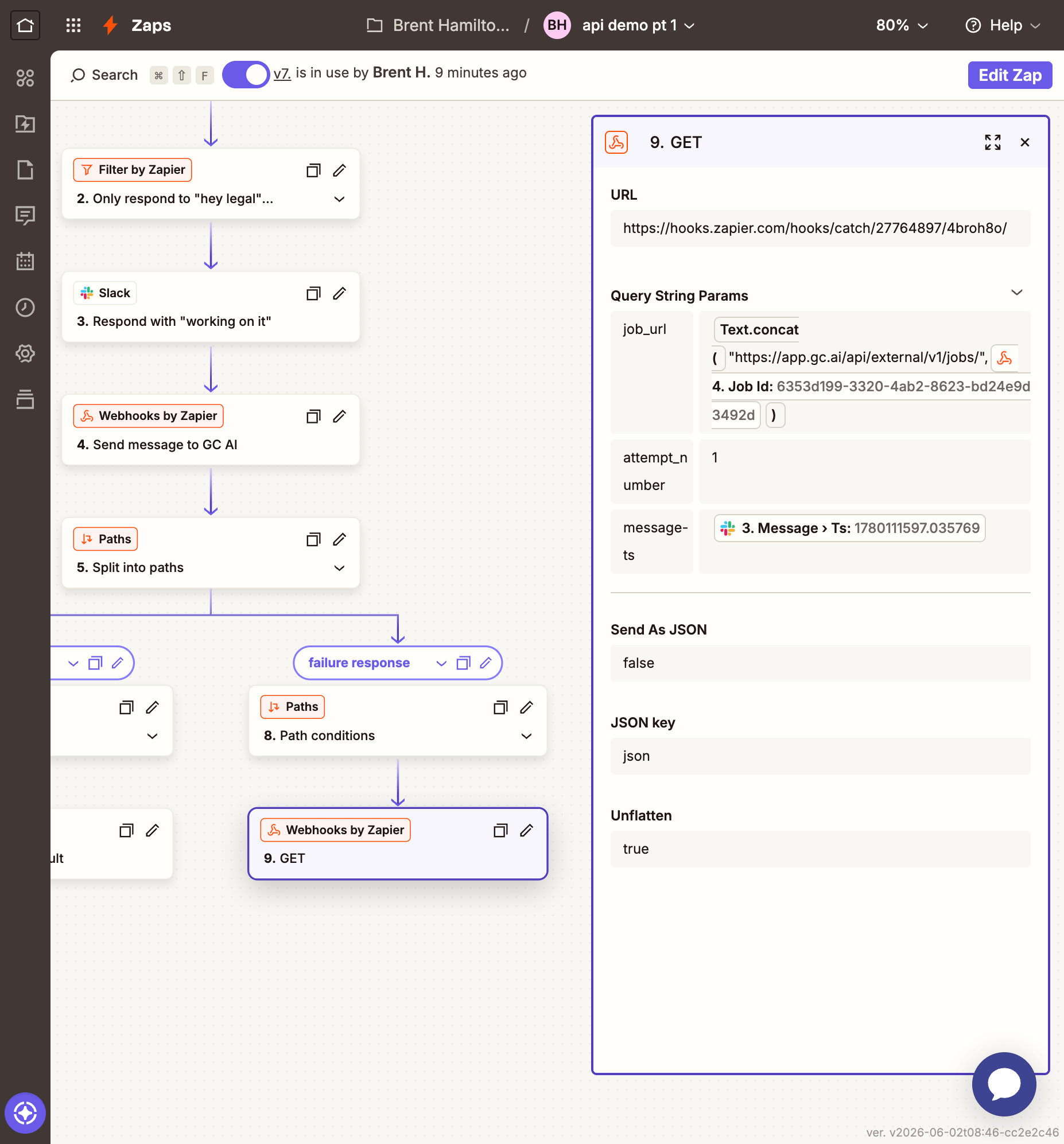 Now when a classification times out, the main Zap updates the message to say it's still working and kicks off the polling sub-Zap. The sub-Zap polls (up to 4 times) and updates the same message with the result when it's ready.
 ## Customizing the prompt
The classification prompt in Step 4 is fully customizable. Here are some ideas:
* **Add your team's categories**: replace the generic list with your actual practice areas
* **Include routing rules**: tell the model which attorney or team handles which category
* **Reference your playbooks by name**: if you know your GC AI playbooks, list them in the prompt so the model suggests a specific one
* **Change the output format**: ask for a numbered priority score, a deadline estimate, or a link to the relevant GC AI playbook page
## Going further
## Customizing the prompt
The classification prompt in Step 4 is fully customizable. Here are some ideas:
* **Add your team's categories**: replace the generic list with your actual practice areas
* **Include routing rules**: tell the model which attorney or team handles which category
* **Reference your playbooks by name**: if you know your GC AI playbooks, list them in the prompt so the model suggests a specific one
* **Change the output format**: ask for a numbered priority score, a deadline estimate, or a link to the relevant GC AI playbook page
## Going further