> ## Documentation Index
> Fetch the complete documentation index at: https://docs.gc.ai/llms.txt
> Use this file to discover all available pages before exploring further.
# Sep 30, 2026
> GC AI release notes: Salesforce connector, automations that run up to three times a day, upload counting in Vaults, and GC AI as a desktop app.
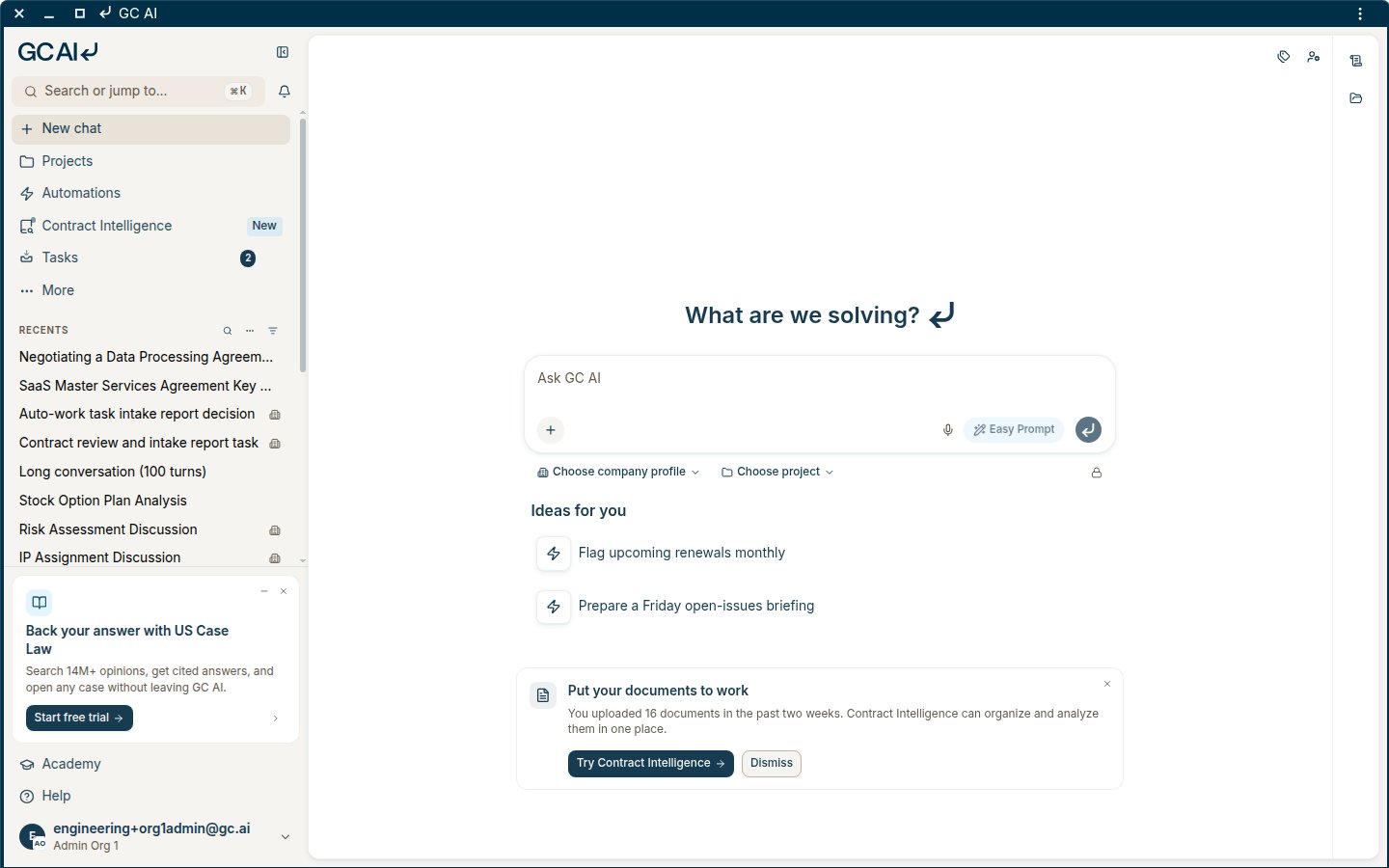
• **Install GC AI as a desktop app**: Install GC AI from the Chrome, Edge, or Safari menu, and it opens in its own window with its own Dock or taskbar icon. It is the same GC AI you use at app.gc.ai, with the same account. See [Install GC AI as a Desktop App](/guides/getting-started/install-as-desktop-app) for the steps in each browser.
 ## New Connectors
• **Salesforce**: A can now connect Salesforce under **Settings** to work with Salesforce records in chat and add Salesforce as a Vault source.
## Contract Intelligence
• **Know when a Vault scan finishes**: When the first scan of a new Vault or a rescan finishes, GC AI sends you an email and shows a notification in the app. You can leave the Vault while it runs. The notification appears on whatever page you are on, even after a reload.
• **Open the source behind a current term**: In Current Terms history, click a document name or **View source** to open that document in the viewer, with the sentence the value came from highlighted.
• **Customize Editor permissions for Vault columns**: Select **Members** in a Vault to open **Share**, where owners now choose what editors can change under **Editor permissions**. **Data and columns** keeps today's behavior. **Data only** lets editors change extracted values but leaves adding, renaming, and removing columns to owners.
## New Connectors
• **Salesforce**: A can now connect Salesforce under **Settings** to work with Salesforce records in chat and add Salesforce as a Vault source.
## Contract Intelligence
• **Know when a Vault scan finishes**: When the first scan of a new Vault or a rescan finishes, GC AI sends you an email and shows a notification in the app. You can leave the Vault while it runs. The notification appears on whatever page you are on, even after a reload.
• **Open the source behind a current term**: In Current Terms history, click a document name or **View source** to open that document in the viewer, with the sentence the value came from highlighted.
• **Customize Editor permissions for Vault columns**: Select **Members** in a Vault to open **Share**, where owners now choose what editors can change under **Editor permissions**. **Data and columns** keeps today's behavior. **Data only** lets editors change extracted values but leaves adding, renaming, and removing columns to owners.
 • **How uploads count**: The Contract Intelligence page and each Vault header have a **How uploads count** button with your upload allowance meter. Every document you add uses one upload, even if the same document is already in another Vault. Deleting documents frees storage but does not give those uploads back, and on trial and beta plans you can't add new documents once you reach the allowance. If an admin set a personal upload limit for you, the meter shows that limit.
 ## Automations
• **Choose what the results email includes**: In the automation editor, turn on **Email me results when this automation completes**, then set **Email includes** to **Short summary** for a brief digest or **Full results** to put the automation's complete response in the email body. The PDF transcript is attached either way.
• **Run an automation up to three times a day**: Daily and weekly schedules now take up to three run times. In the schedule editor, select **Add time** for each extra run. Automation lists show every time, for example "Daily at 8:00 AM, 12:00 PM, and 4:00 PM." Monthly and quarterly schedules still run once on their scheduled day.
## Automations
• **Choose what the results email includes**: In the automation editor, turn on **Email me results when this automation completes**, then set **Email includes** to **Short summary** for a brief digest or **Full results** to put the automation's complete response in the email body. The PDF transcript is attached either way.
• **Run an automation up to three times a day**: Daily and weekly schedules now take up to three run times. In the schedule editor, select **Add time** for each extra run. Automation lists show every time, for example "Daily at 8:00 AM, 12:00 PM, and 4:00 PM." Monthly and quarterly schedules still run once on their scheduled day.
 • **Attach a Vault to an automation**: In the automation's instructions, select **+** and then **Add a Vault**, the same way you attach one in chat. Each run works from that Vault's documents. An automation can have one Vault.
 ## Other updates
• **Find chats by topic in the command bar**: Open the command bar with Cmd+K (Ctrl+K on Windows) and describe what a chat was about. Results now include chats whose messages match your search by meaning, listed after chats whose titles match.
• **See who wrote each prompt in a shared chat**: Once two or more people have sent prompts in a chat, hover over a prompt to see its author's name next to the timestamp.
• **Chat continues after you connect an app**: When GC AI asks you to connect an app and you connect it from the card in chat, GC AI picks your request back up on its own. You no longer need to send a message to say you connected.
• **Approvals wait above the composer**: When GC AI needs your approval for an action, such as moving chats into a project or updating a record in a connected app, the request now appears above the composer. If several are waiting, use the arrows to go through them one at a time. Minimize the panel to read the thread underneath, then expand it to approve or deny. **Approve all** and **Deny all** stay available while the panel is minimized.
## Other updates
• **Find chats by topic in the command bar**: Open the command bar with Cmd+K (Ctrl+K on Windows) and describe what a chat was about. Results now include chats whose messages match your search by meaning, listed after chats whose titles match.
• **See who wrote each prompt in a shared chat**: Once two or more people have sent prompts in a chat, hover over a prompt to see its author's name next to the timestamp.
• **Chat continues after you connect an app**: When GC AI asks you to connect an app and you connect it from the card in chat, GC AI picks your request back up on its own. You no longer need to send a message to say you connected.
• **Approvals wait above the composer**: When GC AI needs your approval for an action, such as moving chats into a project or updating a record in a connected app, the request now appears above the composer. If several are waiting, use the arrows to go through them one at a time. Minimize the panel to read the thread underneath, then expand it to approve or deny. **Approve all** and **Deny all** stay available while the panel is minimized.
 • **Request access to a chat**: If you open a chat link you do not have access to, choose View or Edit, add an optional note, and select **Request access**. The chat owner gets an email and can grant or deny access from it.
 ## Bug fixes
• Fixed an issue where expanded folders in the Files panel could stay on Loading after their contents had loaded.
• Fixed an issue where moving a chat into a project could pull you away from a page you opened while the move was still in progress.
• Fixed an issue where deleting the project you were viewing could leave you on an error page.
• Fixed an issue where the delete-project confirmation did not say that everyone with access to the project would lose it.
• Fixed an issue where chats could fail after you switched AI models or moved a web conversation into Word.
• Fixed an issue where connector chats could stall after you approved an action.
• Fixed an issue where the same playbook-ready email could arrive more than once.
• Fixed an issue in public shared chats where the case law sign-up prompt was hard to read and the citation and document panels could not be resized.
• Fixed an issue where deleted or inaccessible skills showed an endless spinner instead of an unavailable message.
• Fixed an issue where **Sync now** failed on a Vault source whose connected account had expired. The person who connected the source now sees **Reconnect** in its place, and teammates are told to ask that person to reconnect it.
• Fixed an issue where an expired Word session left the add-in unusable instead of returning you to sign-in.
• Fixed an issue where a file that failed extraction showed a technical database error instead of asking you to upload the file again.
• Fixed an issue where switching organizations from the account menu sent you back to the sign-in page.
• Fixed issues in the web editor with deletions, undoing a drafted section, heading formatting, comment dates in Word exports, and redline comments.
• Fixed an issue where automation completion emails showed the GC AI logo at full size in Outlook.
• Fixed an issue where chat could not read envelopes, documents, recipients, templates, folders, audit events, and form data from some DocuSign accounts.
• Fixed an issue where document analysis, playbooks, Word edits, and task summaries could fail instead of retrying when an AI response was cut off.
• Fixed an issue where playbook checks could stay on Reconciling after an error.
• Fixed an issue where chat could not read a file you imported in the same turn.
• Fixed an issue where clarifying question cards stopped accepting answers.
This documentation is built and hosted on [Mintlify](https://mintlify.com), a developer documentation platform.
## Bug fixes
• Fixed an issue where expanded folders in the Files panel could stay on Loading after their contents had loaded.
• Fixed an issue where moving a chat into a project could pull you away from a page you opened while the move was still in progress.
• Fixed an issue where deleting the project you were viewing could leave you on an error page.
• Fixed an issue where the delete-project confirmation did not say that everyone with access to the project would lose it.
• Fixed an issue where chats could fail after you switched AI models or moved a web conversation into Word.
• Fixed an issue where connector chats could stall after you approved an action.
• Fixed an issue where the same playbook-ready email could arrive more than once.
• Fixed an issue in public shared chats where the case law sign-up prompt was hard to read and the citation and document panels could not be resized.
• Fixed an issue where deleted or inaccessible skills showed an endless spinner instead of an unavailable message.
• Fixed an issue where **Sync now** failed on a Vault source whose connected account had expired. The person who connected the source now sees **Reconnect** in its place, and teammates are told to ask that person to reconnect it.
• Fixed an issue where an expired Word session left the add-in unusable instead of returning you to sign-in.
• Fixed an issue where a file that failed extraction showed a technical database error instead of asking you to upload the file again.
• Fixed an issue where switching organizations from the account menu sent you back to the sign-in page.
• Fixed issues in the web editor with deletions, undoing a drafted section, heading formatting, comment dates in Word exports, and redline comments.
• Fixed an issue where automation completion emails showed the GC AI logo at full size in Outlook.
• Fixed an issue where chat could not read envelopes, documents, recipients, templates, folders, audit events, and form data from some DocuSign accounts.
• Fixed an issue where document analysis, playbooks, Word edits, and task summaries could fail instead of retrying when an AI response was cut off.
• Fixed an issue where playbook checks could stay on Reconciling after an error.
• Fixed an issue where chat could not read a file you imported in the same turn.
• Fixed an issue where clarifying question cards stopped accepting answers.
This documentation is built and hosted on [Mintlify](https://mintlify.com), a developer documentation platform.