> ## Documentation Index
> Fetch the complete documentation index at: https://docs.gc.ai/llms.txt
> Use this file to discover all available pages before exploring further.
# Sep 9, 2026
## Connectors
• **Connect Airtable and Todoist**: Connect Airtable or Todoist from **Settings** so GC AI can search your records and tasks, and create or update them from chat. Both connectors are available to every organization that has **Enable new integrations by default** turned on.

 • **Approve connector writes**: A connector action that writes to another app now asks for your approval by default. Any per-action setting you already chose still applies.
• **Outlook email links**: When you ask for a link to a specific Outlook email, chat returns a link that opens that message.
• **Jira Service Management internal notes**: In chat, you can add an internal note to a Jira Service Management issue, separate from the comments your requester sees. On a regular Jira project, the same request posts a normal comment.
## Contract Intelligence
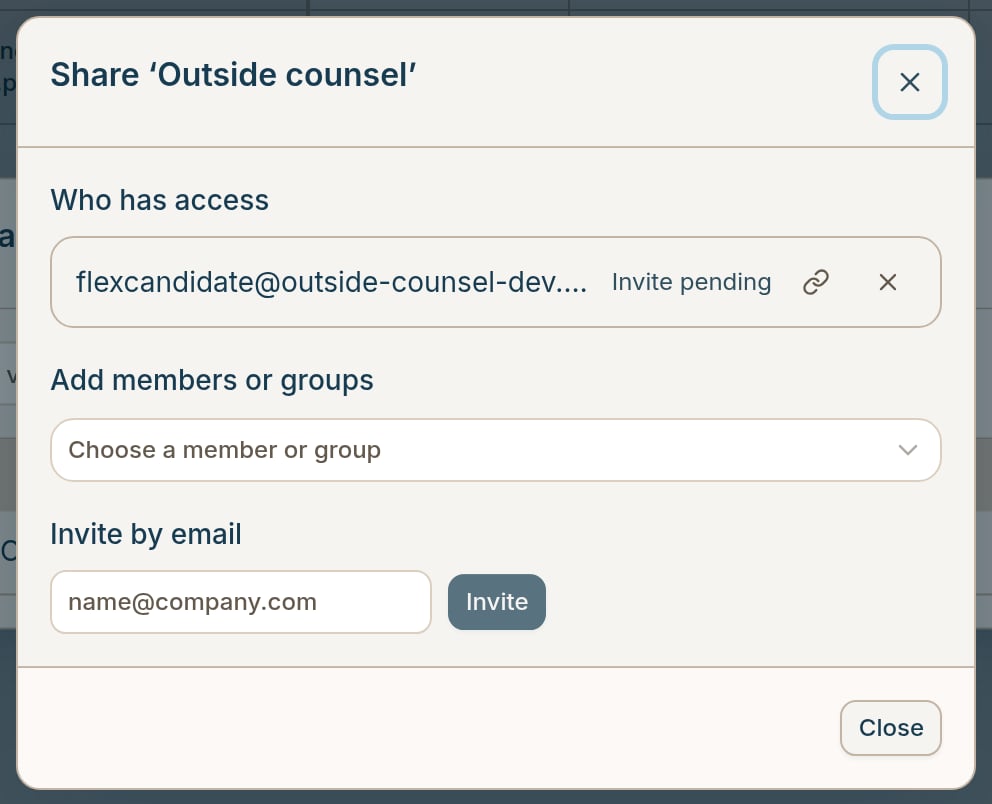
• **Share a saved View**: Share a saved View with members, groups, or an email address outside your organization. Recipients get read access to that View. An invite to someone outside your organization waits until their membership is approved.
• **Approve connector writes**: A connector action that writes to another app now asks for your approval by default. Any per-action setting you already chose still applies.
• **Outlook email links**: When you ask for a link to a specific Outlook email, chat returns a link that opens that message.
• **Jira Service Management internal notes**: In chat, you can add an internal note to a Jira Service Management issue, separate from the comments your requester sees. On a regular Jira project, the same request posts a normal comment.
## Contract Intelligence
• **Share a saved View**: Share a saved View with members, groups, or an email address outside your organization. Recipients get read access to that View. An invite to someone outside your organization waits until their membership is approved.
 • **Review duplicate files in a Vault**: On the Files tab, open the **Duplicates** filter to keep more than one copy of a file, choose which copy is the primary, or mark a file as not a duplicate. Every copy you keep stays in the table, labeled with the primary it belongs to.
• **Linked terms in a Vault**: When a document cites hosted terms, for example an online EULA, those URLs appear on the Related Documents tab and are marked as not in this vault. Vault chat flags the same gap. GC AI does not fetch those pages.
• **View extraction instructions in a Vault**: Right-click a column header and select **View instructions** to check how GC AI fills that column without leaving the View.
• **Review extraction prompts during Vault setup**: While you create a Vault, suggested columns arrive with their extraction prompts, so you can read and adjust each prompt before you finish setup.
• **Import filters with several name rules**: A Vault source can hold more than one file-name rule, and you choose whether a file matches any rule or all of them. You can also filter by file type with PDF, Word, and Text chips.
• **Skip files by name on import**: On the same import filter, add file-name text to skip. Matching files stay out of the Vault even when they match your include rules.
• **Naming template controls**: In the naming template editor, the add-column menu scrolls, chips reorder by drag, and you can set the separator to a dash, underscore, period, or space.
• **Stop a Vault re-analysis**: On the Fields page, stop a running re-analysis so your saved column changes reach every document in the next run.
• **See why a Vault search matched**: A name search now highlights the matching text in Document Name and File Name. When the match is on a name the row does not display, GC AI shows that name under the row.
• **Clearer Current Terms history**: A rolled-up term now reads **Amended** instead of Override, and its history is a timeline that shows the previous value each time a term changed.
• **Vault navigation**: Vault pages keep the app sidebar and a back link to Contract Intelligence, and the control that reopens vault chat sits on the left, the same side the chat panel opens on.
## Chat and Redlines
• **Automatically apply document edits**: Under **Settings → Account → Preferences**, turn on **Automatically Apply Document Edits**. When Easy Edit has that chat's document open, GC AI applies its tracked changes as they arrive, so you no longer confirm each edit.
• **Review duplicate files in a Vault**: On the Files tab, open the **Duplicates** filter to keep more than one copy of a file, choose which copy is the primary, or mark a file as not a duplicate. Every copy you keep stays in the table, labeled with the primary it belongs to.
• **Linked terms in a Vault**: When a document cites hosted terms, for example an online EULA, those URLs appear on the Related Documents tab and are marked as not in this vault. Vault chat flags the same gap. GC AI does not fetch those pages.
• **View extraction instructions in a Vault**: Right-click a column header and select **View instructions** to check how GC AI fills that column without leaving the View.
• **Review extraction prompts during Vault setup**: While you create a Vault, suggested columns arrive with their extraction prompts, so you can read and adjust each prompt before you finish setup.
• **Import filters with several name rules**: A Vault source can hold more than one file-name rule, and you choose whether a file matches any rule or all of them. You can also filter by file type with PDF, Word, and Text chips.
• **Skip files by name on import**: On the same import filter, add file-name text to skip. Matching files stay out of the Vault even when they match your include rules.
• **Naming template controls**: In the naming template editor, the add-column menu scrolls, chips reorder by drag, and you can set the separator to a dash, underscore, period, or space.
• **Stop a Vault re-analysis**: On the Fields page, stop a running re-analysis so your saved column changes reach every document in the next run.
• **See why a Vault search matched**: A name search now highlights the matching text in Document Name and File Name. When the match is on a name the row does not display, GC AI shows that name under the row.
• **Clearer Current Terms history**: A rolled-up term now reads **Amended** instead of Override, and its history is a timeline that shows the previous value each time a term changed.
• **Vault navigation**: Vault pages keep the app sidebar and a back link to Contract Intelligence, and the control that reopens vault chat sits on the left, the same side the chat panel opens on.
## Chat and Redlines
• **Automatically apply document edits**: Under **Settings → Account → Preferences**, turn on **Automatically Apply Document Edits**. When Easy Edit has that chat's document open, GC AI applies its tracked changes as they arrive, so you no longer confirm each edit.
 • **Open Word citations in the editor**: Clicking a citation in a Word file opens that document in the editor and flashes the cited paragraphs, instead of opening a second read-only copy.
• **Clearer Insert at cursor**: On a draft card, the button reads **Open document to insert** while the editor is closed. Once the document is open, **Insert at cursor** waits until you place your cursor in the text.
• **Dismiss applied changes**: After you apply redlines, you can dismiss the pending-changes strip above the composer and keep the edits in your document.
• **Open in editor**: On an Easy Edit change card, the jump button reads **Open in editor** when the editor pane is hidden, and **Jump to change** when it is open.
## Bug fixes
• **More ways to answer a failure report**: When GC AI reports that something went wrong, you can send that report, send every later report automatically, or dismiss the card and keep working. The card now appears even when a chat fails before the first reply.
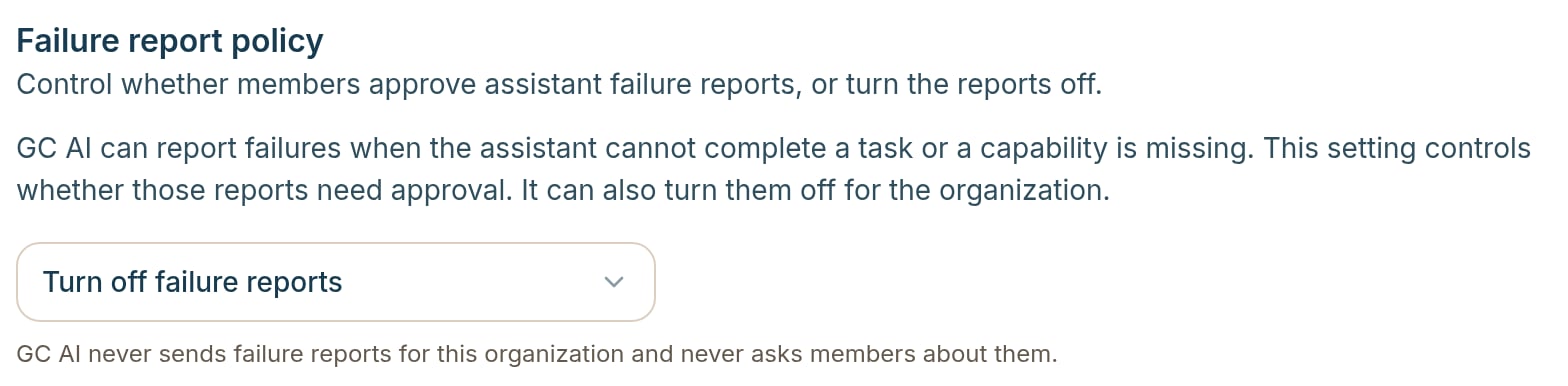
• **Turn off failure reports**: Organization admins can select **Turn off failure reports** in the failure report policy under Settings, so no one in the organization sees the card.
• **Open Word citations in the editor**: Clicking a citation in a Word file opens that document in the editor and flashes the cited paragraphs, instead of opening a second read-only copy.
• **Clearer Insert at cursor**: On a draft card, the button reads **Open document to insert** while the editor is closed. Once the document is open, **Insert at cursor** waits until you place your cursor in the text.
• **Dismiss applied changes**: After you apply redlines, you can dismiss the pending-changes strip above the composer and keep the edits in your document.
• **Open in editor**: On an Easy Edit change card, the jump button reads **Open in editor** when the editor pane is hidden, and **Jump to change** when it is open.
## Bug fixes
• **More ways to answer a failure report**: When GC AI reports that something went wrong, you can send that report, send every later report automatically, or dismiss the card and keep working. The card now appears even when a chat fails before the first reply.
• **Turn off failure reports**: Organization admins can select **Turn off failure reports** in the failure report policy under Settings, so no one in the organization sees the card.
 • **Clearer project file chips**: On a project file chip, the drag handle and the remove control sit on opposite corners, and the handle tooltip reads **Drag to attach**.
• **Generated Word files that failed to open**: A Word file that GC AI generated or edited could fail to open because of unsupported characters.
• **Redlines shown as struck-through chat text**: Asking for redlines returned struck-through text in chat instead of tracked changes in the document.
• **Wrong card marked Applied**: Applying one redline marked a different card as Applied.
• **False lost-redlines warning**: A save that was still running reported that your applied redlines were lost.
• **Unfinished edit stopped the chat**: An unfinished document edit could stop the chat and switch it to a different model.
• **Delete during a streaming reply hid history**: Deleting a message while a reply was still streaming could hide earlier chat history.
• **Plain-text copy dropped list markers**: Copying a response as plain text dropped the list markers.
• **Queued skill showed raw text**: A queued message showed raw skill text and a paperclip instead of a skill chip.
• **Recent chats search clear did nothing**: Clearing the Recent chats search did nothing.
• **Slow click missed a search suggestion**: A slow click or tap on a search suggestion selected nothing.
• **Dismissed failure report read Sending report**: Dismissing a failure report briefly read Sending report even though nothing was sent.
• **Case Law Summary said full text was unavailable**: Opening a case from the Case Law Summary card read Full text is not available.
• **USPTO retry still showed a failure**: A USPTO lookup that succeeded on a later try still showed retrieval failure cards.
• **Gmail digest reported a disconnect**: An automation digest said it could not reach Gmail even though Gmail was connected.
• **File summary published as the full document**: GC AI could treat a file summary as the full document and publish that text.
• **Vault chat refused a valid View**: Vault chat refused a valid saved View because the page had not loaded the current columns yet.
• **Vault table header covered the sidebar**: A Vault table header covered the sidebar when you opened the left rail.
• **Shared-drive Google Drive source failed**: A Google Drive Vault source failed when you could read a folder in a shared drive you were not a member of.
• **Project chat offered vault actions that failed**: Opening chat from a project offered vault actions that then failed for someone whose only access is a shared View.
• **Trial members showed as Expired**: The members list showed Expired or limited access for a member who still had Trial access.
• **Invite page did not fill the screen**: The organization invite page did not fill the screen.
• **Word add-in sign-out left the session active**: Signing out of the Word add-in left your account session active.
• **Chat missed tracked changes in Word**: Chat could miss the tracked changes in your Word document, so its suggestions ignored your current redlines.
• **Clearer project file chips**: On a project file chip, the drag handle and the remove control sit on opposite corners, and the handle tooltip reads **Drag to attach**.
• **Generated Word files that failed to open**: A Word file that GC AI generated or edited could fail to open because of unsupported characters.
• **Redlines shown as struck-through chat text**: Asking for redlines returned struck-through text in chat instead of tracked changes in the document.
• **Wrong card marked Applied**: Applying one redline marked a different card as Applied.
• **False lost-redlines warning**: A save that was still running reported that your applied redlines were lost.
• **Unfinished edit stopped the chat**: An unfinished document edit could stop the chat and switch it to a different model.
• **Delete during a streaming reply hid history**: Deleting a message while a reply was still streaming could hide earlier chat history.
• **Plain-text copy dropped list markers**: Copying a response as plain text dropped the list markers.
• **Queued skill showed raw text**: A queued message showed raw skill text and a paperclip instead of a skill chip.
• **Recent chats search clear did nothing**: Clearing the Recent chats search did nothing.
• **Slow click missed a search suggestion**: A slow click or tap on a search suggestion selected nothing.
• **Dismissed failure report read Sending report**: Dismissing a failure report briefly read Sending report even though nothing was sent.
• **Case Law Summary said full text was unavailable**: Opening a case from the Case Law Summary card read Full text is not available.
• **USPTO retry still showed a failure**: A USPTO lookup that succeeded on a later try still showed retrieval failure cards.
• **Gmail digest reported a disconnect**: An automation digest said it could not reach Gmail even though Gmail was connected.
• **File summary published as the full document**: GC AI could treat a file summary as the full document and publish that text.
• **Vault chat refused a valid View**: Vault chat refused a valid saved View because the page had not loaded the current columns yet.
• **Vault table header covered the sidebar**: A Vault table header covered the sidebar when you opened the left rail.
• **Shared-drive Google Drive source failed**: A Google Drive Vault source failed when you could read a folder in a shared drive you were not a member of.
• **Project chat offered vault actions that failed**: Opening chat from a project offered vault actions that then failed for someone whose only access is a shared View.
• **Trial members showed as Expired**: The members list showed Expired or limited access for a member who still had Trial access.
• **Invite page did not fill the screen**: The organization invite page did not fill the screen.
• **Word add-in sign-out left the session active**: Signing out of the Word add-in left your account session active.
• **Chat missed tracked changes in Word**: Chat could miss the tracked changes in your Word document, so its suggestions ignored your current redlines.