> ## Documentation Index
> Fetch the complete documentation index at: https://docs.gc.ai/llms.txt
> Use this file to discover all available pages before exploring further.
# File Organization
> Learn how to organize your files and folders in Files
# File Organization
GC AI Files help you organize your legal documents in a structured, searchable system. With proper organization, you can quickly find and use your documents when needed.
## Folder Structure
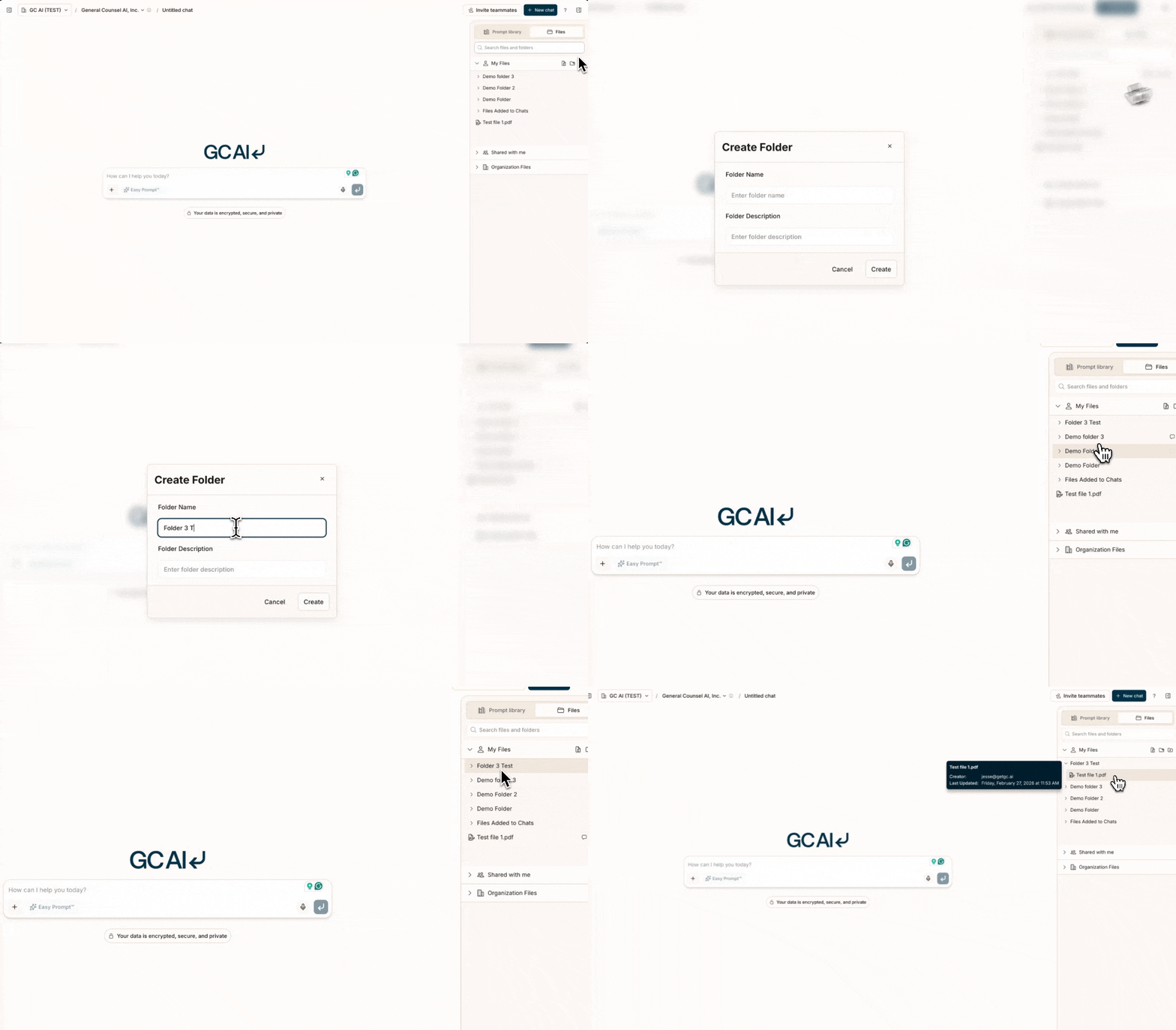 * Create nested folders to organize documents by project or type
* Use consistent naming conventions for folders and files
* Search across all files regardless of folder location
* Access multiple file spaces (My Files, Shared, Organization Files) in a single chat
* Drag and drop files directly into chats, or use the `+` menu to select **Add from computer** or **Add from Files** (which opens the sidebar to **Files** and focuses search)
* See file badges showing which documents are attached to your current chat
## Organization Types
GC AI provides three main organization areas for your documents:
1. **My Files** - Your personal document storage, visible only to you
2. **Shared with me** - Documents others have shared with you
3. **Organization Files** - Team-wide document storage for collaboration
## Creating an Organized Structure
To create a new folder:
1. Open the right sidebar
2. Select **My Files** or **Organization Files**
3. Select **Create Folder**
4. Name your folder using a clear, descriptive title
5. Upload your documents to the appropriate folder
## Sharing Documents
Share your folders and files with team members:
1. Right-click on any file or folder
2. Select **Share**
3. Choose sharing options:
* Specific individuals (by email)
* Your entire organization
* Private (keep to yourself)
## Document Updates
When updating documents:
* Delete or keep the previous version
* Upload the new version to the same folder
* Use GC AI to analyze differences between versions
* Consider using version numbers in filenames (e.g., Policy\_v2.1)
## Search Capabilities
GC AI's powerful search helps you find documents across your files:
* Results appear instantly from all accessible files
* Filter results by file type or collection
Create and document your organization system early. It's much harder to
reorganize later when you have hundreds of documents.
## Google Drive Integration
You can also import files directly from Google Drive. See the [Google Drive](/docs/files/google-drive) page for setup and usage details.
* Create nested folders to organize documents by project or type
* Use consistent naming conventions for folders and files
* Search across all files regardless of folder location
* Access multiple file spaces (My Files, Shared, Organization Files) in a single chat
* Drag and drop files directly into chats, or use the `+` menu to select **Add from computer** or **Add from Files** (which opens the sidebar to **Files** and focuses search)
* See file badges showing which documents are attached to your current chat
## Organization Types
GC AI provides three main organization areas for your documents:
1. **My Files** - Your personal document storage, visible only to you
2. **Shared with me** - Documents others have shared with you
3. **Organization Files** - Team-wide document storage for collaboration
## Creating an Organized Structure
To create a new folder:
1. Open the right sidebar
2. Select **My Files** or **Organization Files**
3. Select **Create Folder**
4. Name your folder using a clear, descriptive title
5. Upload your documents to the appropriate folder
## Sharing Documents
Share your folders and files with team members:
1. Right-click on any file or folder
2. Select **Share**
3. Choose sharing options:
* Specific individuals (by email)
* Your entire organization
* Private (keep to yourself)
## Document Updates
When updating documents:
* Delete or keep the previous version
* Upload the new version to the same folder
* Use GC AI to analyze differences between versions
* Consider using version numbers in filenames (e.g., Policy\_v2.1)
## Search Capabilities
GC AI's powerful search helps you find documents across your files:
* Results appear instantly from all accessible files
* Filter results by file type or collection
Create and document your organization system early. It's much harder to
reorganize later when you have hundreds of documents.
## Google Drive Integration
You can also import files directly from Google Drive. See the [Google Drive](/docs/files/google-drive) page for setup and usage details.