> ## Documentation Index
> Fetch the complete documentation index at: https://docs.gc.ai/llms.txt
> Use this file to discover all available pages before exploring further.
# Manually Installing the Word Add-in via XML Manifest (Windows)
If your organization cannot deploy the GC AI Word Add-in through the Microsoft 365 Admin Center, you can install it manually using an XML manifest file. This method involves downloading the manifest, setting up a shared folder on your local machine, and registering it as a trusted add-in catalog in Word.
This guide is for Windows users. The steps involve sharing a local folder via Windows network sharing. For Mac, see [Manually Installing the Word Add-in via XML Manifest (Mac)](/docs/gc-ai-for-word/manually-installing-word-add-in-via-manifest-mac).
The manifest file is available directly at [https://word.getgc.ai/manifest.production.xml](https://word.getgc.ai/manifest.production.xml) (right-click and "Save As" to download) or as a [.zip download](https://docs-images-gcai.s3.us-east-2.amazonaws.com/documentation/GC+AI+for+Word/manifest.production.xml.zip).
The live manifest URL may be updated at any time as we release new versions of the add-in. Changes to the manifest can cause breaking changes that require you to re-download the file and repeat the installation steps below. For a more stable experience, we recommend using the zip download in Step 3.
## Steps
1. Open your Documents folder
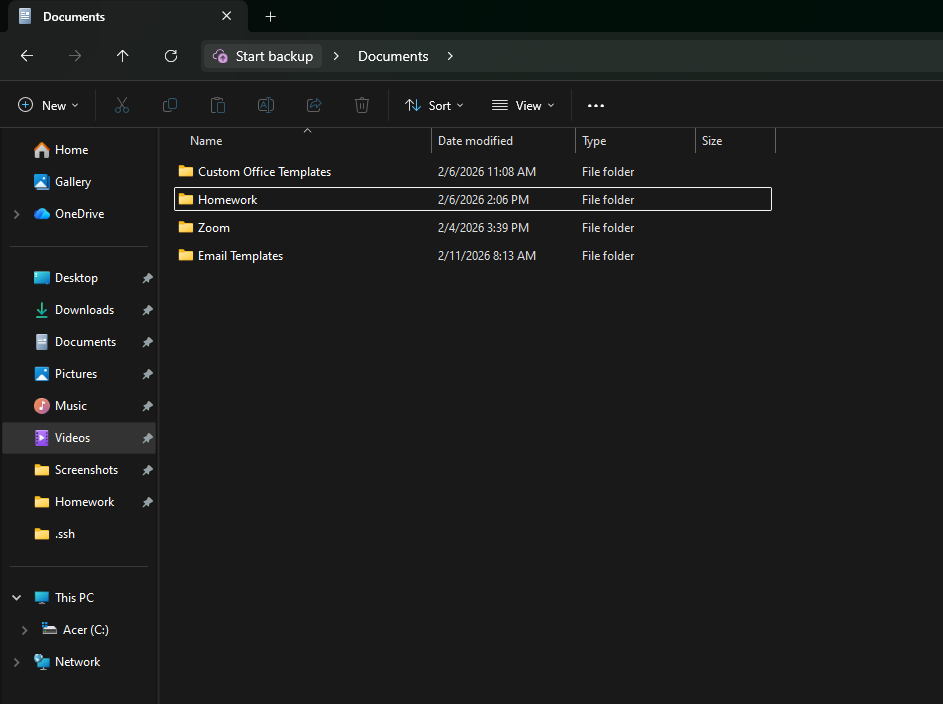
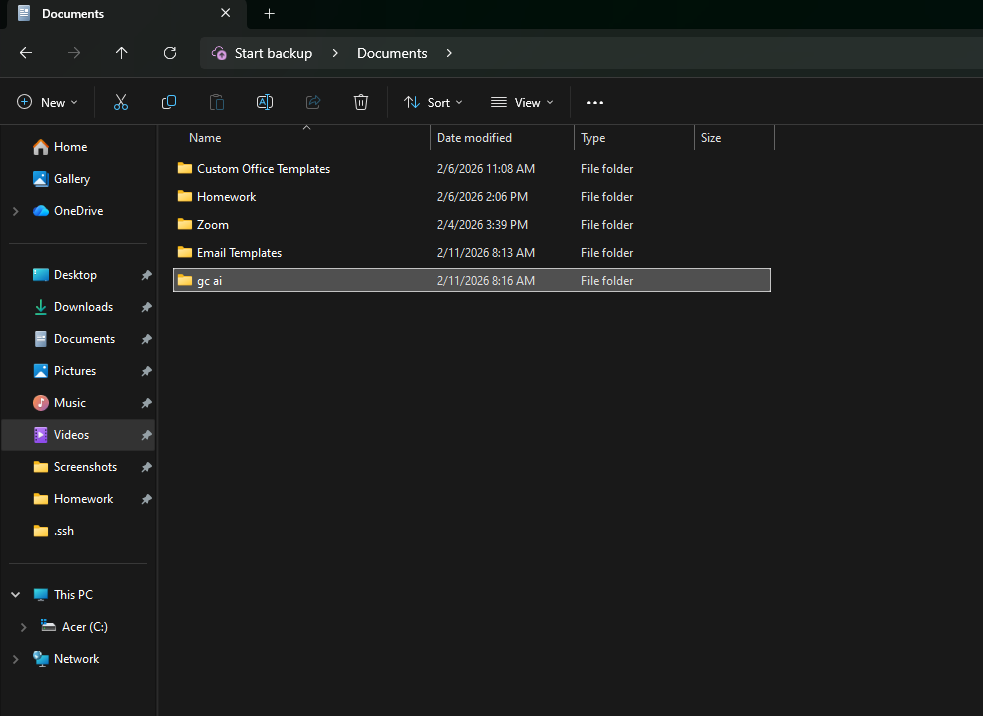
2. Create a new folder, you can name it anything you want, for this example I named it: *gc ai*
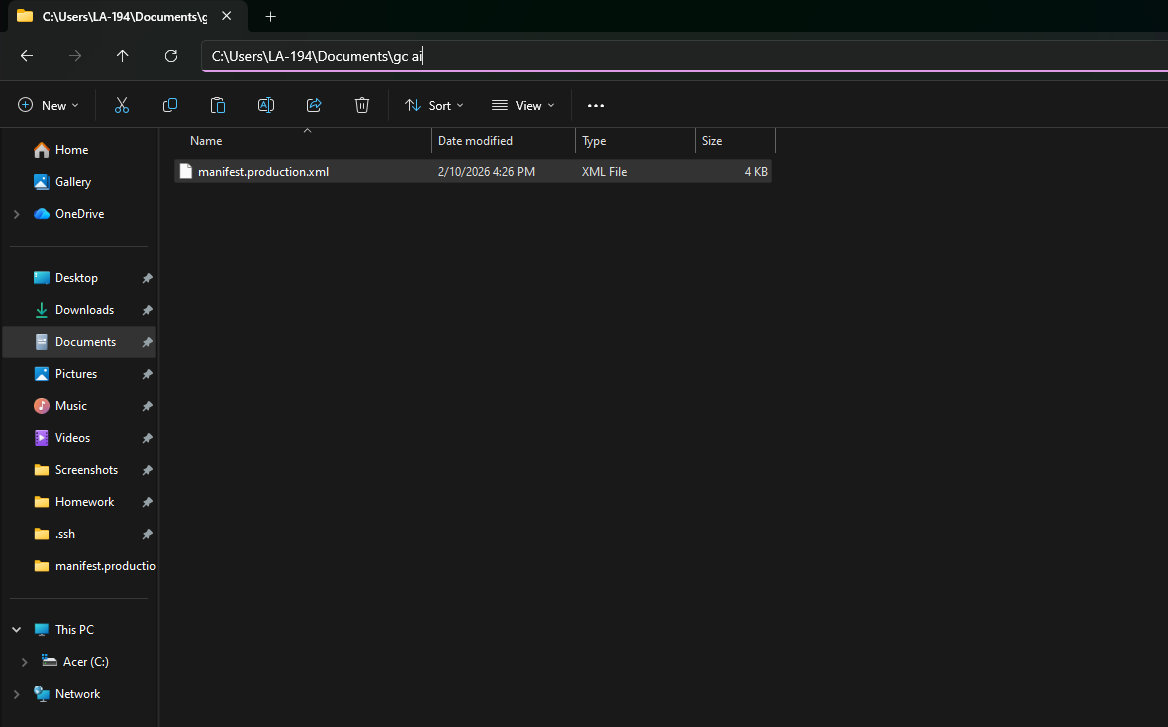
3. Copy this [file](https://docs-images-gcai.s3.us-east-2.amazonaws.com/documentation/GC+AI+for+Word/manifest.production.xml.zip) on the folder you created.
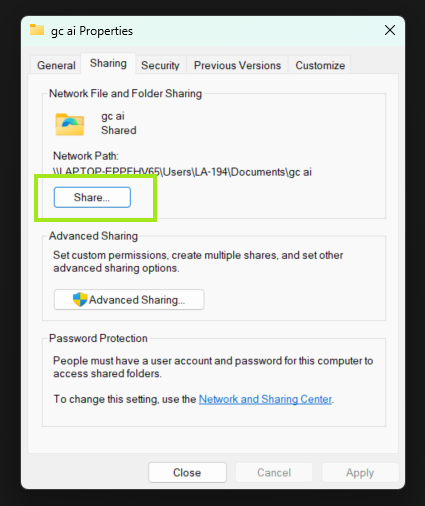
4. Go back to Documents > Right Click the folder you created (in this example: gc ai) > Select Properties. The folder Properties window will open > Go to the Sharing tab.
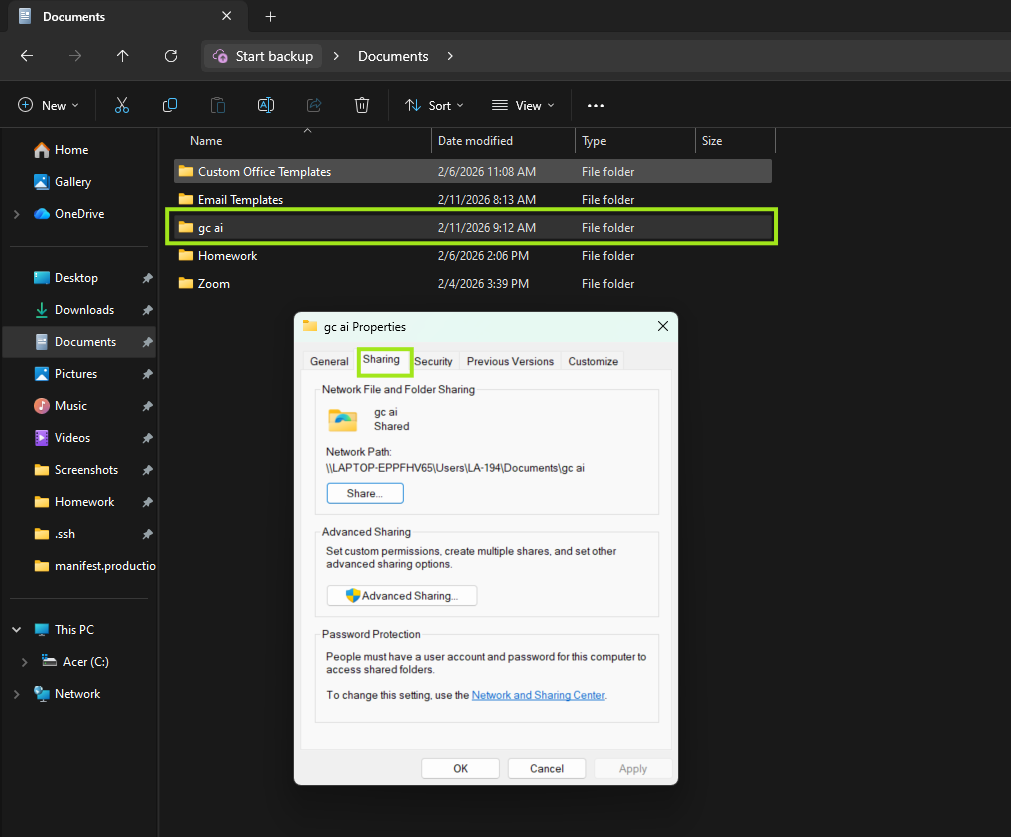
5. Click on the Share button.
6. You will see the Network Access window next > Look for your username in the dropdown list > Click on Add.
7. You should see your username added in the box. My username in this example is *LA-194*.
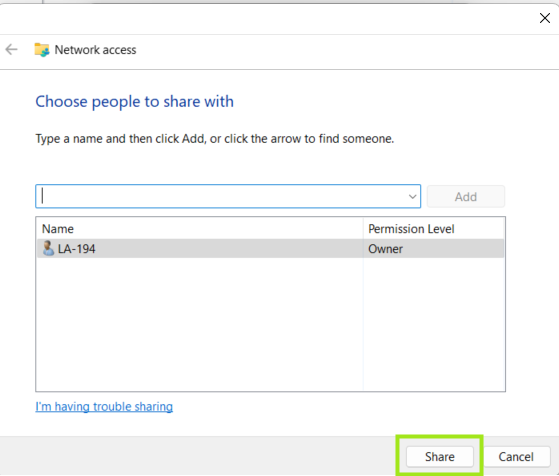
8. Click on Share > Another window opens > Click Done.
9. Close the Properties window as well.
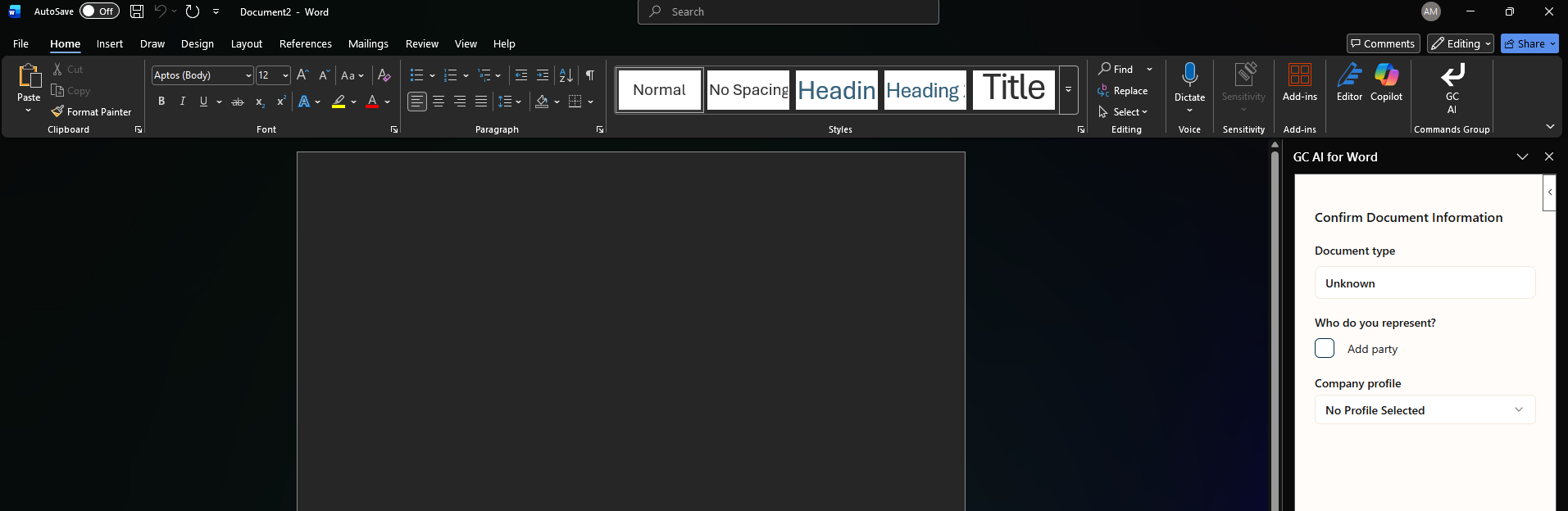
10. Open Word, we will uninstall the current GC AI Add-in. Click on Add-ins on the upper right area.
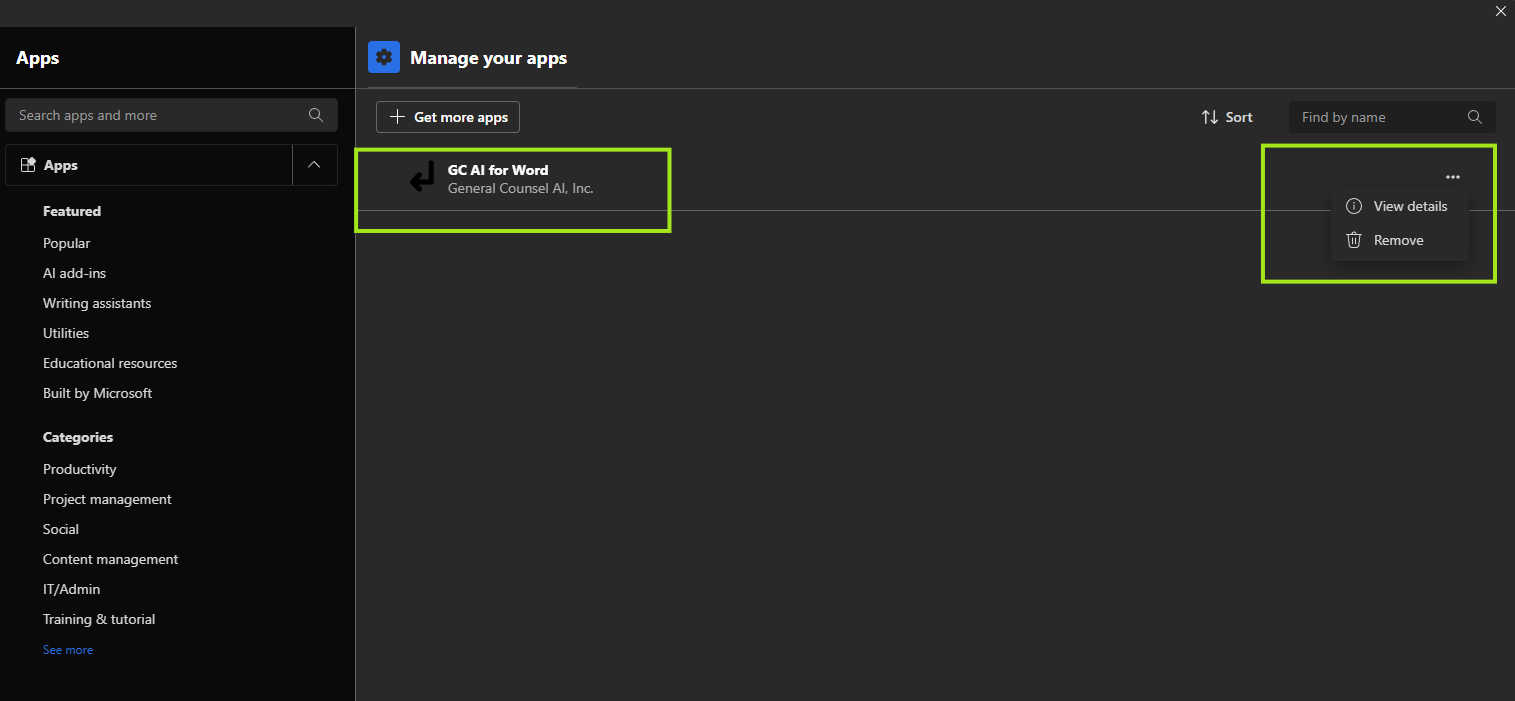
11. You should see the GC AI add in in the menu > Click on Manage
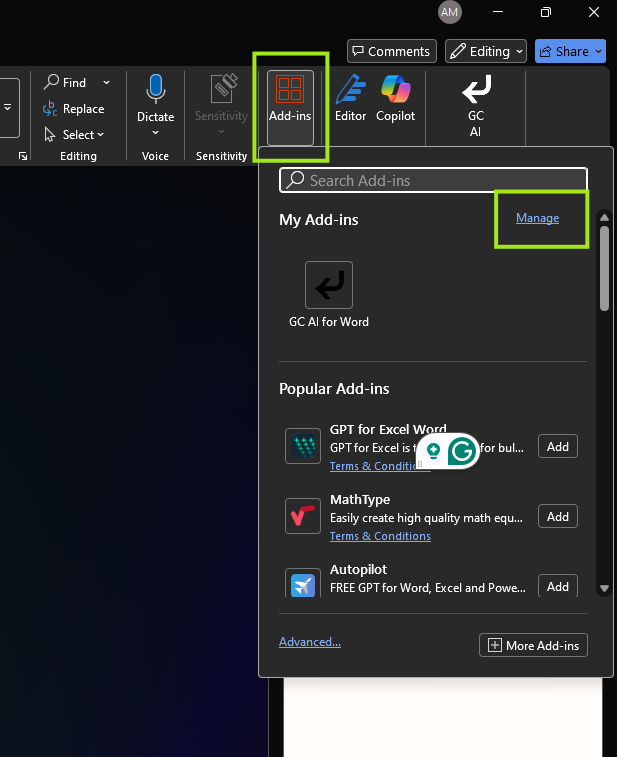
12. Click on the three dot menu > Click on Remove. > You will be prompted to confirm the removal, accept it.
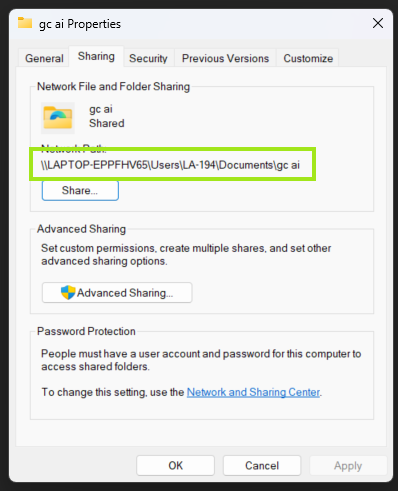
13. Go back to your Documents folder > Right click on the folder you created > Properties > Sharing > Copy the path to the folder for this example, the complete path to my gc ai folder is:
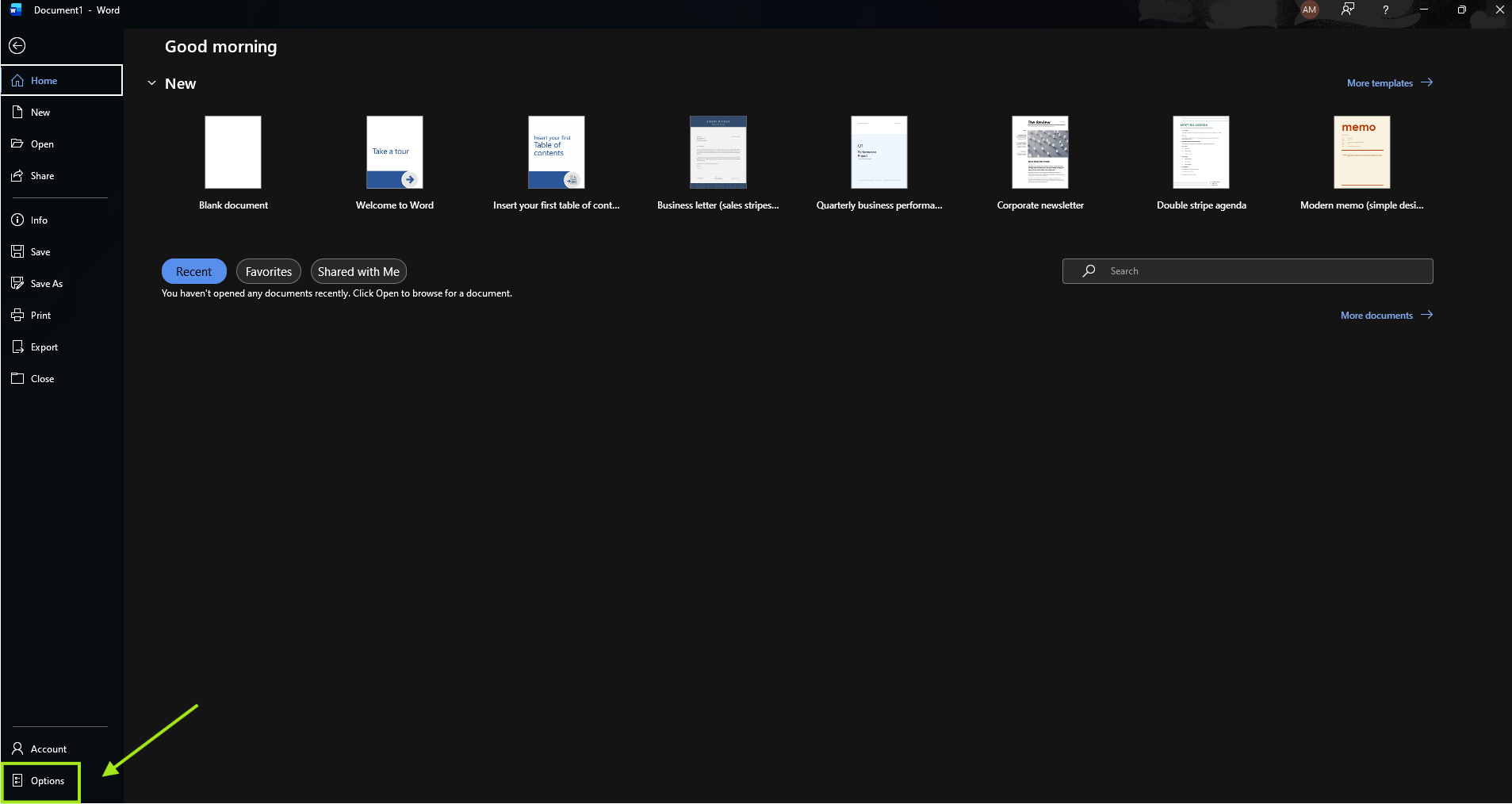
14. Go back to Word. Navigate to: File > Options
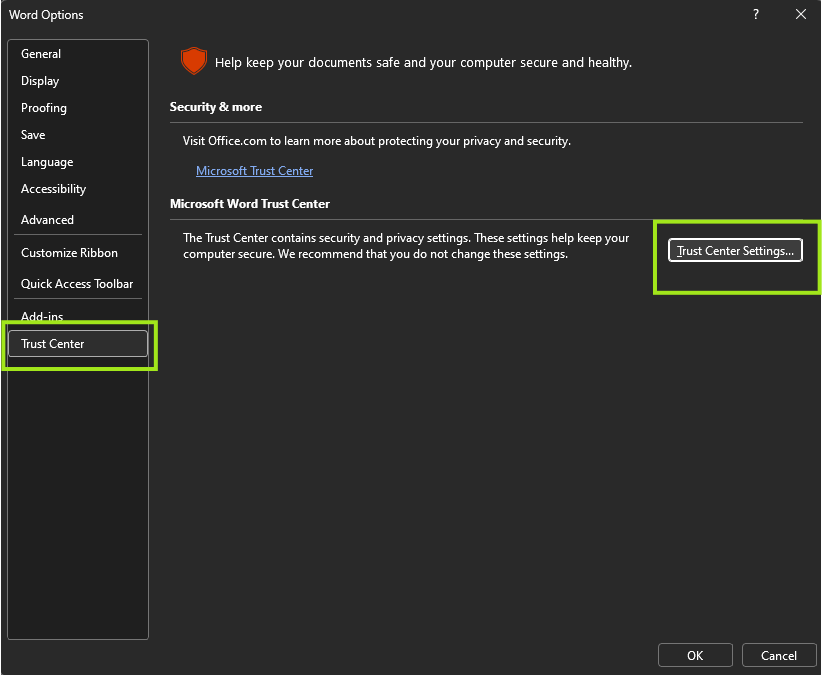
15. Click on Trust Center > Trust Center Settings
16. In the Trust Center Settings > Select Trusted Add-in catalogs > Copy the path to the folder you created in the Catalog URL field > Click Add Catalog.
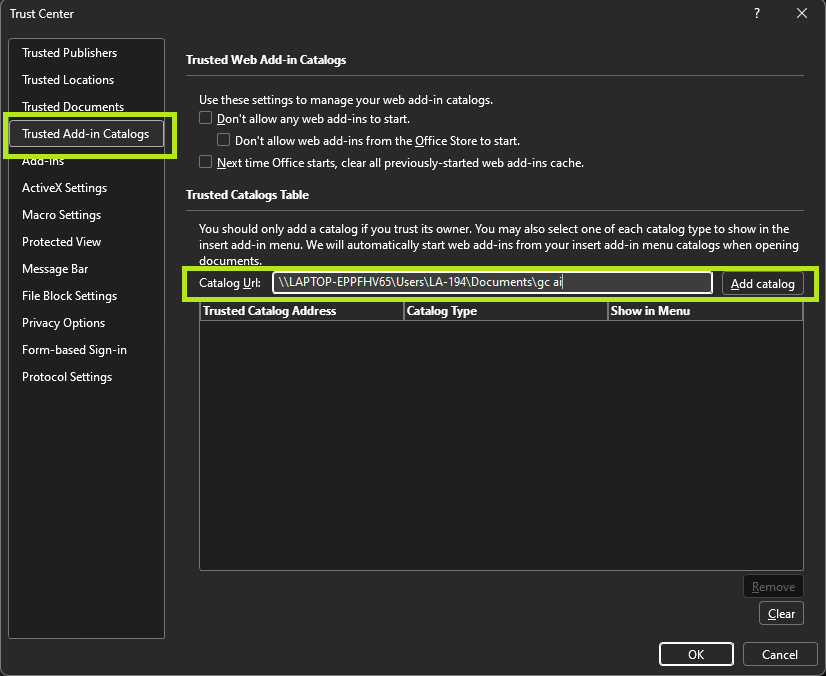
17. You will see the URL added to the box in the window > Click OK > Click OK on the message that pops up and restart Word.
18. When you open Word again you will see the GC AI Add in on the bar.
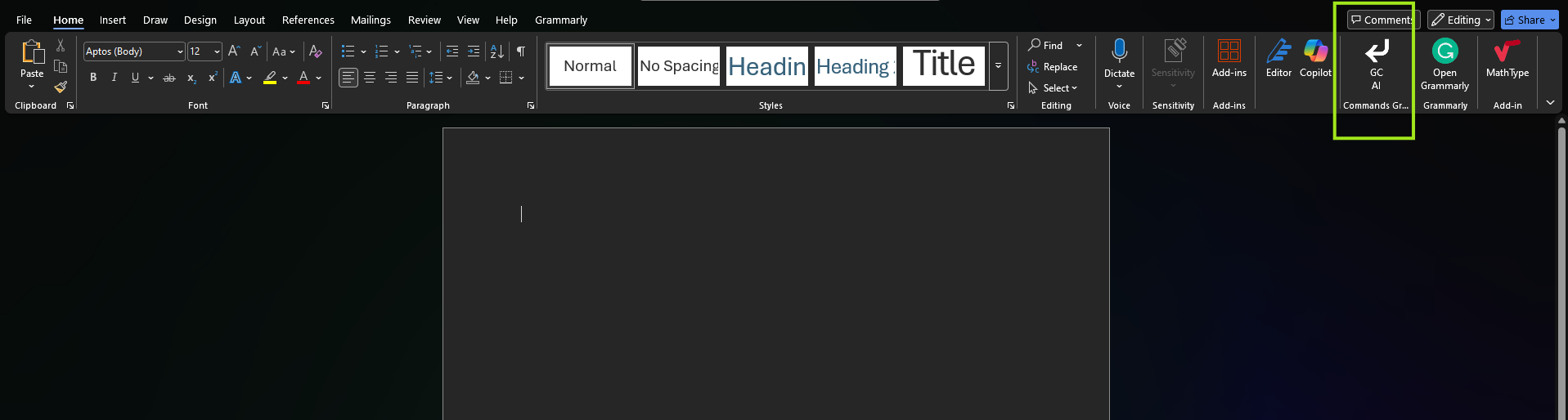
As the last step, authenticate to GC AI and you're all set.
Enjoy working with GC AI!