> ## Documentation Index
> Fetch the complete documentation index at: https://docs.gc.ai/llms.txt
> Use this file to discover all available pages before exploring further.
# First Steps with GC AI
> Getting Started with GC AI: Your First Prompt
## Initial Setup
### 1. Account Configuration
* If you haven't signed up, please sign up [here](https://auth.getgc.ai/sign-up).
* Add a [Company Profile](/guides/organizations/creating-a-profile) to allow GC AI to insert relevant information in your chats.
* This creates a more seamless experience and saves you time during conversations.
* If you enter your website, we will extract your company details for you.
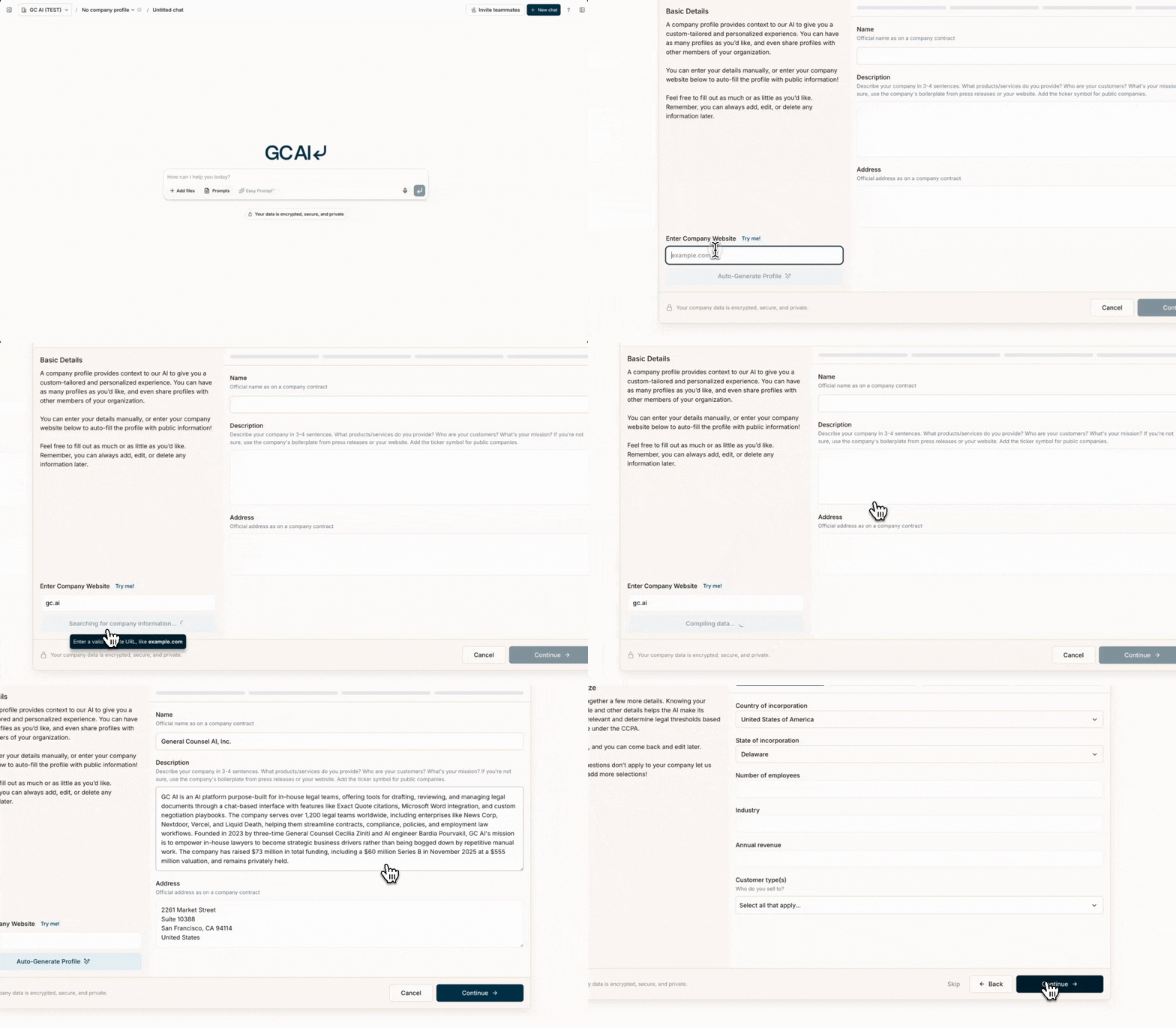 Your chats and your documents are encrypted and secure. All your chats are
private by default unless you choose to share them with your team or with us
by sending feedback using thumb up or down.
### 2. Running Your Own Prompt
1. You can run your own prompts by simply typing in the text window — or use [voice input](/docs/chat/dictation) by selecting the microphone button (up to 3 minutes per recording).
2. For example, type "Provide a plain-language summary of GDPR's data processing requirements for a U.S.-based company" in the GC AI text window, then select **enter** or "↵".
3. Try [Easy Prompt™](/guides/prompting/using-easy-prompt) to automatically refine your prompt before sending.
4. The AI will process your prompt and you'll see a progress indicator as it works. This may take a few moments depending on the complexity of your request. You can send follow-up messages while the AI is still responding — they'll be queued automatically.
### 3. Using Skills
1. GC AI has [skills](/guides/prompting/official-skills) built by attorneys you can use as a starting point.
2. To attach a skill, click the `+` button under the text window, select **Skills**, and browse four categories: **My Skills**, **Shared with Me**, **Organization Skills**, and **GC AI Skills**.
3. GC AI opens the right sidebar to **Skills** and focuses the search bar so you can search immediately.
4. Click a skill to attach it to your conversation, then type your question and send. You can attach multiple skills to combine their instructions. To learn more about building effective skills, see [How to Create and Use Skills](/guides/prompting/creating-skills).
### 4. Uploading a File (Optional)
1. **If you want to upload a file**, click the `+` button in the chat window (tooltip: **Add files, skills, or sources**) and select **Add from computer**, or drag and drop a file directly into the chat window.
2. To attach existing files from your workspace, select **Add from Files**. GC AI opens the right sidebar to **Files** and focuses the search bar.
3. If uploads are still in progress, GC AI shows upload indicators in the chat input and waits to send until uploads finish.
4. Once uploaded or selected, the file will be available in your chat.
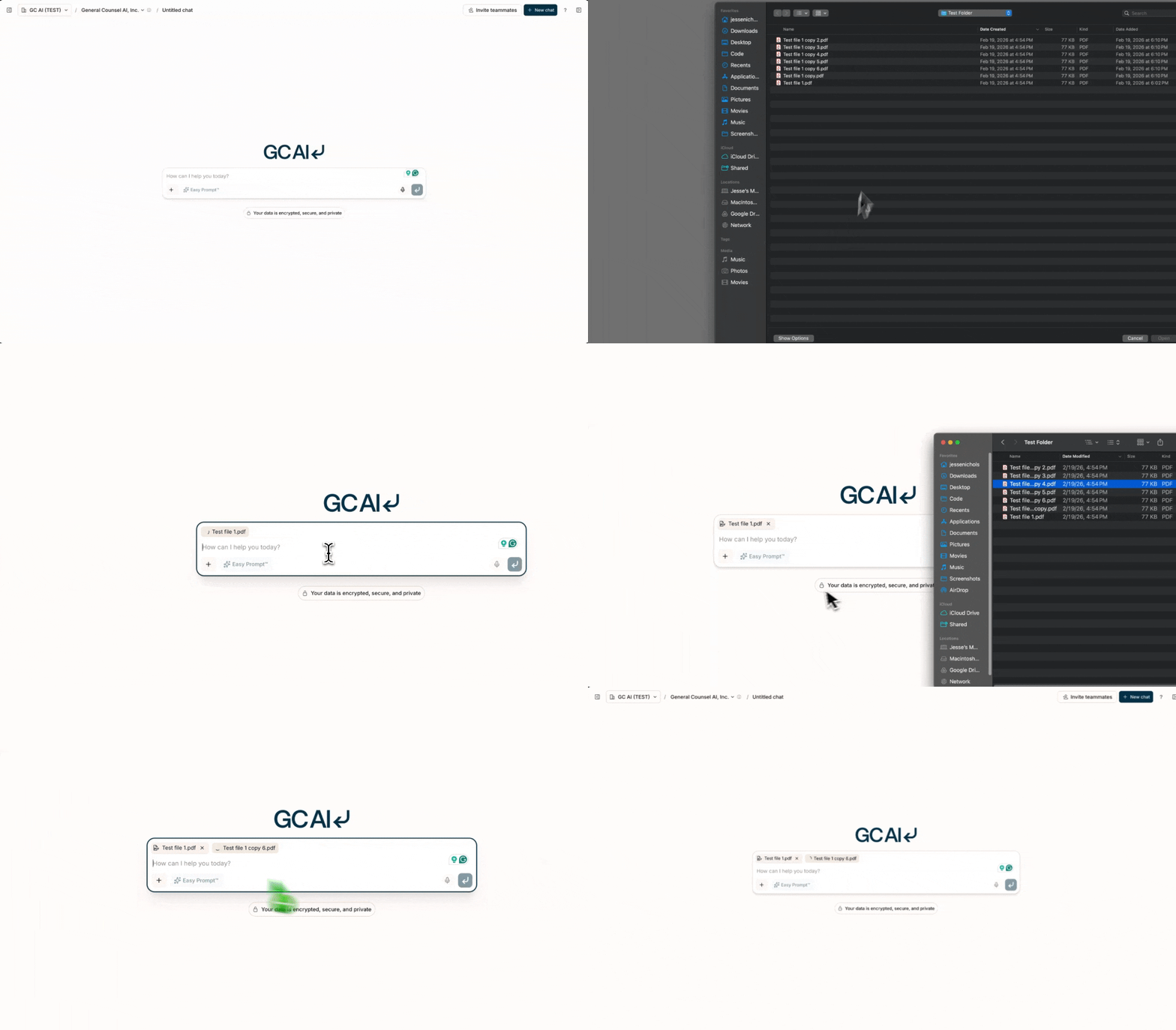
Any file you upload to GC AI is encrypted, private, and secure. Learn more
about our security practices at [our security page](/security/overview).
### 5. Refining a Prompt
1. Once you have run a prompt, you can continue to refine by sending additional messages below the initial response.
2. For example, you can ask GC AI to go more in-depth on a certain topic or write an email to summarize the information.
### 6. Conclusion
You've successfully run your first prompt! Here are some next steps to explore:
* [Export your chat](/docs/chat/how-to-download) as PDF, DOCX, or Markdown
* Try the [Research Agent](/docs/chat/research) for questions requiring current information
* [Branch a conversation](/docs/chat/interface-overview) to explore different directions
* Generate [PowerPoint slides](/guides/prompting/creating-powerpoint-slides) from your analysis
Remember that GC AI is a tool to augment, not replace, legal judgment. Always
review outputs carefully.
Your chats and your documents are encrypted and secure. All your chats are
private by default unless you choose to share them with your team or with us
by sending feedback using thumb up or down.
### 2. Running Your Own Prompt
1. You can run your own prompts by simply typing in the text window — or use [voice input](/docs/chat/dictation) by selecting the microphone button (up to 3 minutes per recording).
2. For example, type "Provide a plain-language summary of GDPR's data processing requirements for a U.S.-based company" in the GC AI text window, then select **enter** or "↵".
3. Try [Easy Prompt™](/guides/prompting/using-easy-prompt) to automatically refine your prompt before sending.
4. The AI will process your prompt and you'll see a progress indicator as it works. This may take a few moments depending on the complexity of your request. You can send follow-up messages while the AI is still responding — they'll be queued automatically.
### 3. Using Skills
1. GC AI has [skills](/guides/prompting/official-skills) built by attorneys you can use as a starting point.
2. To attach a skill, click the `+` button under the text window, select **Skills**, and browse four categories: **My Skills**, **Shared with Me**, **Organization Skills**, and **GC AI Skills**.
3. GC AI opens the right sidebar to **Skills** and focuses the search bar so you can search immediately.
4. Click a skill to attach it to your conversation, then type your question and send. You can attach multiple skills to combine their instructions. To learn more about building effective skills, see [How to Create and Use Skills](/guides/prompting/creating-skills).
### 4. Uploading a File (Optional)
1. **If you want to upload a file**, click the `+` button in the chat window (tooltip: **Add files, skills, or sources**) and select **Add from computer**, or drag and drop a file directly into the chat window.
2. To attach existing files from your workspace, select **Add from Files**. GC AI opens the right sidebar to **Files** and focuses the search bar.
3. If uploads are still in progress, GC AI shows upload indicators in the chat input and waits to send until uploads finish.
4. Once uploaded or selected, the file will be available in your chat.

Any file you upload to GC AI is encrypted, private, and secure. Learn more
about our security practices at [our security page](/security/overview).
### 5. Refining a Prompt
1. Once you have run a prompt, you can continue to refine by sending additional messages below the initial response.
2. For example, you can ask GC AI to go more in-depth on a certain topic or write an email to summarize the information.
### 6. Conclusion
You've successfully run your first prompt! Here are some next steps to explore:
* [Export your chat](/docs/chat/how-to-download) as PDF, DOCX, or Markdown
* Try the [Research Agent](/docs/chat/research) for questions requiring current information
* [Branch a conversation](/docs/chat/interface-overview) to explore different directions
* Generate [PowerPoint slides](/guides/prompting/creating-powerpoint-slides) from your analysis
Remember that GC AI is a tool to augment, not replace, legal judgment. Always
review outputs carefully.