> ## Documentation Index
> Fetch the complete documentation index at: https://docs.gc.ai/llms.txt
> Use this file to discover all available pages before exploring further.
# Install GC AI as a Desktop App
> Install GC AI from Chrome, Edge, or Safari so it opens in its own window instead of a browser tab.
## Why install GC AI?
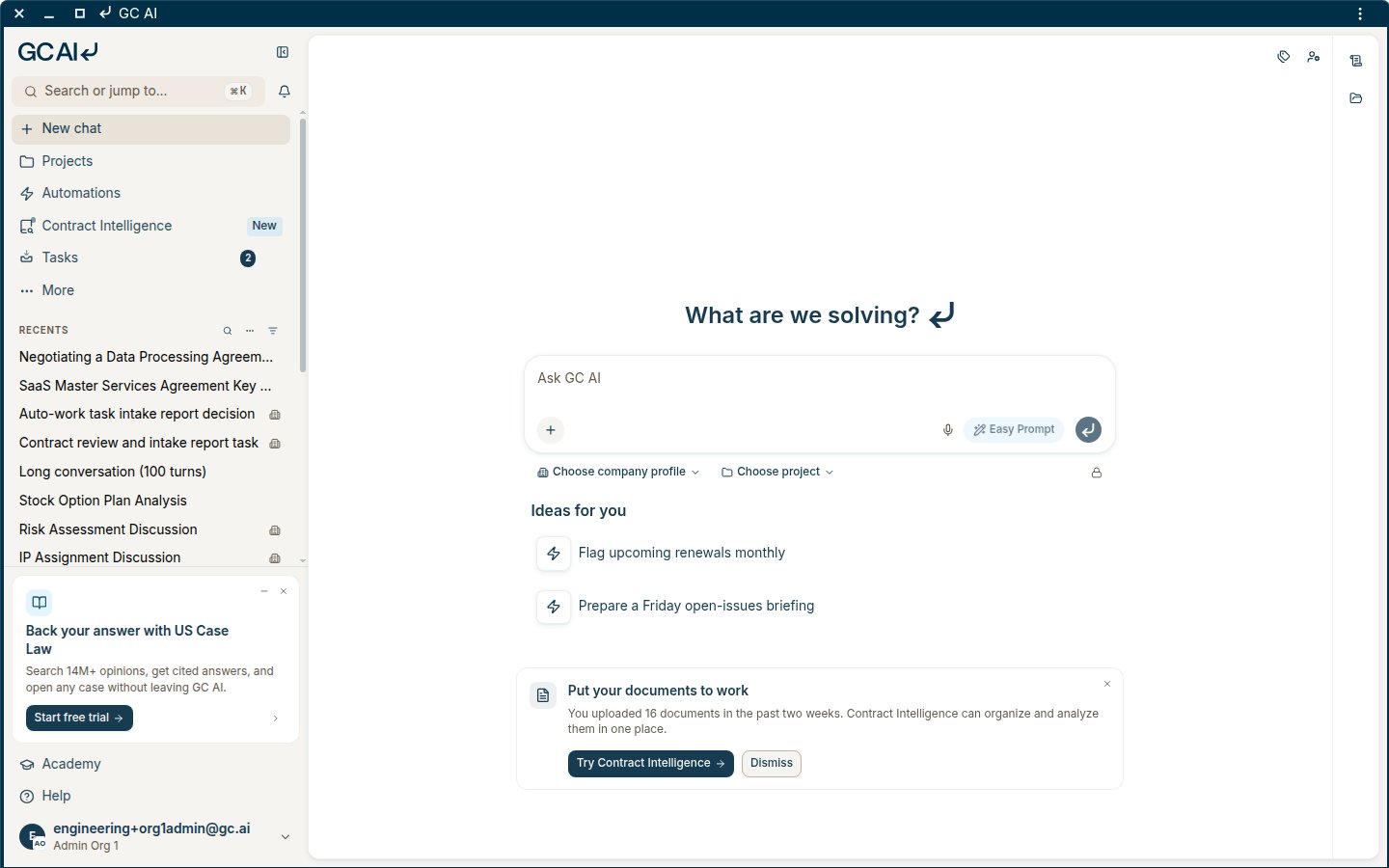
Installing GC AI as a desktop app keeps it in its own window, with its own Dock or taskbar icon, so it does not get lost among browser tabs. You still use the same secure web app at [app.gc.ai](https://app.gc.ai). Nothing native is installed beyond a shortcut to that site.
 ## Before you start
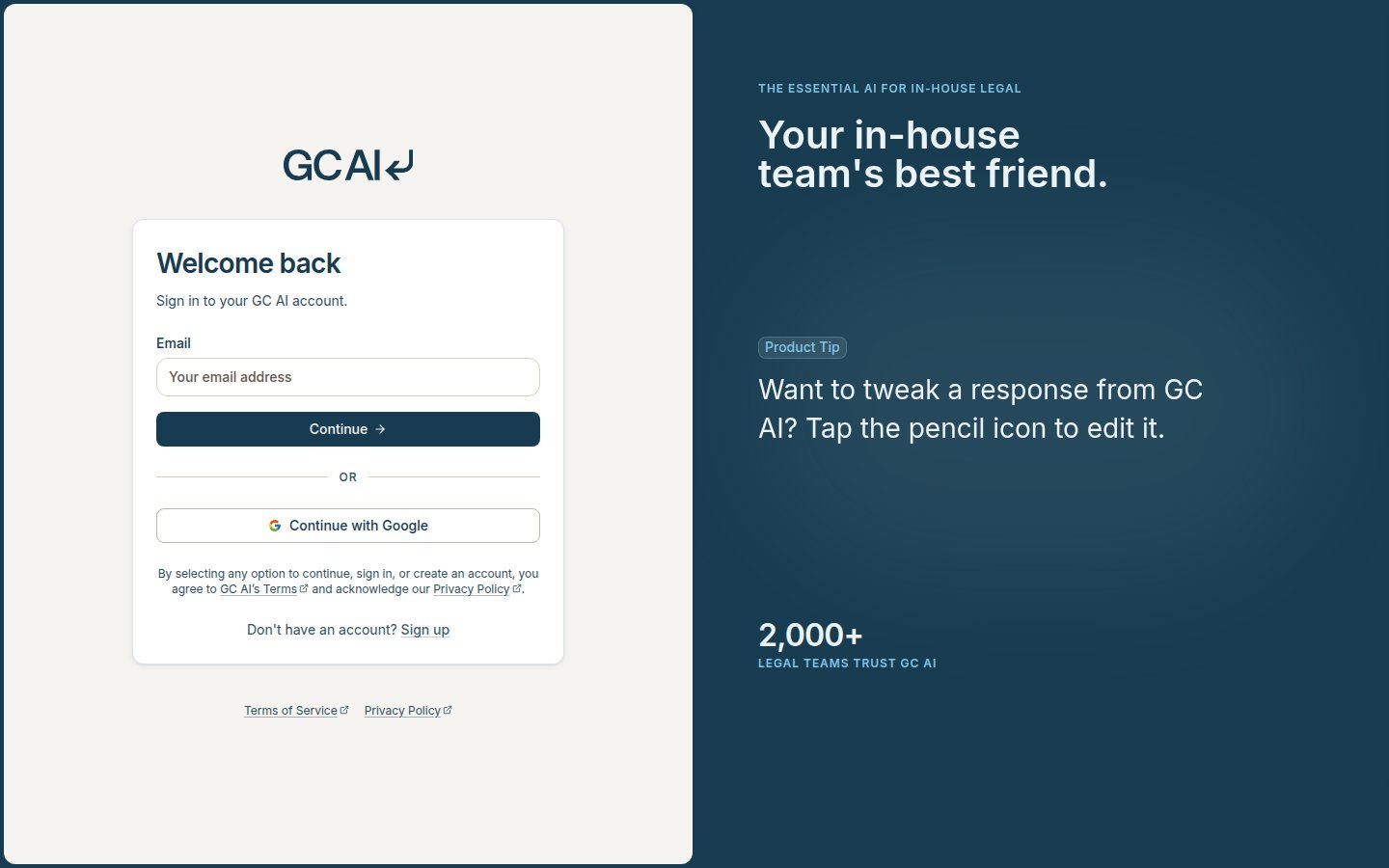
1. Open [app.gc.ai](https://app.gc.ai) in Chrome, Edge, or Safari.
2. Sign in with your GC AI account.
## Before you start
1. Open [app.gc.ai](https://app.gc.ai) in Chrome, Edge, or Safari.
2. Sign in with your GC AI account.
 ## Chrome (macOS, Windows, ChromeOS)
1. Stay on [app.gc.ai](https://app.gc.ai) after you sign in.
2. Open the Chrome menu (**⋮**, top right).
3. Select **Cast, save, and share** → **Install GC AI…**. If Chrome shows an **Install** icon in the address bar, you can use that instead.
4. Confirm **Install**.
5. GC AI opens in its own window. Pin it to your Dock or taskbar if you want one-click access.
## Microsoft Edge (Windows and macOS)
1. Stay on [app.gc.ai](https://app.gc.ai) after you sign in.
2. Open the Edge menu (**…**, top right).
3. Select **Apps** → **Install GC AI**. If you don't see **Apps**, open **More tools** first.
4. Confirm **Install**.
5. GC AI opens in its own window. On Windows, pin it to the taskbar or Start menu when Edge offers it. On macOS, right-click its Dock icon and choose **Options** → **Keep in Dock**.
## Safari (macOS)
1. Stay on [app.gc.ai](https://app.gc.ai) after you sign in.
2. Choose **File** → **Add to Dock** (Safari 17+), or use the Share button and select **Add to Dock**.
3. GC AI appears in your Dock like other apps.
On iPhone or iPad, use Share → **Add to Home Screen**.
## After you install
You get the same GC AI experience in a dedicated window:
## Chrome (macOS, Windows, ChromeOS)
1. Stay on [app.gc.ai](https://app.gc.ai) after you sign in.
2. Open the Chrome menu (**⋮**, top right).
3. Select **Cast, save, and share** → **Install GC AI…**. If Chrome shows an **Install** icon in the address bar, you can use that instead.
4. Confirm **Install**.
5. GC AI opens in its own window. Pin it to your Dock or taskbar if you want one-click access.
## Microsoft Edge (Windows and macOS)
1. Stay on [app.gc.ai](https://app.gc.ai) after you sign in.
2. Open the Edge menu (**…**, top right).
3. Select **Apps** → **Install GC AI**. If you don't see **Apps**, open **More tools** first.
4. Confirm **Install**.
5. GC AI opens in its own window. On Windows, pin it to the taskbar or Start menu when Edge offers it. On macOS, right-click its Dock icon and choose **Options** → **Keep in Dock**.
## Safari (macOS)
1. Stay on [app.gc.ai](https://app.gc.ai) after you sign in.
2. Choose **File** → **Add to Dock** (Safari 17+), or use the Share button and select **Add to Dock**.
3. GC AI appears in your Dock like other apps.
On iPhone or iPad, use Share → **Add to Home Screen**.
## After you install
You get the same GC AI experience in a dedicated window:
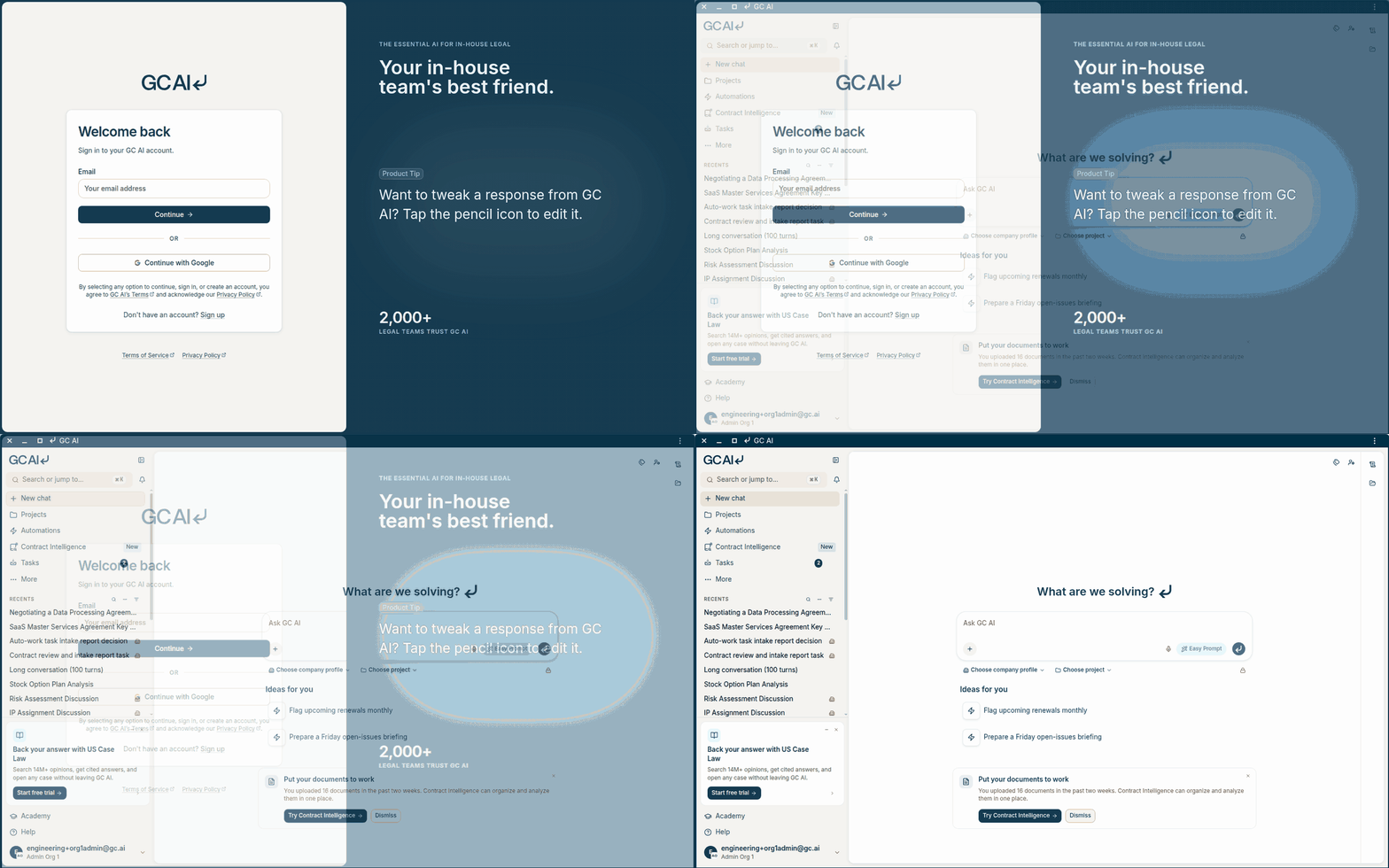 * Sign in once in the installed window. Your session follows the same account as the browser.
* Updates land automatically when you reopen the app. There is no separate updater to manage.
* Unpinning GC AI from your Dock or taskbar only removes the shortcut. To uninstall it:
* **Chrome**: open the GC AI window, open its menu (**⋮**), and select **Uninstall GC AI…**.
* **Edge**: go to **edge://apps**, open the menu (**…**) on GC AI, and select **Uninstall**.
* **Safari**: in Finder, open your **Applications** folder and move GC AI to the Trash.
## Related
* [First Steps with GC AI](/guides/getting-started/first-steps)
* [Account FAQ](/docs/account/account-faq)
* [GC AI for Word install](/docs/gc-ai-for-word/how-to-install)
* Sign in once in the installed window. Your session follows the same account as the browser.
* Updates land automatically when you reopen the app. There is no separate updater to manage.
* Unpinning GC AI from your Dock or taskbar only removes the shortcut. To uninstall it:
* **Chrome**: open the GC AI window, open its menu (**⋮**), and select **Uninstall GC AI…**.
* **Edge**: go to **edge://apps**, open the menu (**…**) on GC AI, and select **Uninstall**.
* **Safari**: in Finder, open your **Applications** folder and move GC AI to the Trash.
## Related
* [First Steps with GC AI](/guides/getting-started/first-steps)
* [Account FAQ](/docs/account/account-faq)
* [GC AI for Word install](/docs/gc-ai-for-word/how-to-install)