> ## Documentation Index
> Fetch the complete documentation index at: https://docs.gc.ai/llms.txt
> Use this file to discover all available pages before exploring further.
# GC AI Slack Connector
> Bring your Slack conversations into GC AI, the AI platform for in-house legal teams
[GC AI](https://gc.ai) is an AI platform for in-house legal teams. Lawyers use it to review contracts, research legal questions, draft documents, and answer requests from the business.
Much of that business context lives in Slack. A sales lead asks about a contract term in a thread. Procurement flags a vendor issue in a channel. A teammate confirms a decision in a direct message. The GC AI Slack Connector lets you bring those conversations into your GC AI work, and send answers back, without copying and pasting between apps.
## How it works with Slack
* **You connect your own Slack account.** GC AI acts as you. It can see only the channels, direct messages, and files you can already see in Slack.
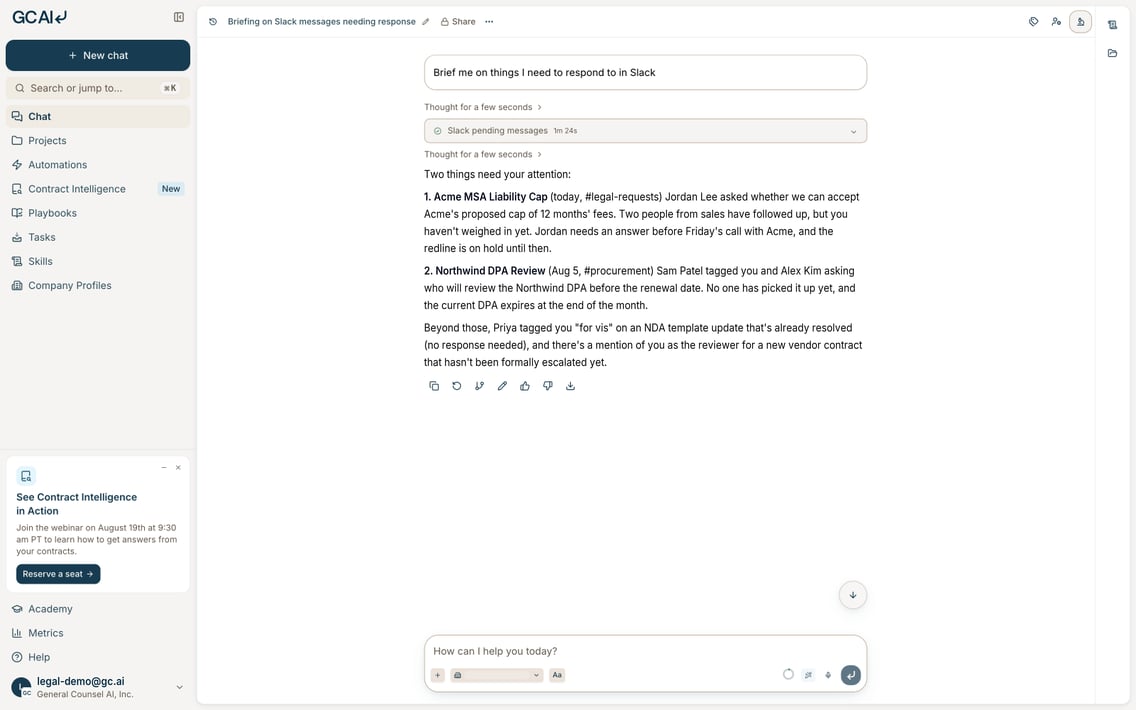
* **You ask in GC AI, not in Slack.** In a GC AI chat, ask something like "Summarize the #legal-requests thread about the Acme DPA." GC AI searches and reads the Slack conversations it needs, then answers in the chat.
* **GC AI posts only when you ask**, in a chat or in an automation you set up. If you ask GC AI to reply in a thread or post an update, by default it asks for your approval first and posts as you only after you select **Approve**.
* **There is no bot in your workspace.** The connector does not respond to mentions or post anything on its own.
GC AI uses large language models to generate its answers. Like any AI, it can make mistakes, misread or leave out Slack messages, or produce answers that are inaccurate or incomplete. Check important answers against the original Slack messages, and read any message GC AI drafts before you approve it. GC AI does not replace your professional judgment.
You install the connector from inside GC AI, so you need a GC AI account first. If you don't have one yet, visit [gc.ai](https://gc.ai) to get started. Read the [GC AI Privacy Policy](https://gc.ai/privacy) for how GC AI handles your data.
## Add GC AI to Slack
Go to [app.gc.ai](https://app.gc.ai) and sign in.
Select your profile, then **Settings**. Open **Integrations → Agent Connectors**.
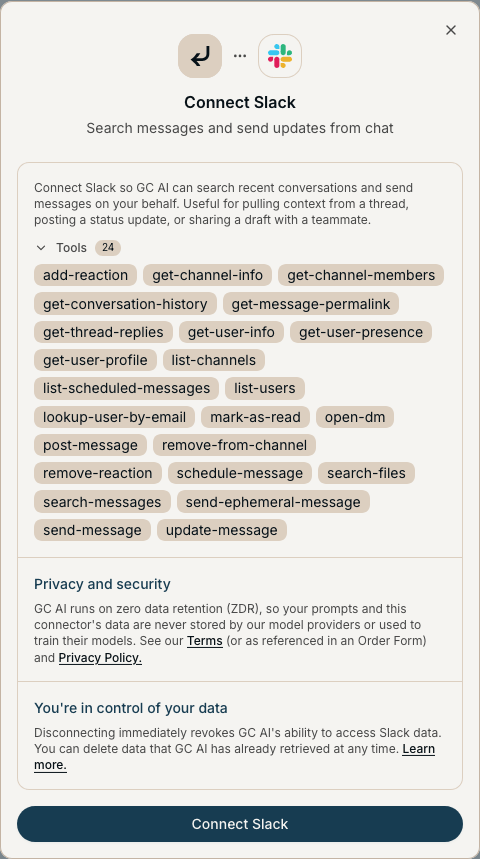
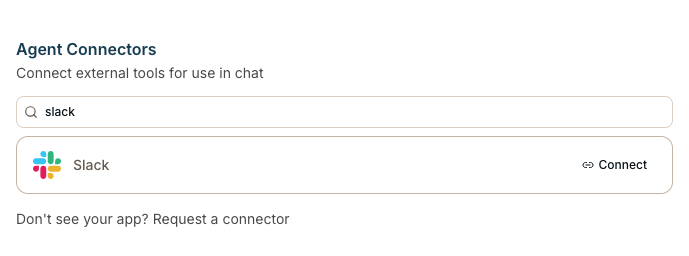 Find **Slack** in the list and select **Connect**. Review what the connector does and the tools it adds, then select **Connect Slack**.
 Slack opens its install screen for the GC AI Slack Connector. Pick your workspace in the top right if you belong to more than one, review the permissions, and select **Allow**.
You return to GC AI and Slack shows **Connected**. Expand **Tools** under Slack to see each action GC AI can take and to set its permission.
You can also start from chat. If you ask about Slack before you connect, GC AI shows a connect card that opens the same install screen.
If your workspace requires admin approval for new apps, Slack shows **Submit request** instead of **Allow**. Your Slack admin approves the request in Slack. Then repeat these steps to finish connecting.
To connect another Slack workspace, select **Connect** on Slack again and pick the other workspace on the Slack install screen.
## Use Slack in GC AI chat
You use the connector from a GC AI chat, not from Slack. Ask in plain language and GC AI picks the right Slack action. With Slack connected, you can ask GC AI to:
* Search messages and files across the channels and conversations you belong to
* Read and summarize a channel, a direct message, or a thread
* Look up a teammate by name or email
* Send a message, reply in a thread, or schedule a message for later
* Add a reaction to a message
Examples:
* "Search Slack for what procurement said about the Acme indemnity cap."
* "Summarize the last week of #legal-requests and list the open asks."
* "Summarize the thread Sam started about the vendor DPA."
* "Post in #legal that the MSA redline is ready for review."
* "Reply in that thread that we approve the change to section 4."
Slack opens its install screen for the GC AI Slack Connector. Pick your workspace in the top right if you belong to more than one, review the permissions, and select **Allow**.
You return to GC AI and Slack shows **Connected**. Expand **Tools** under Slack to see each action GC AI can take and to set its permission.
You can also start from chat. If you ask about Slack before you connect, GC AI shows a connect card that opens the same install screen.
If your workspace requires admin approval for new apps, Slack shows **Submit request** instead of **Allow**. Your Slack admin approves the request in Slack. Then repeat these steps to finish connecting.
To connect another Slack workspace, select **Connect** on Slack again and pick the other workspace on the Slack install screen.
## Use Slack in GC AI chat
You use the connector from a GC AI chat, not from Slack. Ask in plain language and GC AI picks the right Slack action. With Slack connected, you can ask GC AI to:
* Search messages and files across the channels and conversations you belong to
* Read and summarize a channel, a direct message, or a thread
* Look up a teammate by name or email
* Send a message, reply in a thread, or schedule a message for later
* Add a reaction to a message
Examples:
* "Search Slack for what procurement said about the Acme indemnity cap."
* "Summarize the last week of #legal-requests and list the open asks."
* "Summarize the thread Sam started about the vendor DPA."
* "Post in #legal that the MSA redline is ready for review."
* "Reply in that thread that we approve the change to section 4."
 ## When GC AI posts in Slack
GC AI posts in Slack only when you ask it to in a GC AI chat, or in an [automation](/docs/automations/overview) you set up. These are the actions that change something in Slack:
| Action | What appears in Slack |
| - | - |
| Send a message | A message in the channel or direct message you name |
| Reply in a thread | A reply in the thread you name |
| Schedule a message | A message that posts at the time you set |
| Send a private notice | A message in a channel that only the person you name can see |
| Edit a message | Updated text on a message you sent |
| Add or remove a reaction | An emoji reaction added to or removed from the message you name |
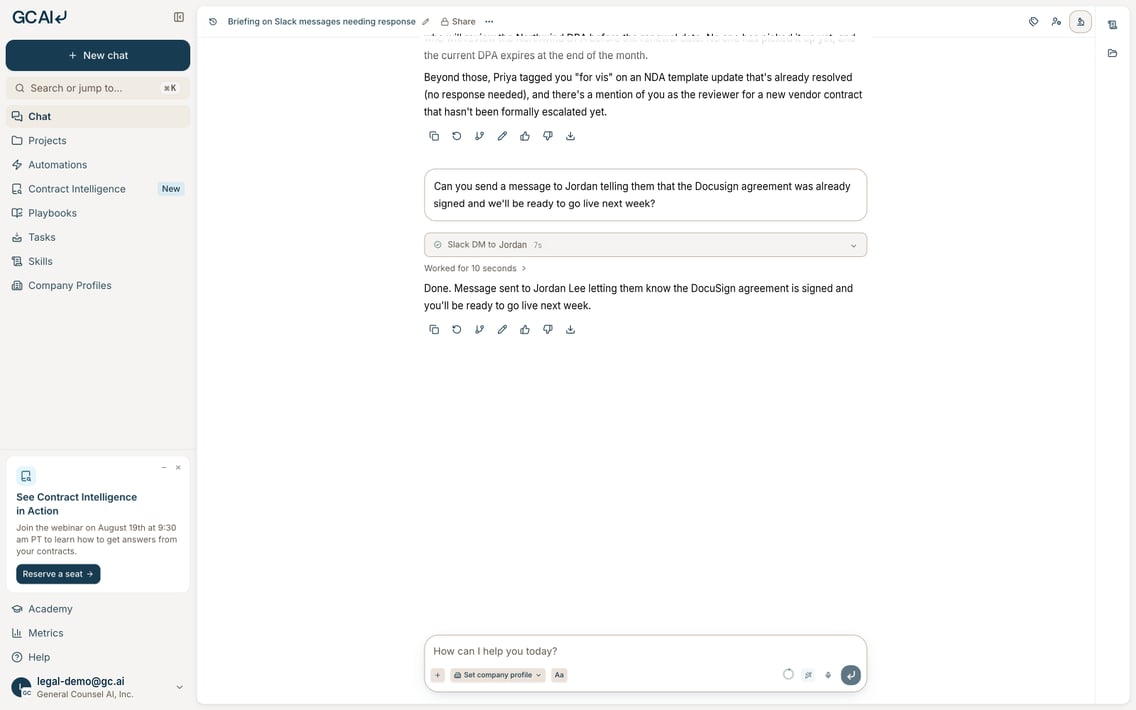
Messages and reactions appear as you, because GC AI connects with your Slack account. By default, GC AI shows an approval card in chat first, and nothing posts until you select **Approve**. Select **Always approve** to skip the card for that action from then on, or **Deny** to stop it. You can change this per action under [Configure the connector](#configure-the-connector).
## When GC AI posts in Slack
GC AI posts in Slack only when you ask it to in a GC AI chat, or in an [automation](/docs/automations/overview) you set up. These are the actions that change something in Slack:
| Action | What appears in Slack |
| - | - |
| Send a message | A message in the channel or direct message you name |
| Reply in a thread | A reply in the thread you name |
| Schedule a message | A message that posts at the time you set |
| Send a private notice | A message in a channel that only the person you name can see |
| Edit a message | Updated text on a message you sent |
| Add or remove a reaction | An emoji reaction added to or removed from the message you name |
Messages and reactions appear as you, because GC AI connects with your Slack account. By default, GC AI shows an approval card in chat first, and nothing posts until you select **Approve**. Select **Always approve** to skip the card for that action from then on, or **Deny** to stop it. You can change this per action under [Configure the connector](#configure-the-connector).
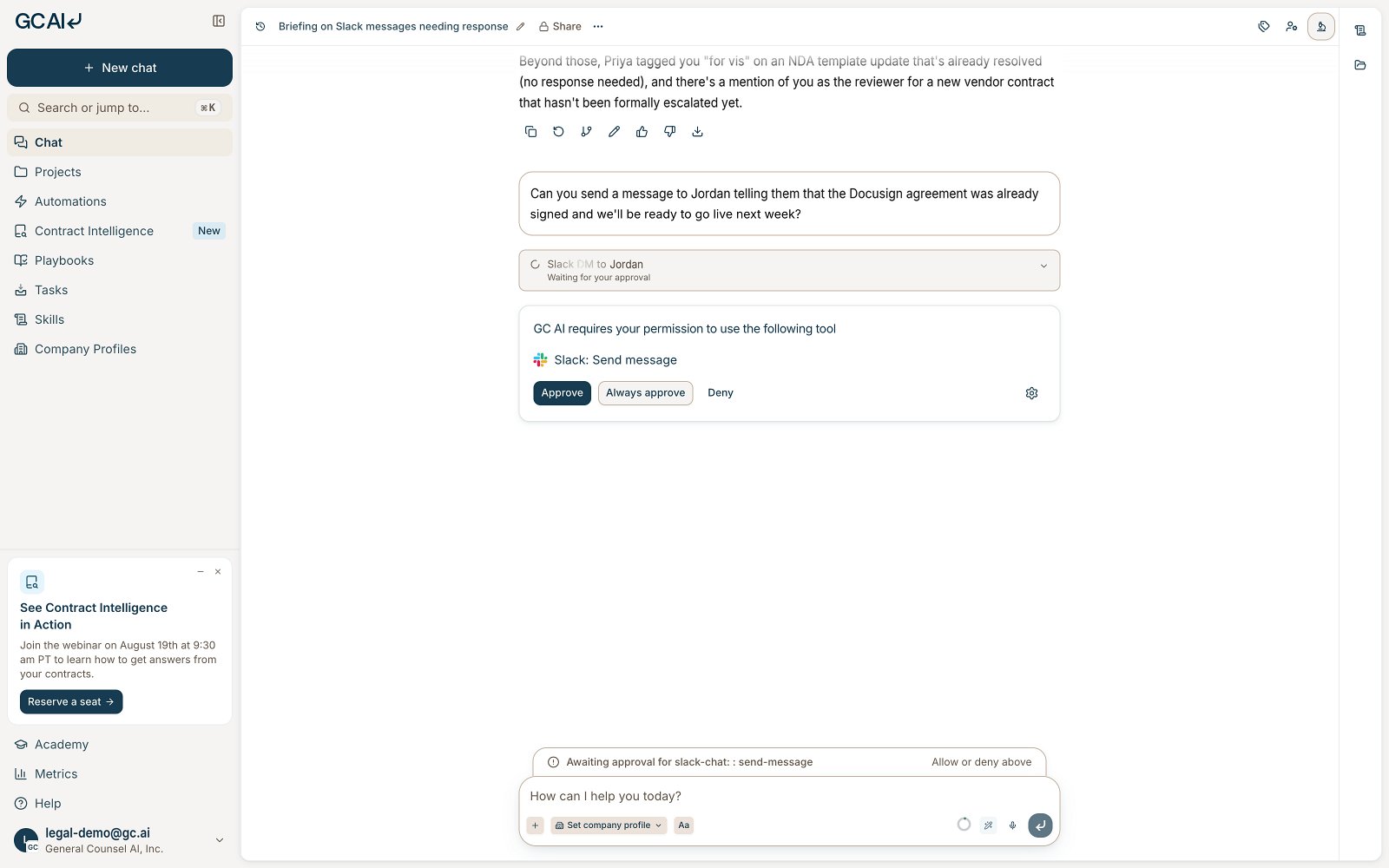 After you approve, GC AI sends the message and confirms in the chat.
 The connector has no bot. It does not respond to mentions, direct messages, or slash commands in Slack, and it never posts on its own.
## Configure the connector
**Tool permissions (each member).** In **Settings → Integrations → Agent Connectors**, expand **Tools** under Slack. Set each action to one of these:
| Permission | What happens |
| - | - |
| **Always allow** | GC AI runs the action without asking. This is the default for searching and reading |
| **Needs approval** | GC AI shows an approval card first. This is the default for actions that change something in Slack |
| **Block** | GC AI cannot run the action |
**Organization policy (GC AI admins).** In **Settings → Policies → Connector policies**, set Slack to **Full access**, **Read-only**, or **Disabled** for everyone or for specific members. **Read-only** turns off every action that posts in Slack. See [Agent Connectors](/guides/organizations/agent-connectors) for details.
## Privacy and data
Read the [GC AI Privacy Policy](https://gc.ai/privacy) for how GC AI collects, uses, and stores your data.
For Slack specifically:
* GC AI reads Slack data only when you ask it to in a chat or an automation you set up. It does not copy or index your workspace in the background.
* The Slack messages and files GC AI reads to answer you become part of that chat, and GC AI stores them with your chat history.
* GC AI connects to Slack through Nango, which holds your Slack access token. See our [subprocessor list](https://gc.ai/subprocessors).
* When you disconnect, GC AI can no longer read from or post to your Slack workspace.
## Disconnect Slack
Open **Settings → Integrations → Agent Connectors** and select **Disconnect** on Slack. GC AI loses access right away. You can also remove the app in Slack, from **Tools & settings → Manage apps**.
## Get help
Email [support@gc.ai](mailto:support@gc.ai) with your workspace name and what you see.
This documentation is built and hosted on [Mintlify](https://mintlify.com), a developer documentation platform.
The connector has no bot. It does not respond to mentions, direct messages, or slash commands in Slack, and it never posts on its own.
## Configure the connector
**Tool permissions (each member).** In **Settings → Integrations → Agent Connectors**, expand **Tools** under Slack. Set each action to one of these:
| Permission | What happens |
| - | - |
| **Always allow** | GC AI runs the action without asking. This is the default for searching and reading |
| **Needs approval** | GC AI shows an approval card first. This is the default for actions that change something in Slack |
| **Block** | GC AI cannot run the action |
**Organization policy (GC AI admins).** In **Settings → Policies → Connector policies**, set Slack to **Full access**, **Read-only**, or **Disabled** for everyone or for specific members. **Read-only** turns off every action that posts in Slack. See [Agent Connectors](/guides/organizations/agent-connectors) for details.
## Privacy and data
Read the [GC AI Privacy Policy](https://gc.ai/privacy) for how GC AI collects, uses, and stores your data.
For Slack specifically:
* GC AI reads Slack data only when you ask it to in a chat or an automation you set up. It does not copy or index your workspace in the background.
* The Slack messages and files GC AI reads to answer you become part of that chat, and GC AI stores them with your chat history.
* GC AI connects to Slack through Nango, which holds your Slack access token. See our [subprocessor list](https://gc.ai/subprocessors).
* When you disconnect, GC AI can no longer read from or post to your Slack workspace.
## Disconnect Slack
Open **Settings → Integrations → Agent Connectors** and select **Disconnect** on Slack. GC AI loses access right away. You can also remove the app in Slack, from **Tools & settings → Manage apps**.
## Get help
Email [support@gc.ai](mailto:support@gc.ai) with your workspace name and what you see.
This documentation is built and hosted on [Mintlify](https://mintlify.com), a developer documentation platform.