> ## Documentation Index
> Fetch the complete documentation index at: https://docs.gc.ai/llms.txt
> Use this file to discover all available pages before exploring further.
# Analyzing Organization Usage Metrics
> Monitor and analyze your organization's GC AI usage with comprehensive analytics and reporting
## Overview
The Organization Usage Metrics page gives you comprehensive analytics and insights into how your team uses GC AI. You can access this page at [https://app.gc.ai/metrics](https://app.gc.ai/metrics) to track usage patterns, monitor team performance, and optimize your AI workflows.
**Admin Access Required**: This metrics dashboard is exclusively available to users with admin roles within their organization. Regular members cannot access organization-wide usage data. Organizations can have multiple admin users who all have access to these metrics.
## Accessing Metrics
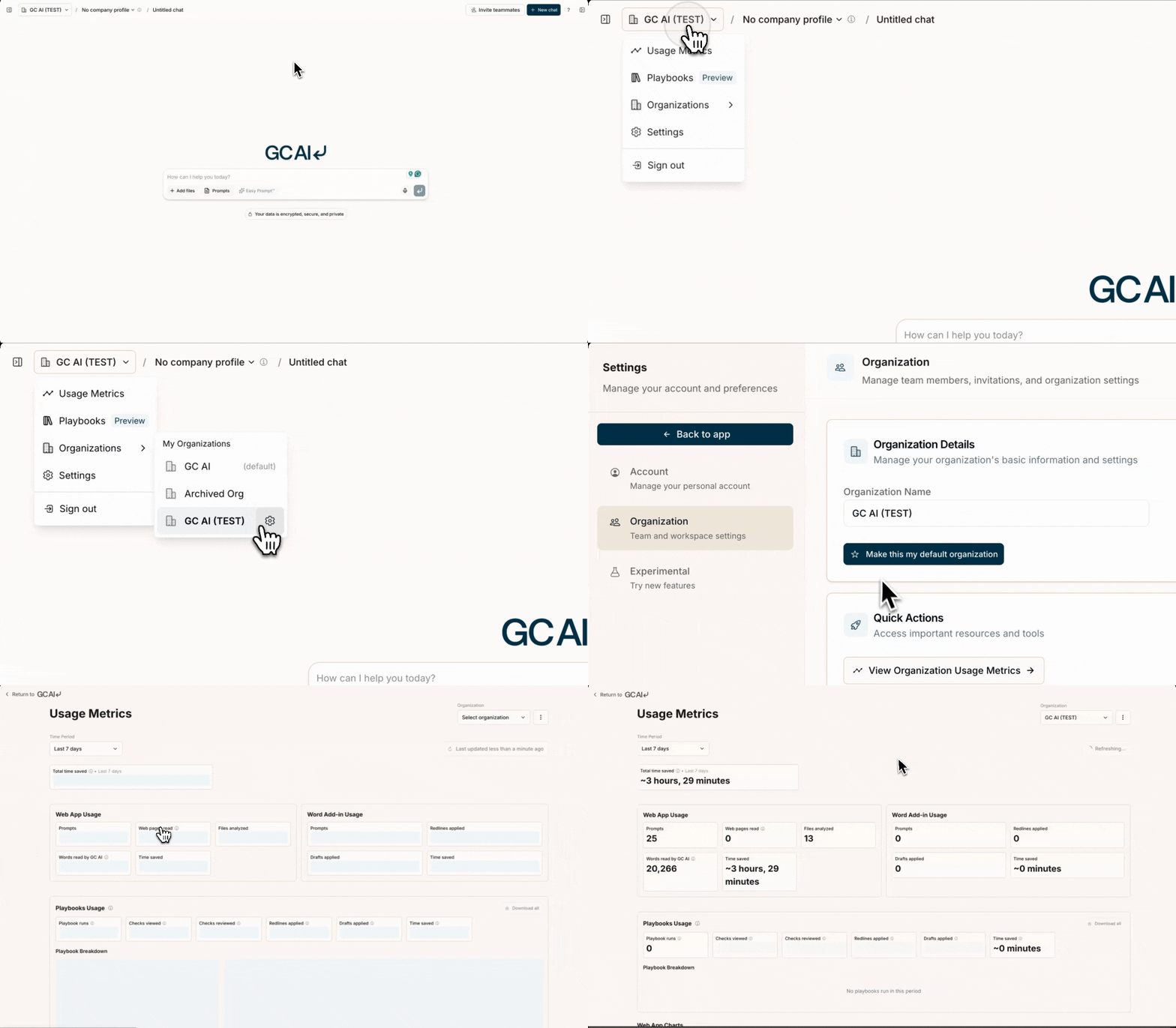
### From Organization Settings
To access metrics from your organization settings, follow these steps:
1. Navigate to **Settings** → **Organization**
2. Select **View Organization Usage Metrics** in the Quick Actions section
3. You'll be redirected to the metrics page with your organization pre-selected
### Direct Access
You can also access the metrics page directly:
1. Visit [https://app.gc.ai/metrics](https://app.gc.ai/metrics)
2. Select your organization from the dropdown menu
## Key Features
### 📊 Organization Selection
* **Personal Usage**: View your individual usage across all organizations (available to all users)
* **Organization Usage**: Analyze team-wide metrics for specific organizations (admin users only)
* **Multi-org Support**: Switch between different organizations where you have admin access
* **Multiple Admins**: Organizations can have multiple admin users who all have access to the same metrics dashboard
### ⏰ Time Period Options
You can choose from multiple predefined time ranges: Quick Selection:
* Last 7 days
* Last 30 days
* Last 3 months
* Last 6 months
* Last 12 months
* All time
* This month
* Year to date
Custom Range:
* Custom date range picker
* Start and end date selection
* Flexible period analysis
### 📈 Chart Types
Each metric panel supports multiple visualization options:
* **Bar Charts**: Compare values across categories
* **Stacked Bar Charts**: Show composition and totals
* **Line Charts**: Track trends over time
* **Pie Charts**: Display proportions (member-based views)
* **Tables**: Detailed data breakdowns
## Core Metrics
### 💬 Chat & Message Analytics
#### Total Usage
* **Messages Sent**: Total AI interactions across the organization
* **Chats Created**: Number of conversation threads started
* **Per-Member Breakdown**: Individual contribution analysis
#### Detailed Views
* **By Member**: See who's using GC AI most actively
* **By Interval**: Daily, weekly, or monthly trends
* **Time-based Analysis**: Identify usage patterns and peak activity
### 🌐 Web Page Analysis
* **Pages Scraped**: Number of web pages processed
* **Word Count**: Total content analyzed
* **Usage Patterns**: Track research and information gathering
### 📁 File Management
* **Files Uploaded**: Document processing volume
* **Content Types**: Supported file formats
* **Processing Statistics**: Success rates and processing times
## Word Add-in Metrics
### 📝 Microsoft Word Integration
Track usage of the GC AI Word add-in:
* **Word Messages**: AI interactions within Word documents
* **Word Chats**: Document-specific conversations
* **Redlines Applied**: AI-suggested edits implemented
* **Drafts Applied**: AI-generated content incorporated
### Add-in Analytics
* **Per-Member Usage**: Individual Word add-in activity
* **Document Processing**: Track editing and drafting workflows
* **Productivity Metrics**: Measure time saved through AI assistance
## Weekly Insights Email
### 📧 Automated Weekly Reports
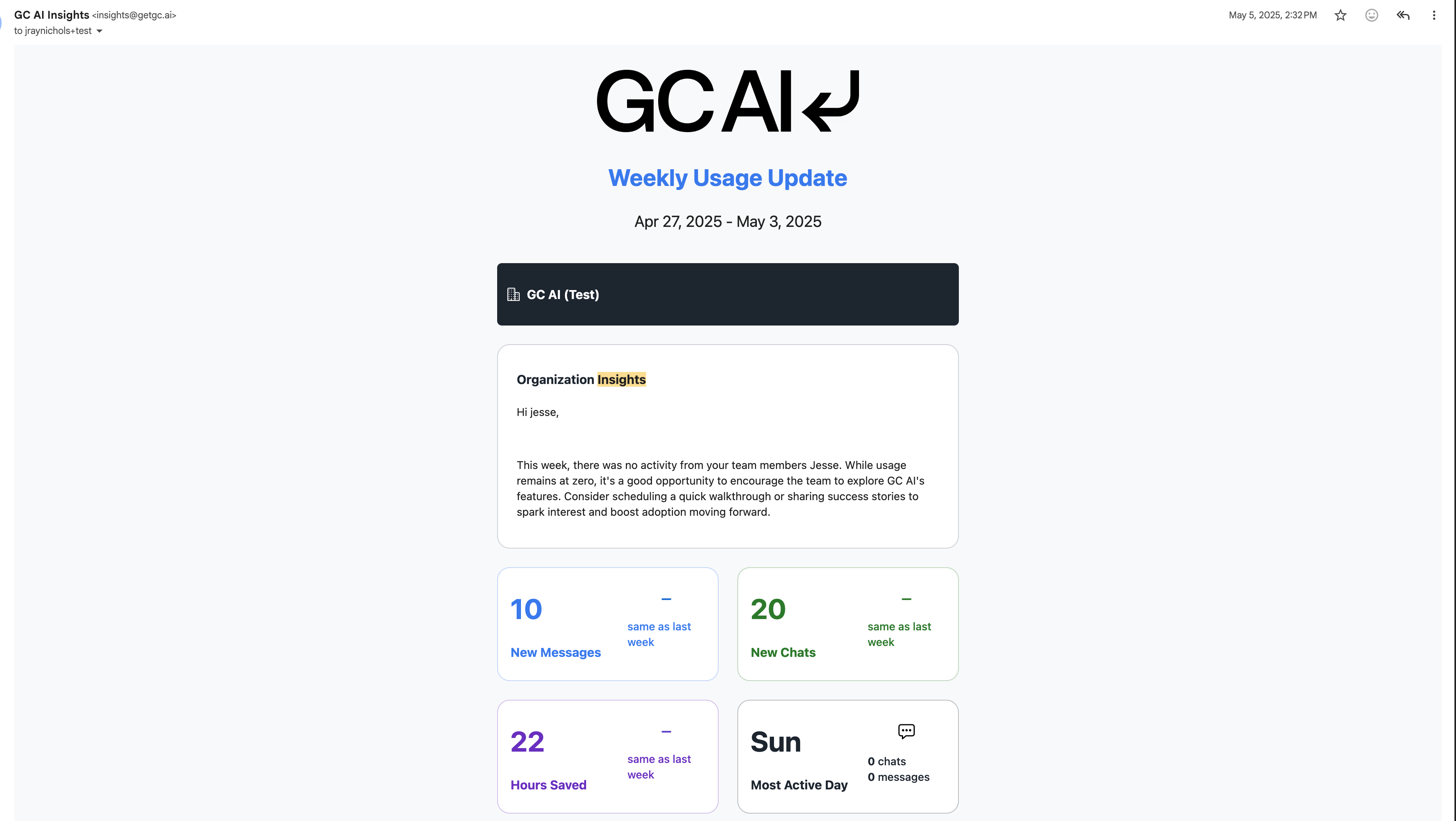
Every Monday, GC AI automatically sends comprehensive insights emails to help you stay informed about your organization's usage:
* **Admin Insights Email**: Sent to all admin users with organization-wide metrics and trends
* **Personal Insights Email**: Sent to individual users with their personal usage summary
* **AI-Generated Insights**: Each email includes personalized analysis and recommendations
### 📊 What's Included in Admin Emails
The weekly admin insights email contains:
* **Organization Overview**: Summary of the past week's activity
* **Key Metrics**: Messages, chats, hours saved, and file analysis
* **Trend Analysis**: Week-over-week changes and improvements
* **Most Active Day**: Peak usage patterns and timing
* **Member Rankings**: Top users by messages and chats with rank changes
* **Activity Metrics**: Files analyzed, words read, and sites scanned
* **Latest Resources**: Newsletter updates and [AI prompting classes](https://gc.ai/classes)
### 📈 What's Included in Personal Emails
Individual users receive personalized insights including:
* **Personal Summary**: AI-generated insights about their usage patterns
* **Performance Metrics**: Messages, chats, and percentile rankings
* **Time Savings**: Estimated hours saved through AI assistance. Time saved is calculated based on multiple factors:
* 5 minutes saved per web message, estimated reading time for uploaded files and websites.
* 3 minutes per Word redline.
* 5 minutes per Word draft.
These are conservative estimates based on customer feedback showing 5-100x time savings on tasks like research and document analysis.
* **Activity Breakdown**: Files analyzed, words read, and sites scanned
* **Growth Tracking**: Week-over-week progress and improvements
## Data Export & Sharing
### Export Options
Each chart panel supports multiple export formats:
* **PNG**: High-quality images for presentations
* **SVG**: Scalable vector graphics
* **JPG**: Compressed image format
* **CSV**: Raw data for spreadsheet analysis
* **XLSX**: Excel-compatible format with formatting
### Export Features
* **Chart-specific Data**: Export only the data shown in each panel
* **Member-filtered Exports**: Include only selected team members
* **Time-period Filtering**: Export data for specific date ranges
## Advanced Features
### 🔍 Member Filtering
* **Selective Analysis**: Focus on specific team members
* **Role-based Views**: Analyze usage by team roles
* **Performance Tracking**: Monitor individual productivity
### 📊 Column Layout
* **Responsive Design**: 1-column (mobile) or 2-column (desktop) layouts
* **Customizable Views**: Adjust layout based on screen size
* **Optimized Display**: Best viewing experience for different devices
### 🔄 Real-time Updates
* **Live Data**: Metrics update automatically
* **Refresh Controls**: Manual refresh when needed
* **Data Currency**: Information is current within a few hours
## Best Practices
### 📈 Regular Monitoring
* **Weekly Reviews**: Check usage patterns and trends
* **Monthly Analysis**: Identify optimization opportunities
* **Quarterly Planning**: Plan resource allocation and training
### 🎯 Performance Optimization
* **Usage Patterns**: Identify peak usage times
* **Feature Adoption**: Track which capabilities are most used
* **Training Needs**: Spot opportunities for team education
### 📚 Additional Resources
* [Team Management Guide](/guides/organizations/how-to-invite-teammates)
* [Best Practices for Organizations](/guides/organizations/creating-a-profile)
* [GC AI for Word Documentation](/docs/gc-ai-for-word/how-to-install)
### 🔗 Related Features
* [File Management](/docs/files/introduction)
* [Chat Interface](/docs/chat/interface-overview)
* [Organization Settings](/docs/organizations/company-profiles)
The metrics page is continuously updated with new features and improvements. Check back regularly for enhanced analytics capabilities.