> ## Documentation Index
> Fetch the complete documentation index at: https://docs.gc.ai/llms.txt
> Use this file to discover all available pages before exploring further.
# Using Easy Prompt
> How to enhance your GC AI interactions with Easy Prompt
## What Is Easy Prompt?
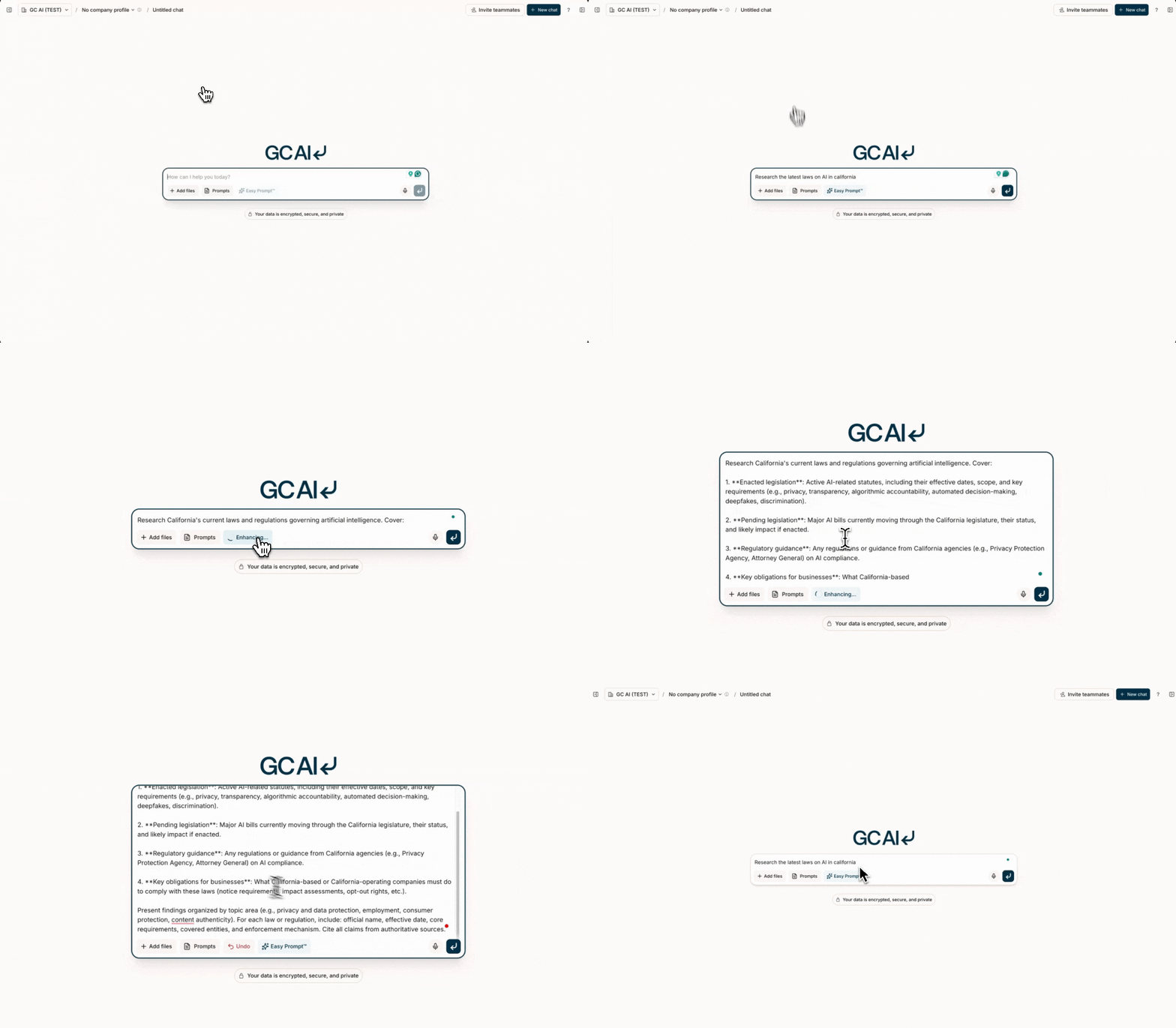
Easy Prompt transforms your basic prompts into more effective, AI-readable formats. You get better responses from GC AI with minimal effort.
 ## How to Use Easy Prompt
1. Enter your basic prompt (e.g., "Analyze this new court ruling").
2. Select the **Easy Prompt** button.
3. Review the expanded prompt that GC AI generates.
4. Edit the expanded prompt to fit your specific needs.
5. If the expanded prompt isn't what you wanted, use the **undo** option to revert to your original text.
6. Save useful prompts for future use.
Easy Prompt works best when you start with a clear, specific request that GC
AI can build upon.
## Easy Prompt Example
### Basic Request to Enhanced Prompt
❌ **Basic prompt:**
"Review this contract."
✅ **EasyPrompt enhanced:**
## How to Use Easy Prompt
1. Enter your basic prompt (e.g., "Analyze this new court ruling").
2. Select the **Easy Prompt** button.
3. Review the expanded prompt that GC AI generates.
4. Edit the expanded prompt to fit your specific needs.
5. If the expanded prompt isn't what you wanted, use the **undo** option to revert to your original text.
6. Save useful prompts for future use.
Easy Prompt works best when you start with a clear, specific request that GC
AI can build upon.
## Easy Prompt Example
### Basic Request to Enhanced Prompt
❌ **Basic prompt:**
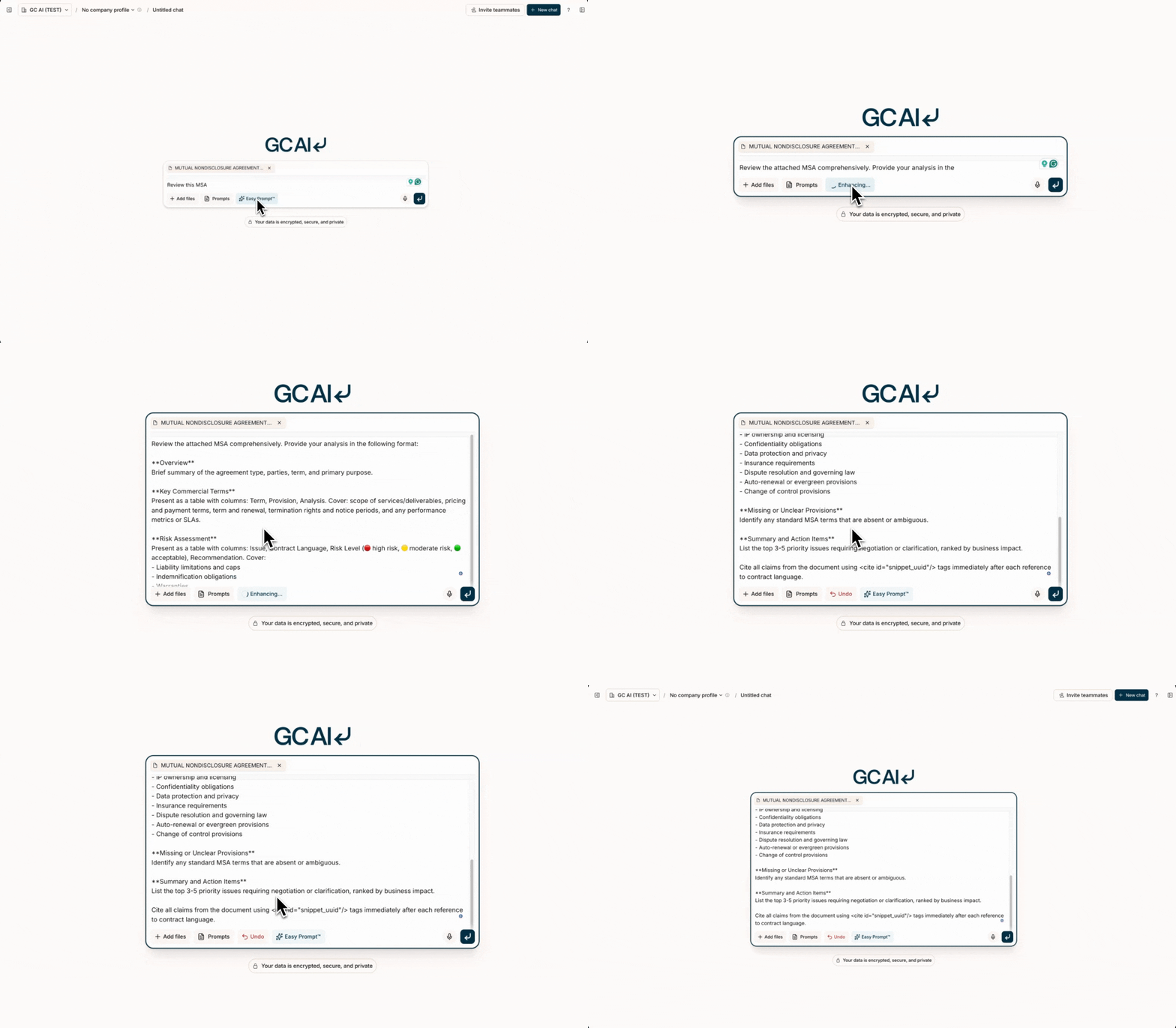
"Review this contract."
✅ **EasyPrompt enhanced:**
 Use formatting like `**bold**` and `*italic*` to emphasize key points in
your skills.
## Document References with Easy Prompt
When using Easy Prompt with documents:
* Provide direct links when available
* Upload specific documents for analysis
* Specify exactly which parts of the document you want analyzed
* Include document type and purpose in your prompt
Use formatting like `**bold**` and `*italic*` to emphasize key points in
your skills.
## Document References with Easy Prompt
When using Easy Prompt with documents:
* Provide direct links when available
* Upload specific documents for analysis
* Specify exactly which parts of the document you want analyzed
* Include document type and purpose in your prompt