> ## Documentation Index
> Fetch the complete documentation index at: https://docs.gc.ai/llms.txt
> Use this file to discover all available pages before exploring further.
# Using Skills in Chat
> Type / to attach a skill as a chip, then keep the question short.
Skills are reusable instructions you attach to a conversation. Keep the question short. GC AI reads the skill's full instructions, plus any files linked to the skill, as dedicated context.
For how to write and share skills, see [How to Create and Use Skills](/guides/prompting/creating-skills). For ready-made starting points, see the [Official Skill Library](/guides/prompting/official-skills).
## Attach a skill with /
1. Click in the chat box
2. Type `/`
3. Start typing a skill name to filter the list
4. Press Enter or click a skill
5. Type your question next to the skill and send
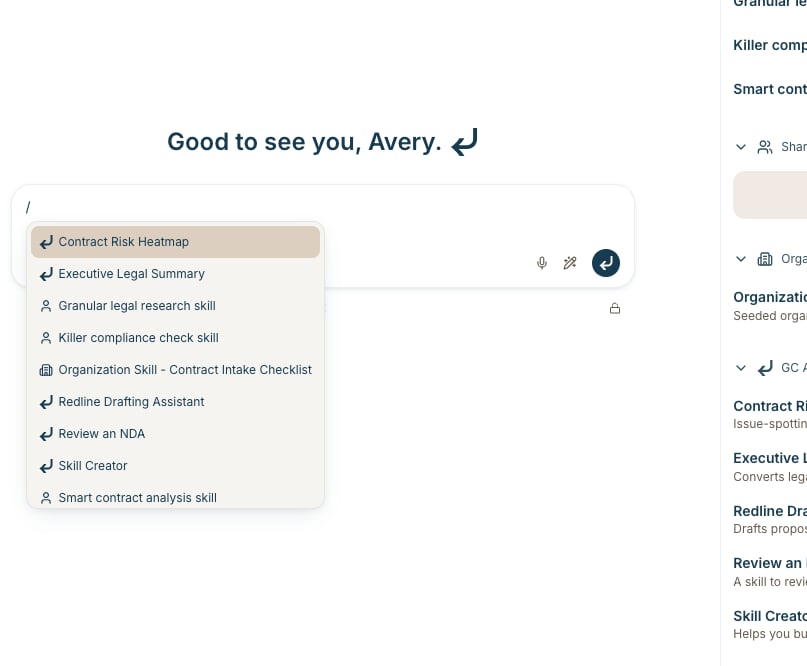 An empty chat box also says **Type / for skills**.
On desktop, the skill appears as a chip in your message. Keep typing after it. Type `/` again to attach another.
An empty chat box also says **Type / for skills**.
On desktop, the skill appears as a chip in your message. Keep typing after it. Type `/` again to attach another.
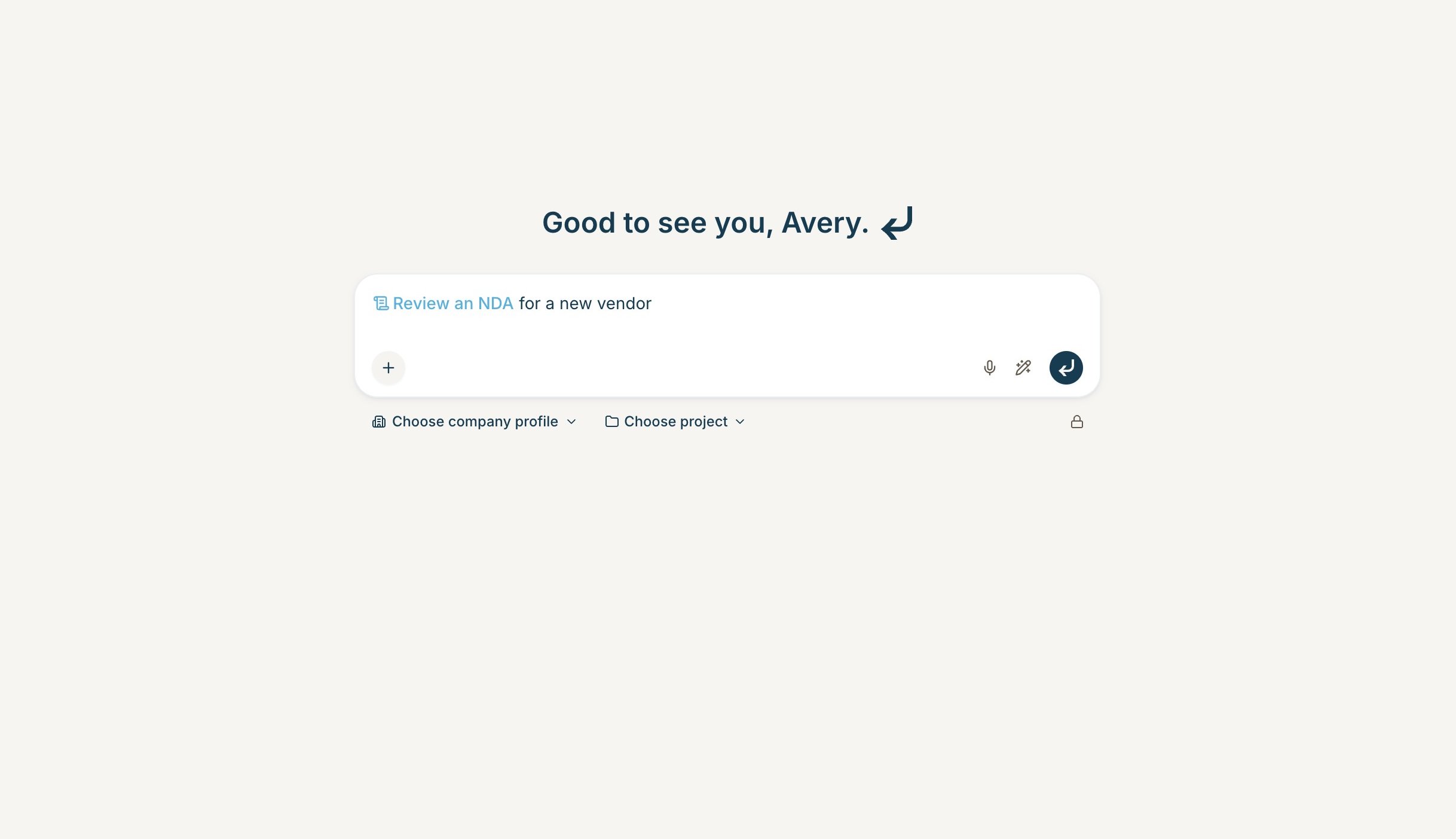 On a phone, attached skills appear as compact badges above the box.
If you attach a GC AI Skill that copies supporting files into the chat, wait until those files finish attaching before you send.
## Attach a skill from the + menu
You can still browse skills from the **+** button.
1. Click the **+** button in the chat box
2. Select **Skills**
3. Search or browse **My Skills**, **Shared with Me**, **Organization Skills**, and **GC AI Skills**
4. Click a skill to attach it
The sidebar shows descriptions. Use it when you want to read before you pick.
## After you send
Click the skill chip or badge to open it. From there you can read the instructions, edit the skill, or share it.
## Create a skill from chat
Type `/` and select **Skill Creator** from **GC AI Skills**. Describe the workflow you want. GC AI asks follow-up questions, drafts the skill, and saves it to your library. See [How to Create and Use Skills](/guides/prompting/creating-skills) for the full create and edit flow.
On a phone, attached skills appear as compact badges above the box.
If you attach a GC AI Skill that copies supporting files into the chat, wait until those files finish attaching before you send.
## Attach a skill from the + menu
You can still browse skills from the **+** button.
1. Click the **+** button in the chat box
2. Select **Skills**
3. Search or browse **My Skills**, **Shared with Me**, **Organization Skills**, and **GC AI Skills**
4. Click a skill to attach it
The sidebar shows descriptions. Use it when you want to read before you pick.
## After you send
Click the skill chip or badge to open it. From there you can read the instructions, edit the skill, or share it.
## Create a skill from chat
Type `/` and select **Skill Creator** from **GC AI Skills**. Describe the workflow you want. GC AI asks follow-up questions, drafts the skill, and saves it to your library. See [How to Create and Use Skills](/guides/prompting/creating-skills) for the full create and edit flow.