> ## Documentation Index
> Fetch the complete documentation index at: https://docs.gc.ai/llms.txt
> Use this file to discover all available pages before exploring further.
# SSO Setup
> Set up Single Sign-On for your GC AI organization using SAML or OIDC
## 🔐 What is SSO?
Single Sign-On (SSO) lets your team sign in to GC AI using your organization's existing identity provider (IdP). GC AI supports SSO through [WorkOS](https://workos.com/docs/sso), which is compatible with any IdP that supports SAML or OIDC protocols.
## 📋 Prerequisites
Before you begin SSO setup:
* You must be an **Admin** in your GC AI organization
* Your organization must use an IdP that supports SAML or OIDC (e.g. Okta, Azure AD, OneLogin, Google Workspace, JumpCloud)
* You need access to your IdP's admin console to create a new application
* Domain verification must be completed before SSO can be enabled
You can also invite your IT admin into your organization on a trial seat to complete the SSO setup. Just provide their email to [support@gc.ai](mailto:support@gc.ai) and we will add them.
## 🌐 Step 1: Verify Your Domain
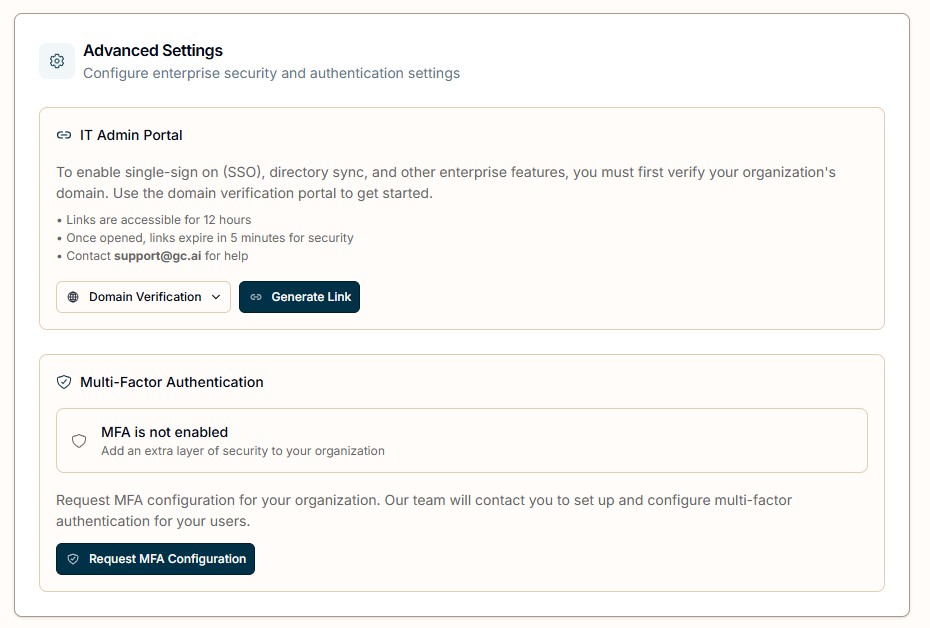
1. Navigate to [Organization Settings](https://app.gc.ai/settings/organization).
2. Scroll down to **Domain verification**.
3. Select **Generate Link** and open the link. It directs you to the domain verification process.
4. Complete domain verification by following the on-screen instructions.
 ## 🔗 Step 2: Generate the SSO Configuration Link
1. Navigate back to [Organization Settings](https://app.gc.ai/settings/organization).
2. Select **SSO Setup** from the dropdown menu.
3. Select **Generate Link** and open the link.
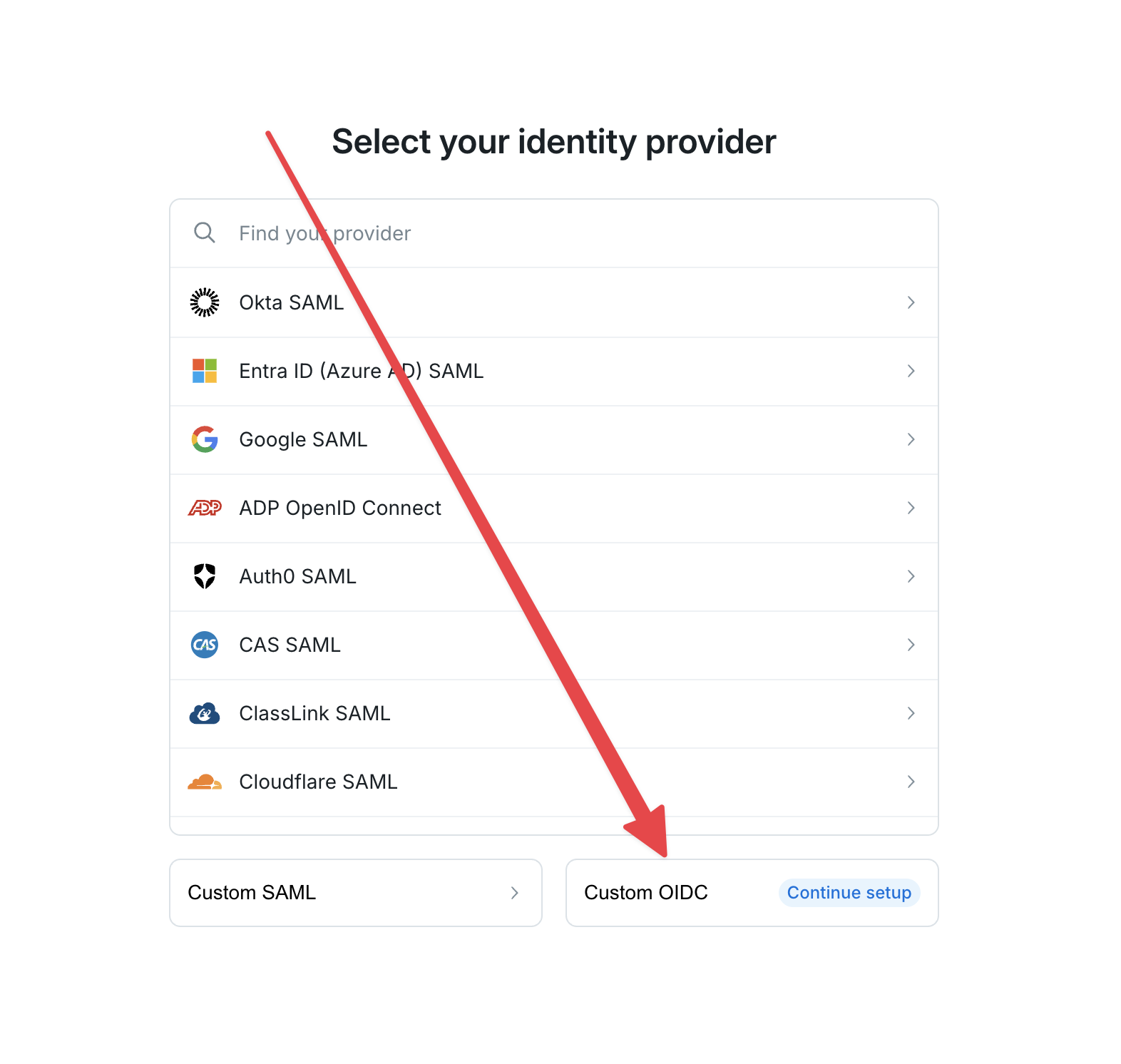
## 🏢 Step 3: Select Your Identity Provider
Select your IdP from the list (Okta, Azure AD, OneLogin, etc.) and follow the on-screen instructions to connect it.
### Custom SAML or OIDC
If your IdP is not listed, select **Custom OIDC** or **Custom SAML** depending on the protocol your organization uses.
## 🔗 Step 2: Generate the SSO Configuration Link
1. Navigate back to [Organization Settings](https://app.gc.ai/settings/organization).
2. Select **SSO Setup** from the dropdown menu.
3. Select **Generate Link** and open the link.
## 🏢 Step 3: Select Your Identity Provider
Select your IdP from the list (Okta, Azure AD, OneLogin, etc.) and follow the on-screen instructions to connect it.
### Custom SAML or OIDC
If your IdP is not listed, select **Custom OIDC** or **Custom SAML** depending on the protocol your organization uses.
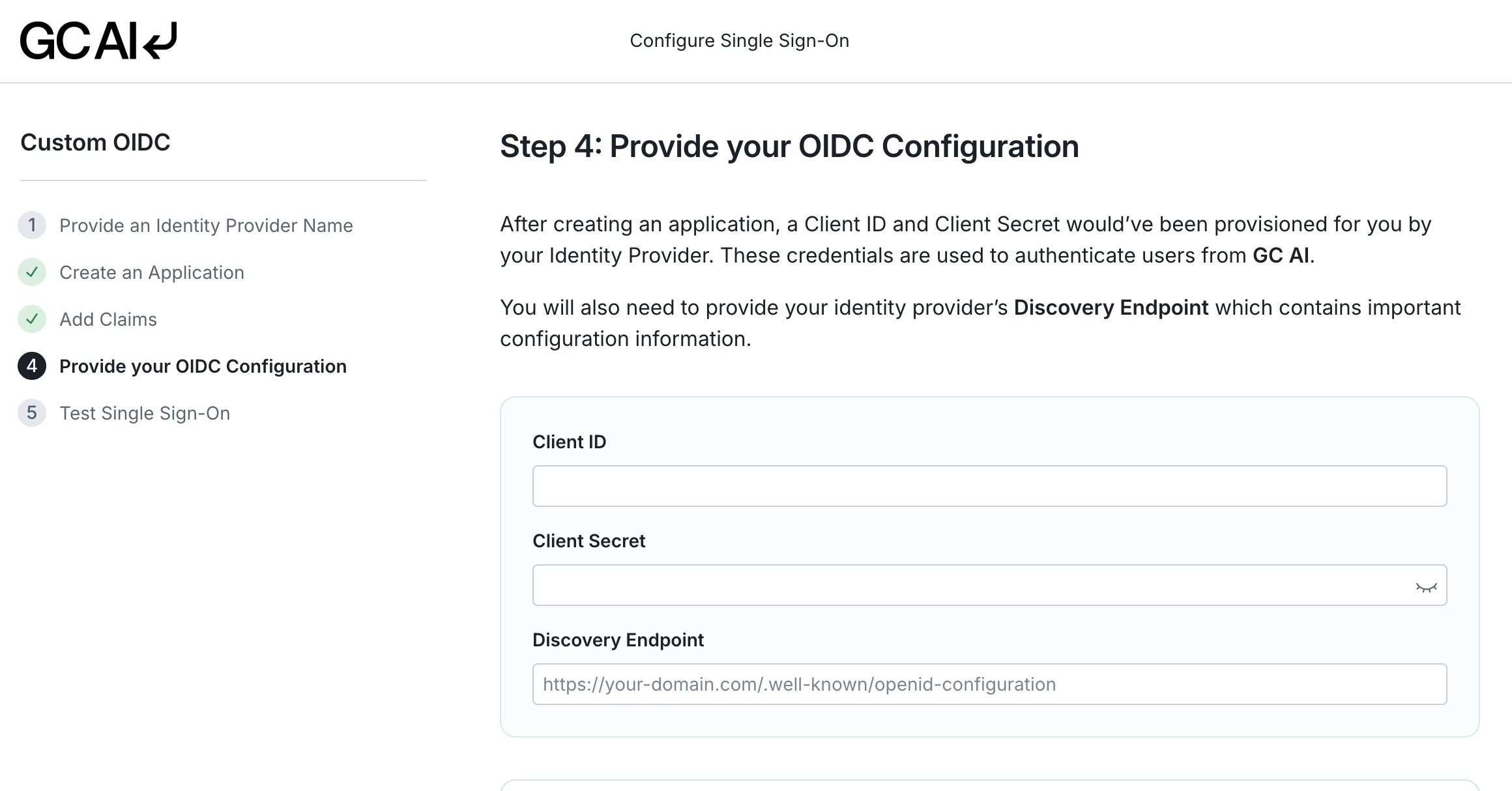
 For Custom OIDC:
1. Provide an **IdP name**.
2. Copy the **Redirect URI** from the "Create an Application" step and add it to your IdP.
3. Add the required **claims** to your auth token as shown on screen.
4. Enter your **Client ID**, **Client Secret**, and **Discovery Endpoint** from your IdP.
For Custom OIDC:
1. Provide an **IdP name**.
2. Copy the **Redirect URI** from the "Create an Application" step and add it to your IdP.
3. Add the required **claims** to your auth token as shown on screen.
4. Enter your **Client ID**, **Client Secret**, and **Discovery Endpoint** from your IdP.
 For Custom SAML:
1. Provide an **IdP name**.
2. Copy the **ACS URL** and **SP Entity ID** from the setup screen into your IdP's SAML application configuration.
3. Configure the required **attribute mappings** in your IdP. At minimum, these attributes must be included in the SAML assertion:
* `id` - A unique user identifier
* `email` - The user's email address
* `firstName` - The user's first name
* `lastName` - The user's last name
4. Upload your IdP's **metadata XML** or manually enter the **SSO URL** and **X.509 certificate**.
## ✅ Step 4: Test the Connection
After completing the configuration, select **Test Connection** to verify everything works. A successful test confirms that your IdP and GC AI can communicate properly.
If the test fails, see the troubleshooting section below.
## 🔧 Common Setup Issues
### SAML Test Connection Fails
If you run a test of your SAML SSO connection and it does not pass, the most common causes are:
**Missing or incorrect attribute mappings**
Your IdP must send the required attributes (`id`, `email`, `firstName`, `lastName`) in the SAML assertion. If any are missing or mapped to the wrong field names, the connection test fails.
How to fix:
1. Open your IdP's admin console and navigate to the GC AI SAML application.
2. Check the **attribute statements** (sometimes called "attribute mappings" or "parameters").
3. Verify each required attribute is mapped to the correct user field in your directory.
4. Save and re-run the test.
**Incorrect ACS URL or Entity ID**
If the ACS URL or SP Entity ID in your IdP does not match what GC AI provided during setup, the SAML handshake fails.
How to fix:
1. Go back to the SSO configuration link in GC AI and copy the **ACS URL** and **SP Entity ID** exactly as shown.
2. Paste them into your IdP's SAML application settings, replacing any previous values.
3. Save and re-run the test.
**Certificate or metadata issues**
An expired or incorrect X.509 certificate prevents GC AI from validating the SAML response.
How to fix:
1. Download a fresh copy of your IdP's **metadata XML** or **X.509 certificate**.
2. Re-upload it in the GC AI SSO configuration.
3. Save and re-run the test.
### OIDC Test Connection Fails
**Invalid Client ID or Client Secret**
If the credentials entered during setup don't match what your IdP issued, authentication fails.
How to fix:
1. Open your IdP's admin console and locate the GC AI OIDC application.
2. Copy the **Client ID** and **Client Secret** directly from your IdP.
3. Re-enter them in the GC AI SSO configuration.
4. Save and re-run the test.
**Incorrect Discovery Endpoint**
The discovery endpoint URL must point to your IdP's OpenID Connect discovery document (usually ending in `/.well-known/openid-configuration`).
How to fix:
1. Verify the discovery endpoint URL in your IdP's documentation.
2. Confirm it is accessible by opening it in a browser. You should see a JSON document.
3. Update the URL in the GC AI SSO configuration and re-run the test.
### Domain Verification Not Completing
If domain verification stalls or fails:
1. Confirm you added the required DNS TXT record to your domain's DNS settings.
2. DNS changes can take up to 48 hours to propagate. Wait and try again.
3. Verify the TXT record value matches exactly what GC AI provided (no extra spaces or characters).
### Still Having Trouble?
If you've worked through the steps above and the connection test still fails, email [support@gc.ai](mailto:support@gc.ai) with:
* Your organization name
* The IdP you are using (e.g. Okta, OneLogin, Azure AD)
* A screenshot of the test result or error message
Our team can review your configuration and help resolve the issue.
For Custom SAML:
1. Provide an **IdP name**.
2. Copy the **ACS URL** and **SP Entity ID** from the setup screen into your IdP's SAML application configuration.
3. Configure the required **attribute mappings** in your IdP. At minimum, these attributes must be included in the SAML assertion:
* `id` - A unique user identifier
* `email` - The user's email address
* `firstName` - The user's first name
* `lastName` - The user's last name
4. Upload your IdP's **metadata XML** or manually enter the **SSO URL** and **X.509 certificate**.
## ✅ Step 4: Test the Connection
After completing the configuration, select **Test Connection** to verify everything works. A successful test confirms that your IdP and GC AI can communicate properly.
If the test fails, see the troubleshooting section below.
## 🔧 Common Setup Issues
### SAML Test Connection Fails
If you run a test of your SAML SSO connection and it does not pass, the most common causes are:
**Missing or incorrect attribute mappings**
Your IdP must send the required attributes (`id`, `email`, `firstName`, `lastName`) in the SAML assertion. If any are missing or mapped to the wrong field names, the connection test fails.
How to fix:
1. Open your IdP's admin console and navigate to the GC AI SAML application.
2. Check the **attribute statements** (sometimes called "attribute mappings" or "parameters").
3. Verify each required attribute is mapped to the correct user field in your directory.
4. Save and re-run the test.
**Incorrect ACS URL or Entity ID**
If the ACS URL or SP Entity ID in your IdP does not match what GC AI provided during setup, the SAML handshake fails.
How to fix:
1. Go back to the SSO configuration link in GC AI and copy the **ACS URL** and **SP Entity ID** exactly as shown.
2. Paste them into your IdP's SAML application settings, replacing any previous values.
3. Save and re-run the test.
**Certificate or metadata issues**
An expired or incorrect X.509 certificate prevents GC AI from validating the SAML response.
How to fix:
1. Download a fresh copy of your IdP's **metadata XML** or **X.509 certificate**.
2. Re-upload it in the GC AI SSO configuration.
3. Save and re-run the test.
### OIDC Test Connection Fails
**Invalid Client ID or Client Secret**
If the credentials entered during setup don't match what your IdP issued, authentication fails.
How to fix:
1. Open your IdP's admin console and locate the GC AI OIDC application.
2. Copy the **Client ID** and **Client Secret** directly from your IdP.
3. Re-enter them in the GC AI SSO configuration.
4. Save and re-run the test.
**Incorrect Discovery Endpoint**
The discovery endpoint URL must point to your IdP's OpenID Connect discovery document (usually ending in `/.well-known/openid-configuration`).
How to fix:
1. Verify the discovery endpoint URL in your IdP's documentation.
2. Confirm it is accessible by opening it in a browser. You should see a JSON document.
3. Update the URL in the GC AI SSO configuration and re-run the test.
### Domain Verification Not Completing
If domain verification stalls or fails:
1. Confirm you added the required DNS TXT record to your domain's DNS settings.
2. DNS changes can take up to 48 hours to propagate. Wait and try again.
3. Verify the TXT record value matches exactly what GC AI provided (no extra spaces or characters).
### Still Having Trouble?
If you've worked through the steps above and the connection test still fails, email [support@gc.ai](mailto:support@gc.ai) with:
* Your organization name
* The IdP you are using (e.g. Okta, OneLogin, Azure AD)
* A screenshot of the test result or error message
Our team can review your configuration and help resolve the issue.