

- User access. A person logs in and consents, using the OAuth 2.0 authorization-code grant. This is how hosts like ChatGPT and Claude connect. Each request acts as that user.
- Machine access (M2M). A service authenticates with a client ID and secret, using the OAuth 2.0 client-credentials grant. No human is in the loop. Each request acts for the organization.
Machine credentials are org-scoped. A token issued this way acts for your whole organization, with no user identity attached. Tools that require a user (creating projects, skills, or playbooks, and uploading files) are not available over a machine credential. See Tools available to a machine token.
When to use machine access
- A backend service or agent platform connects to MCP with no human in the loop.
- The client only supports the client-credentials grant. Salesforce AgentForce, for example, does not yet support the authorization-code grant for external MCP servers.
- You want a stable, org-scoped connection that does not depend on any single user’s session.
Before you start
You need:- A way to mint the credential: either org admin access in GC AI (to use the settings screen) or an org-scoped GC AI API key (
gcai_...) to call the REST endpoint. User-scoped keys receive403. See API keys. - MCP access enabled for your organization. If it is not, you can still mint a credential, but any token it issues is rejected when you call the MCP server. An org admin can turn it on under Settings → API.
How machine access works
The flow has three parts:- Mint a credential in GC AI (Settings → API → MCP credentials), or with
POST /v1/mcp/credentials. GC AI provisions a single machine application for your organization on the first call and reuses it thereafter, so theclient_idis stable. - Exchange the credential at GC AI’s token endpoint (
grant_type=client_credentials) for a short-lived access token. - Call the MCP server with that token. GC AI verifies it, binds it back to your organization, and runs each tool in your organization’s context.
Step 1: Mint a credential
Most people generate the credential from the GC AI app. If you are automating setup, the REST endpoint returns the same values.- In the app (org admins)
- Over the API
Go to Settings → API, find the MCP credentials section, and choose Set up MCP credentials. In the dialog, choose Generate credentials. GC AI reveals the 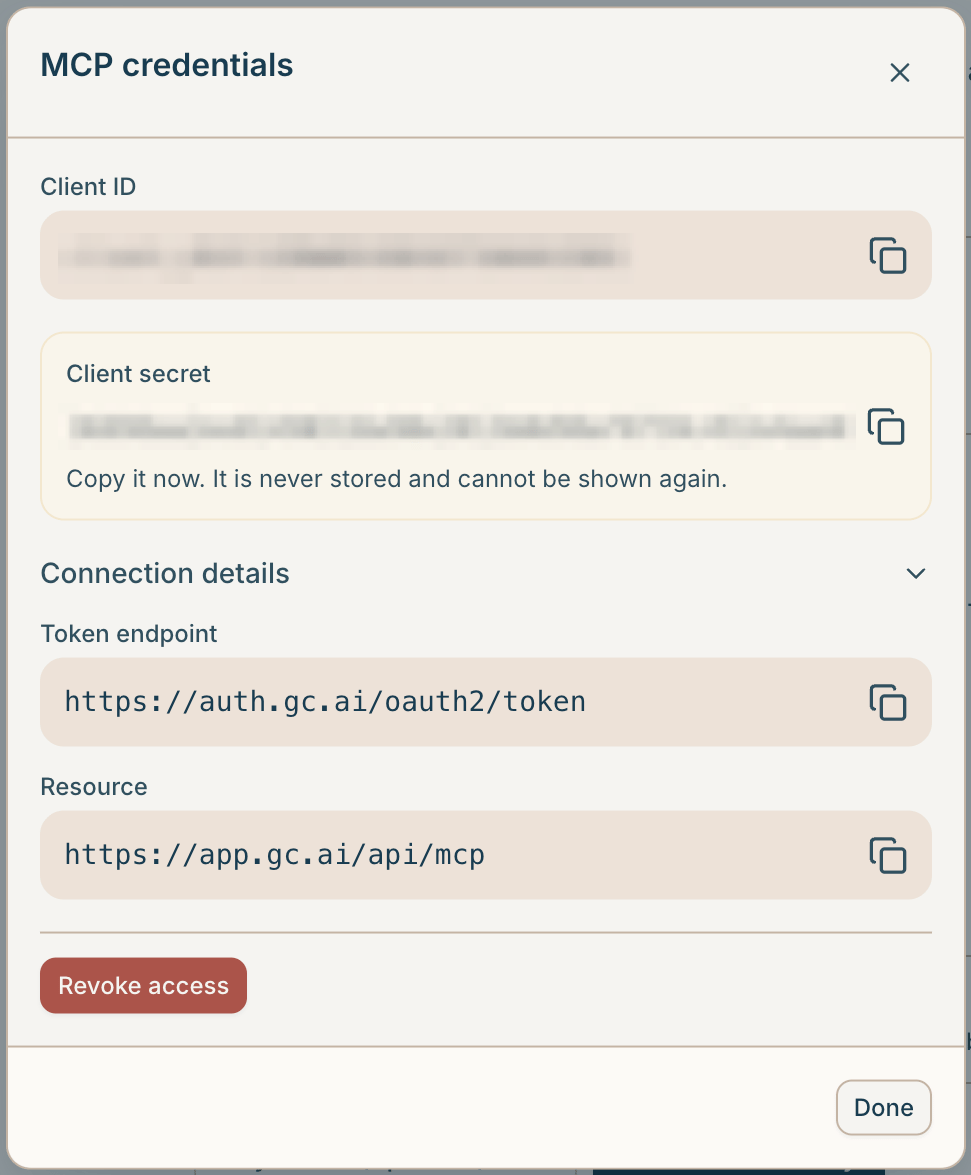
client_secret alongside the client_id; the token_endpoint and resource are under Connection details. Copy the client secret before closing the dialog: it is shown only once.client_id, with token_endpoint and resource under Connection details; use Generate new secret to rotate.Step 2: Configure your OAuth client
The client is whatever connects to MCP: Salesforce AgentForce, a backend service, or your own script. Give it these values and it fetches a short-lived access token and calls the MCP server for you. You do not perform the token exchange by hand.- Grant type:
client_credentials - Token endpoint: the
token_endpointfrom step 1 (https://auth.gc.ai/oauth2/token) - Client ID and secret: the
client_idandclient_secretfrom step 1 resourceparameter: theresourcefrom step 1 (https://app.gc.ai/api/mcp)- MCP server URL:
https://app.gc.ai/api/mcp, over Streamable HTTP transport
The
resource parameter is part of OAuth 2.1, and some clients (including Salesforce) require it on the token request. Send it exactly as returned. GC AI binds the issued token to your organization using the credential’s client ID, so the token is org-scoped whether or not resource is present. Sending it satisfies clients that require it without changing how the token is scoped.Fetch a token manually (for testing)
Fetch a token manually (for testing)
To verify a credential outside your client, exchange it directly:The response contains an
access_token. Send it as Authorization: Bearer <access_token> on requests to the MCP server.Tools available to a machine token
Over a client-credentials (organization) token, the MCP server exposes these tools:
Tools that create or modify resources (projects, skills, playbooks, and file uploads) require a user identity and are not available over a machine credential.
Example: Salesforce
Salesforce (including AgentForce) connects to an external MCP server using the client-credentials grant, so the steps above apply directly. It is one concrete example; any client that speaks the grant follows the same shape. In Salesforce Setup, create the external identity provider it authenticates with, using the values from step 1:1
Set the authentication flow
Choose Client Credentials as the authentication (grant) flow.
2
Set the token endpoint
Enter the
token_endpoint from step 1 as the token endpoint URL.3
Enter the client ID and secret
Use the
client_id and client_secret from step 1.4
Add the resource parameter
Add a custom token request parameter named
resource, set to the resource value from step 1 (https://app.gc.ai/api/mcp).5
Register the MCP server
Add the GC AI MCP server (
https://app.gc.ai/api/mcp) over Streamable HTTP transport, pointed at the identity provider you just configured.6
Allow the tools you need
Allowlist the tools available to a machine token that the agent should call.
Rotating credentials
Generating again (via Generate new secret in the app, or anotherPOST /v1/mcp/credentials) mints a new secret and reuses the same application, so the client_id does not change. Update the secret in your client and the connection keeps working. A single application allows up to 5 live secrets at a time; once that limit is reached, generating another secret fails. Individual secrets cannot be retired on their own: use Revoke access to delete the application and all its secrets, then generate again. Revoking issues a new client_id, so update both the client_id and the secret in your client.
Troubleshooting
Minting a credential:
Calling the MCP server:
Related
- Provision MCP Client-credentials: the endpoint reference for
POST /v1/mcp/credentials. - API keys: user-scoped vs. org-scoped keys.
- Asynchronous Requests: how
ask_gcaiandrun_playbookreturn results. - API Introduction: base URL, authentication, and a first request.