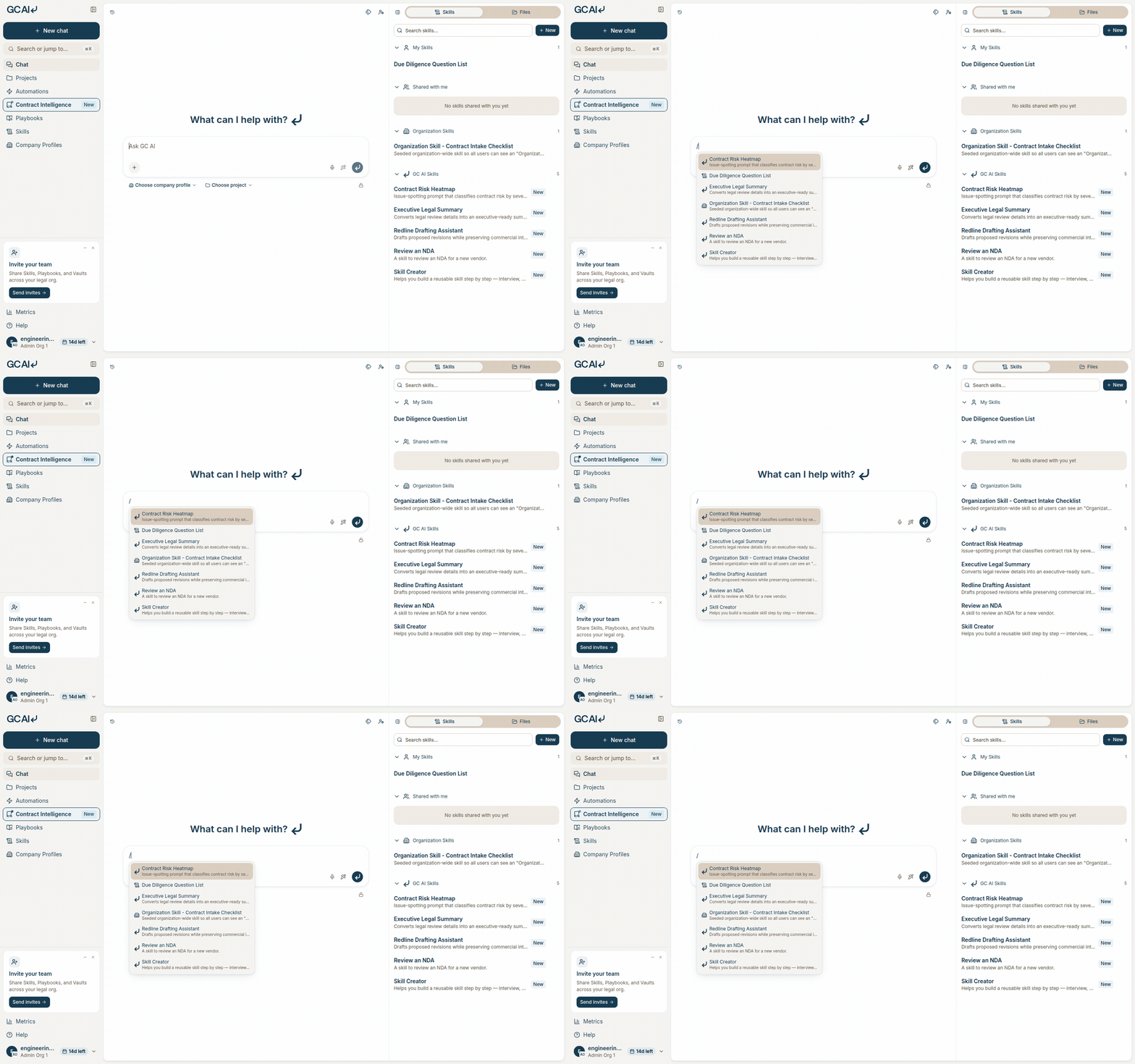
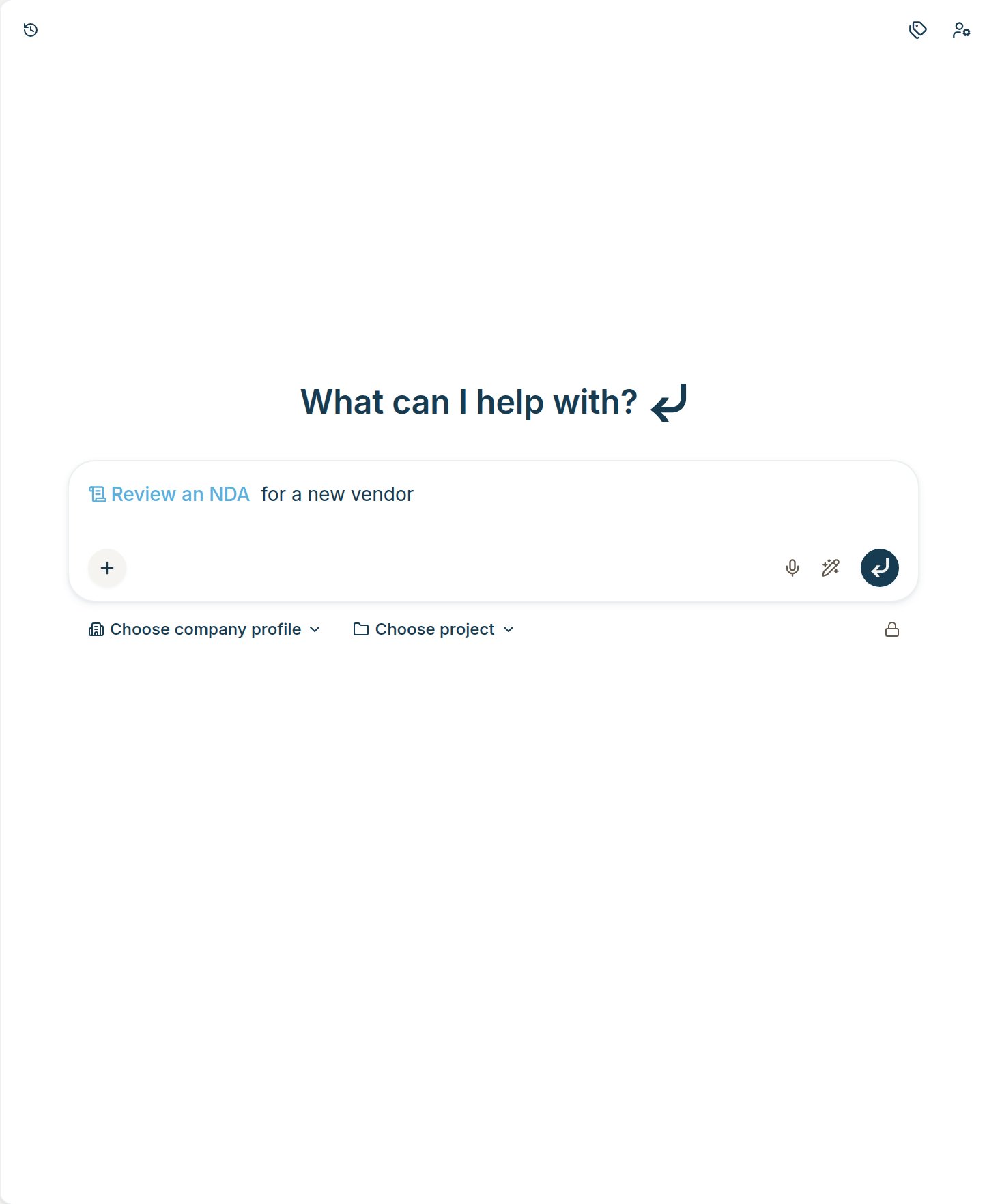
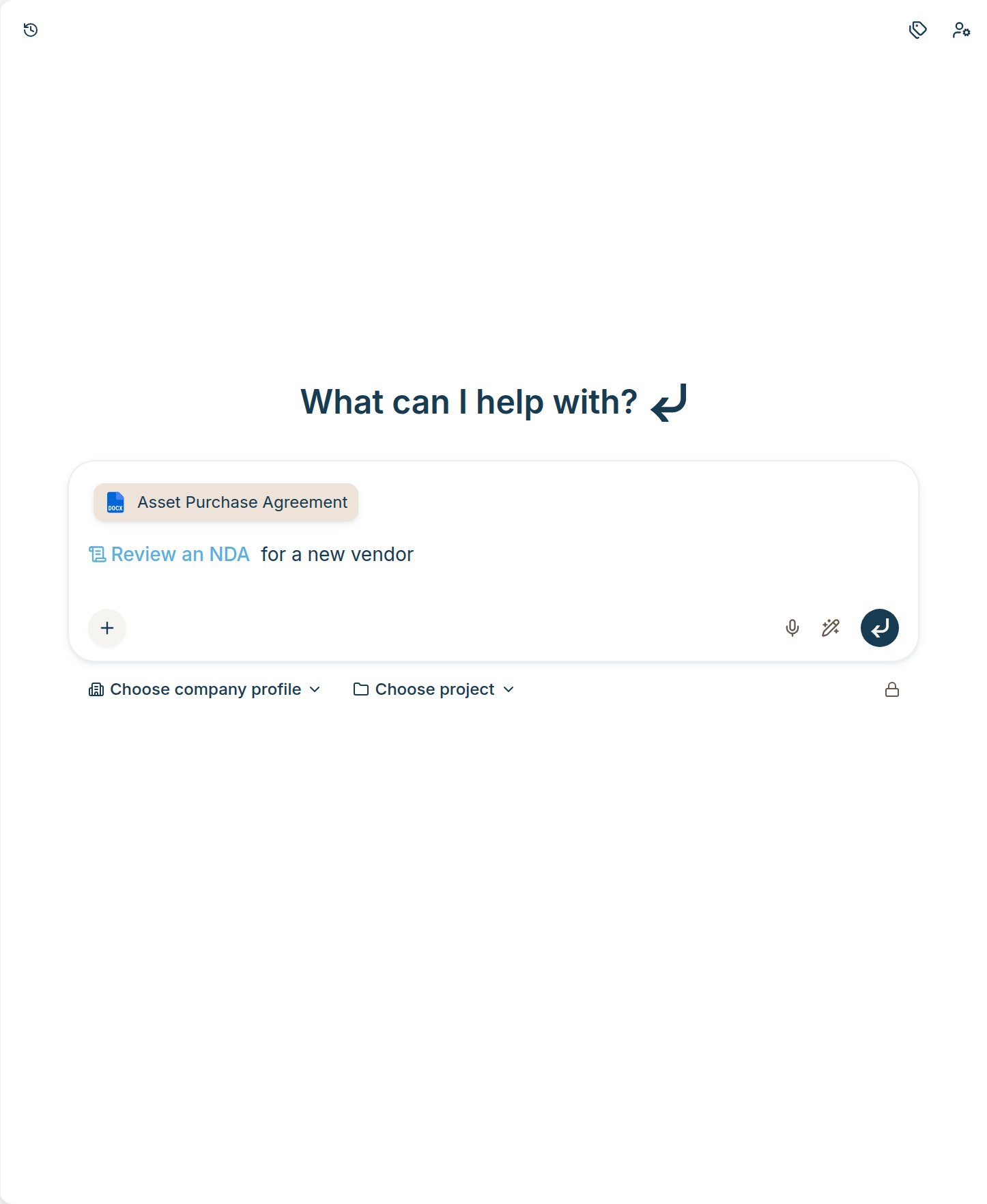
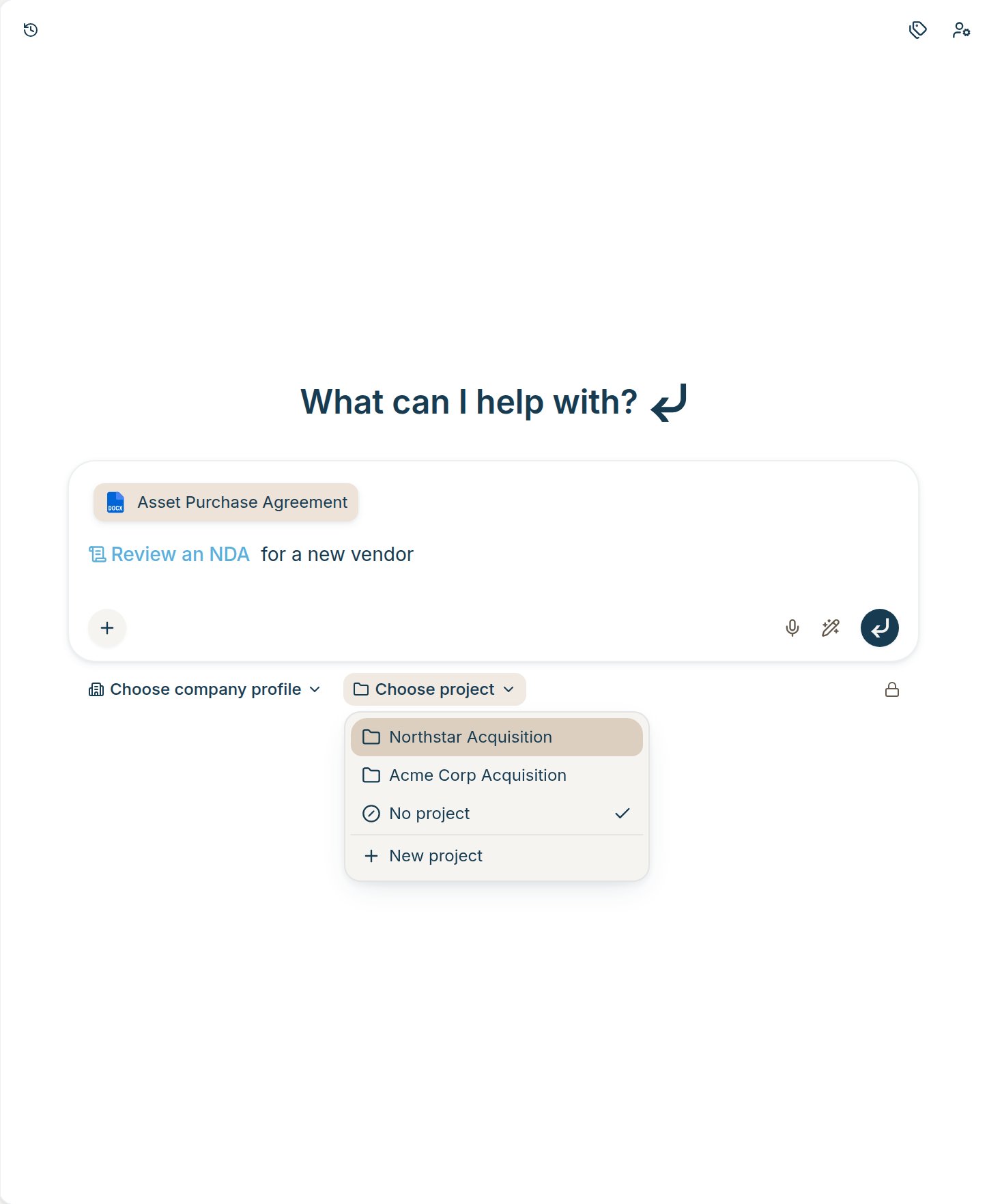
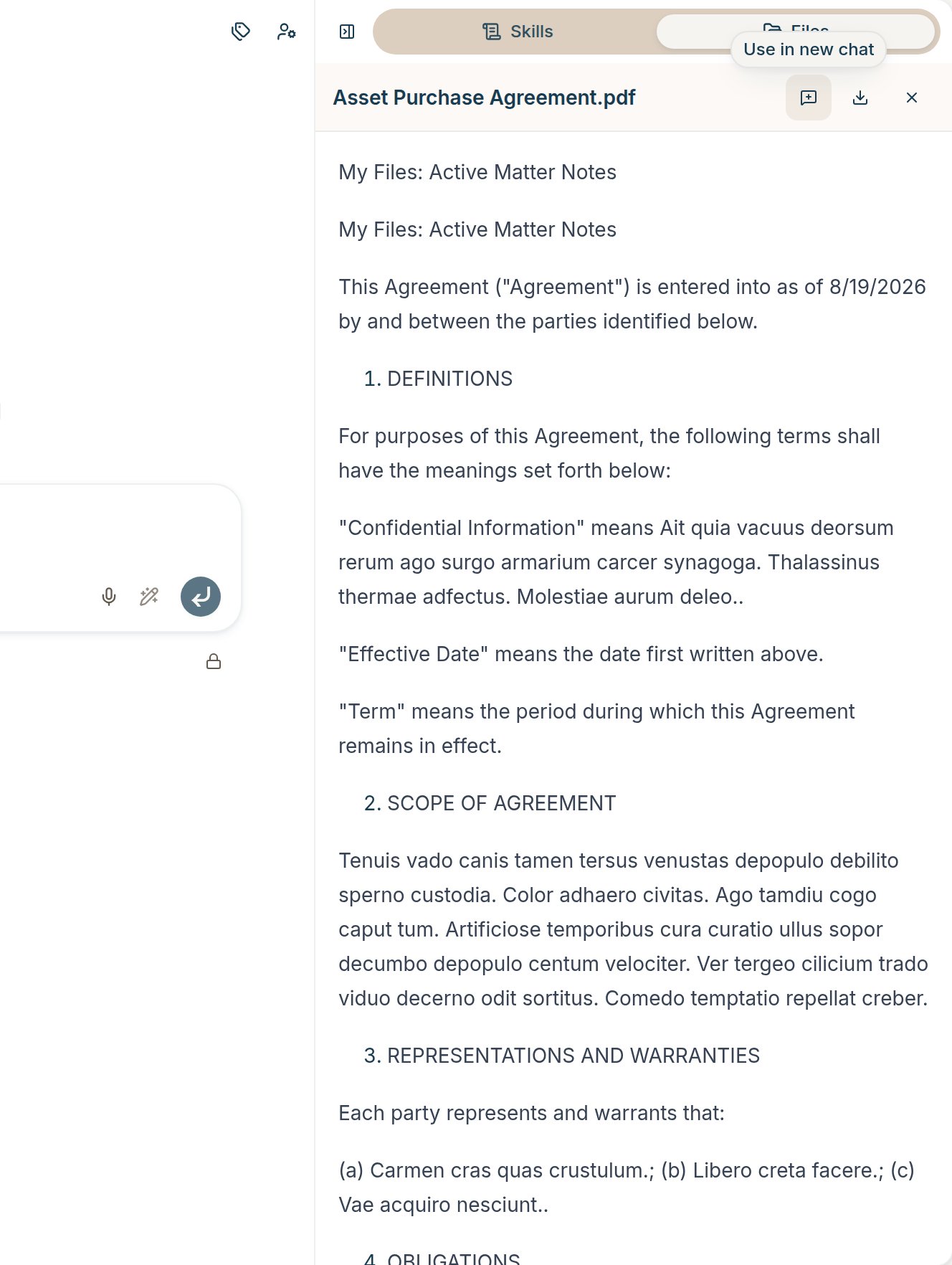
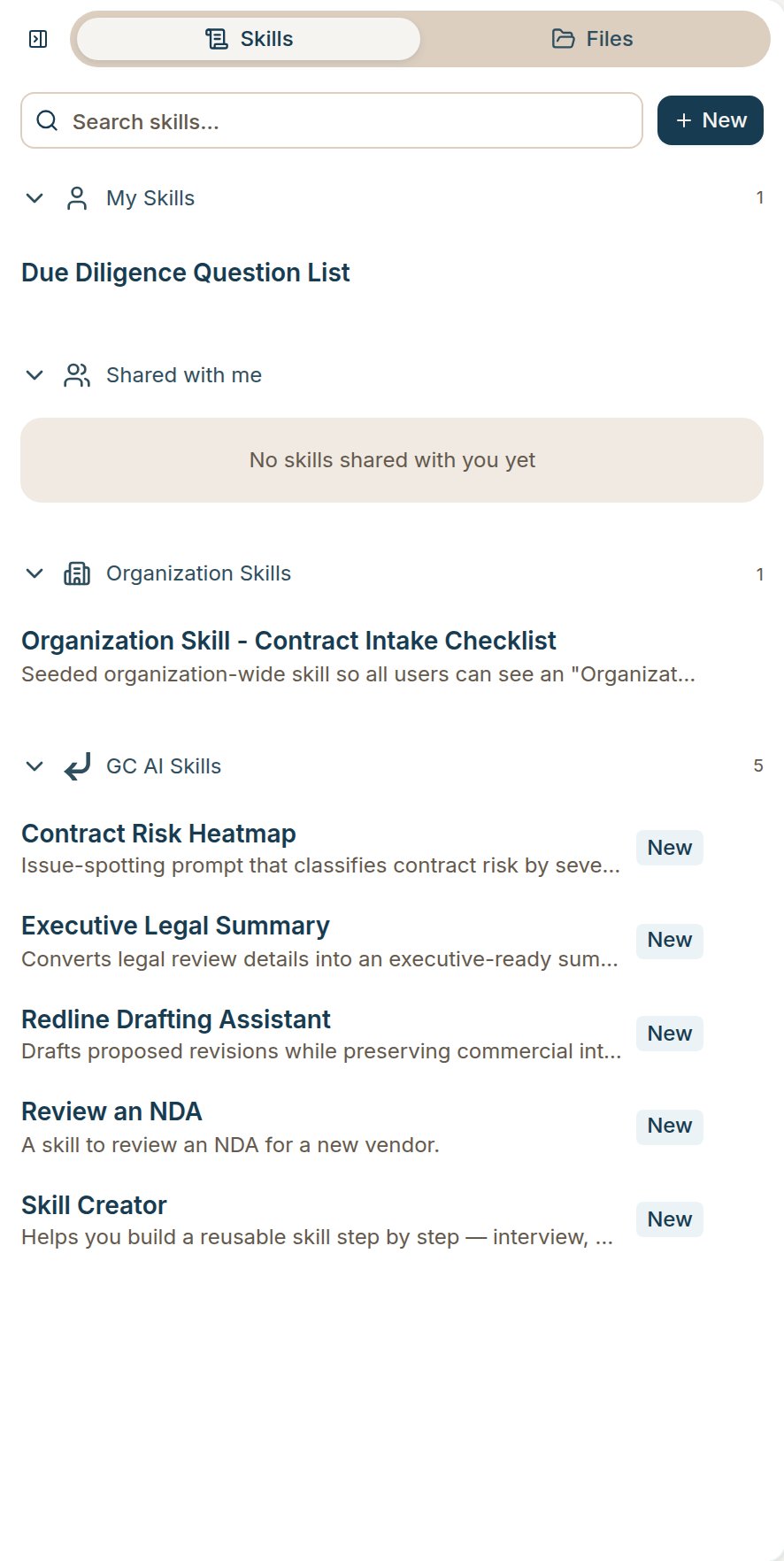
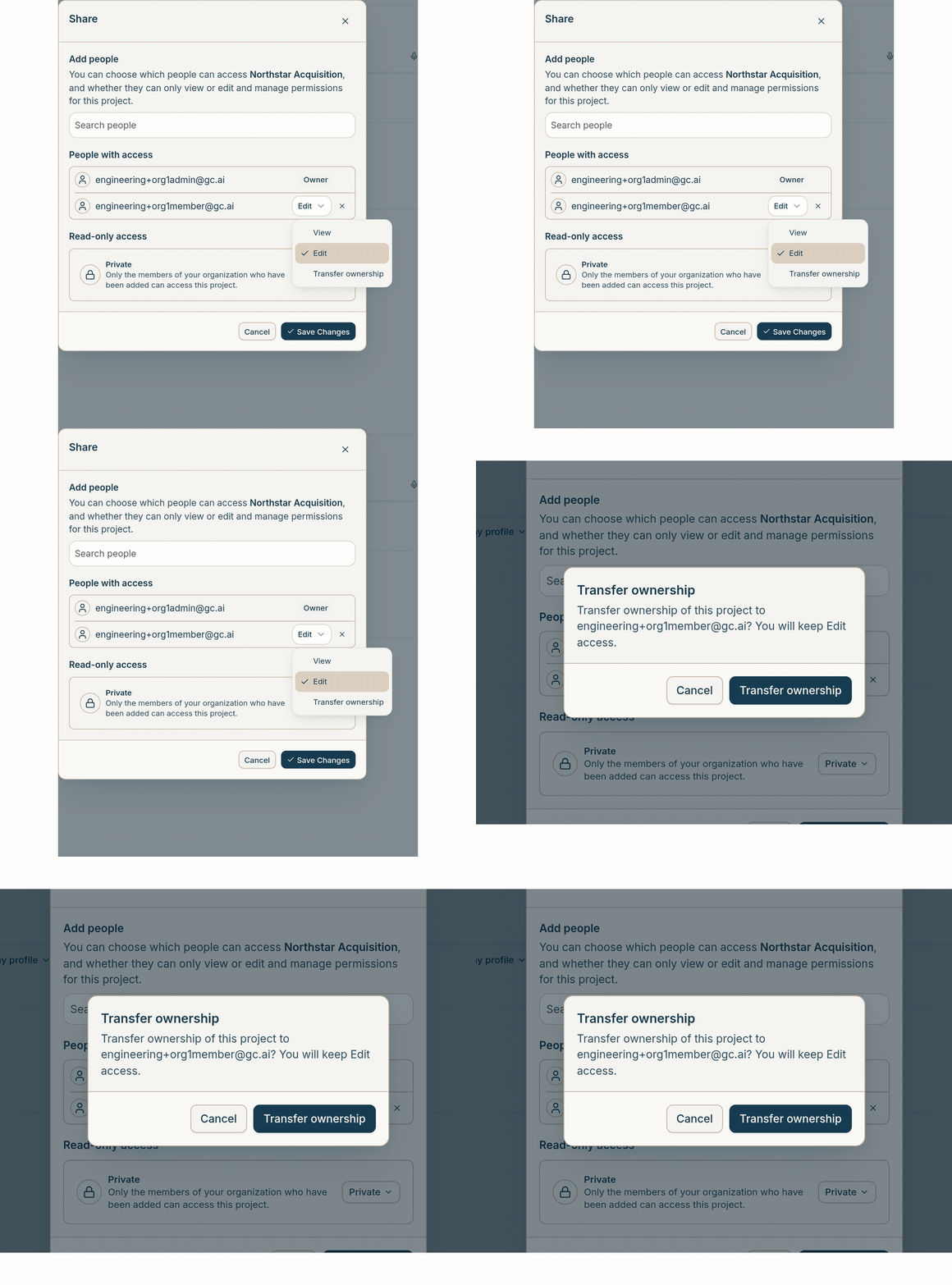
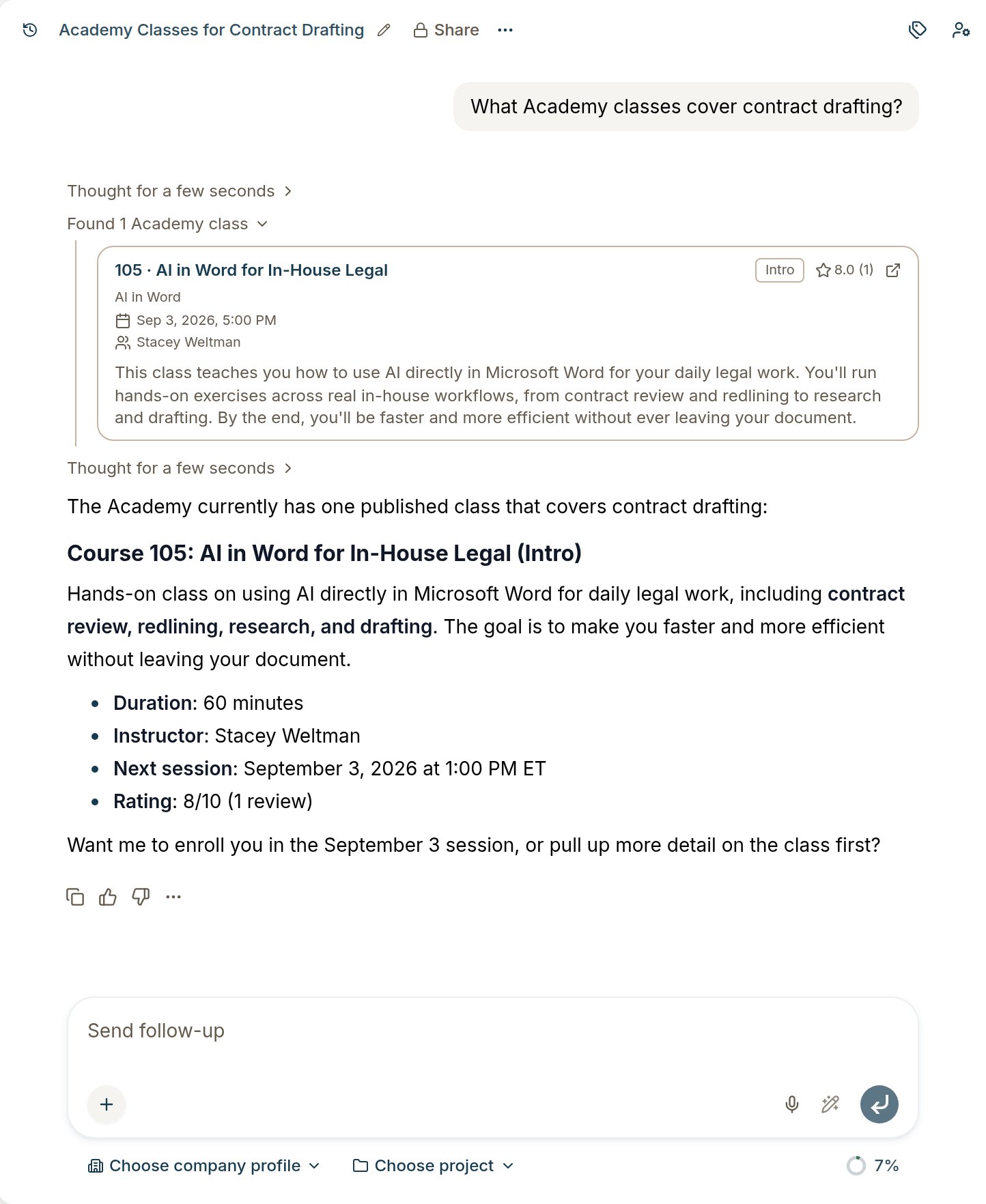
• Attach a skill with /: Type / in the chat box to search your skills and GC AI Skills. Press Enter or click one to attach it as a chip, then keep typing your question next to it. You can still browse skills from the + menu. See Using Skills in Chat.• A tighter chat composer: File, skill, playbook, vault, and folder chips are more compact, and they look the same in the chat box and on sent messages. Pick a project from the composer when you start a chat. An empty box also says Type / for skills.• Use in new chat from a file: Open a file preview, then click Use in new chat. A new conversation opens with that file already attached.• Skills and Files sidebars: The Skills and Files panels use a cleaner header, denser rows, and clearer section labels so you can scan and attach items faster.• Transfer project ownership: Project Owners can hand a project to another organization member from the Share dialog. Open a member’s access menu, choose Transfer ownership, and confirm. The new Owner gets full Admin access. You keep Edit access so you can keep working in the project.• Organization-visible projects share files and chats: Setting a project to Organization shares the project, its files, and its chats with everyone in your organization. Hover Shared with your organization on the project page for a short explanation and a link to the docs.• Import spreadsheet columns into a Vault: On a Vault’s Fields page, choose Import spreadsheet to join an .xlsx or .csv tracker to your documents on one key (document name, file name, or counterparties). The other sheet columns become Vault columns and stay tied to that spreadsheet.• Group Vault columns by hand: In a Vault view, drag one column header onto another, or right-click a header and choose Group with. Collapse the group when you want a narrower table.• Pause or resume Vault source sync: On a Vault’s Sources page, use the Sync switch to turn live sync off. Documents stay in the Vault. Turn it back on when you want updates again.• Find Academy classes by topic in chat: Ask GC AI for Academy classes on a topic. Matching courses come back instead of the full catalog.
Last modified on September 23, 2026
Was this page helpful?
Assistant
Responses are generated using AI and may contain mistakes.