No code required — this tutorial uses Zapier’s point-and-click builder. No programming experience needed.
Set up a Zapier automation that watches a Slack channel for legal requests, sends them to GC AI for classification, and replies in-thread with a structured triage report.
Slack thread showing a legal request with an automated triage reply including category, risk level, urgency, and recommended next steps

What you’ll build

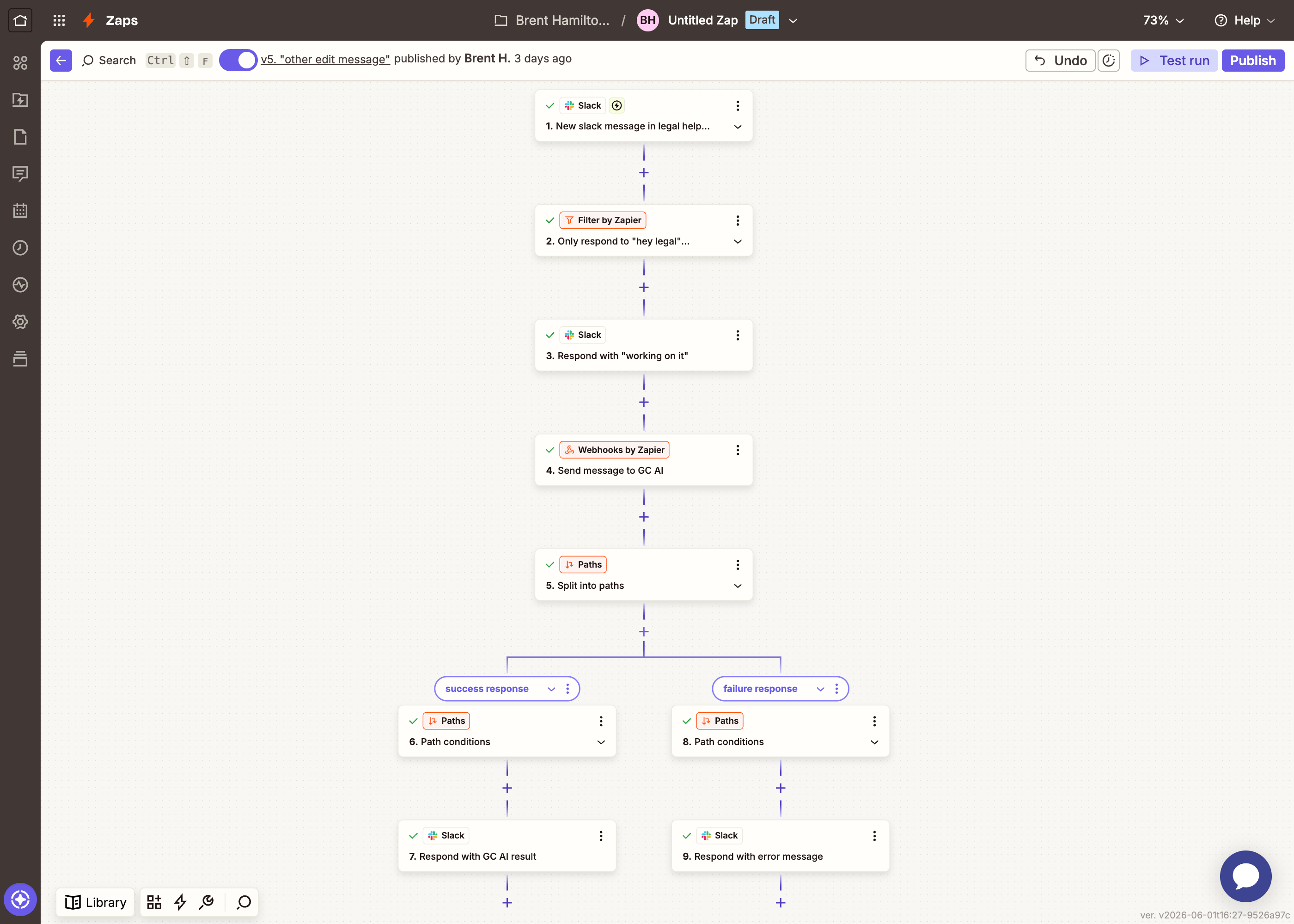
A Zapier “Zap” that monitors a Slack channel (e.g. #legal-requests). When someone posts a message describing a legal need, the automation:
  1. Sends the message to GC AI for classification
  2. Replies in the same Slack thread with a structured triage: category, risk level, urgency, a summary, recommended next steps, and which playbook to use in GC AI

API endpoints

MethodEndpointWhat it does
POST/v1/chat/completionsClassifies the request
GET/v1/jobs/:idPolls for the result when the classification takes longer than expected

Prerequisites

  • A GC AI API key (get one from Settings > API in the app)
  • A Zapier account (the free plan works for testing; a paid plan is needed for multi-step Zaps to run automatically)
  • Admin access to a Slack workspace

Part 1: The basic Zap

1

Create a Slack channel

Create a dedicated channel for incoming legal requests — something like #legal-requests. This is the channel the bot will watch.If your team already has a channel for this purpose, you can use that instead.
2

Create a new Zap

Go to zapier.com and click CreateNew Zap. You’ll see an empty canvas with a trigger step.
3

Set up the Slack trigger

Click the trigger step and configure it:
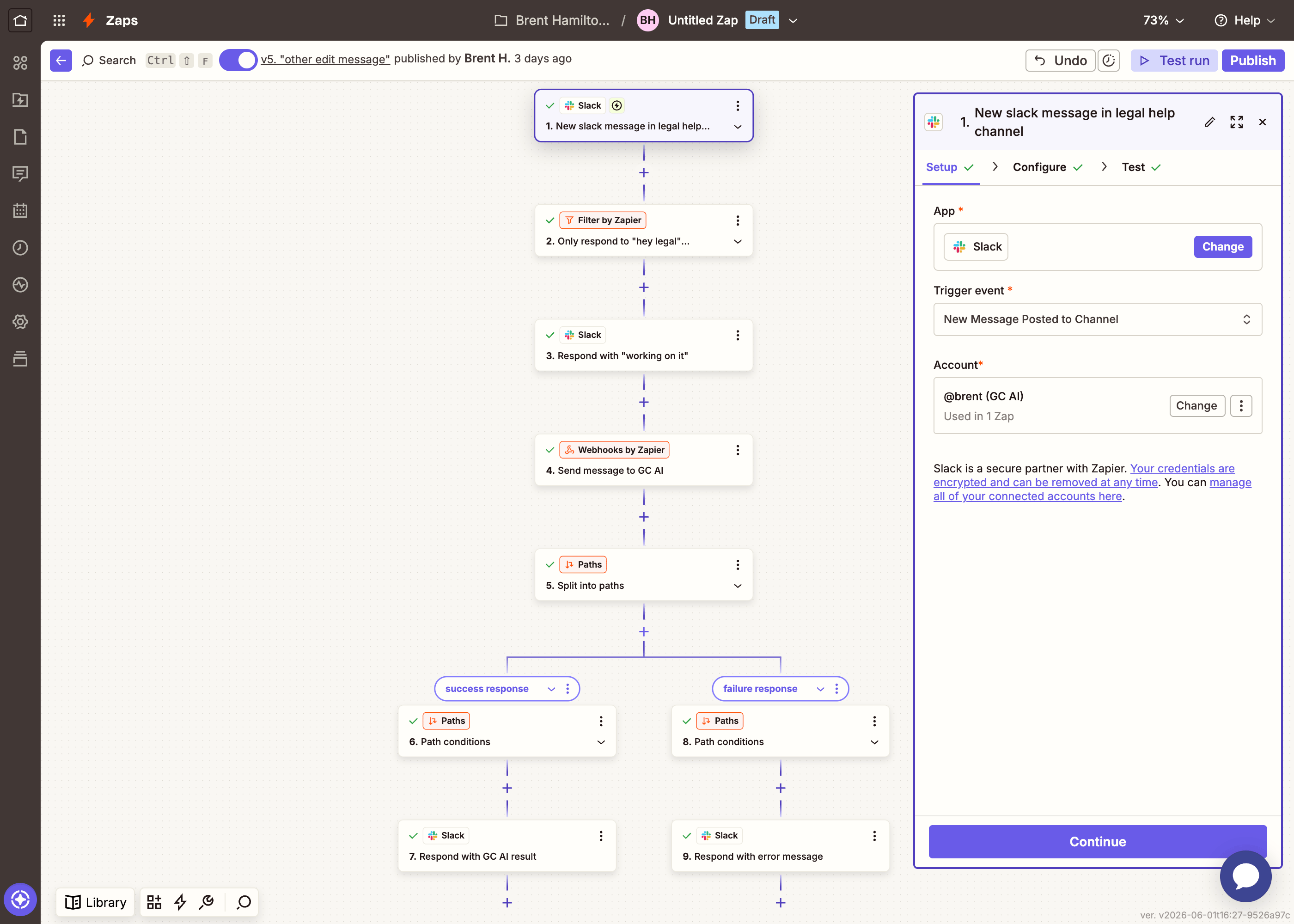
  1. App: Search for Slack and select it
  2. Event: Choose New Message Posted to Channel
  3. Account: Connect your Slack workspace (Zapier will walk you through the OAuth flow)
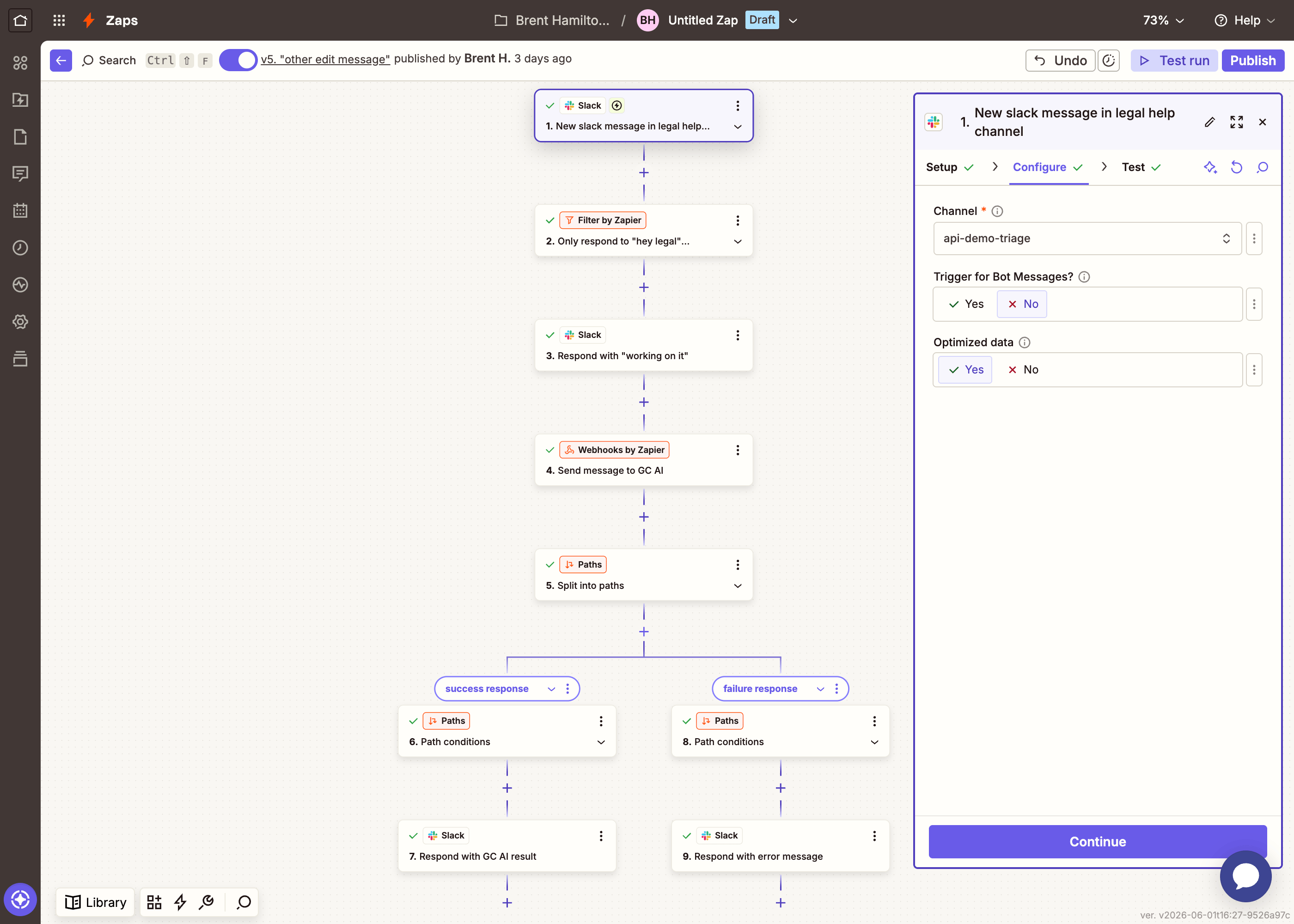
  4. Channel: Select your #legal-requests channel
  5. Trigger on bot messages: Set to No (this prevents the bot from responding to its own replies)
  6. Click Test trigger to pull in a sample message
Zapier Slack trigger setup — choosing the app and event
Zapier Slack trigger configuration — channel selection and bot message filter
Post a test message in the channel before testing the trigger so Zapier has sample data to work with.
4

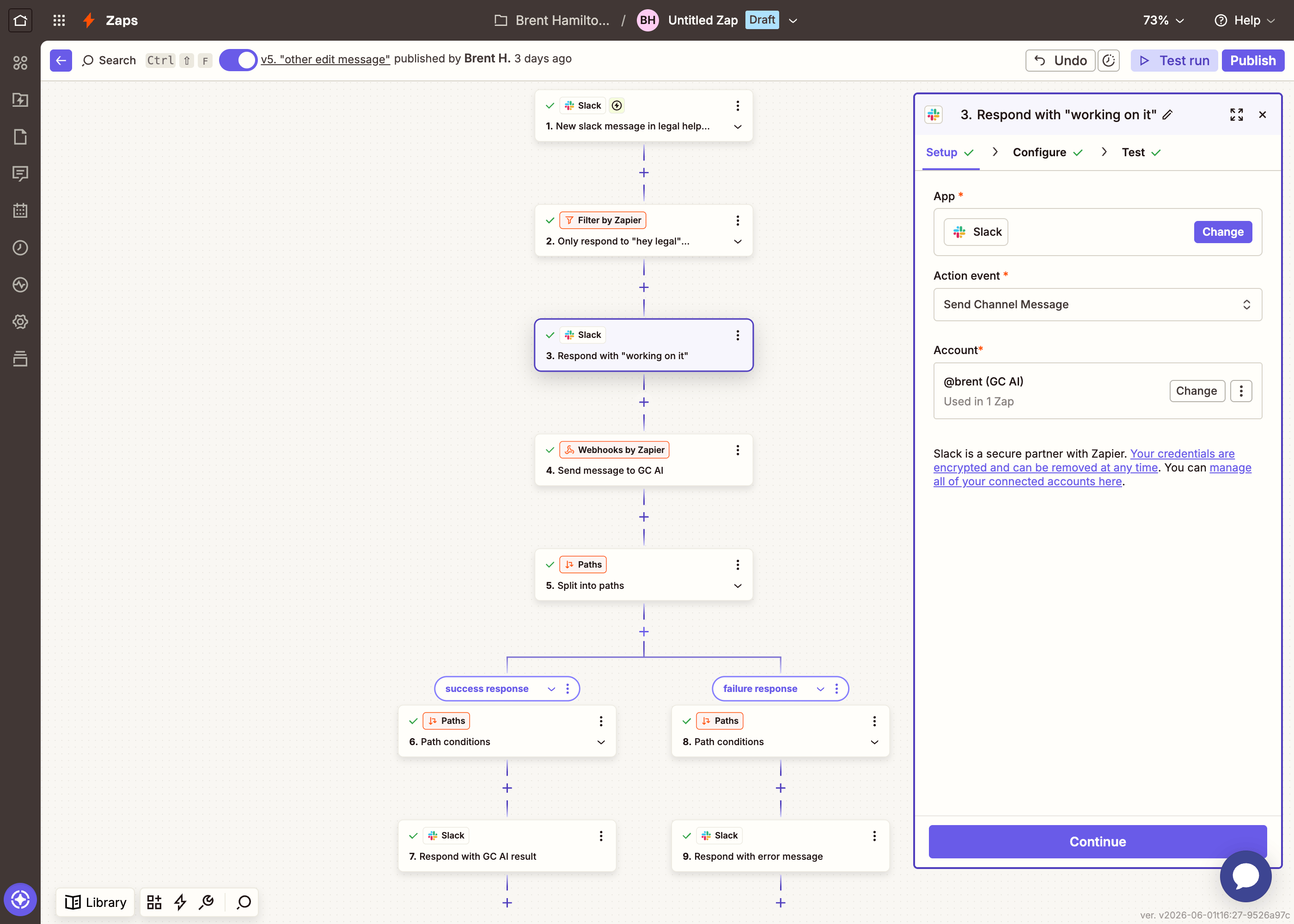
Send a 'working on it' reply

Add a new step: SlackSend Channel Message.
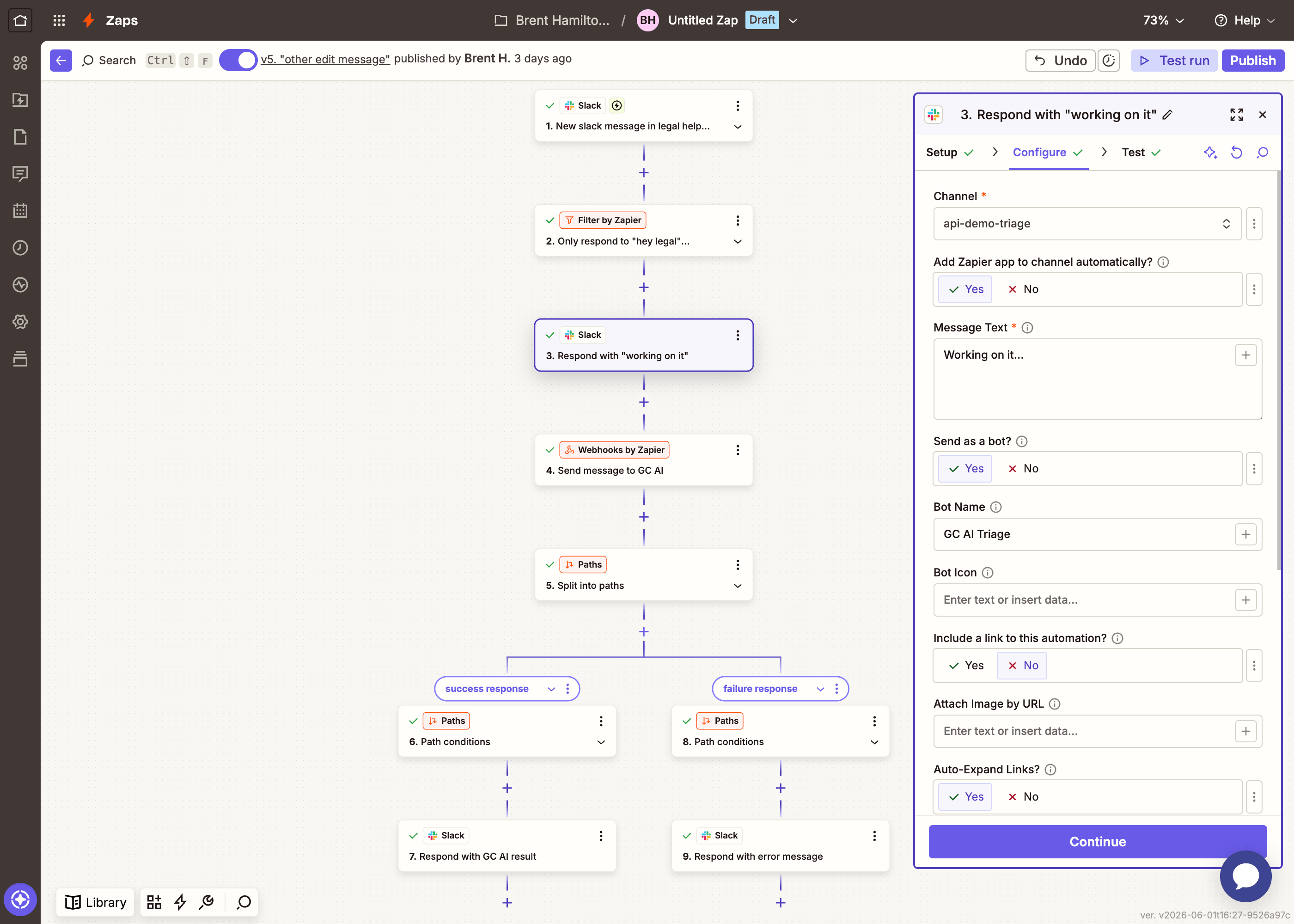
FieldValue
ChannelSelect #legal-requests (or map the Channel ID from the trigger)
Message TextWorking on it...
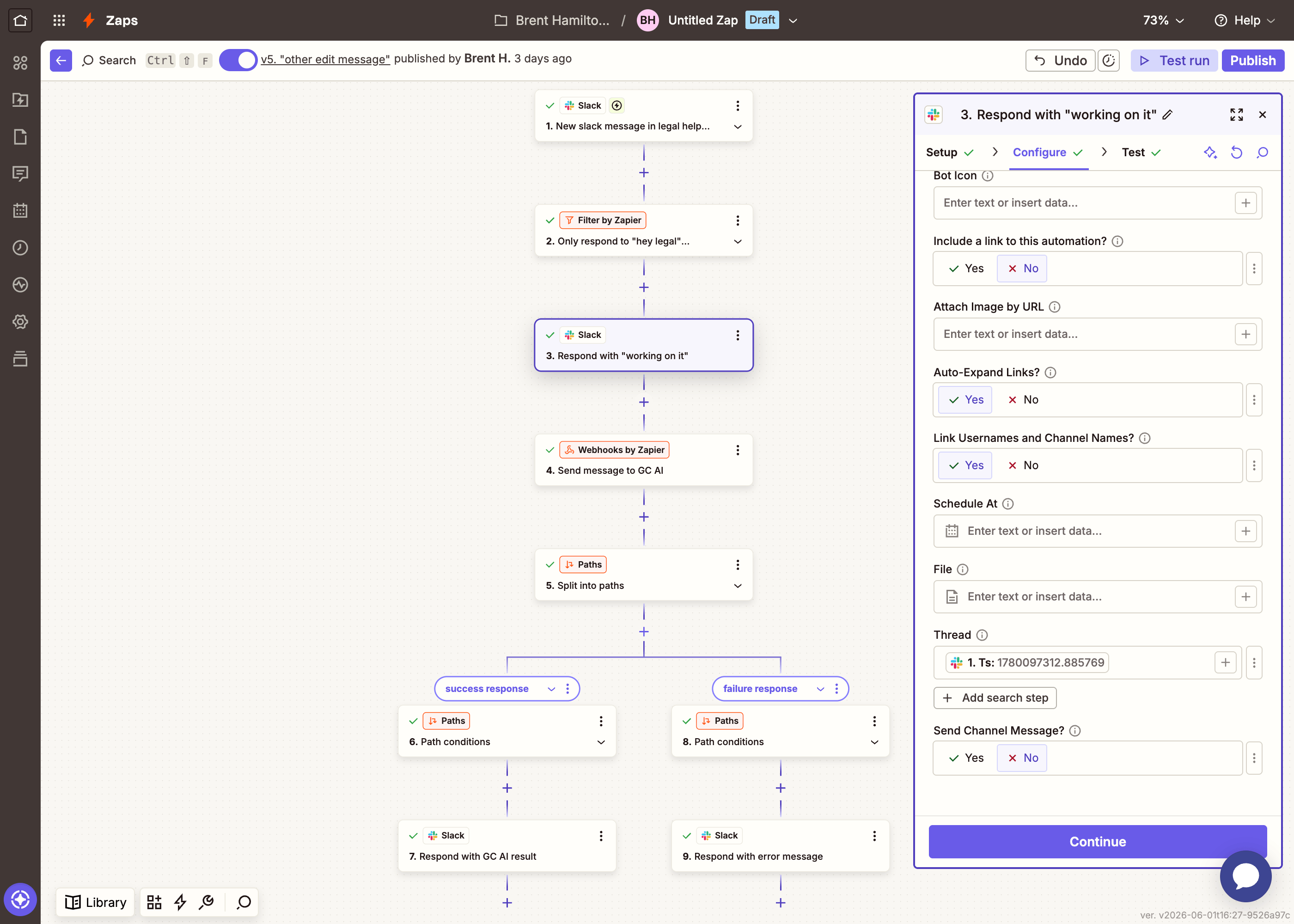
ThreadMap the Ts field from the Slack trigger (this makes the reply appear in-thread)
Bot NameGC AI Triage (optional)
This gives the requester instant feedback while the API processes their request. We’ll update this message with the actual result in a later step.
Zapier Slack Send Channel Message setup — choosing the app and event
Zapier Slack Send Channel Message configuration — channel, message text, and bot name
Zapier Slack Send Channel Message configuration continued — thread Ts mapping
5

Classify with GC AI

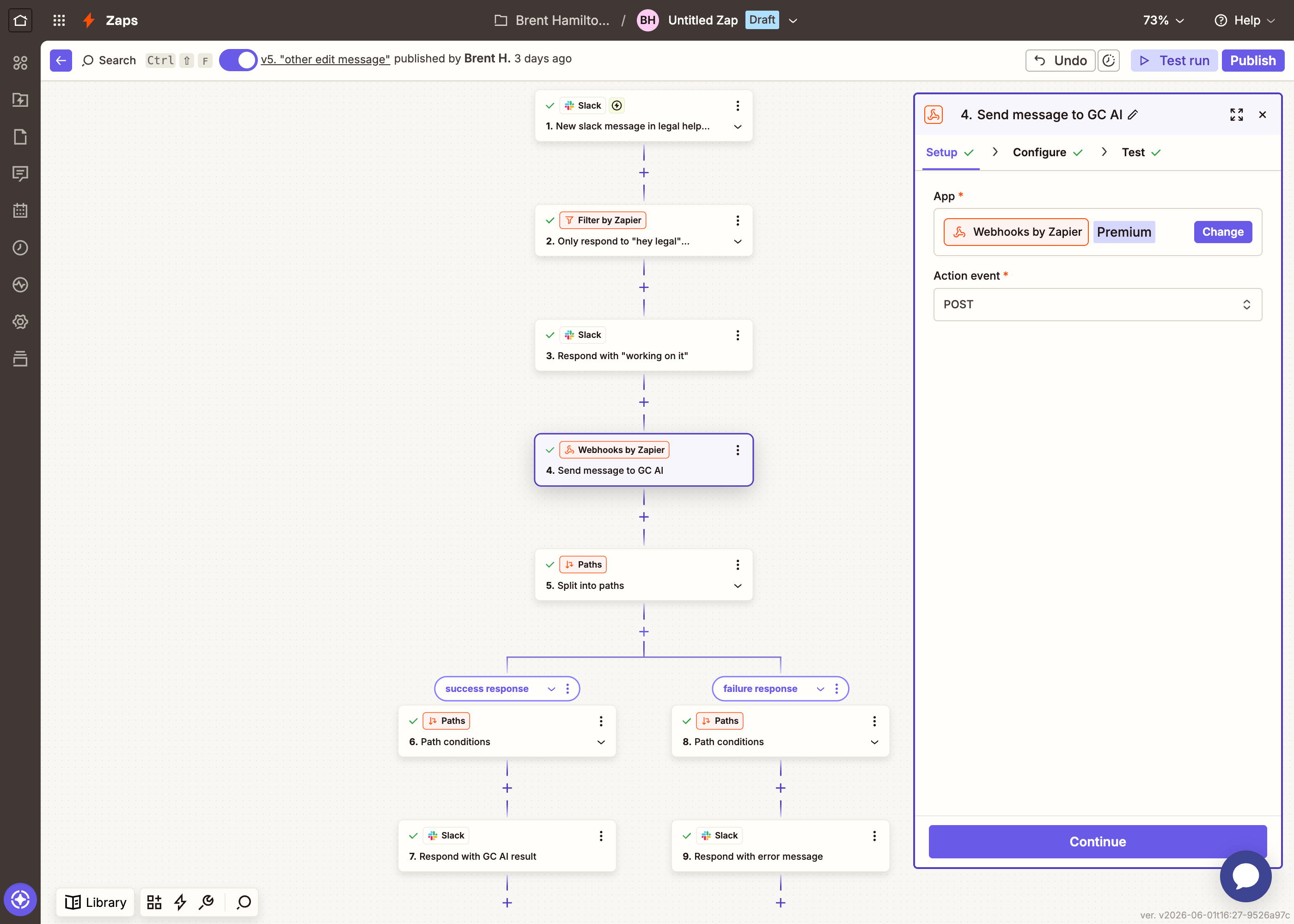
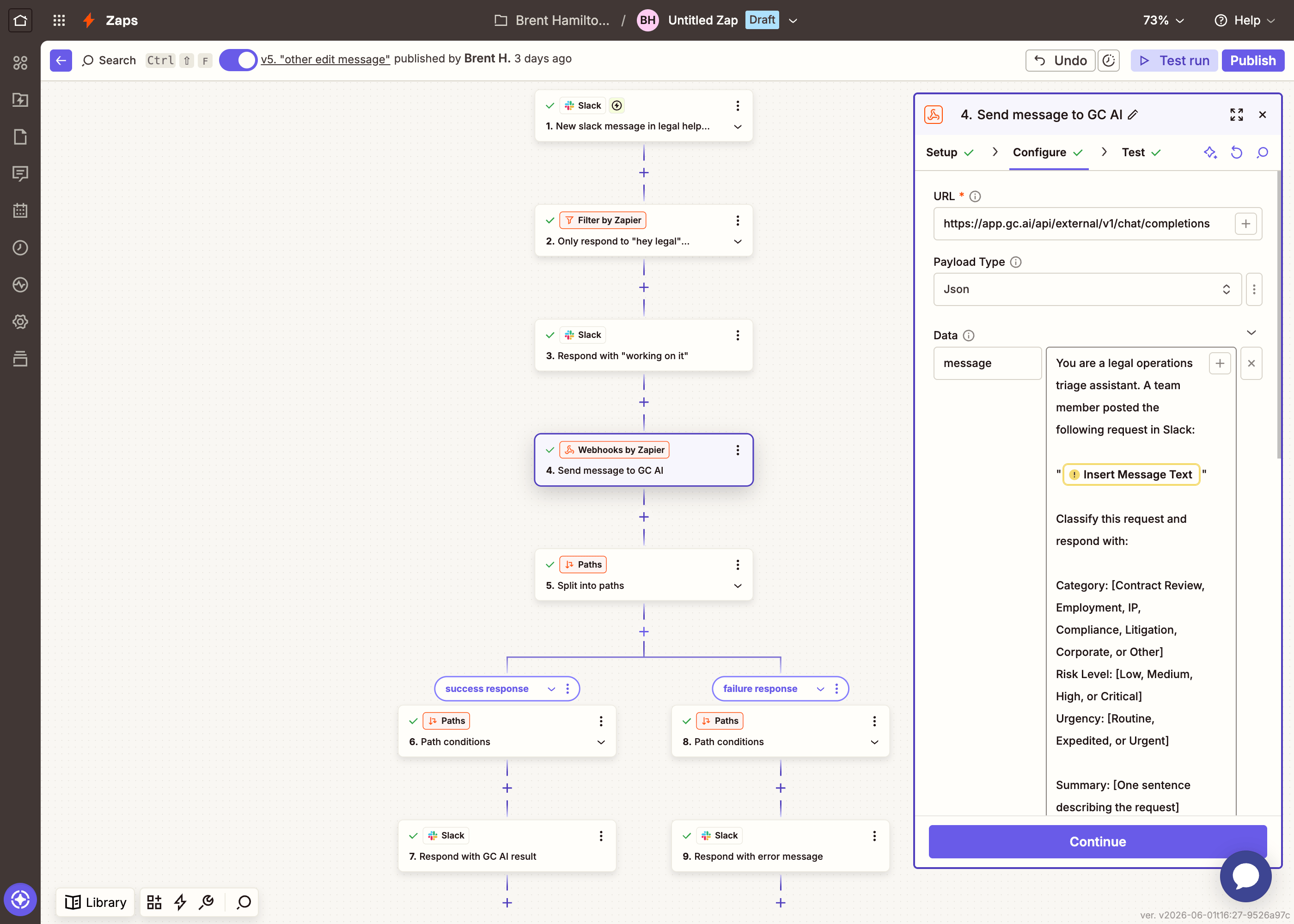
Add a new step: Webhooks by ZapierPOST.
FieldValue
URLhttps://app.gc.ai/api/external/v1/chat/completions?wait=30
Payload TypeJson
DataKey: message / Value: see below
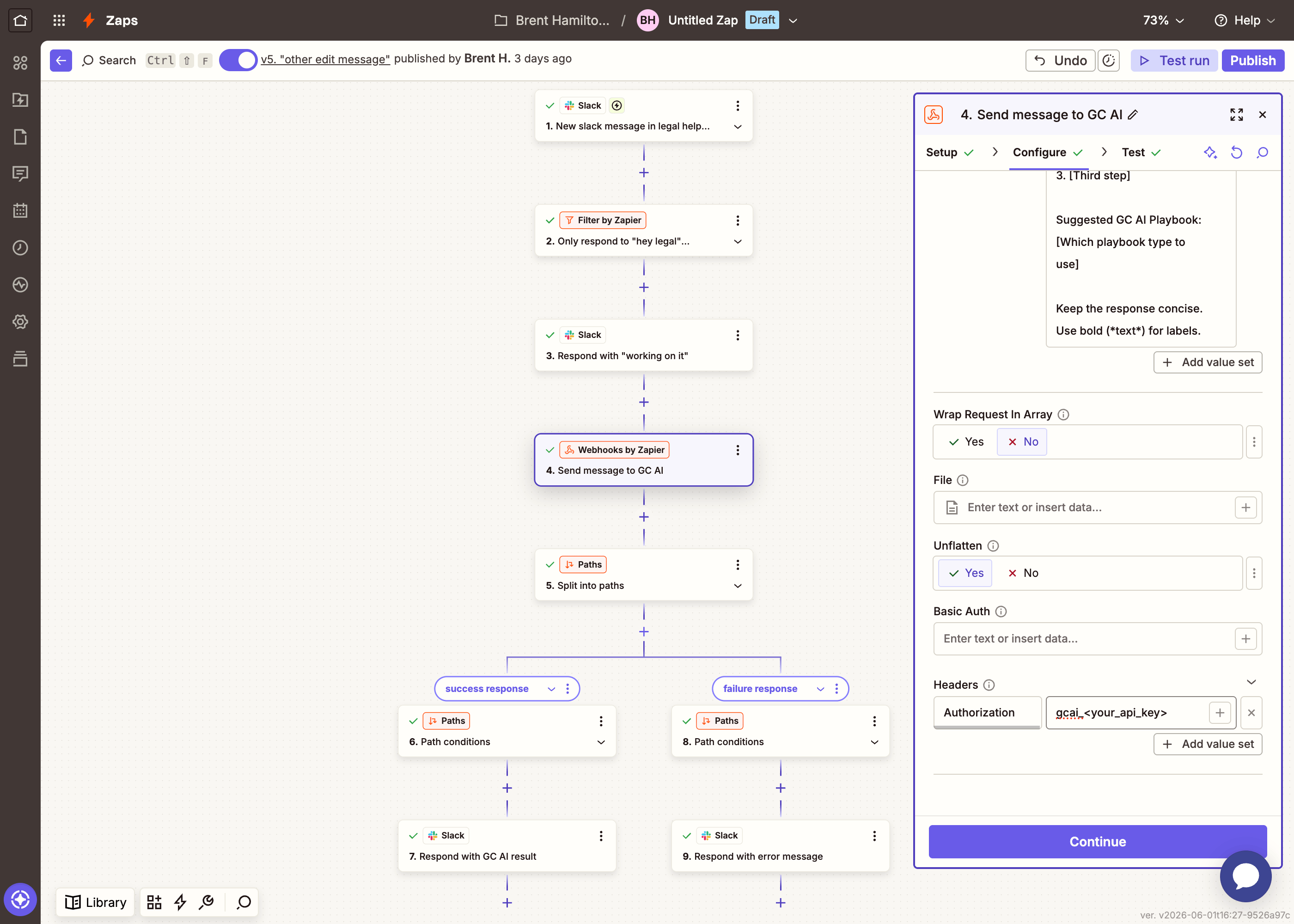
Wrap Request In ArrayNo
UnflattenYes
HeadersKey: Authorization / Value: YOUR_API_KEY
For the Data value, paste the following prompt. Replace {{insert Message Text}} with the mapped field from your Slack trigger (click the + button in the value field, then select Message Text from the Slack trigger data):
You are a legal operations triage assistant. A team member posted the following request in Slack:

"{{insert Message Text}}"

Classify this request and respond with:

Category: [Contract Review, Employment, IP, Compliance, Litigation, Corporate, or Other]
Risk Level: [Low, Medium, High, or Critical]
Urgency: [Routine, Expedited, or Urgent]

Summary: [One sentence describing the request]

Recommended Next Steps:
1. [First step]
2. [Second step]
3. [Third step]

Suggested GC AI Playbook: [Which playbook type to use]

Keep the response concise. Use bold (*text*) for labels.
The ?wait=30 on the URL tells the API to hold the connection for up to 30 seconds while it works — comfortably inside Zapier’s 30-second limit for action steps, so the step returns cleanly instead of erroring out. (The API reads wait from the query string or a Prefer: wait=30 header, not the JSON body, so it must live on the URL here.) Click Test step — quick classifications come back with status: "succeeded" and the text inside resultresult. If the request needs longer than 30 seconds, the call returns with a non-succeeded status and a job_id; the next step handles that case (and Part 2 polls the job to completion).
Zapier Webhooks by Zapier setup — choosing the app and POST event
Zapier Webhooks POST configuration — URL, payload type, data key with classification prompt
Zapier Webhooks POST configuration continued — wrap in array, unflatten, headers with authorization
6

Branch on the result

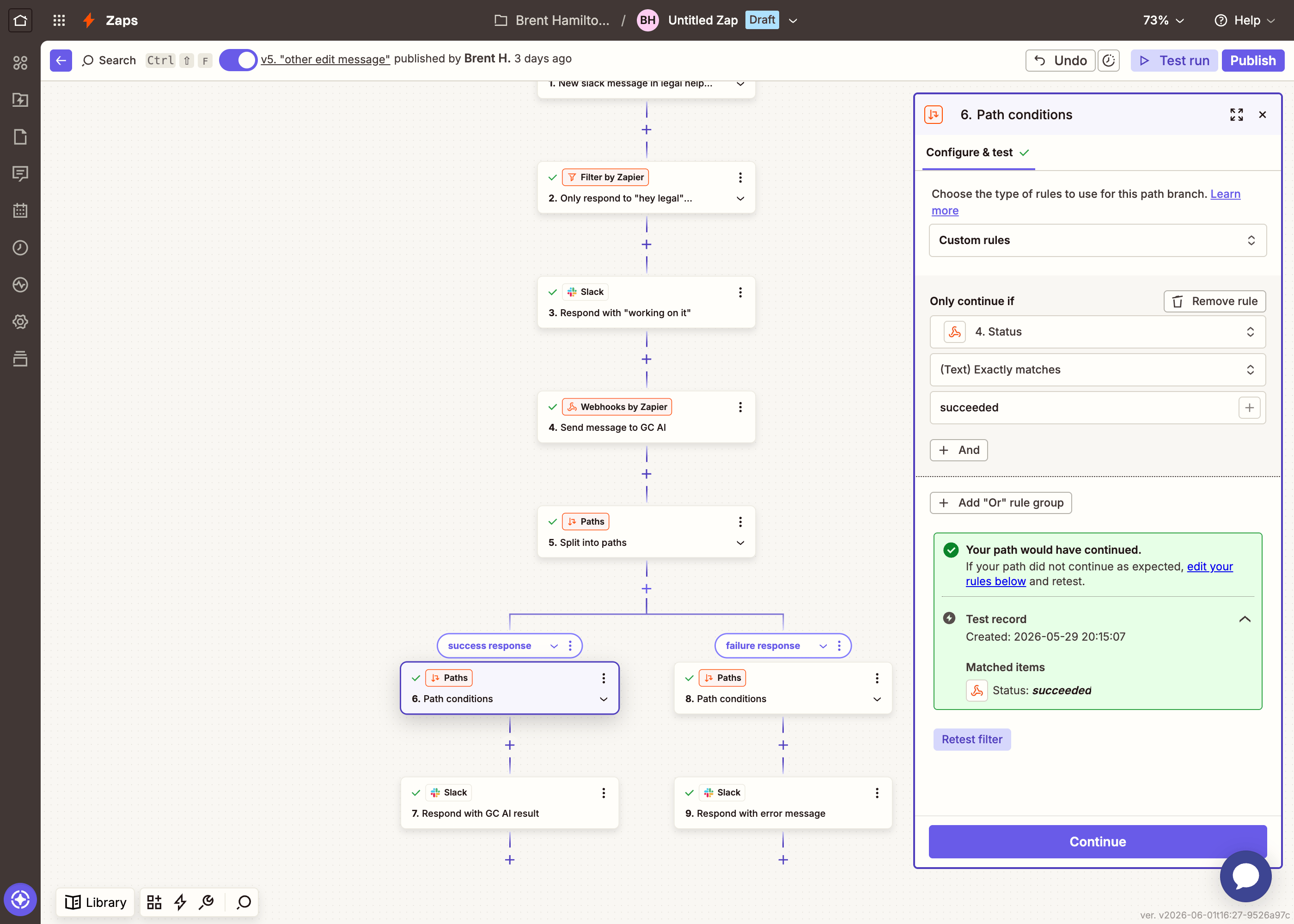
Add a new step: Paths by Zapier.The API usually finishes within the wait window, but longer queries can time out. This step handles both cases.Path A — Classification ready:
FieldValue
ConditionStatus (from the Webhooks step) exactly matches succeeded
Zapier Path A conditions — status exactly matches succeeded
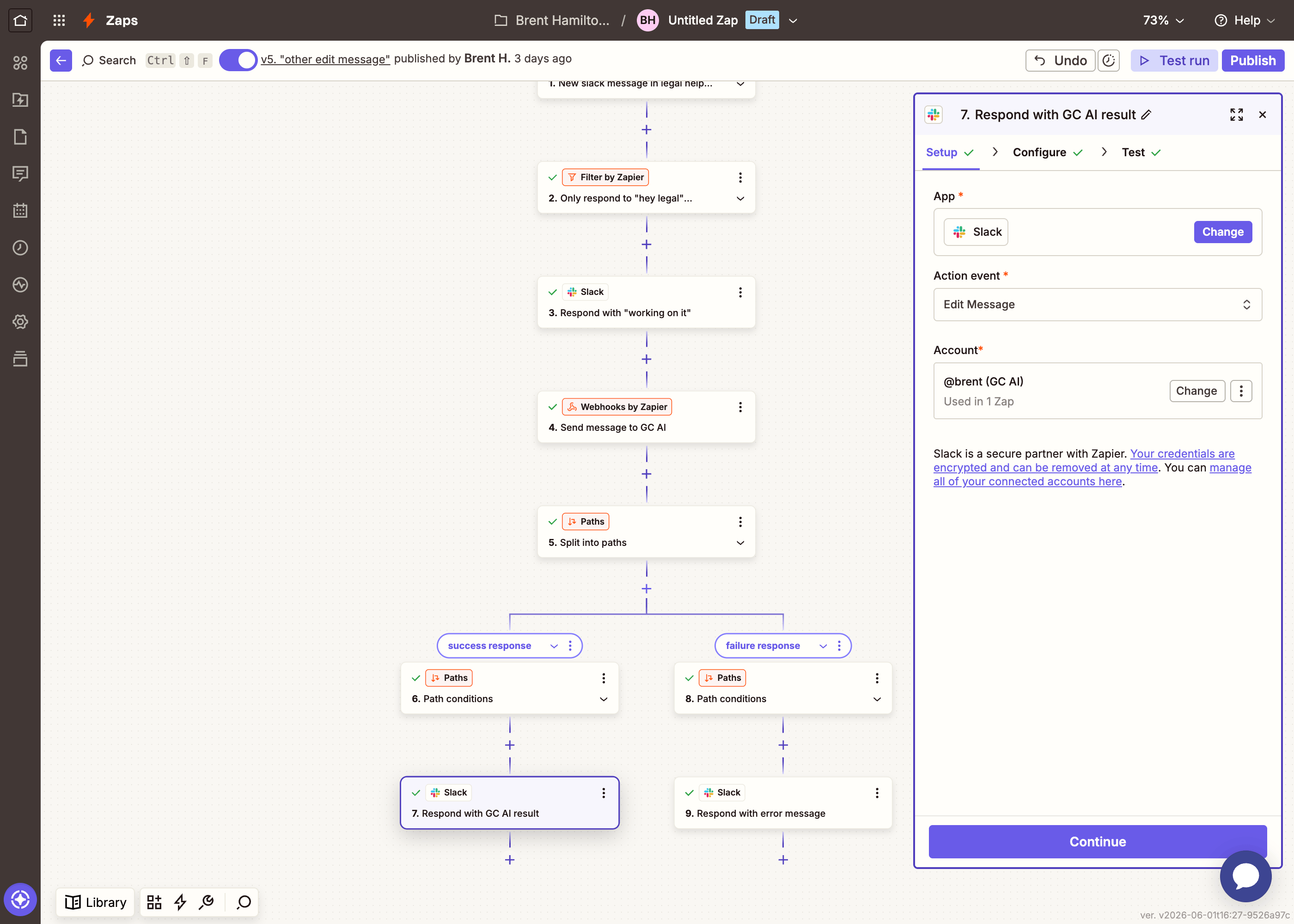
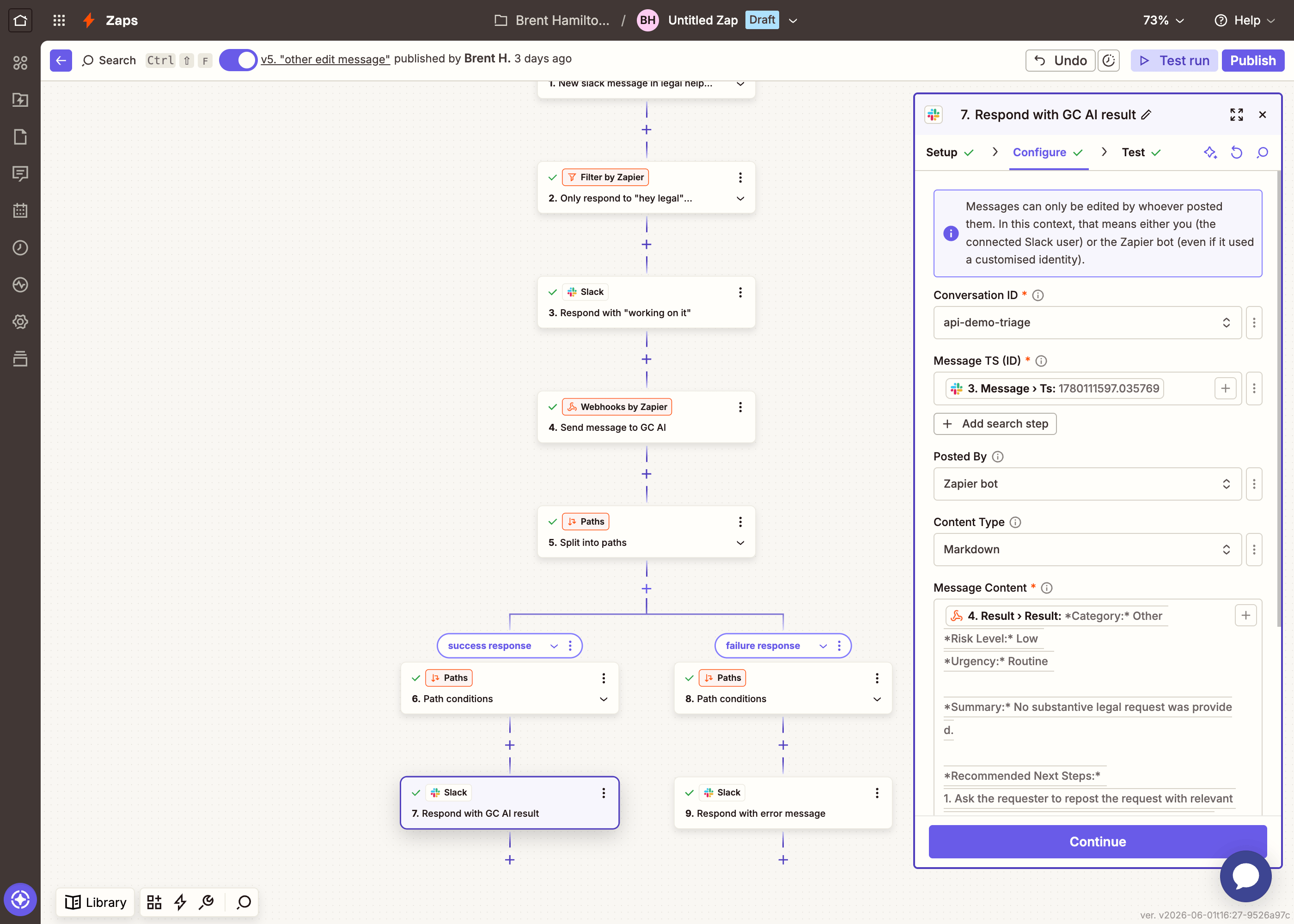
Add a SlackEdit Message step inside this path. When searching for the action, choose the first “Edit Message” option (the one with just “Edits a message.” as the description).
FieldValue
Conversation IDYour #legal-requests channel
Message TS (ID)Map the Ts from the “Working on it…” step (this identifies which message to update)
Message ContentMap the Result Result field from the Webhooks step (the AI’s classification text, found under resultresult)
Content TypeMarkdown
Zapier Edit Message setup — choosing the first Edit Message option
Zapier Edit Message configuration — conversation ID, message TS, and message content mapped from the webhooks result
Path B — Timed out:
FieldValue
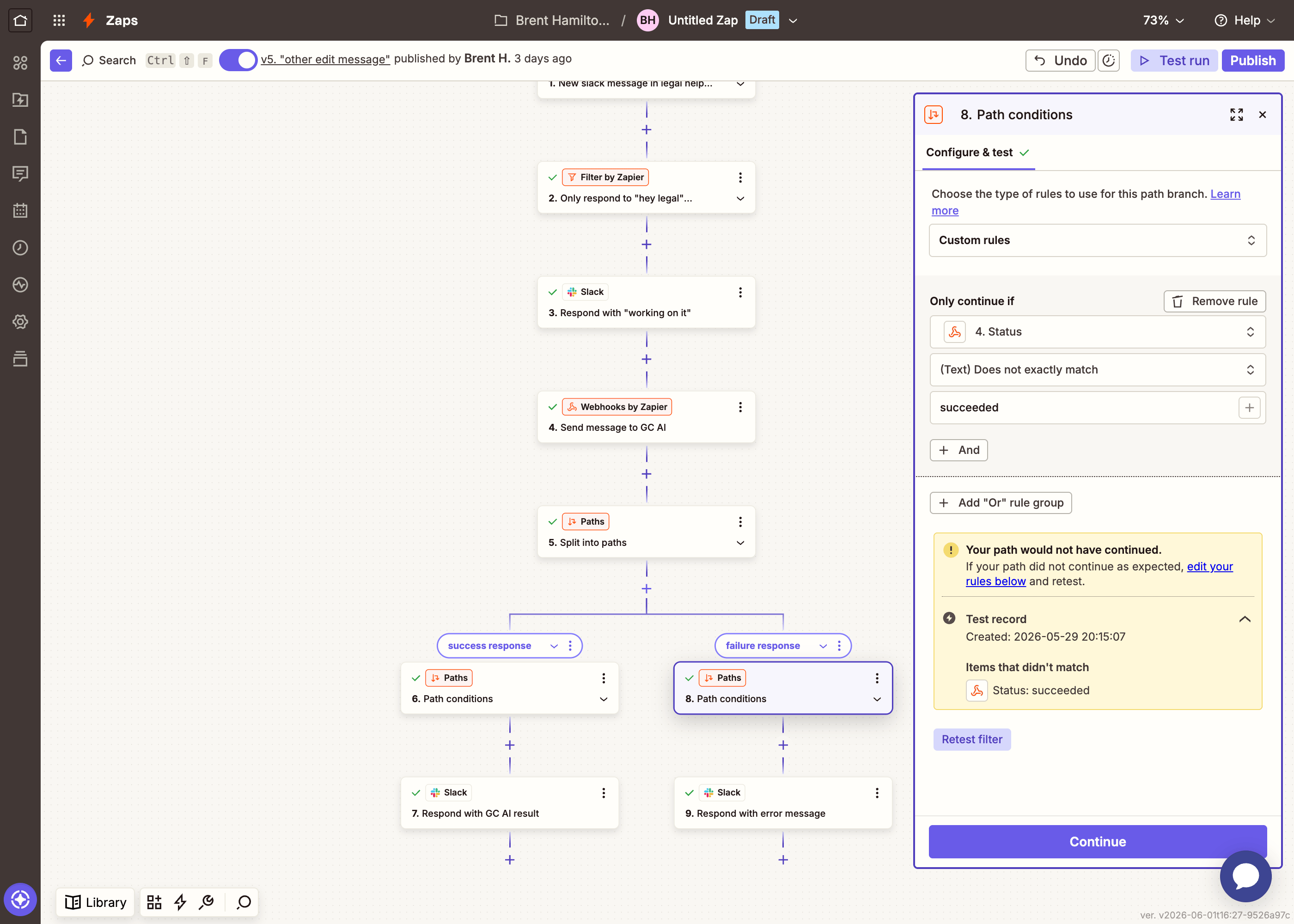
ConditionStatus (from the Webhooks step) does not exactly match succeeded
Zapier Path B conditions — status does not exactly match succeeded
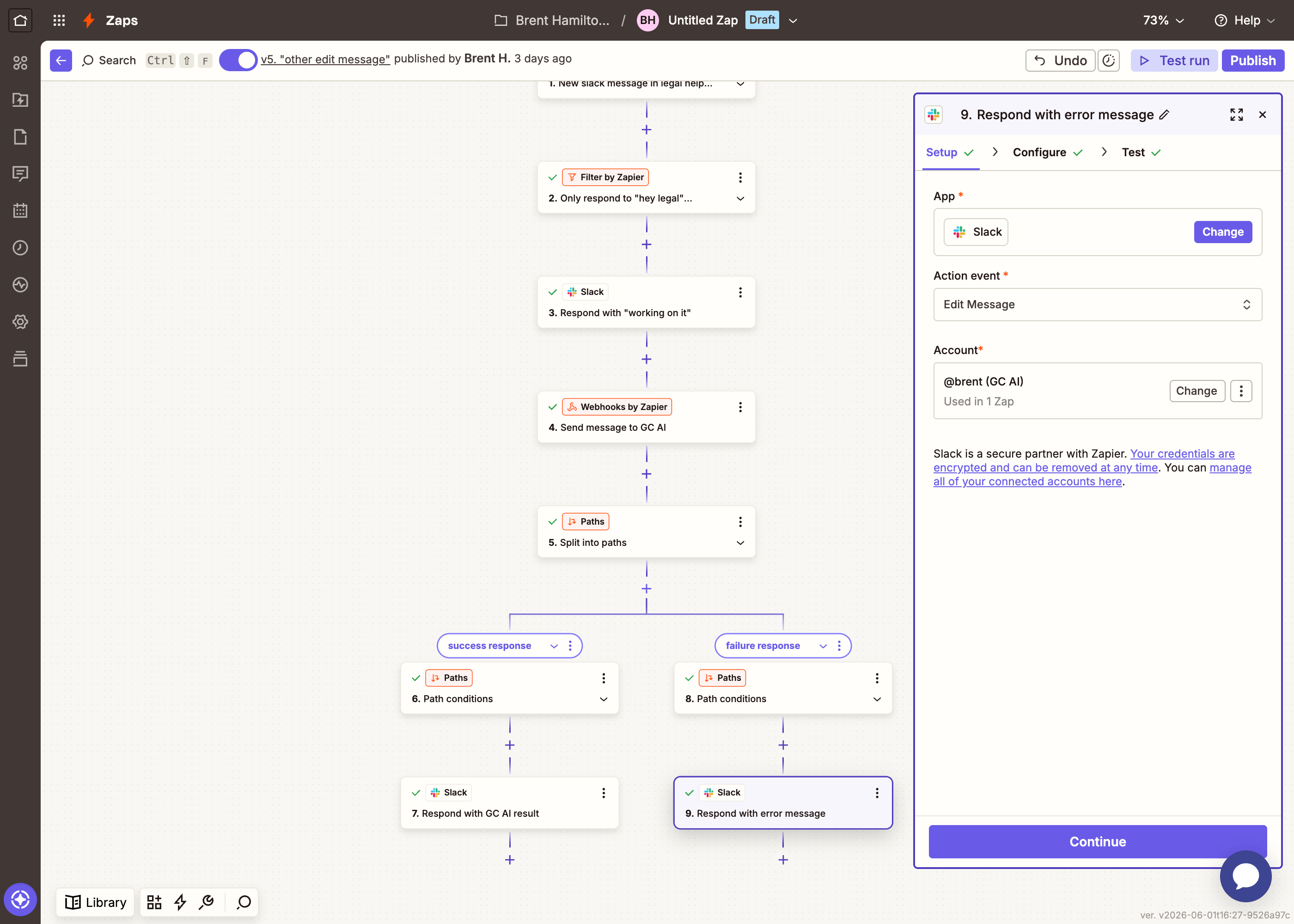
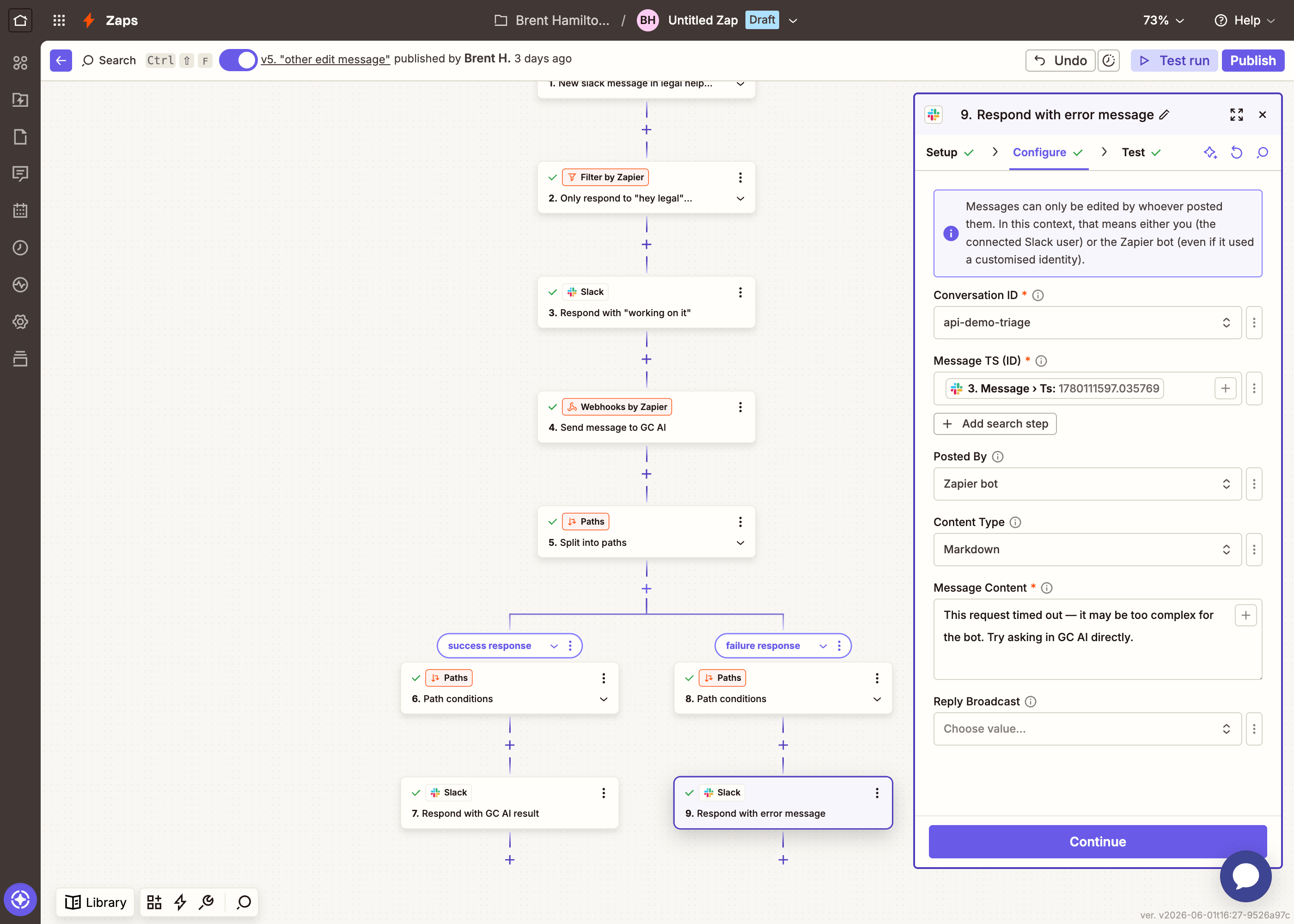
Add a SlackEdit Message step inside this path (same first option):
FieldValue
Conversation IDYour #legal-requests channel
Message TS (ID)Map the Ts from the “Working on it…” step
Message ContentThis request timed out — it may be too complex for the bot. Try asking in GC AI directly.
Content TypeMarkdown
Zapier Edit Message setup for the failure path
Zapier Edit Message configuration for the failure path — conversation ID, message TS, and error message content
7

Test and publish

  1. Post a test message in #legal-requests:
We just signed a new vendor and need their MSA reviewed before onboarding. It’s a 3-year SaaS agreement with auto-renewal and an uncapped indemnification clause. Timeline is end of week.
  1. Click Test on each step to run the Zap manually, or click Publish and post the message to see it run automatically.
  2. You should see a threaded reply with the structured triage.
The completed Zap showing all steps: Slack trigger, working on it reply, Webhooks POST to GC AI, and Paths with success and failure branches
Once it’s working, click Publish to turn the Zap on. Every new message in the channel will now be triaged automatically.

Exercise: trigger the bot only on certain messages

Right now the bot triages every message posted in the channel. How would you configure it so the bot only runs when someone specifically addresses it — for example, by starting their message with “hey legalbot”?
Add a Filter by Zapier step between the Slack trigger and the Webhooks POST. Set the condition to only continue if Message Text contains hey legalbot. Every other message in the channel will be ignored.
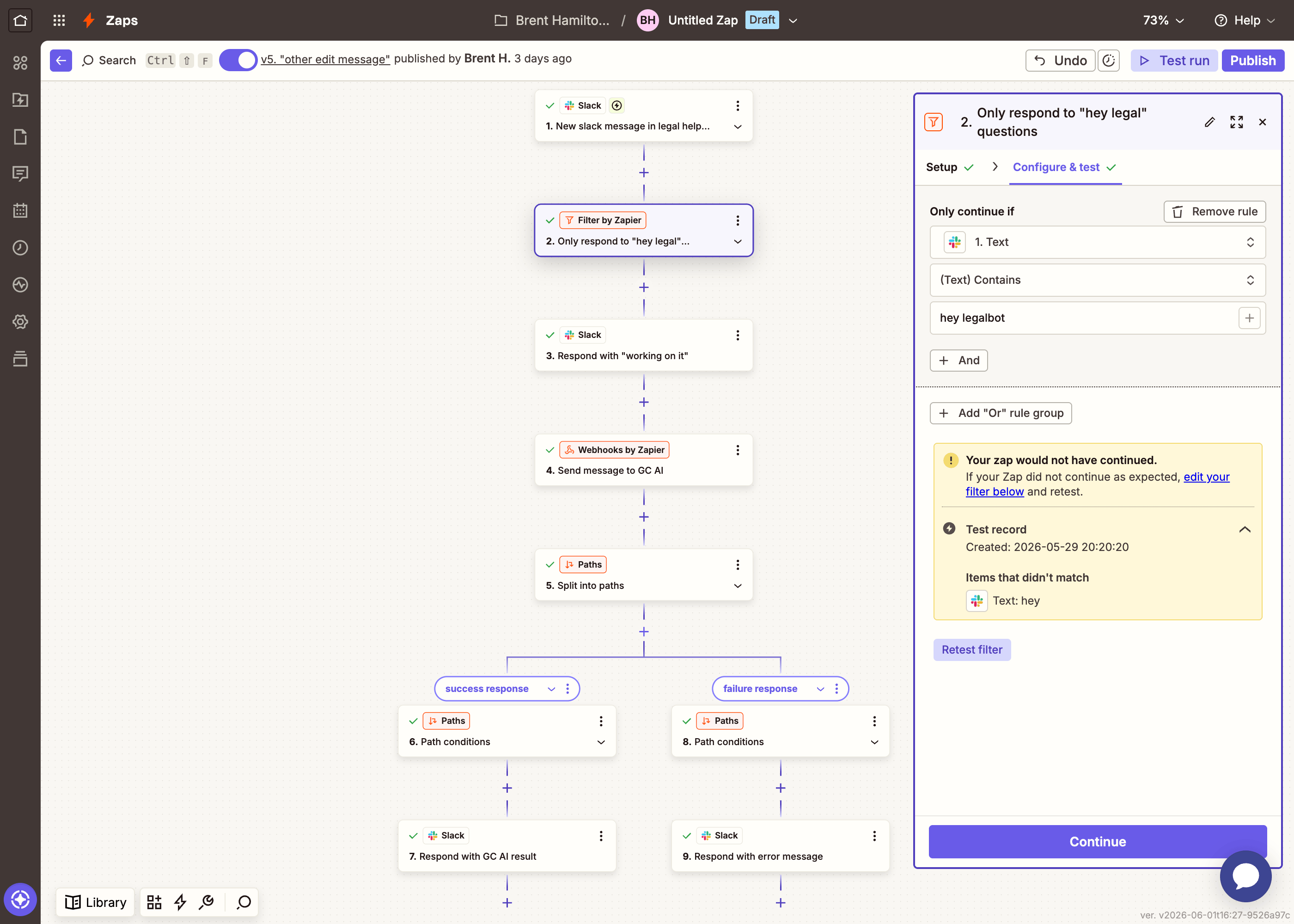
Zapier Filter by Zapier step configured to only continue if message text contains hey legalbot

Part 2: Handling long-running queries

The basic Zap works great for quick classifications, but some queries — especially those involving large documents or complex analysis — can take longer than the API’s wait window. When that happens, Path B fires and the user sees “Your request is taking longer than expected.” To actually follow up with the result, we’ll build a second Zap that polls for the completed job. The main Zap calls this sub-Zap when a query times out, and the sub-Zap keeps checking until the result is ready.

How it works

The sub-Zap receives a job_url, an attempt_number, and the Slack context needed to update the “Working on it…” message. It waits, checks the job status, and then:
  • Job succeeded → updates the “Working on it…” message with the result
  • Max attempts reached → updates the message with an error
  • Still running → calls itself again with attempt_number + 1
This is recursion — the sub-Zap calls itself with an incremented counter until it either gets a result or hits the retry limit.

Build the polling sub-Zap

1

Create a new Zap with a webhook trigger

Create a second Zap. For the trigger, choose Webhooks by ZapierCatch Hook.In the Configure tab, leave Pick off a Child Key empty and click Continue.
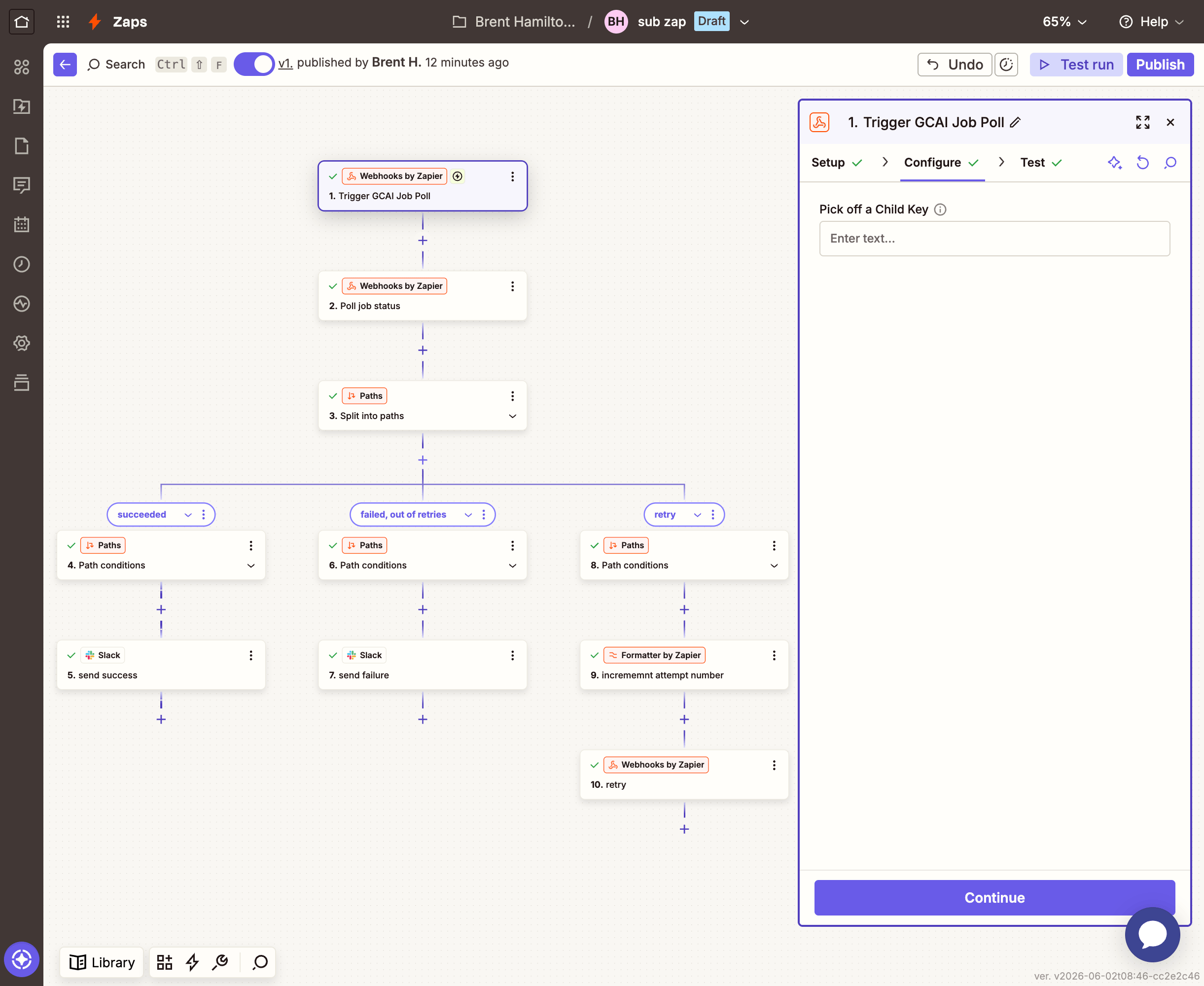
Zapier Catch Hook Configure tab — Pick off a Child Key left empty
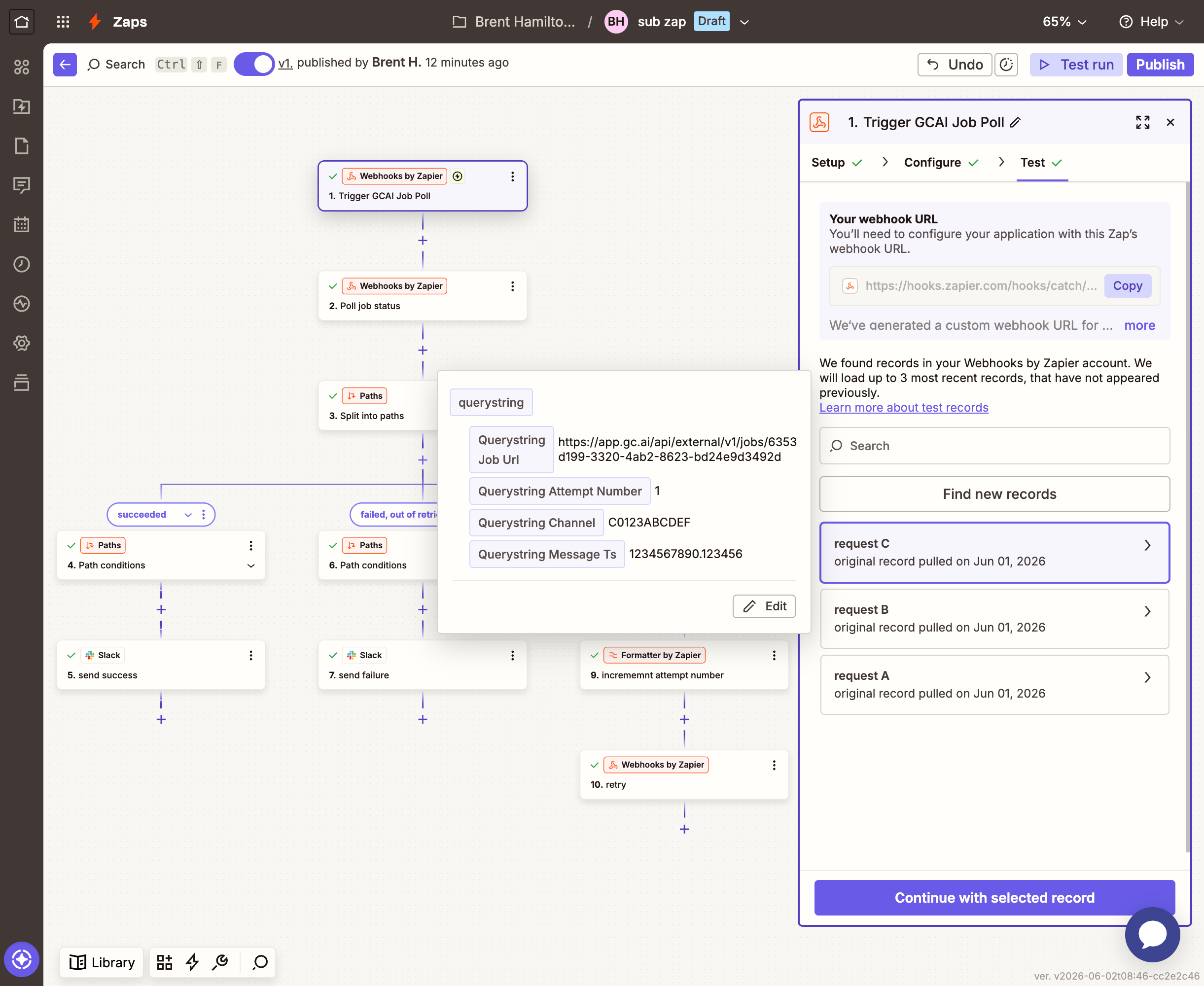
Zapier will give you a unique webhook URL (something like https://hooks.zapier.com/hooks/catch/123456/abcdef/). Copy this URL — the main Zap will call it.In the Test tab, click Test trigger. Zapier will wait for a request. To send test data, you’ll need a real Job Id — go to your main Zap, open the Webhooks POST step, and copy the Job Id from its test results.Then paste both values below and click Send test request:Go back to Zapier — it should pick up the request and show the four fields: job_url, attempt_number, channel, and message-ts. Once the request appears, select the record and click Continue with selected record.
Zapier Catch Hook Test tab — test data received showing the four fields
2

Check the job status

Add a step: Webhooks by ZapierGET.
FieldValue
URLMap job_url from the Catch Hook trigger
Send As JSONYes
UnflattenYes
Query String ParamsKey: wait / Value: 30
HeadersKey: Authorization / Value: YOUR_API_KEY
The wait parameter makes this GET long-poll the job for up to 30 seconds, so each attempt gives GC AI real processing time before the path branches. It also paces the recursion — there’s no need for a separate Delay step, since every loop spends up to 30 seconds here before deciding whether to try again.
Zapier Webhooks GET configuration — URL mapped to job_url, headers with authorization
3

Branch on the result

Add a step: Paths by Zapier with three paths.Path A — Job succeeded:
FieldValue
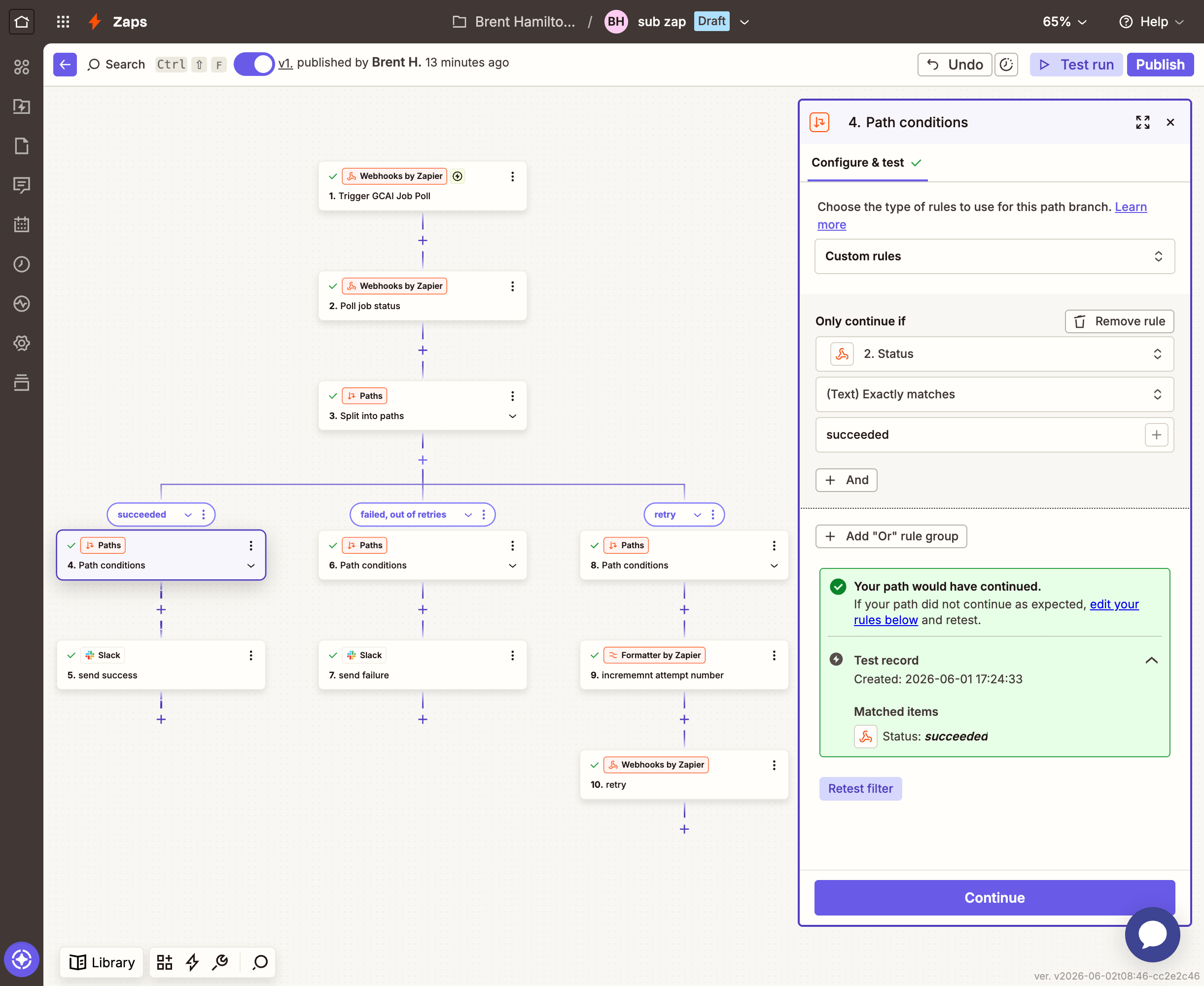
ConditionStatus (from the GET step) equals succeeded
Zapier Path A conditions — status equals succeeded
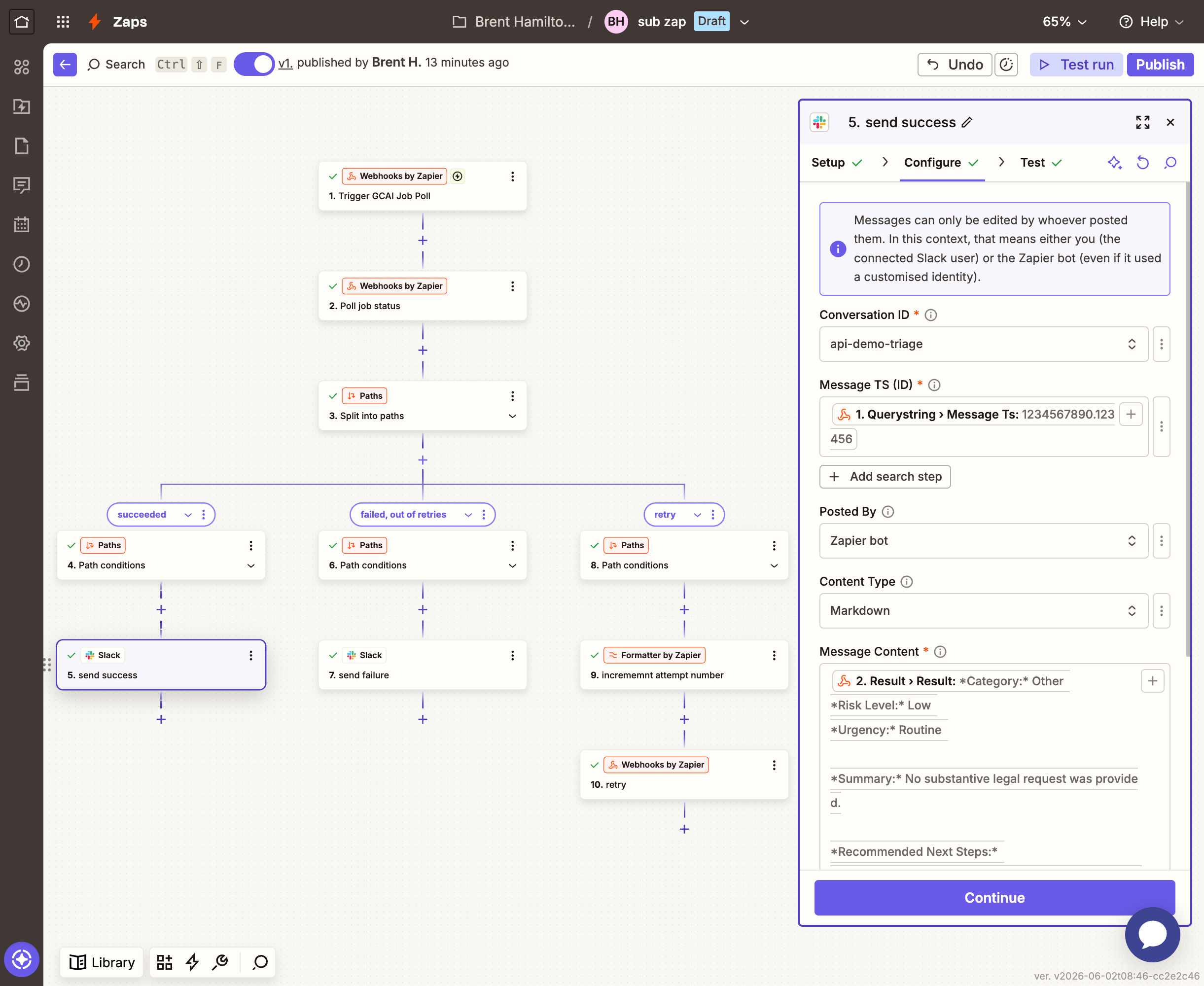
Add a SlackEdit Message step (the first option):
FieldValue
Conversation IDMap channel from the Catch Hook trigger
Message TS (ID)Map message-ts from the Catch Hook trigger
Message ContentMap Result Result from the GET step
Content TypeMarkdown
Zapier Path A Edit Message configuration — channel, message TS, and result mapped from GET step
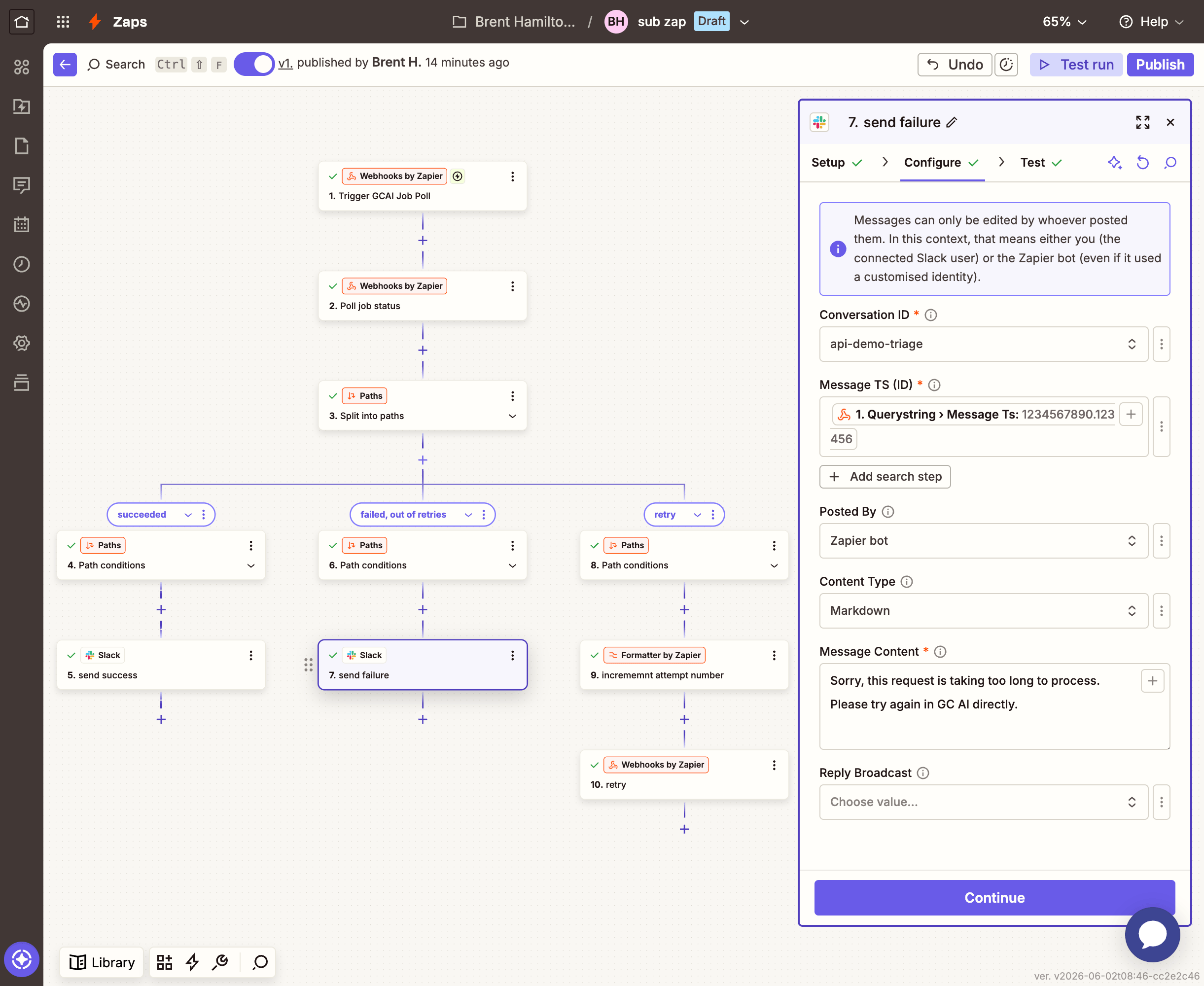
Path B — Max attempts reached:Without this path, a job that never completes would recurse forever. This is the safety valve — after 4 attempts, stop and tell the user.
FieldValue
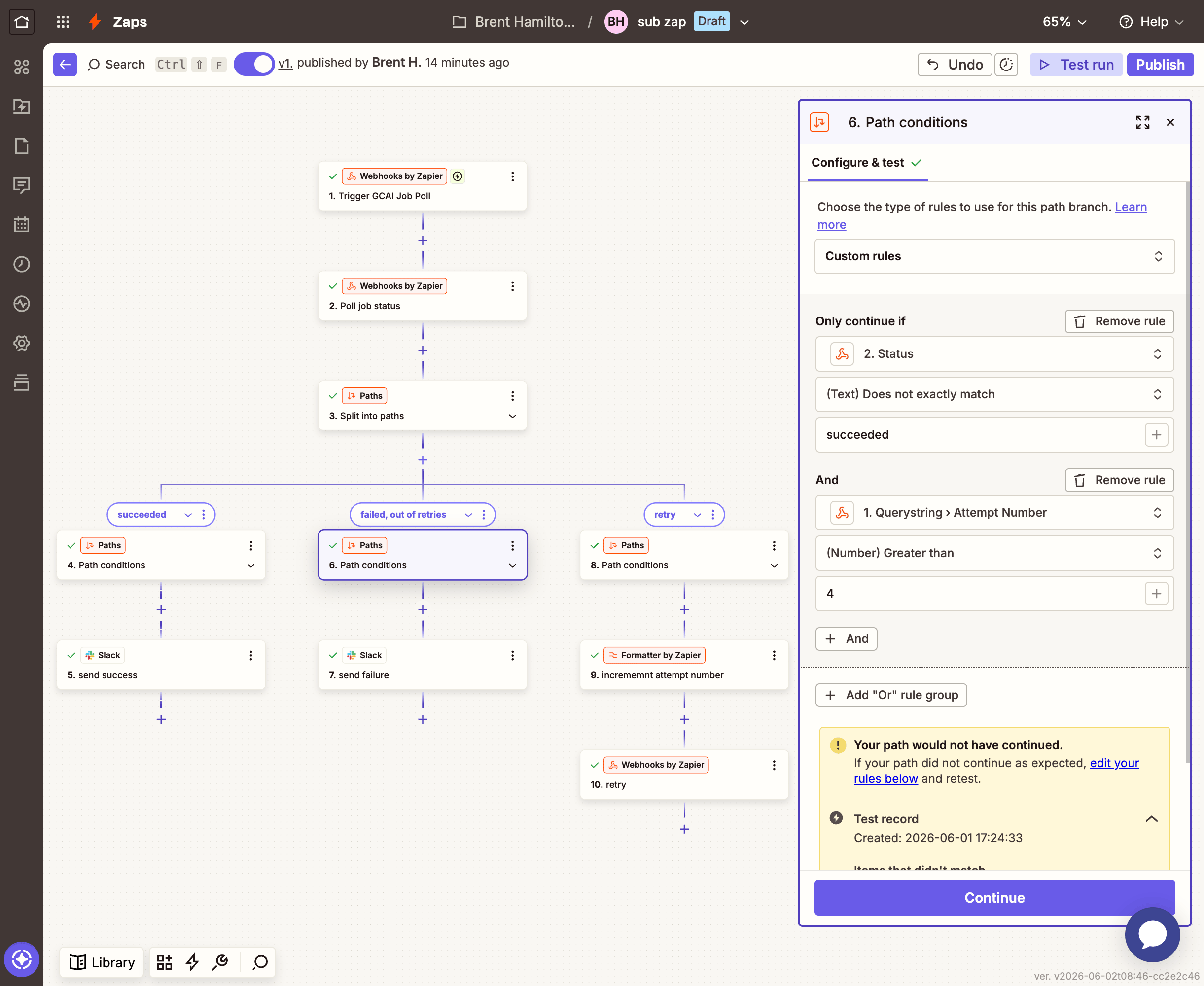
Condition 1Status (from the GET step) does not equal succeeded
Condition 2Attempt Number (from the Catch Hook trigger) is greater than or equal to 4
Zapier Path B conditions — status does not equal succeeded and attempt number greater than or equal to 4
Add a SlackEdit Message step (the first option):
FieldValue
Conversation IDMap channel from the Catch Hook trigger
Message TS (ID)Map message-ts from the Catch Hook trigger
Message ContentSorry, this request is taking too long to process. Please try again in GC AI directly.
Content TypeMarkdown
Zapier Path B Edit Message configuration — error message for max attempts reached
Path C — Try again (recurse):
FieldValue
Condition 1Status (from the GET step) does not equal succeeded
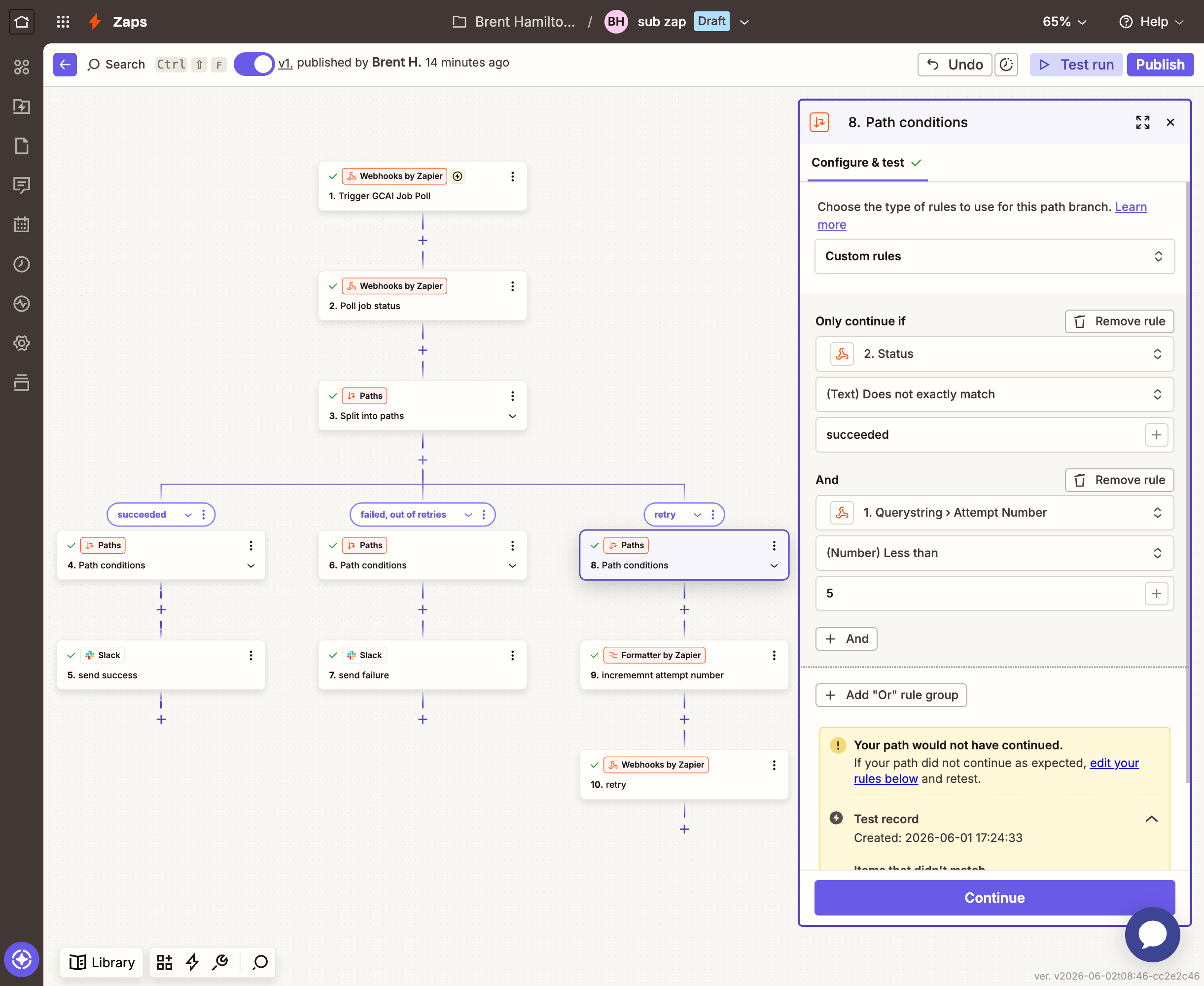
Condition 2Attempt Number (from the Catch Hook trigger) is less than 4
Zapier Path C conditions — status does not equal succeeded and attempt number less than 4
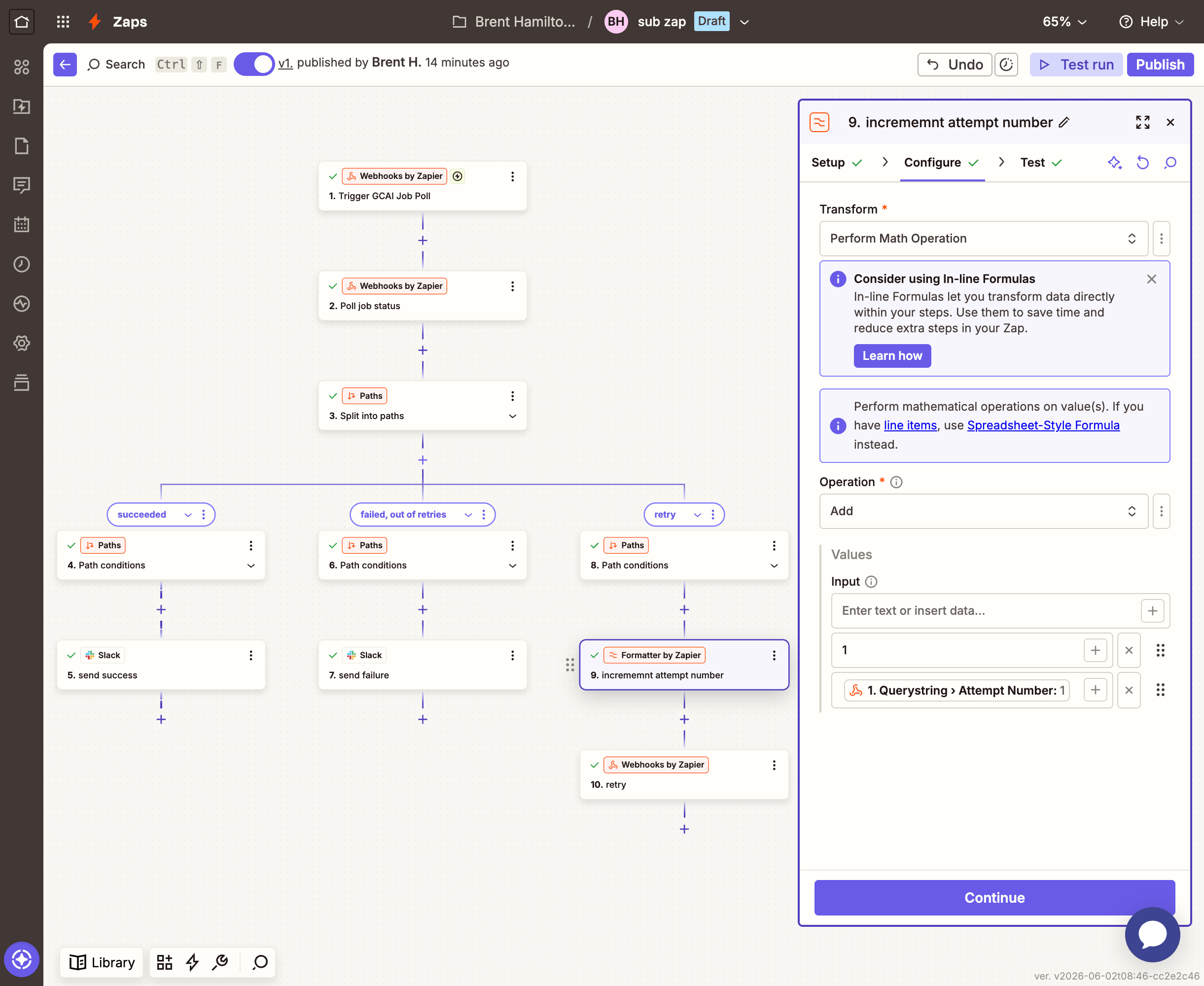
First, add a Formatter by ZapierNumbers step:
FieldValue
TransformPerform Math Operation
OperationAdd
Values1 and map attempt_number from the Catch Hook trigger
Zapier Formatter step — Perform Math Operation, Add, with 1 and attempt_number as values
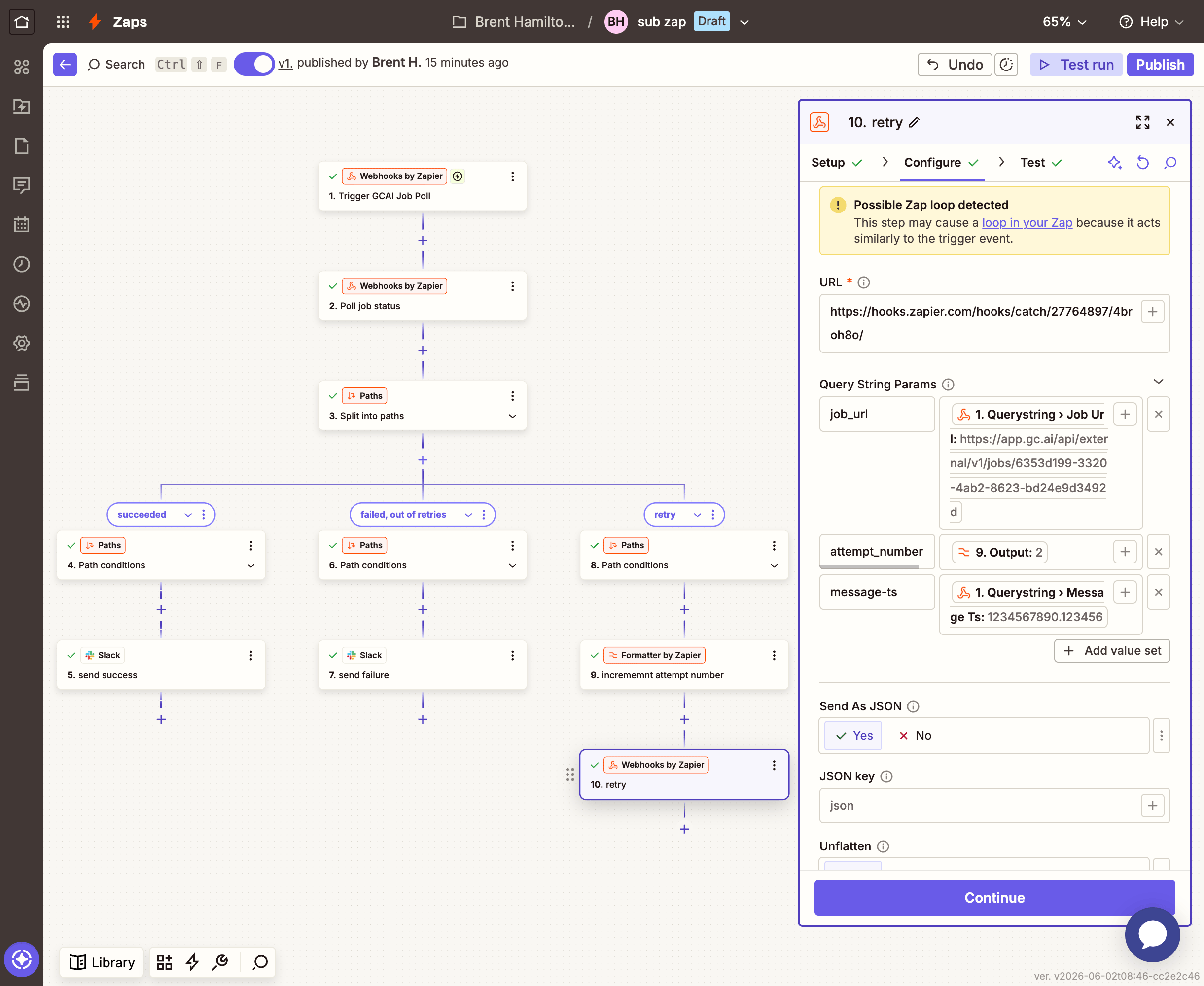
Then add a Webhooks by ZapierGET step that calls the sub-Zap’s own webhook URL:
FieldValue
URLYour sub-Zap’s Catch Hook URL (the one from Step 1)
Query String Paramsjob_url: map from Catch Hook trigger
attempt_number: map the Output from the Formatter step
channel: map from Catch Hook trigger
message-ts: map from Catch Hook trigger
Zapier recursive GET step — URL set to sub-Zap's own Catch Hook URL with query string params

Wire the sub-Zap into the main Zap

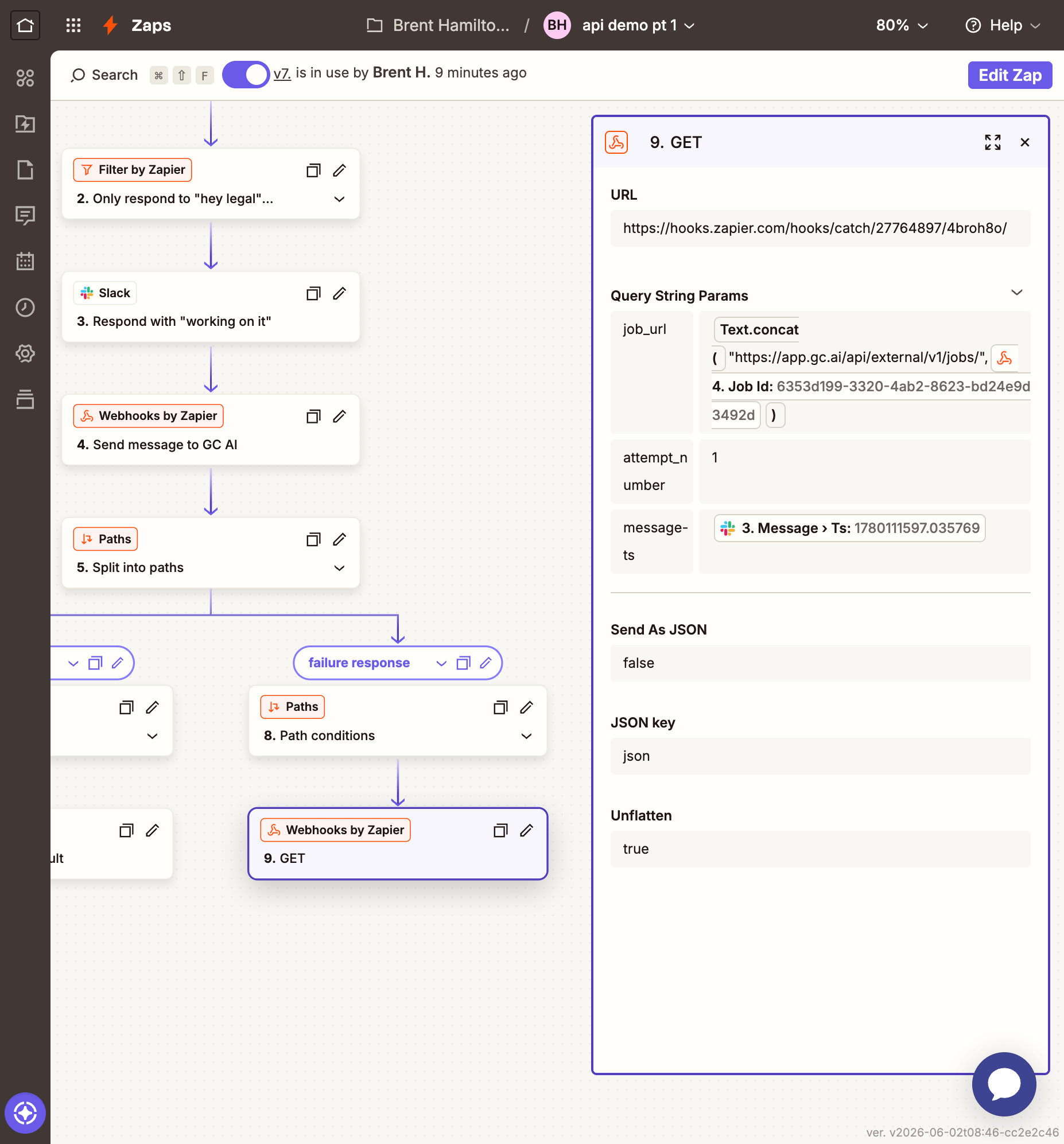
Go back to your main Zap and update Path B (the timed-out branch). Replace the Edit Message step with a Webhooks by ZapierGET step (keep the Edit Message that says “This request timed out…” — the sub-Zap will update it again when the result is ready):
FieldValue
URLYour sub-Zap’s Catch Hook URL
Query String Paramsjob_url: type https://app.gc.ai/api/external/v1/jobs/ then map Job Id from the main Zap’s Webhooks step (it appends to the URL)
attempt_number: 1
channel: map Channel ID from the Slack trigger
message-ts: map Ts from the “Working on it…” step
Main Zap Path B updated with GET step to sub-Zap — URL and query string params configured
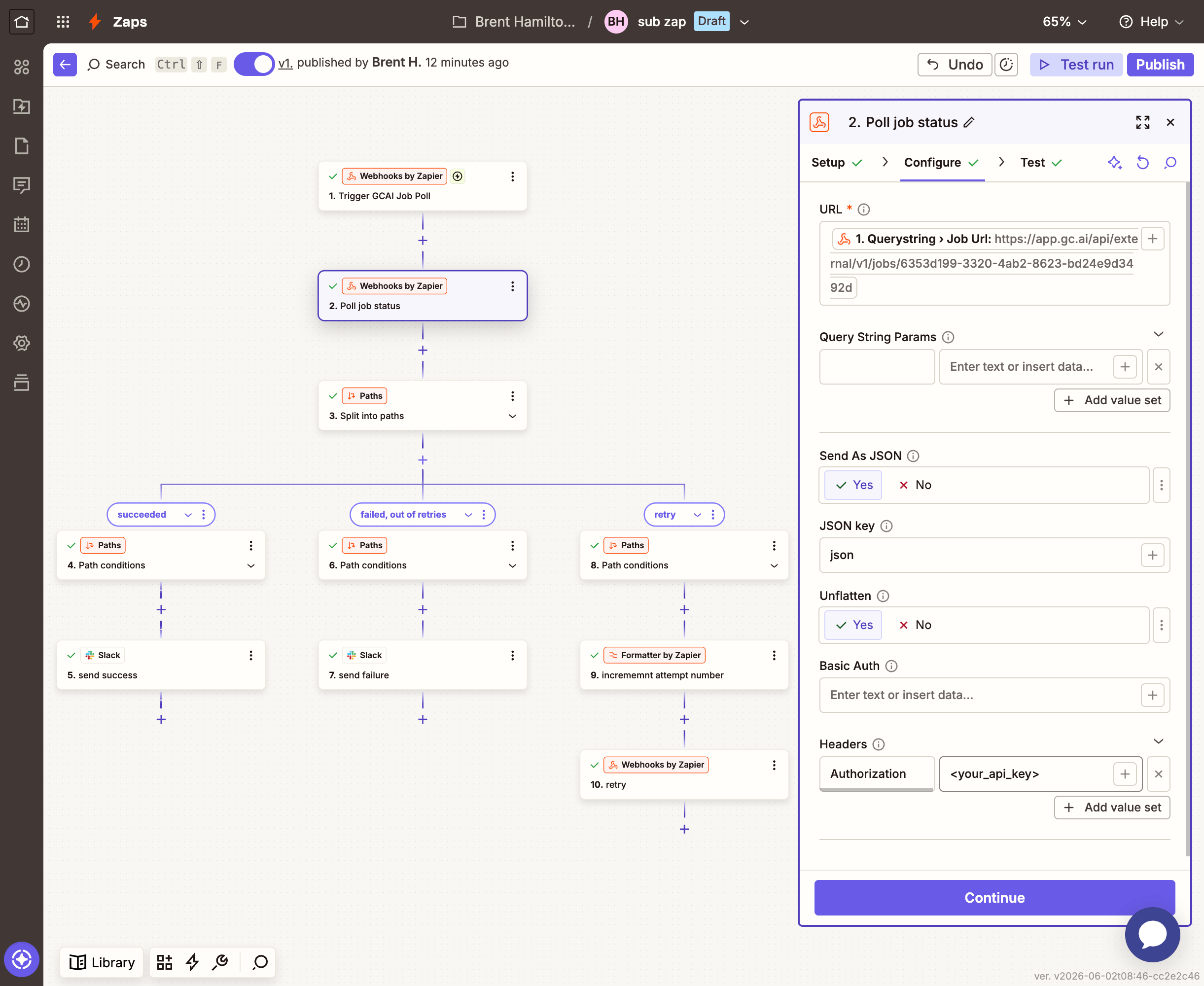
Now when a classification times out, the main Zap updates the message to say it’s still working and kicks off the polling sub-Zap. The sub-Zap polls (up to 4 times) and updates the same message with the result when it’s ready.
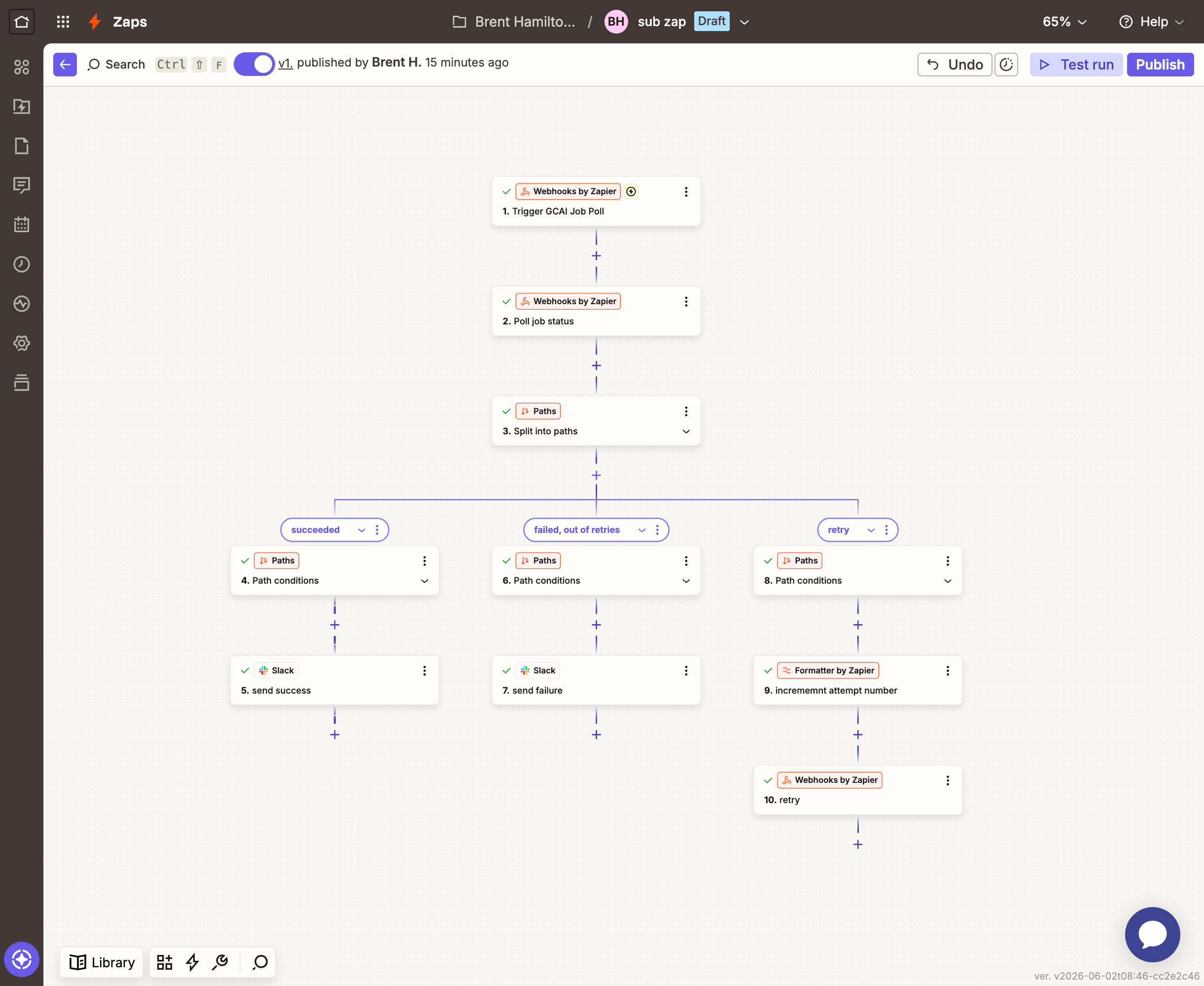
The completed sub-Zap showing all steps: Catch Hook trigger, GET job status, and Paths with success, max attempts, and recurse branches

Customizing the prompt

The classification prompt in Step 4 is fully customizable. Here are some ideas:
  • Add your team’s categories — replace the generic list with your actual practice areas
  • Include routing rules — tell the model which attorney or team handles which category
  • Reference your playbooks by name — if you know your GC AI playbooks, list them in the prompt so the model suggests a specific one
  • Change the output format — ask for a numbered priority score, a deadline estimate, or a link to the relevant GC AI playbook page

Going further

Add file analysis

Upload attachments from Slack to GC AI using the file upload endpoint, wait for processing, then include the file in the classification prompt via file_ids. Reuse the polling sub-Zap pattern to wait for file processing.

Run a playbook automatically

After classification, use the run playbook endpoint to execute a full playbook review against the attached document. Post the check results back to Slack.

Route to the right person

Add a lookup table in Zapier that maps categories to Slack users. After classification, @mention the right attorney in the thread reply so they know to pick it up.

Log to a spreadsheet

Add a Google Sheets step to log every triage (timestamp, requester, category, risk, urgency) for reporting and SLA tracking.