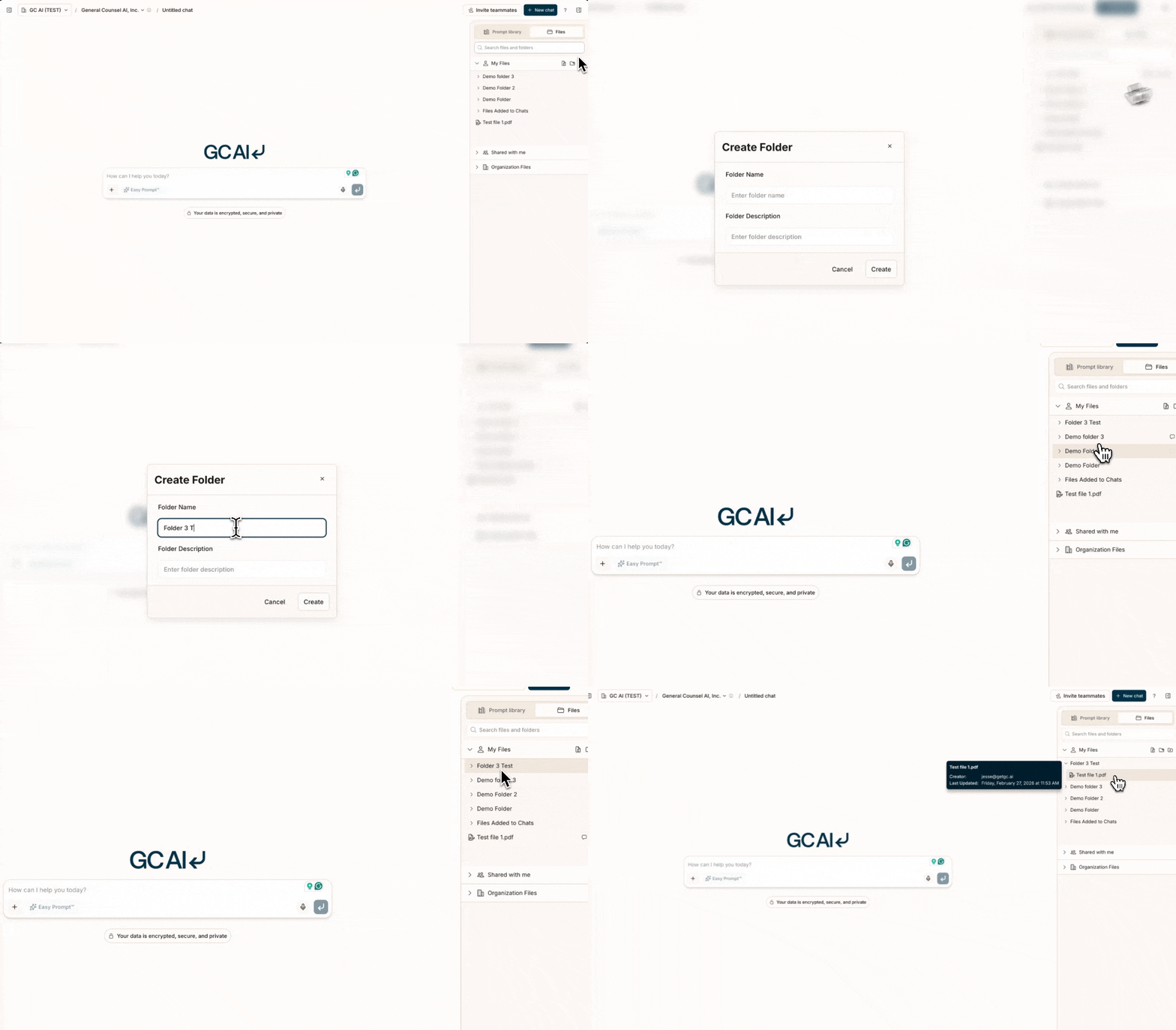
Structure Planning
Folder Hierarchy
- Create logical main categories for your legal documents
- Use consistent naming conventions across all folders
- Consider how your team accesses different document types
- Plan for scalability as your document collection grows
Example structure:
Organization Strategies
Document Naming
- Use clear, descriptive names that identify content at a glance
- Include relevant dates in a consistent format (YYYY-MM-DD)
- Add version numbers for documents that change over time
- Maintain consistency across all your files
Example:
- Tag documents with relevant categories for easier searching
- Add descriptions that summarize key document information
- Include key dates such as effective date and review date
- Note related documents to create connections between files
Access Management
Permission Structure
- Set appropriate access levels based on document sensitivity
- Create sharing groups for teams that need similar access
- Manage team permissions through the Organization settings
- Review access regularly to maintain security
Version Control
- Track document versions with clear naming conventions
- Maintain change logs to document what was updated
- Archive old versions in dedicated folders
- Document updates with comments for team awareness
Best Practices
Maintenance
- Schedule regular organization reviews quarterly
- Clean up unused files to reduce clutter
- Update outdated content with current information
- Consolidate duplicates to avoid confusion
Team Coordination
- Share organization guidelines with all team members
- Train new team members on your files structure
- Document your organization procedures for consistency
- Maintain naming and folder conventions across the team
Using Citations
- Request explicit citations by asking GC AI to “provide citations”
- Hover over citation badges to preview quoted text without leaving the chat
- Click citations to open the source document with the relevant passage highlighted
- Copy text with citations included using the copy button or text selection popover
- See Citations for full details
Smart Document Access
GC AI uses specialized tools to access your documents on demand:
- Read specific sections of documents as needed
- Search across documents for keywords and phrases
- Query documents using semantic search for conceptually related content
This on-demand approach lets you work with more documents than would fit in a single context window. Organize your documents well so the AI can efficiently find what it needs.
Create and document your organization system early. It’s much harder to
reorganize later when you have hundreds of documents.