

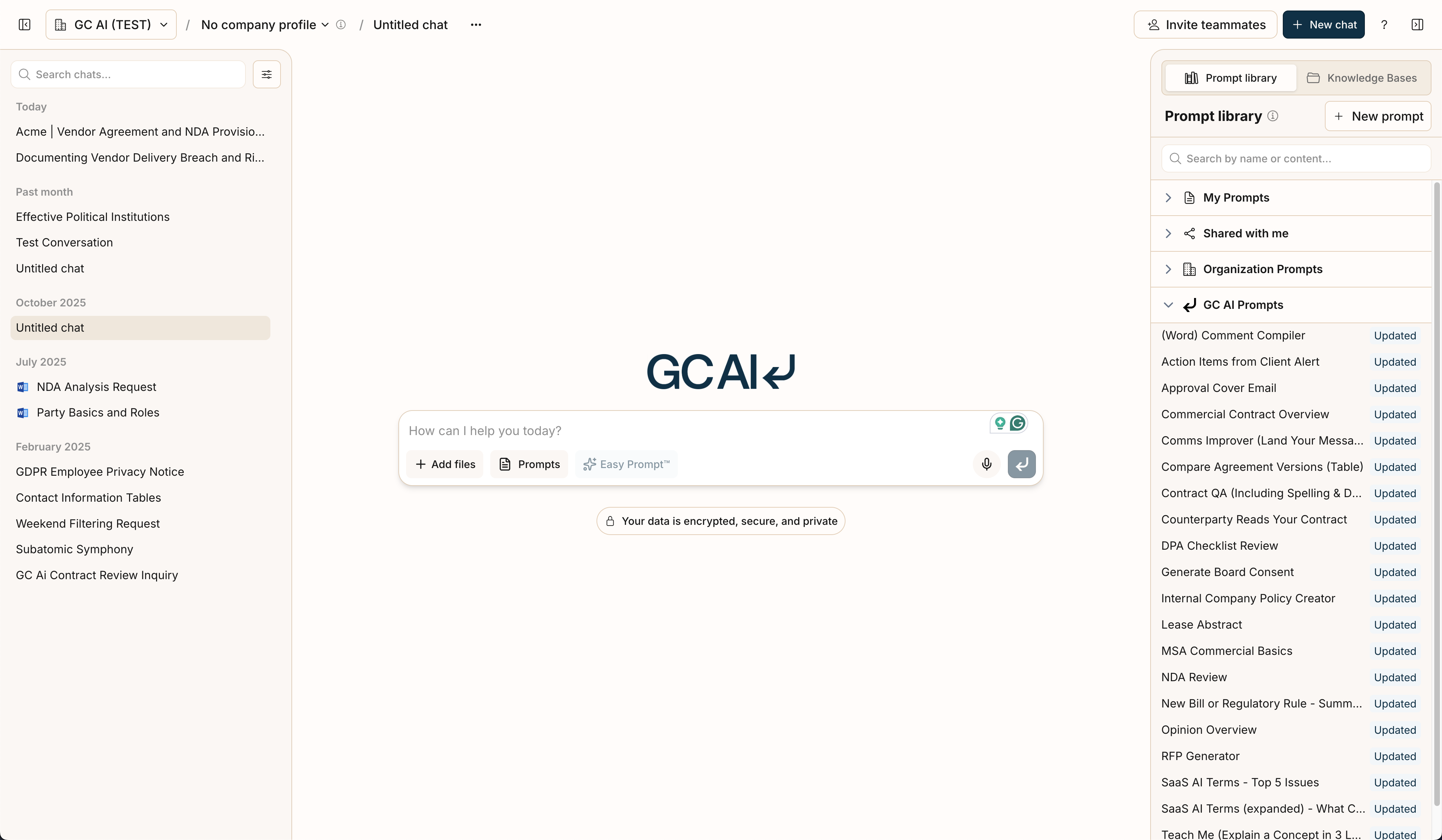
 The GC AI chat interface is your primary workspace for interacting with the AI. Here, you can ask legal questions, request document drafting or analysis, get summaries, conduct research, and export your work. Understanding its features will help you work more efficiently.
Core Chat Functionality
At its heart, the chat interface works like most messaging applications:- Input Field: Type your requests, questions, or instructions into the text box at the bottom. When pasting text:
- Content up to 6,000 characters remains as editable chat text
- Content exceeding 6,000 characters is automatically converted to a downloadable text file attachment
- Submit: Select the Submit button (or press Enter) to send your message to GC AI.
- Conversation History: Your interactions with GC AI are displayed in a chronological thread, making it easy to follow the conversation and refer back to previous exchanges.
Key Features
AI Models and Reasoning
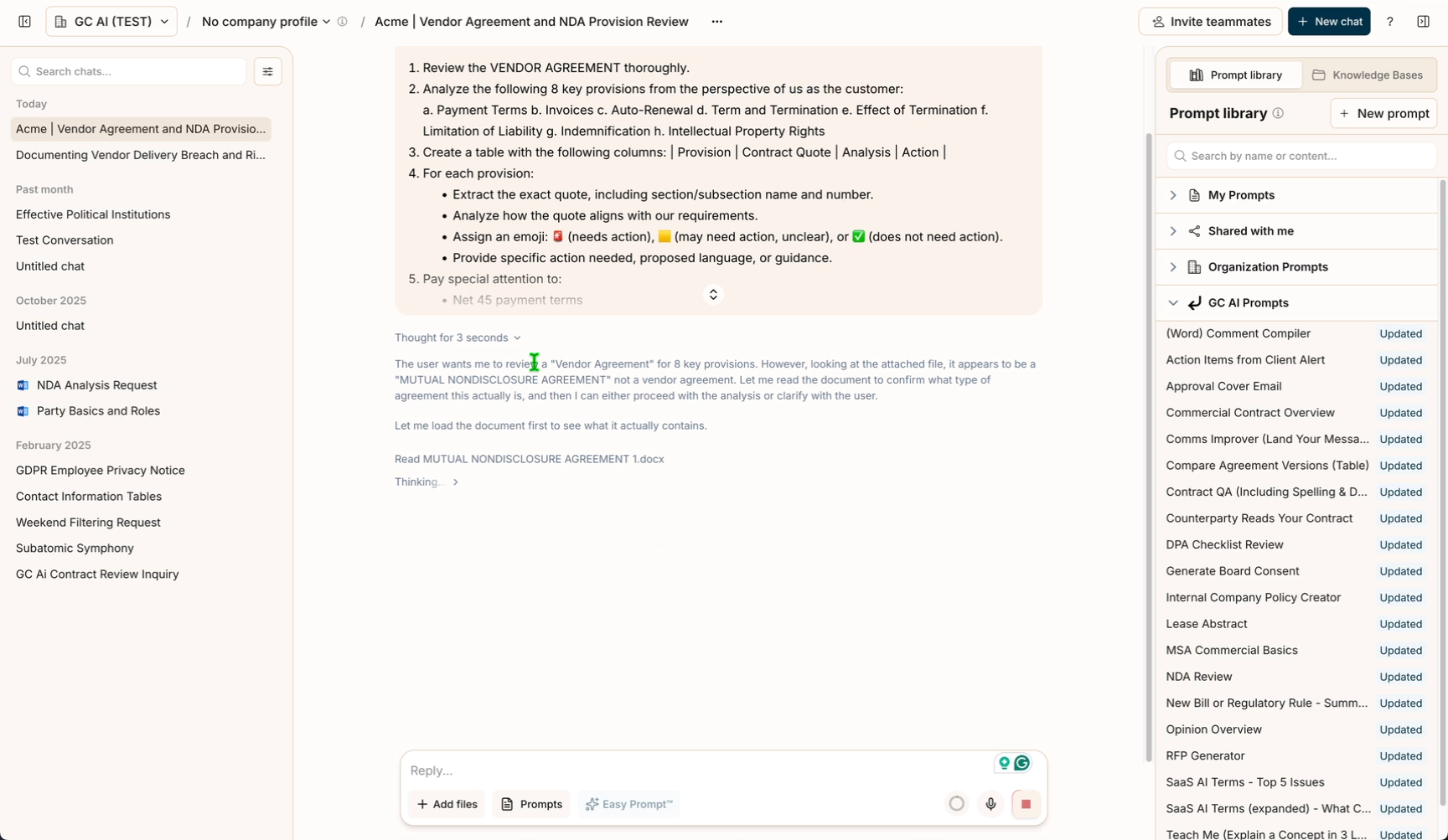
- Multiple AI Models: GC AI uses leading models from providers like OpenAI, Anthropic, Google, and xAI, automatically selected for your task. You do not pick a model in the product. Cross-provider fallback chains ensure reliability if any provider experiences issues.
- Advanced Thinking: For complex requests, GC AI uses a structured 5-step reasoning process: scoping the question, performing a systematic sweep of relevant information, tracing patterns, accounting for completeness, and reconciling findings. You’ll see a “Thinking” indicator when this process is active.
- Easy Prompt™: Optimize your questions before sending them. Easy Prompt refines your prompt for better results.
- Voice Input: Speak your questions using the microphone button (up to 3 minutes per recording).
Research and Document Analysis
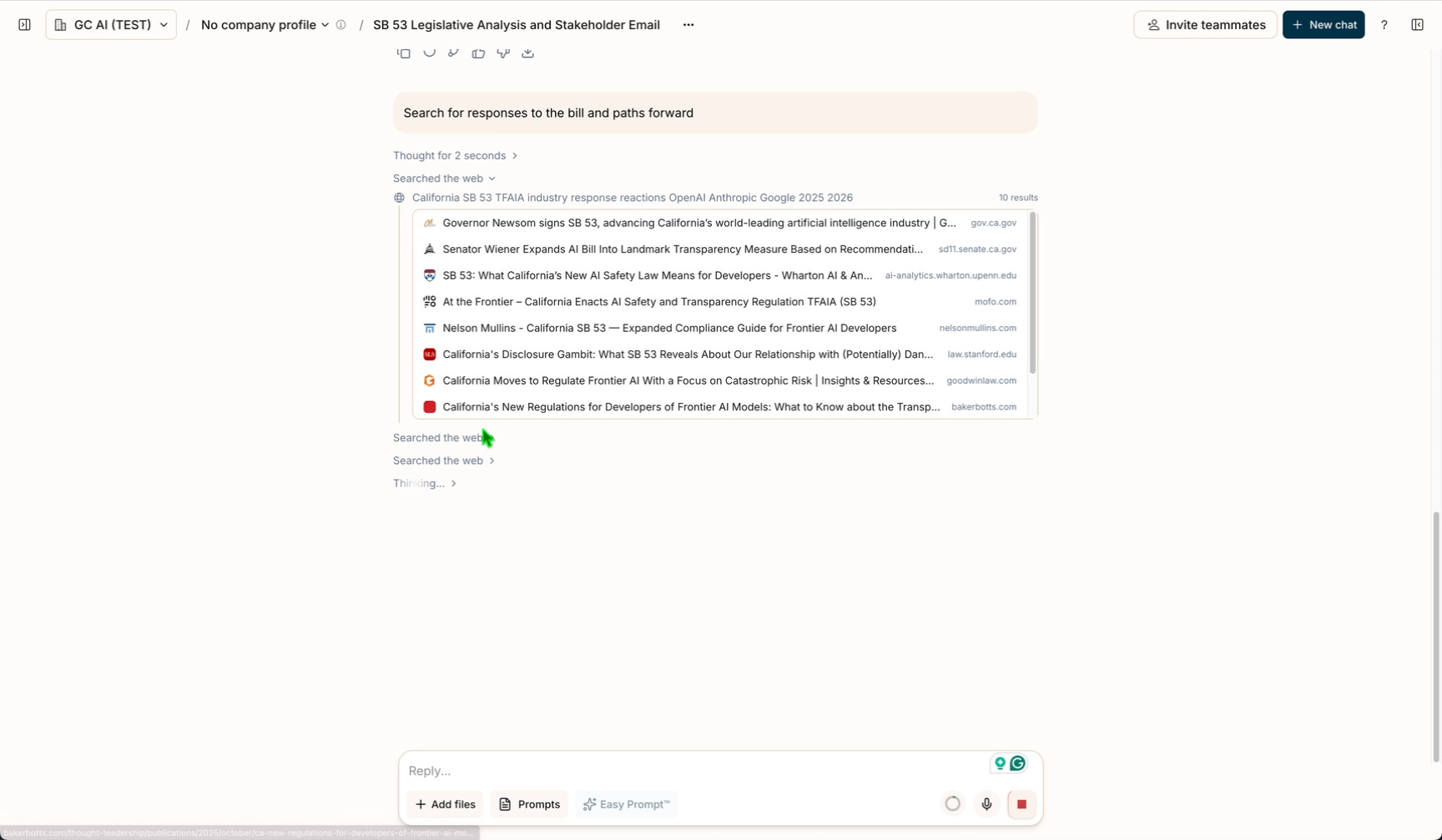
- Research Agent: For questions requiring current information, GC AI launches parallel research subagents that search and analyze multiple web sources simultaneously. Visual progress cards show each research thread in real time.
- Smart Document Access: When you upload documents or attach files, GC AI uses specialized tools to read, search, and query your documents on demand, rather than loading everything into context at once. This lets you work with more documents efficiently.
- Web Page Analysis: Paste a URL into the chat and GC AI can access and analyze its content. This is useful for reviewing terms of service, summarizing articles, or checking web content for compliance.
Message Queue
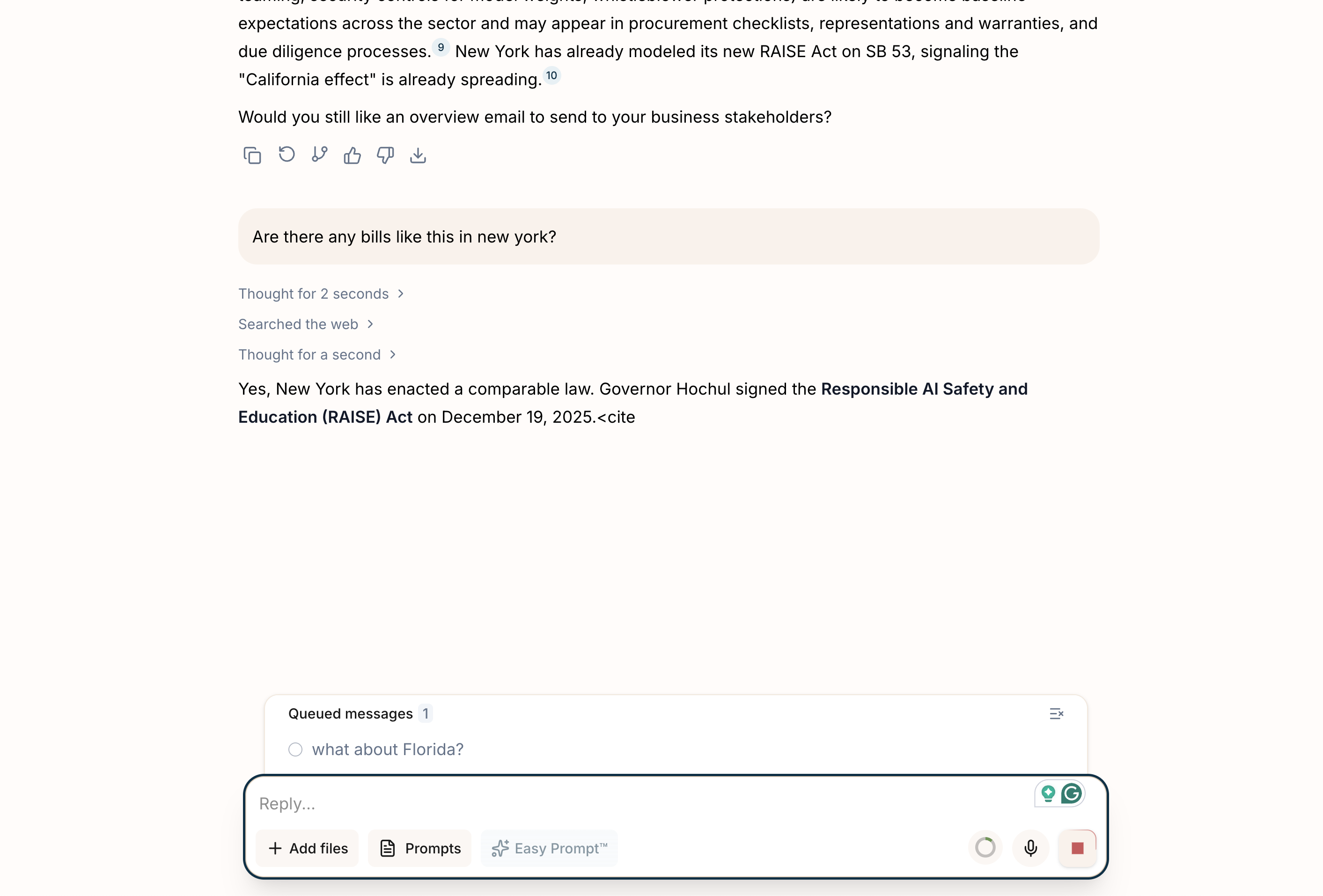 You can send follow-up messages while GC AI is still responding. Messages are queued and processed in order, so you don’t need to wait for each response before asking your next question. You can pause, resume, or remove queued messages.
Context Usage Indicator
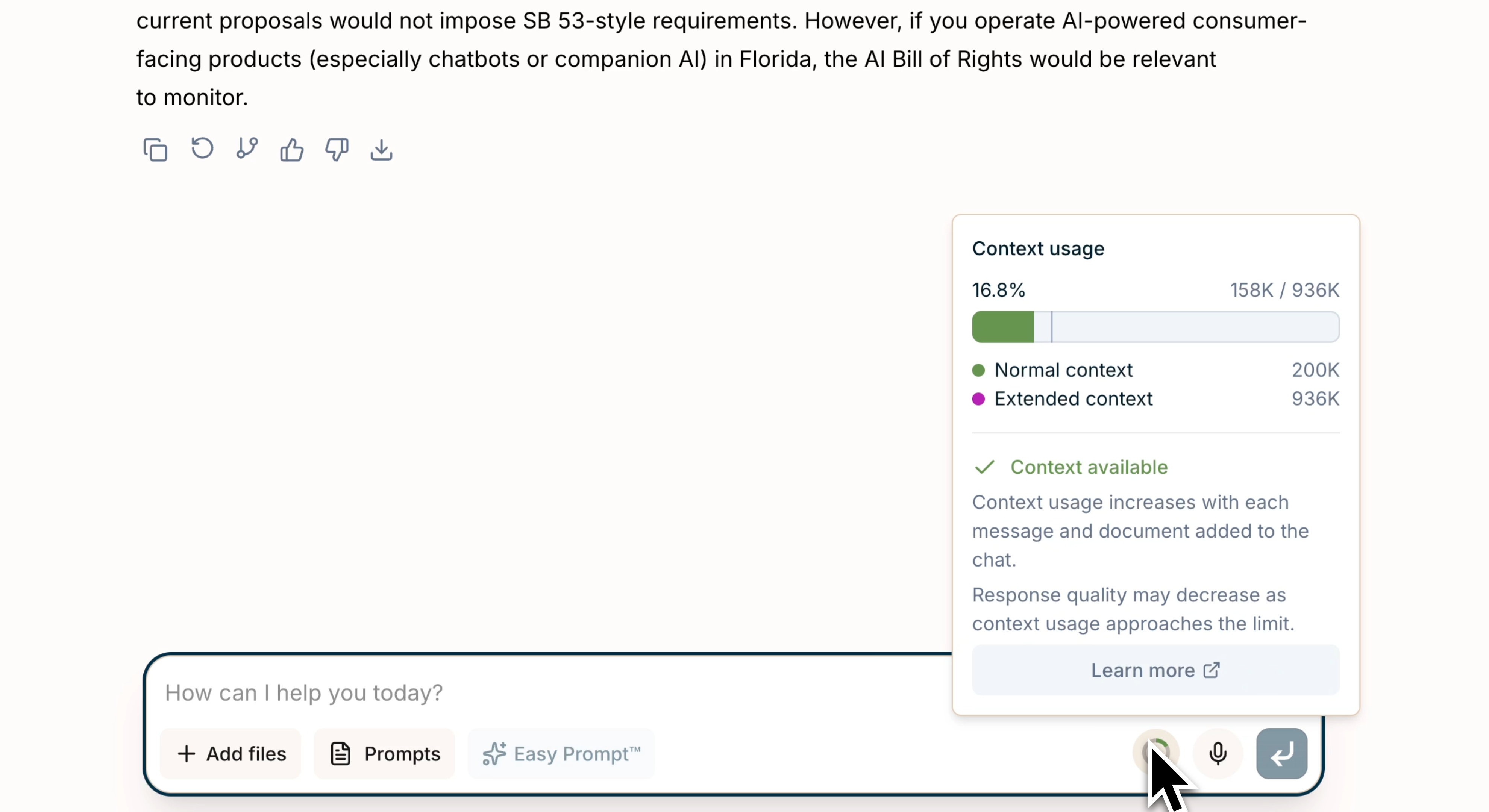 A visual indicator shows how much of the AI’s context window you’ve used. Hover the ring for the percentage; click for the full breakdown. The indicator changes color as you approach the limit:
- Shows percentage used and total capacity
- Context baseline is 200k tokens, with some models supporting up to 1M tokens
- When conversations get long, GC AI can automatically summarize earlier messages to free context
- When context is nearly full, GC AI can automatically fall back to a model with a larger context window
Citations
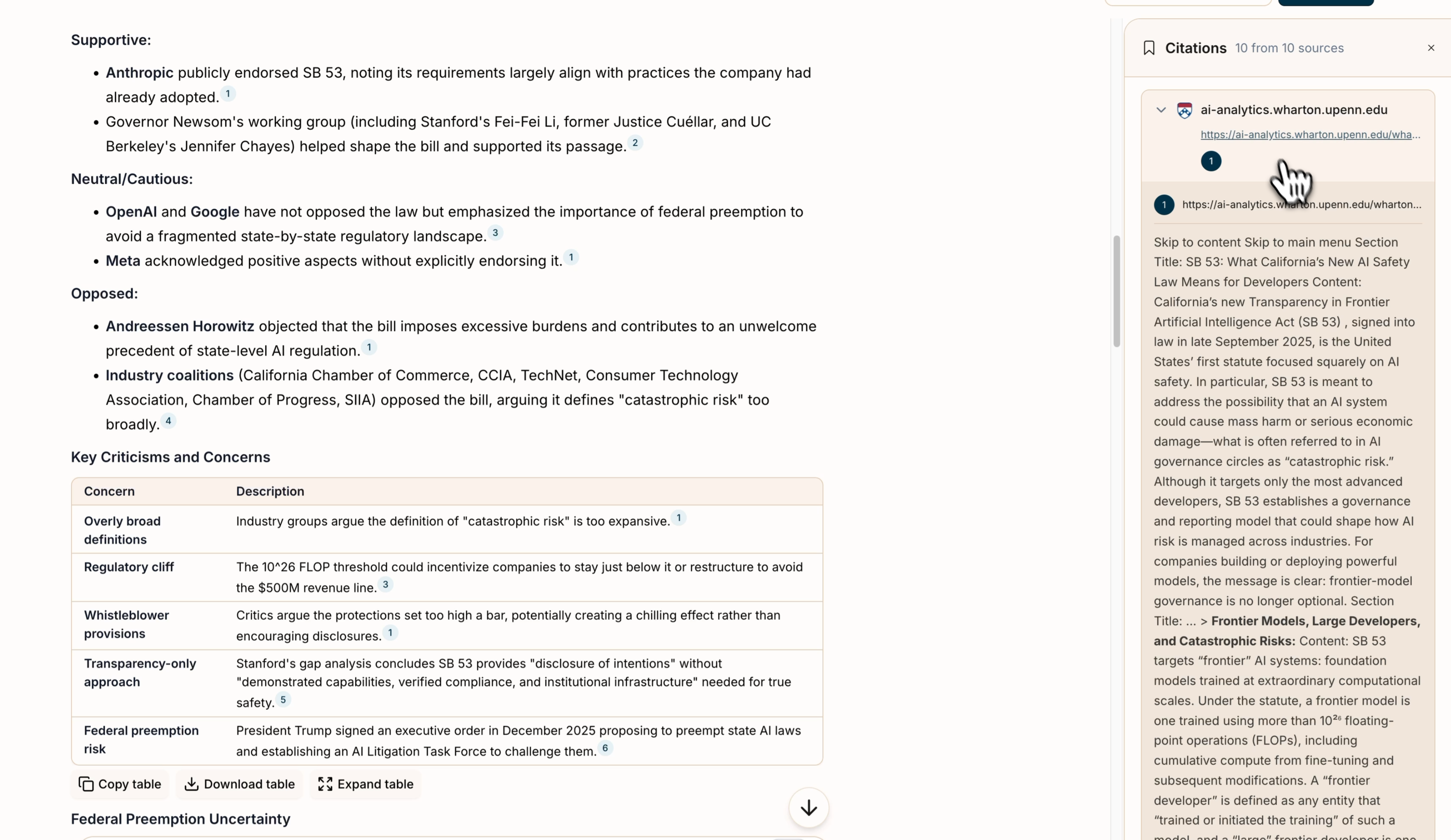 When GC AI references your documents, responses include numbered citation badges. You can:
- Hover over a citation to preview the quoted text
- Click a citation to open the source document with the relevant passage highlighted
- Copy text with citations included
Conversation Branching
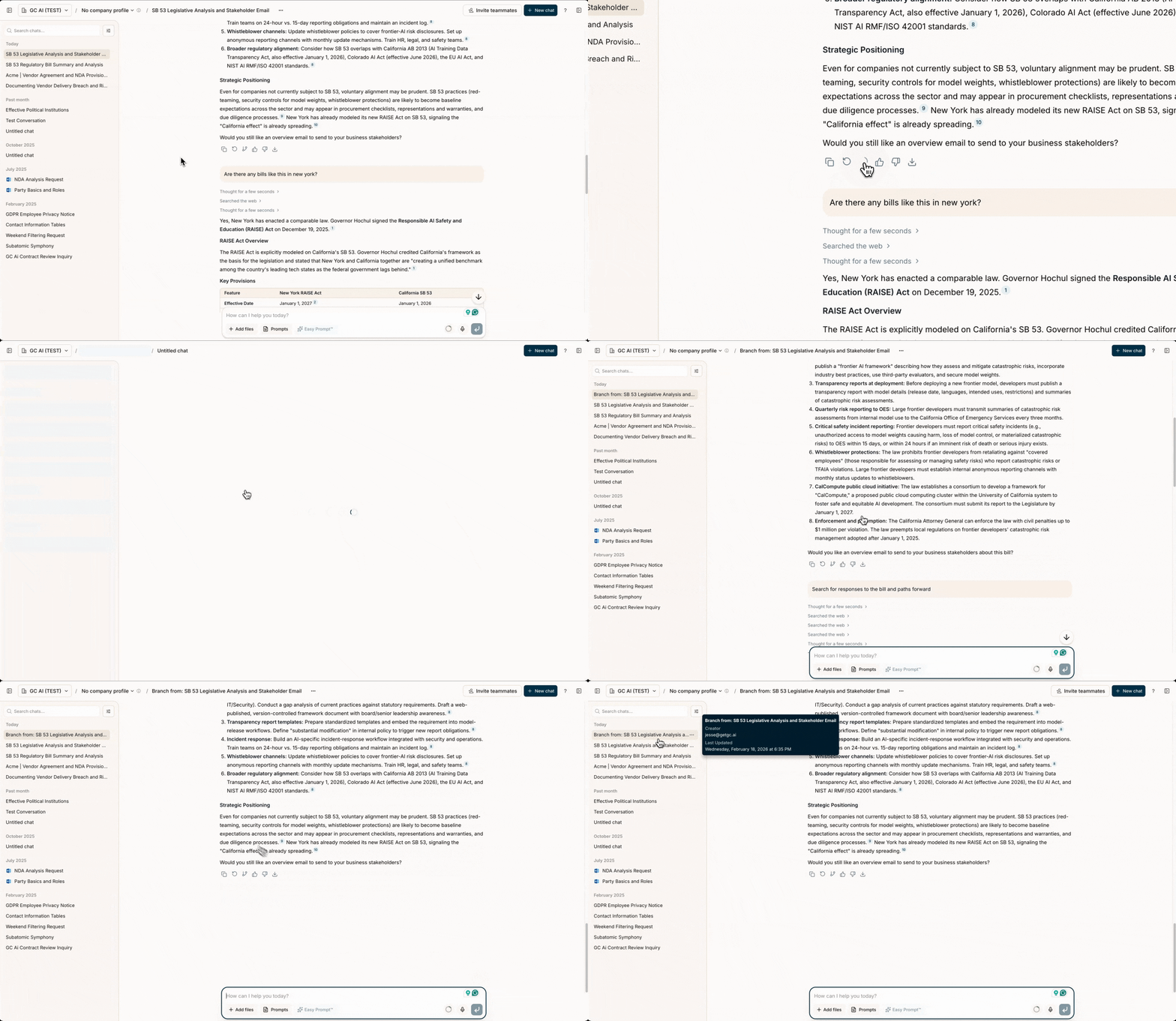 You can branch from any AI response to explore different directions while keeping your original conversation intact. This lets you test alternative approaches, compare strategies, or pursue tangential questions without losing context.
Export
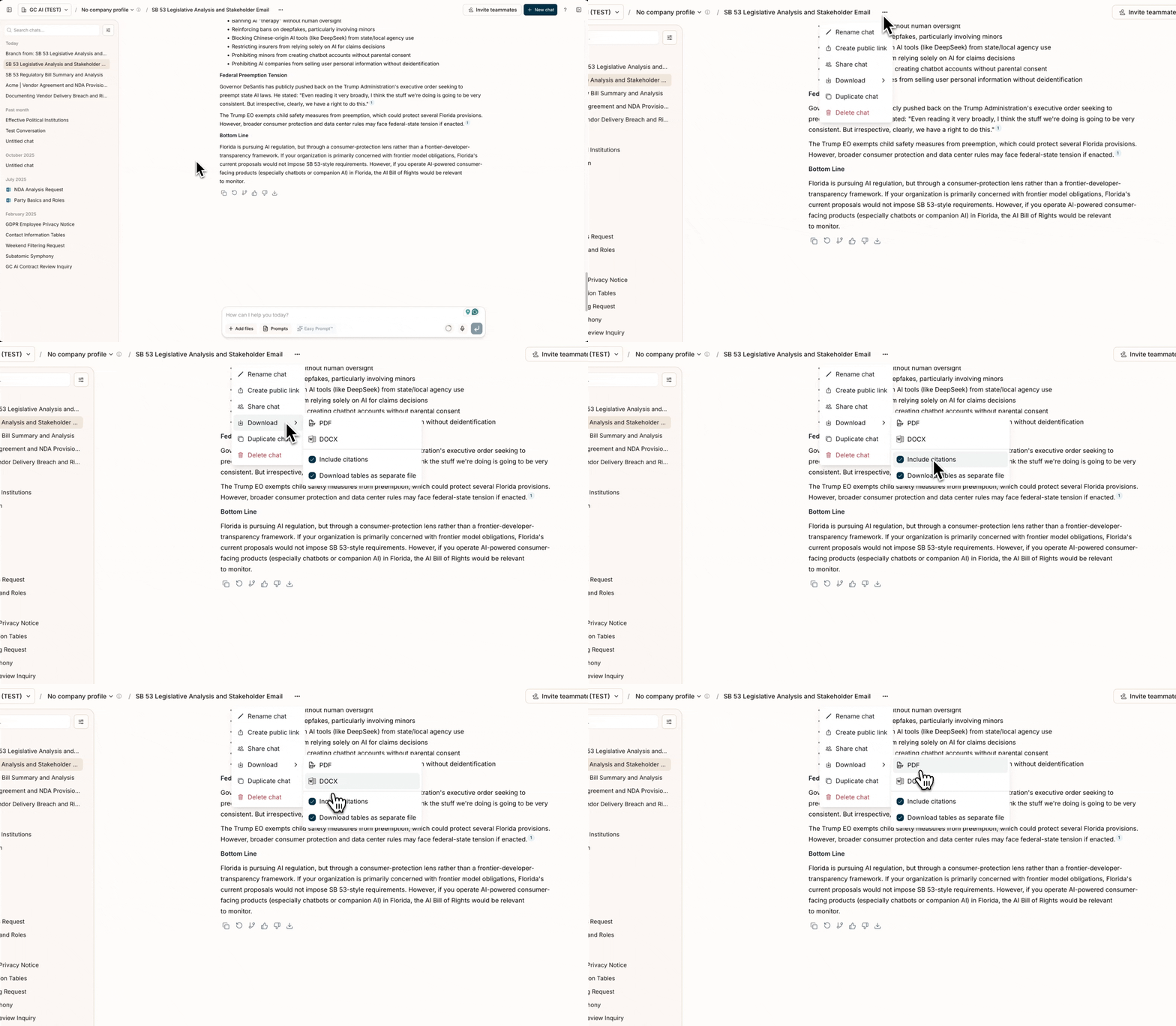
- Full Chat Export: Download entire conversations as PDF, DOCX, or Markdown
- Per-Message Download: Download individual messages in PDF, DOCX, or Markdown
- Table Export: Export tables from responses as CSV, XLSX, PDF, DOCX, or Markdown
- Slides: Generate PowerPoint slide decks directly from chat
Report a problem
If a chat fails, returns an unexpected answer, or shows a visual bug, use Report chat in the chat header menu (⋯). You can also flag a single response with the thumbs down icon under that message. See How to Report a Chat for details, including how to send a screenshot to support.Projects
- Projects: Group related chats and files into a shared workspace
- Cross-Chat Memory: GC AI can reference prior chats in the same project, so each new conversation builds on prior work
- Custom Instructions: Set project-level guidance that applies to every chat automatically
- Collaboration: Share projects with teammates and control access with Read, Write, and Admin permissions
Workflows
- Skill Library: Type
/in the chat box to search and attach a skill. You can also open the library from the + menu to browse My Skills, Shared with Me, Organization Skills, and GC AI Skills - Company Profile: Information from your Company Profile is automatically used to provide organization-aware responses tailored to your business context
- Skills: Save and reuse your frequently used workflows
Tips for Effective Chat Usage
- Be Specific: The clearer your prompt, the better the response.
- Provide Context: Upload relevant documents or provide background details.
- Use Easy Prompt: Let Easy Prompt™ refine your questions for optimal results.
- Attach a skill with /: Type
/in the chat box to search skills and insert one as a chip in your message. - Queue Follow-ups: Don’t wait for a response. Send your next question and it will be queued automatically.
- Branch When Exploring: Use conversation branching to test different approaches without losing your main thread.
- Watch the Context Indicator: Keep an eye on context usage when working with many documents or long conversations.