

Overview
Files are a powerful feature in GC AI that enables you to create permanent collections of documents accessible across all your chats. They serve as your team’s document brain, allowing you to: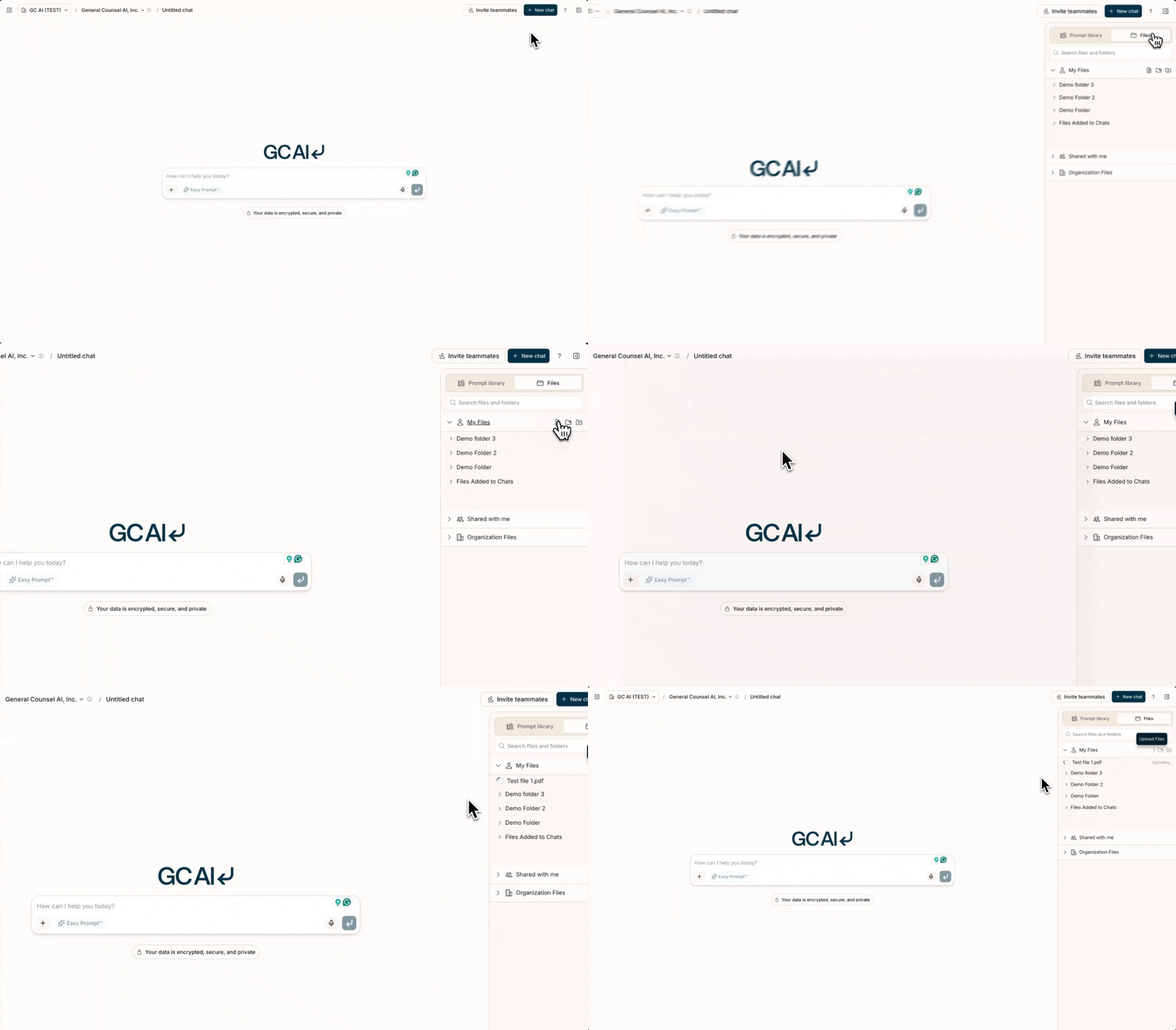
- Upload and organize files and folders
- Share documents with your team
- Work with large document sets using smart, on-demand document access
- Get cited responses with hover previews and in-document highlighting
Smart Document Access
When you attach files from Files to a chat, GC AI doesn’t load all document content into memory at once. Instead, it uses specialized tools to access your documents on demand:- Read specific sections of a document as needed
- Search across documents for relevant passages using keyword matching
- Query document content using semantic search to find conceptually related information
Getting Started
- Open the right sidebar
- Click “My Files” or “Organization Files”
- Click “Create Folder”
- Name your folder and set sharing permissions
- Upload files: you can drag and drop files, paste from clipboard, or use the
+menu (tooltip: Add files, skills, or sources) and select Add from computer - Drag the folder from the sidebar into any chat, or use the
+menu to select Add from Files (this opens the sidebar to Files and focuses search so you can type immediately) - Start asking GC AI questions about your documents
Using Documents in Chat
Once documents are attached to a chat, you’ll see file badges showing which documents are available. The context usage indicator shows how much context is being used. You can:- Ask questions and receive responses with citations linking to your source documents
- Export your analysis as PDF, DOCX, or Markdown
- Branch the conversation to explore different analysis paths
🔗 Cloud Storage Integrations
You can import files directly from cloud storage providers into Files.- Google Drive - Browse and select files from your Google Drive using the Google Picker. Supports PDF, DOCX, and Google Docs. Files are imported as point-in-time snapshots with no continuous sync.
- SharePoint, OneDrive, Box, and Dropbox - Connect these apps in Agent Connectors to search and pull files in chat, or add them as a source in Contract Intelligence. Continuous folder sync is for Contract Intelligence Vaults, not the one-time Files picker.