

Search Capabilities
GC AI provide powerful search functionality that helps you quickly find the documents you need within your files. The search system works across your entire document collection, regardless of folder structure.How Search Works
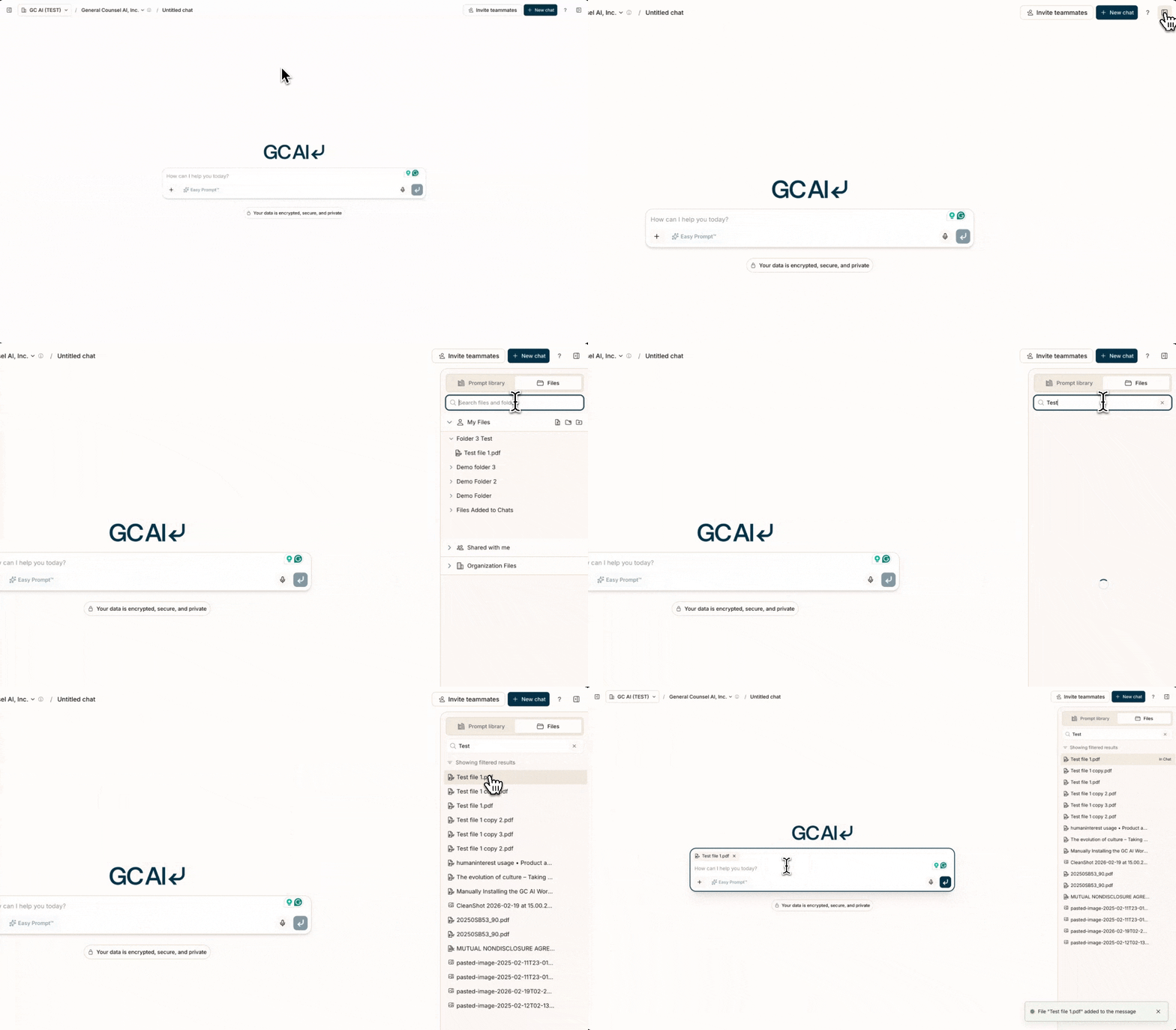
- Filename: Find documents by their names
- Content: Locate specific text within your documents
- Semantic: Discover documents with similar concepts, even if they use different terminology
Using the Search Bar
To search your files:- Open the right sidebar
- Type at least 3 characters in the search bar
- View results from all accessible Files
- Drag any search result directly into your chat
Quick Access from Chat
You can open Files search directly from any chat:- Click the
+button in the chat input (tooltip: Add files, skills, or sources) - Select Add from Files
- GC AI opens the right sidebar to Files and focuses the search bar
- Start typing right away to search
In-Chat Document Search
When documents are attached to a chat, GC AI can search within them using specialized tools:- Keyword search: GC AI can search across your attached documents for specific terms, phrases, or patterns
- Semantic query: GC AI can find conceptually related passages even when different terminology is used
- Targeted reading: GC AI can read specific sections of a document to answer detailed questions
Search Techniques
Basic Search
Use simple keywords to find relevant documents:Semantic Search
Find conceptually similar documents even when they use different terminology:Search Results
Search results display:- File name and location
- Preview of matching content
- File type indicator
- Last modified date
Drag and Drop Integration
After finding documents through search:- Drag any search result directly into your chat
- Ask GC AI questions about the document
- Receive cited responses with references to the source material
Limitations
- Search requires at least 3 characters to activate
- Results are limited to files you have permission to access
- Search performance may vary with very large document collections
Best Practices
- Use specific, descriptive search terms
- Try different phrasings if you don’t find what you need
- Save frequently used documents in organized folders
- Use semantic search for concept-based queries
- Use the
+menu to quickly select Add from computer or Add from Files (which opens the right sidebar to Files and focuses search)