

How it works with Slack
- You connect your own Slack account. GC AI acts as you. It can see only the channels, direct messages, and files you can already see in Slack.
- You ask in GC AI, not in Slack. In a GC AI chat, ask something like “Summarize the #legal-requests thread about the Acme DPA.” GC AI searches and reads the Slack conversations it needs, then answers in the chat.
- GC AI posts only when you ask, in a chat or in an automation you set up. If you ask GC AI to reply in a thread or post an update, by default it asks for your approval first and posts as you only after you select Approve.
- There is no bot in your workspace. The connector does not respond to mentions or post anything on its own.
Add GC AI to Slack
1
Sign in to GC AI
Go to app.gc.ai and sign in.
2
Open Agent Connectors
Select your profile, then Settings. Open Integrations → Agent Connectors.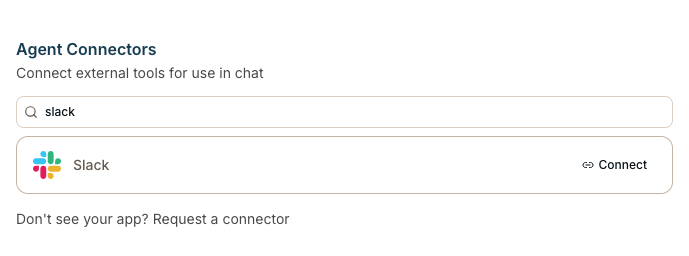
3
Select Connect on Slack
Find Slack in the list and select Connect. Review what the connector does and the tools it adds, then select Connect Slack.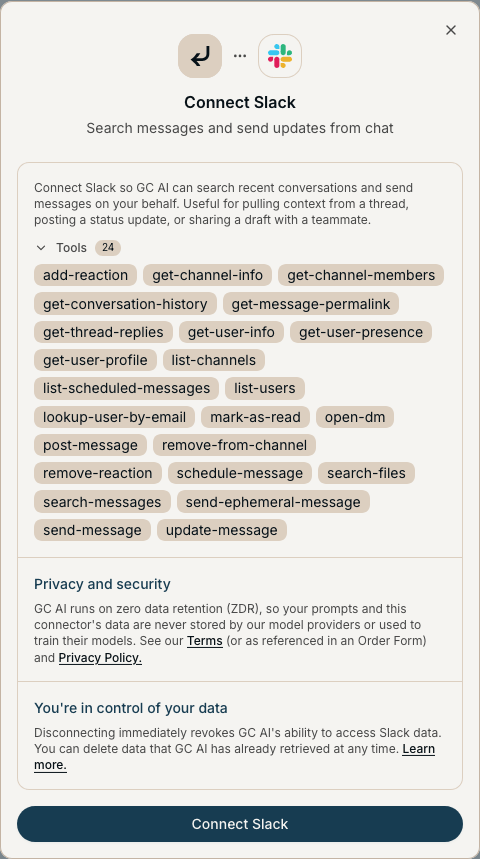
4
Approve the app in Slack
Slack opens its install screen for the GC AI Slack Connector. Pick your workspace in the top right if you belong to more than one, review the permissions, and select Allow.
5
Start using Slack in chat
You return to GC AI and Slack shows Connected. Expand Tools under Slack to see each action GC AI can take and to set its permission.
If your workspace requires admin approval for new apps, Slack shows Submit request instead of Allow. Your Slack admin approves the request in Slack. Then repeat these steps to finish connecting.
Use Slack in GC AI chat
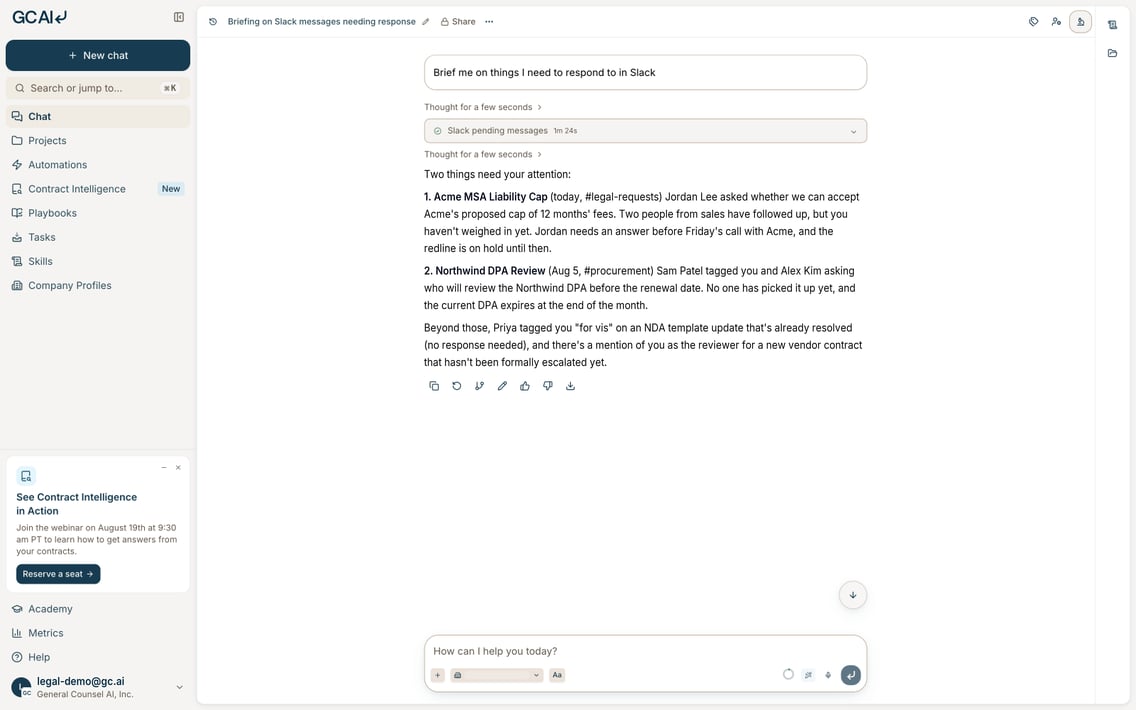
You use the connector from a GC AI chat, not from Slack. Ask in plain language and GC AI picks the right Slack action. With Slack connected, you can ask GC AI to:- Search messages and files across the channels and conversations you belong to
- Read and summarize a channel, a direct message, or a thread
- Look up a teammate by name or email
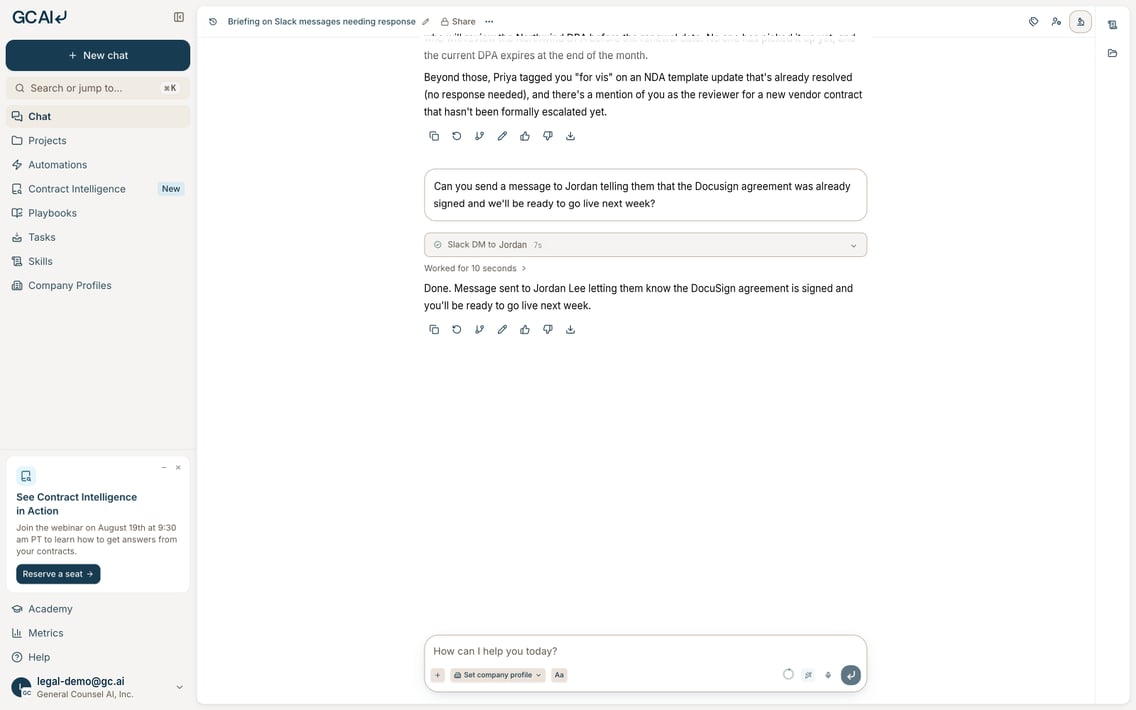
- Send a message, reply in a thread, or schedule a message for later
- Add a reaction to a message
- “Search Slack for what procurement said about the Acme indemnity cap.”
- “Summarize the last week of #legal-requests and list the open asks.”
- “Summarize the thread Sam started about the vendor DPA.”
- “Post in #legal that the MSA redline is ready for review.”
- “Reply in that thread that we approve the change to section 4.”
When GC AI posts in Slack
GC AI posts in Slack only when you ask it to in a GC AI chat, or in an automation you set up. These are the actions that change something in Slack:
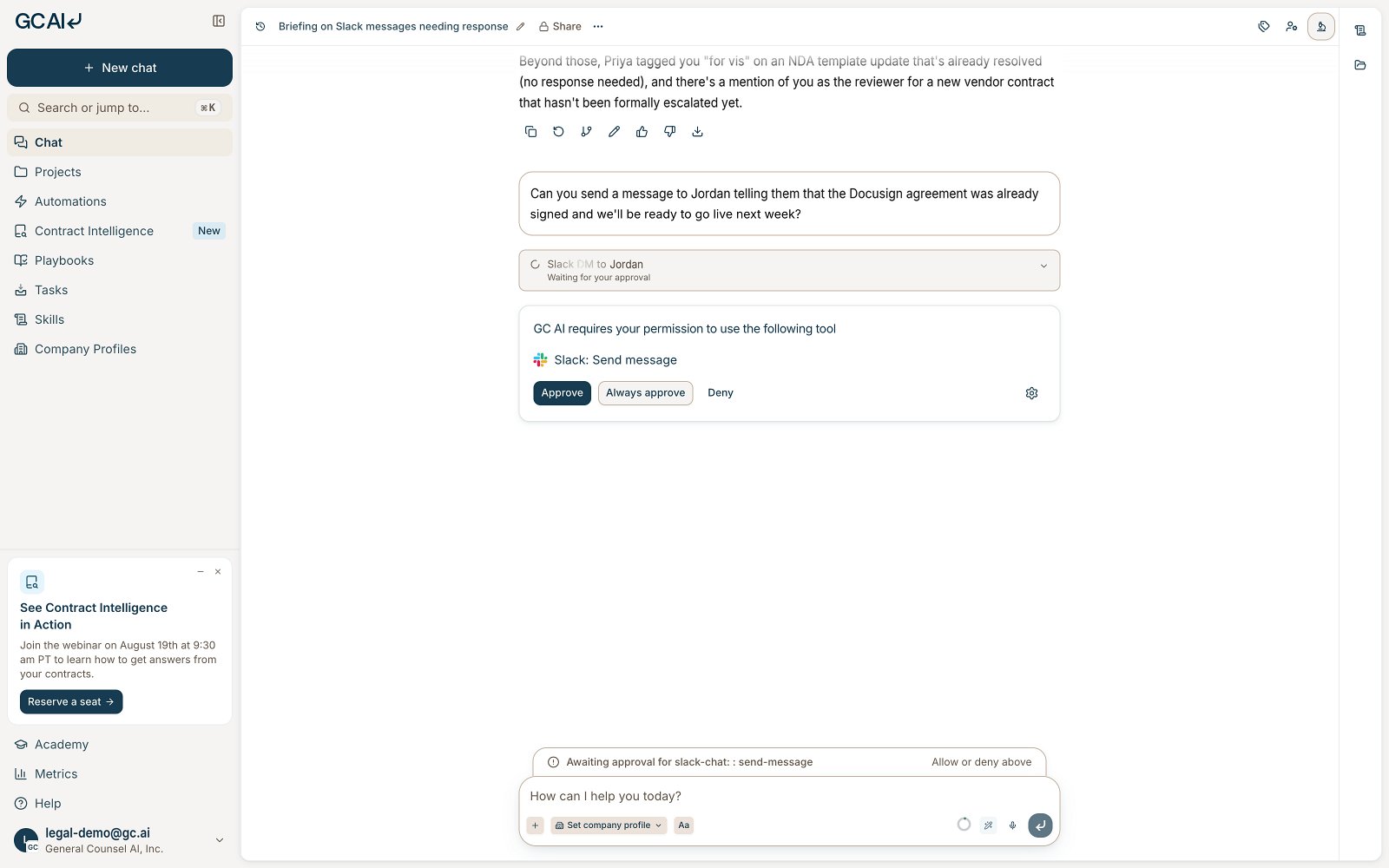
Messages and reactions appear as you, because GC AI connects with your Slack account. By default, GC AI shows an approval card in chat first, and nothing posts until you select Approve. Select Always approve to skip the card for that action from then on, or Deny to stop it. You can change this per action under Configure the connector.
Configure the connector
Tool permissions (each member). In Settings → Integrations → Agent Connectors, expand Tools under Slack. Set each action to one of these:
Organization policy (GC AI admins). In Settings → Policies → Connector policies, set Slack to Full access, Read-only, or Disabled for everyone or for specific members. Read-only turns off every action that posts in Slack. See Agent Connectors for details.
Privacy and data
Read the GC AI Privacy Policy for how GC AI collects, uses, and stores your data. For Slack specifically:- GC AI reads Slack data only when you ask it to in a chat or an automation you set up. It does not copy or index your workspace in the background.
- The Slack messages and files GC AI reads to answer you become part of that chat, and GC AI stores them with your chat history.
- GC AI connects to Slack through Nango, which holds your Slack access token. See our subprocessor list.
- When you disconnect, GC AI can no longer read from or post to your Slack workspace.