

Automations are recurring GC AI chats. You set the task up once with the instructions, skills, files, playbooks, and context it needs, then pick a schedule. Each run starts a fresh chat with the results, so you have a stable record of every weekly scan, monthly review, quarterly close check, or scheduled briefing.
Each Automation run produces a new chat in your history, the same way any other GC AI conversation does. The chat is named for the automation and dated for the run, so you can compare results across weeks. Open it, edit it, share it, branch from it, or carry the conversation on manually like any other chat.
What You Can Do with Automations
- Connect an automation you created to a project you can edit so every run uses the project’s files, instructions, and prior chats as context.
- Pause and resume when the work is on hold (a regulatory pause, a deal that is sleeping, a holiday week).
- Run manually at any time without changing the schedule.
- Duplicate an automation to use as the starting point for a new variant.
- Get an email when each run finishes so you can read the results when you have a minute.
Where to Find Automations
Automations show up in several places in GC AI:Automations page
Open Automations from the left sidebar. This is where you can view and create all your automations.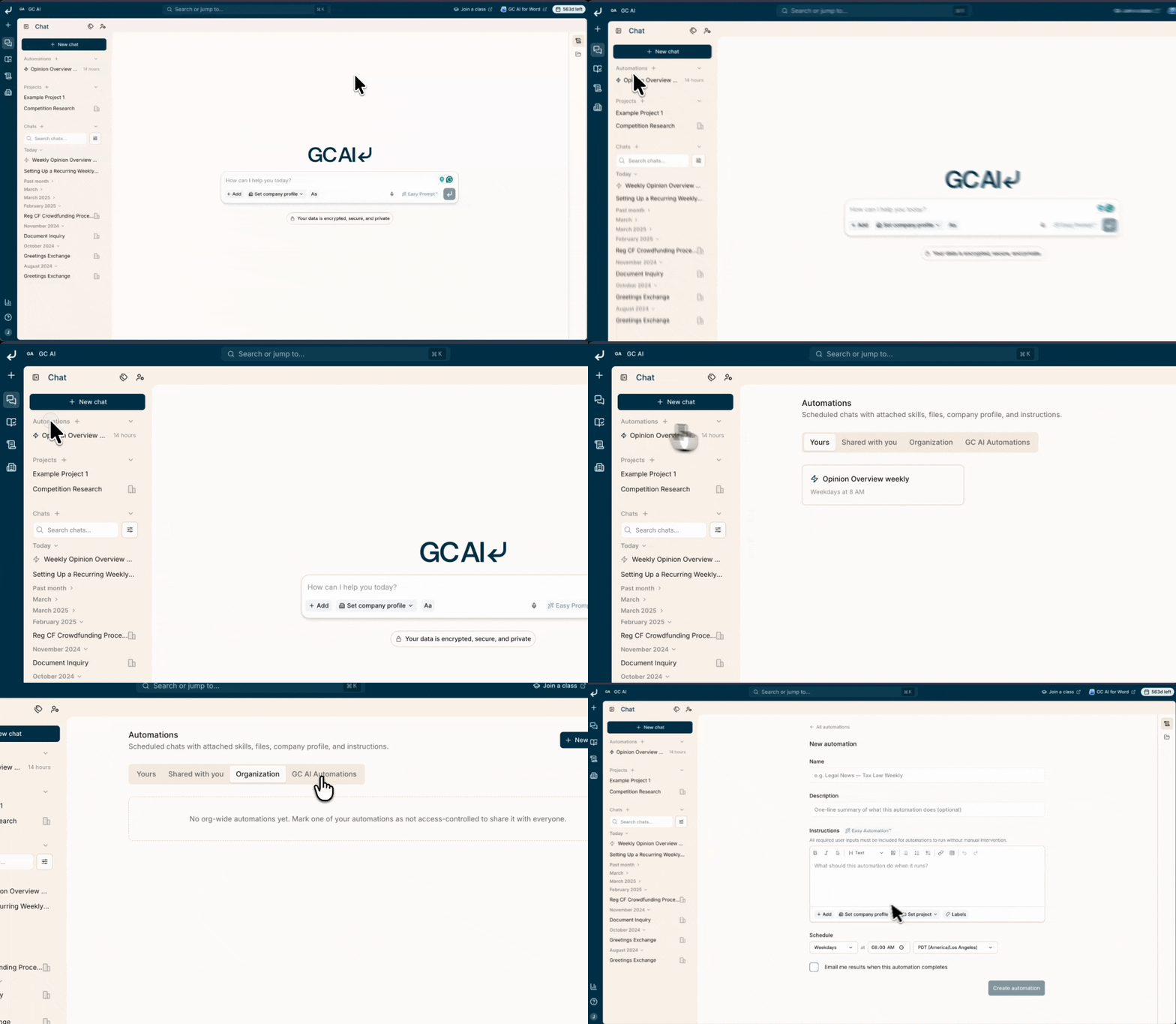
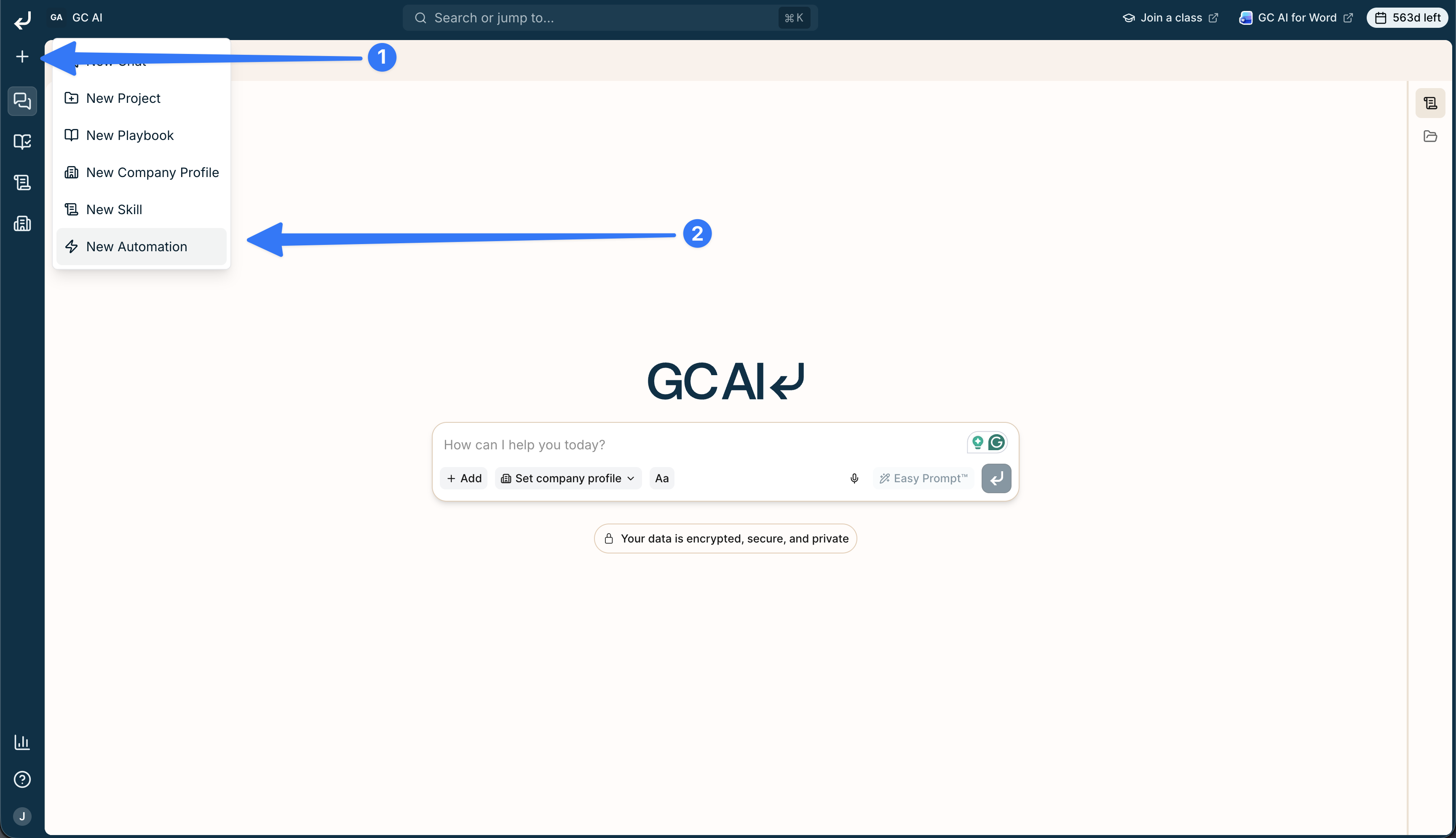
Create menu
- Click the + button.
- Select New automation.
Projects page
Create or attach an automation you created to a project you can edit, so each run inherits the project’s files, instructions, and chat history. You cannot connect someone else’s automation.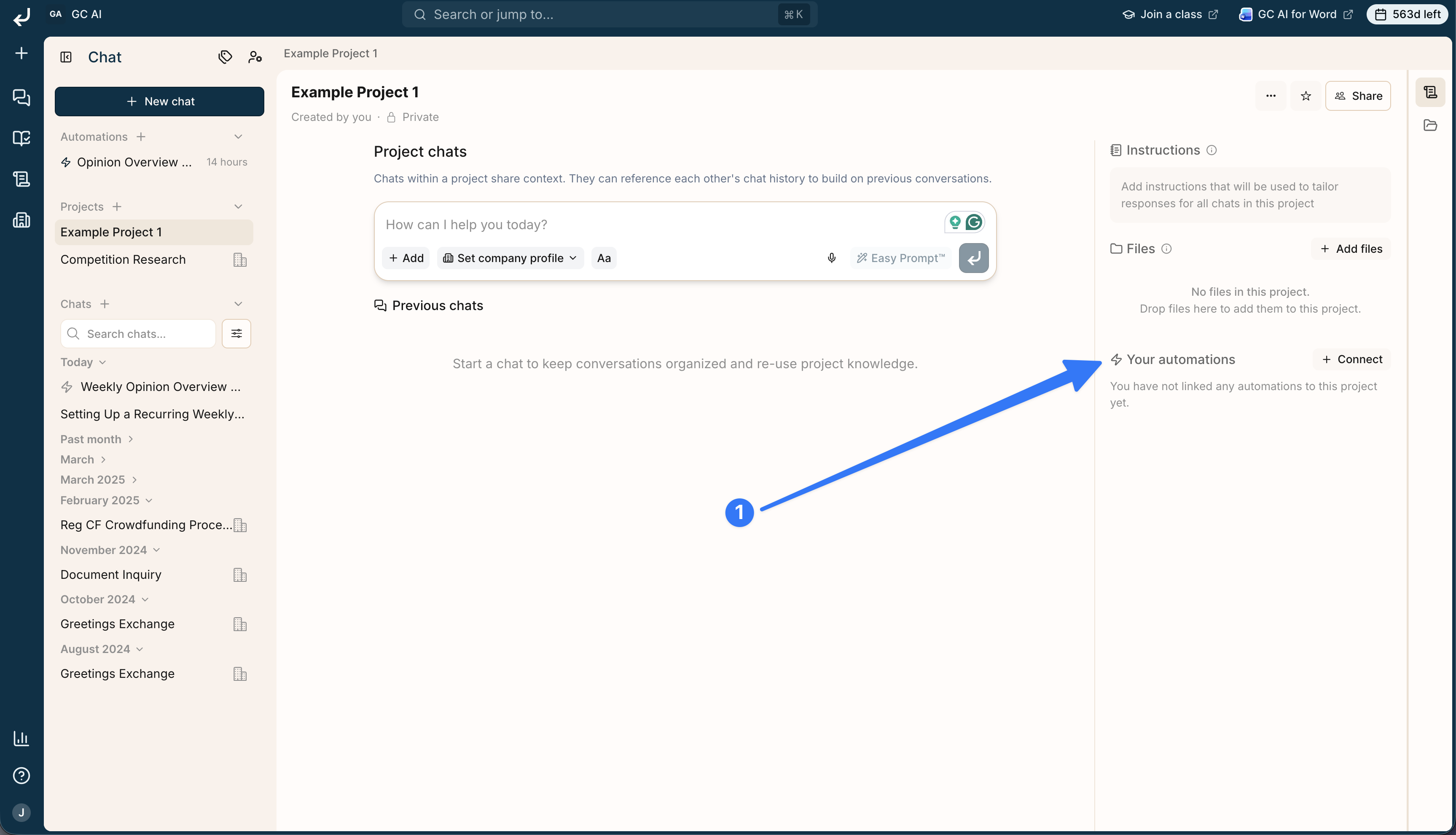
Skills
From any skill, click the Zap icon (or Automate this skill) to start a new automation pre-attached to that skill.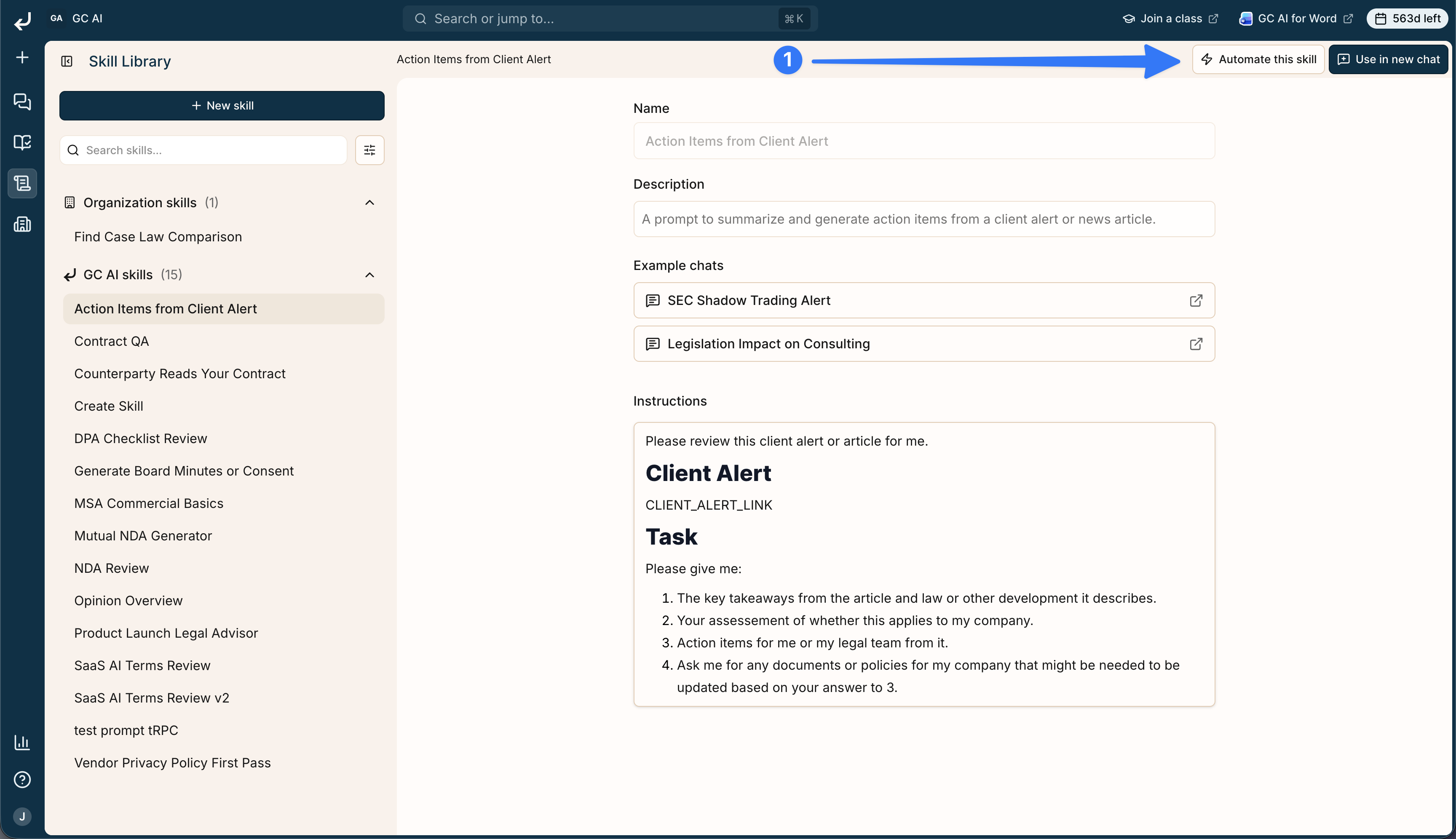
Setting Up an Automation
The setup is short. Open the automation form from any of the entry points above, then:- Create the automation and give it a clear, specific name (for example, “Weekly Ohio construction-law update”).
- Add a description so teammates know at a glance what the run does.
- Write the instructions GC AI should follow each time. Treat it like a short brief: the instructions need to stand on their own, since there is no live back-and-forth during the run.
- Attach the resources the run depends on:
- Skills (for example, a regulatory-scan skill or a playbook-review skill)
- Files and folders (uploaded materials, your standard templates, internal memos)
- Playbooks (when the run is reviewing a playbook itself or applying one)
- Company profile, labels, or a project for organization-aware context
- A Vault when the run should read your contract portfolio, for example a monthly list of agreements renewing in the next 90 days
- Pick a schedule. Choose Daily, Weekdays, Weekends, Weekly (one day a week), Monthly, Quarterly (relative to calendar quarter-end), or Custom (any combination of days), then pick the time and time zone. Use Local timezone if you want the automation to run at the same local time when you travel. On Daily and Weekly schedules, click Add time to run up to 3 times a day (for example 8 AM, 12 PM, and 4 PM).
- Turn on email notifications if you want a note in your inbox when each run is ready.
- Save. The automation runs on the schedule you picked, and you can also run it manually any time from the automation page.
Example Workflows
A few patterns we see in-house teams set up first:Weekly regulatory scan for a jurisdiction
A weekly scan of new and proposed legislation, regulatory guidance, and enforcement actions in a single jurisdiction (for example, Ohio construction law). Attach a research skill, set the scope in the instructions, and let GC AI deliver a Monday-morning briefing each week.Scheduled playbook review
A monthly check that keeps a playbook current with changing law. Attach the playbook itself and a “review for legislative drift” skill. GC AI reads the playbook, scans for regulatory developments since the last run, and flags clauses that may need updating.Weekly legal ops briefing
A weekly digest of what is happening across a matter or workstream. Connect the automation to a project, attach the relevant memos and uploaded materials, and write instructions that ask for a structured briefing (priorities, blockers, decisions needed). Each Monday you get a fresh chat with a teammate-shareable summary.Quarterly close checklist
A quarter-end review that runs before or after Mar 31, Jun 30, Sep 30, and Dec 31. Attach the project, playbooks, and reporting materials you want reviewed, then choose a quarterly offset such as one week before quarter-end or two weeks after quarter-end.Daily briefing across connected apps
After you connect apps, write instructions that ask GC AI to scan email, calendar, Slack, or other linked apps, then attach the skills and files the run needs. An official Daily Briefing template is not available yet. You can still schedule this as your own automation.Sharing and Ownership
Each automation stays with its creator. It does not show up in someone else’s Automations list. If you have Edit on a project, connect an automation you created, or make a new one there. You cannot connect an automation you do not own.- Run history stays with the creator. Only the creator sees past runs and the chats they produced.
- Use a project for shared context. Connecting your automation to a project lets each run use that project’s files, instructions, and chats. The automation itself remains yours.
Notifications
You can turn on email notifications inside any automation. When each run finishes, GC AI emails you with a link to the new chat. Slack notifications are on the roadmap.Best Practices
A few patterns from the in-house teams using Automations well:- Write self-contained instructions. A run cannot ask a clarifying question. Spell out the audience, the format you want, the depth you want, and what to do when sources disagree.
- Attach stable resources. Pick the skills, files, and playbooks the run needs and keep them stable. If you rename a file or rework a skill mid-quarter, your run picks up the new version on the next schedule, which is usually what you want, but worth knowing.
- Connect to a project when context matters. If the run is about a specific matter or workstream, link an automation you created to a project you can edit so the run sees the prior chats and shared files automatically.
- Pause when the work is on hold. A paused automation skips its schedule and is one click away from resuming, with the configuration intact.
- Treat the first run as a draft. Read the first chat carefully, refine the instructions, then let the schedule do its job.