

🔗 Overview
The Google Drive integration lets you import documents directly from Google Drive into Files. Once imported, you can reference these documents during AI-assisted legal research and drafting, just like any other file in Files.
Files are imported as point-in-time snapshots. There is no continuous sync or background access to your Drive.
This page covers Google Drive import (one-time file import into Files). Agent Connectors is separate: connect Google Drive under Settings → Integrations → Agent Connectors to search, pull, and act on Drive files live in chat, with per-action approval.
📥 What the Integration Does
- Lets you browse and select specific files from your Google Drive using the Google Picker UI
- Imports selected files (PDF, DOCX, Google Docs) into Files
- Extracts text from imported documents for AI-powered search and retrieval
🚫 What the Integration Does NOT Do
- Does not continuously monitor or scan your Google Drive contents
- Does not access files you have not explicitly selected
- Does not modify, delete, or write any files to Google Drive
- Does not share your Drive files with other users or organizations
- Does not retain Google Drive access beyond the authenticated session scope
🔑 OAuth Scopes and Permissions
GC AI requests the following Google OAuth 2.0 scopes:The
drive.file scope is the most restrictive Drive scope available. It only permits access to files you explicitly open or select through the Google Picker interface. GC AI cannot browse, list, or access any other files in your Drive.📂 How File Import Works
When you select a file from Google Drive, GC AI processes it through the following steps:- You select a file in the Google Picker
- GC AI downloads the file via the Google Drive API
- GC AI validates the file type
- Google Docs are exported as PDF; other files are used as-is
- The file is uploaded to Google Cloud Storage (encrypted at rest)
- GC AI extracts the text from the file
- GC AI generates text chunks and vector embeddings for search
- The file metadata and extracted text are stored in your organization’s database
- The file becomes available for AI-assisted retrieval within your organization
🔒 Security
Access Control
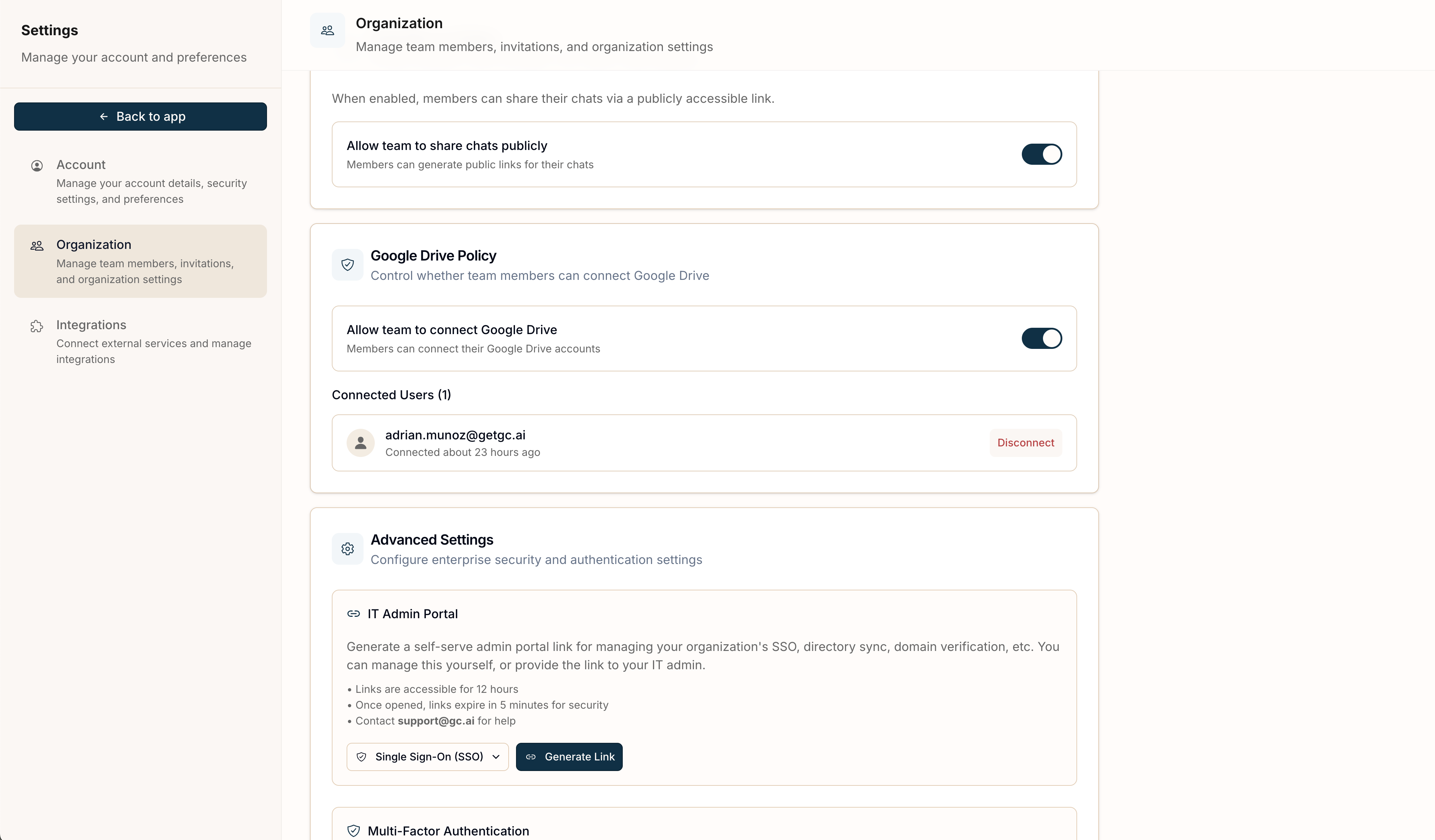
- Organization-level: Administrators can enable or disable the Google Drive integration for their entire organization
- User-level: Each user connects their own Google account. One user’s connection cannot access another user’s Drive
- Resource-level: Imported files follow GC AI’s standard access control model, including private, shared within org, and other permission levels
- Role-based: Organization admins can disconnect any user’s Google Drive integration
Deletion Behavior
- User disconnects: OAuth tokens are deleted. Previously imported files remain in Files as standalone copies.
- Admin disables integration for org: All user OAuth tokens for that organization are deleted.
- User or org deleted: Cascade deletes remove all associated tokens, files, and embeddings.
- Individual file deletion: You can delete imported files from Files at any time.
⚙️ Administrative Controls
The Google Drive integration is enabled by default.
- Enable or disable the Google Drive integration for the entire organization via Organization Settings
- View which users have connected their Google Drive accounts
- Disconnect any user’s Google Drive integration
- All existing OAuth tokens for that organization are immediately deleted
- Users can no longer initiate new Google Drive connections
- Users can no longer import files from Google Drive
- Previously imported files remain in Files (they are standalone copies)
❓ Frequently Asked Questions
Can GC AI access all files in my Google Drive?
No. GC AI uses thedrive.file scope, which only grants access to files you explicitly select through the Google Picker interface. GC AI cannot browse or list your Drive contents.