

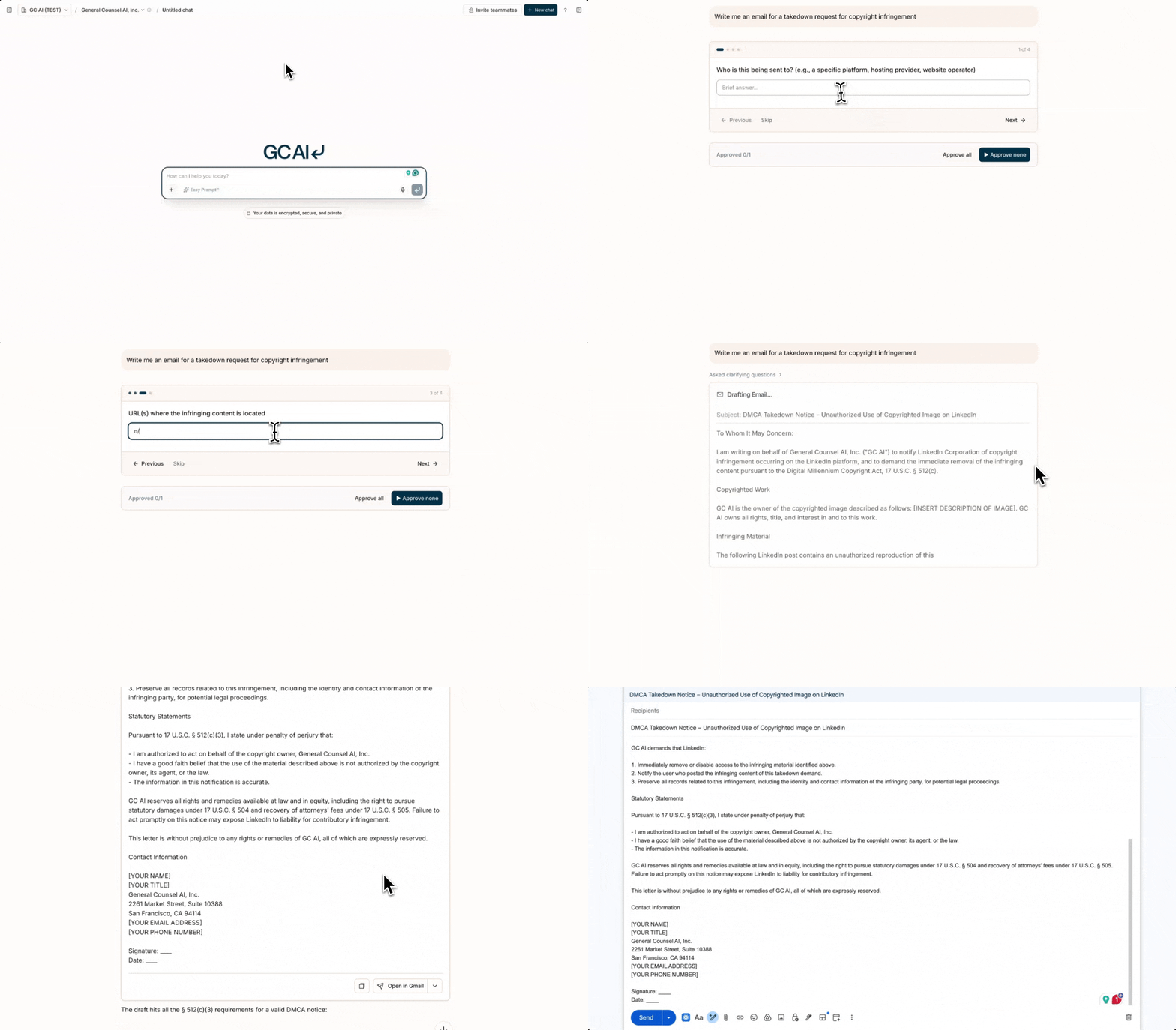
 GC AI can draft emails directly in chat. When you ask the AI to write, compose, or reply to an email, it creates a structured draft with editable fields that you can copy or open in your email client.
📝 Drafting an Email
Ask GC AI to draft an email in natural language. For example:- “Draft an email to opposing counsel about the scheduling conflict”
- “Write a follow-up email to the vendor about the missing DPA”
- “Reply to this email declining the proposed terms”
- To - Recipient email address(es)
- CC / BCC - Optional additional recipients
- Subject - Email subject line
- Body - The full email text
✏️ Editing Your Draft
The email body appears in an editable text area within the draft card. Revise the wording, add details, or make any changes before sending.📤 Sending Options
Once your draft is ready, you have three options:- Send with a connected account - If you have connected Gmail or Outlook, the send menu lists each connected account under Use existing connector. Pick one and GC AI sends the email for you, formatting included, with links intact. The card then shows a Sent confirmation. GC AI never sends on its own: you decide when the email goes out.
- Copy - Copies the email body to your clipboard so you can paste it into any email client
- Open in Email Client - Opens a pre-filled compose window in Gmail, Outlook, or your default email app
🔒 Privilege Marking
If you have privilege marking configured in your Personal Profile, a checkbox appears on email drafts:- Check Include privilege marking to prepend your privilege text to both the subject line and body
- Uncheck it to send without the marking
💡 Tips
- GC AI always generates a subject line, even if you don’t specify one
- Provide context about the purpose and tone you want for better results
- You can ask GC AI to revise the draft in a follow-up message, and it generates a new draft card
- Email drafting works for emails only. For memos, letters, or Slack messages, GC AI responds in the chat thread instead