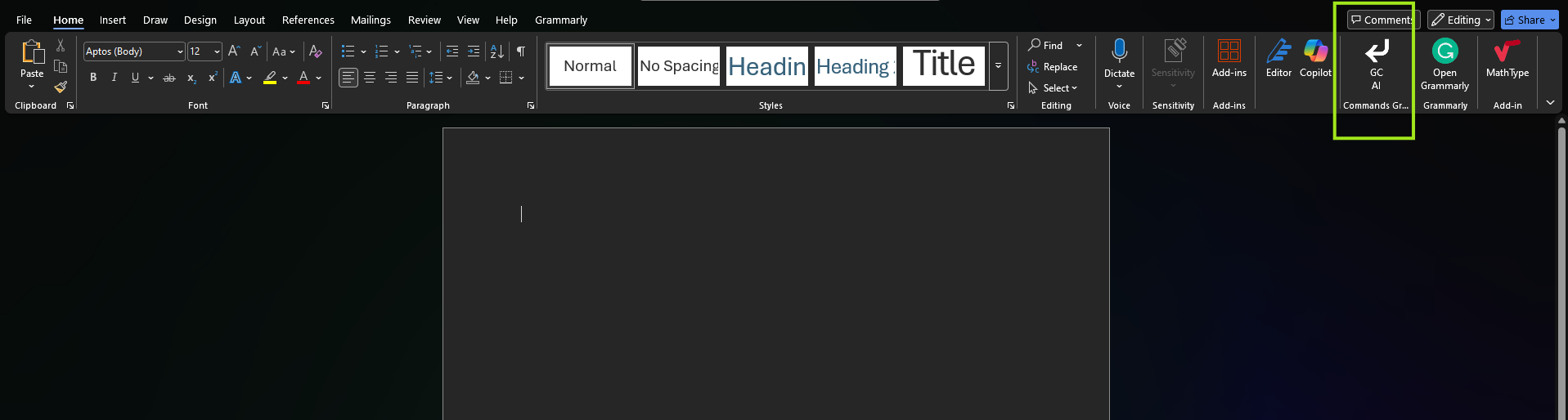
This guide is for Windows users. The steps involve sharing a local folder via Windows network sharing. For Mac, see Manually Installing the Word Add-in via XML Manifest (Mac).
Steps
- Open your Documents folder
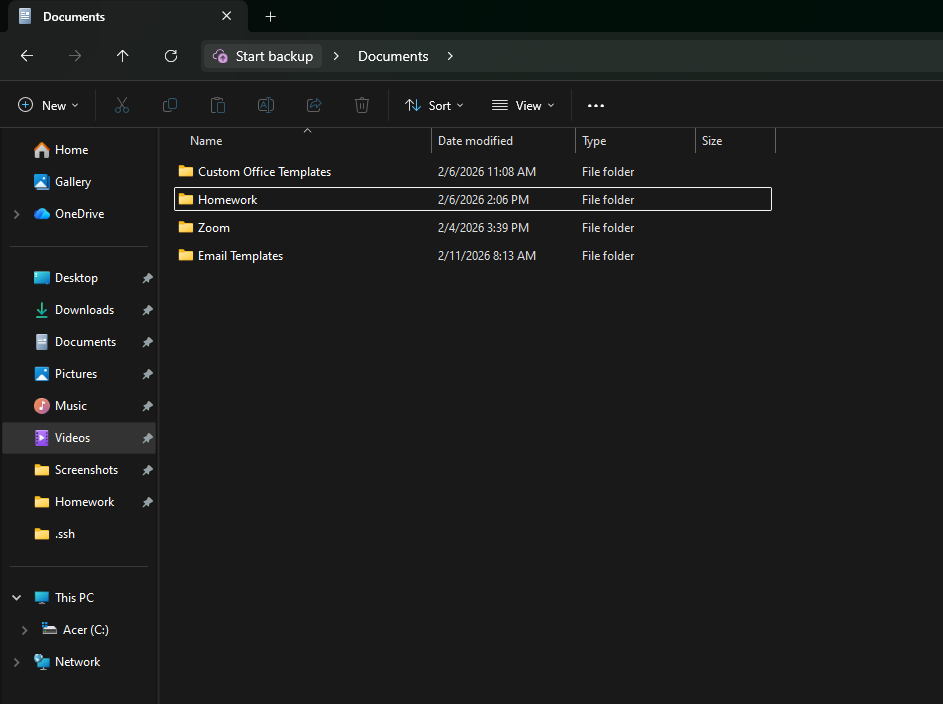
- Create a new folder, you can name it anything you want, for this example I named it: gc ai
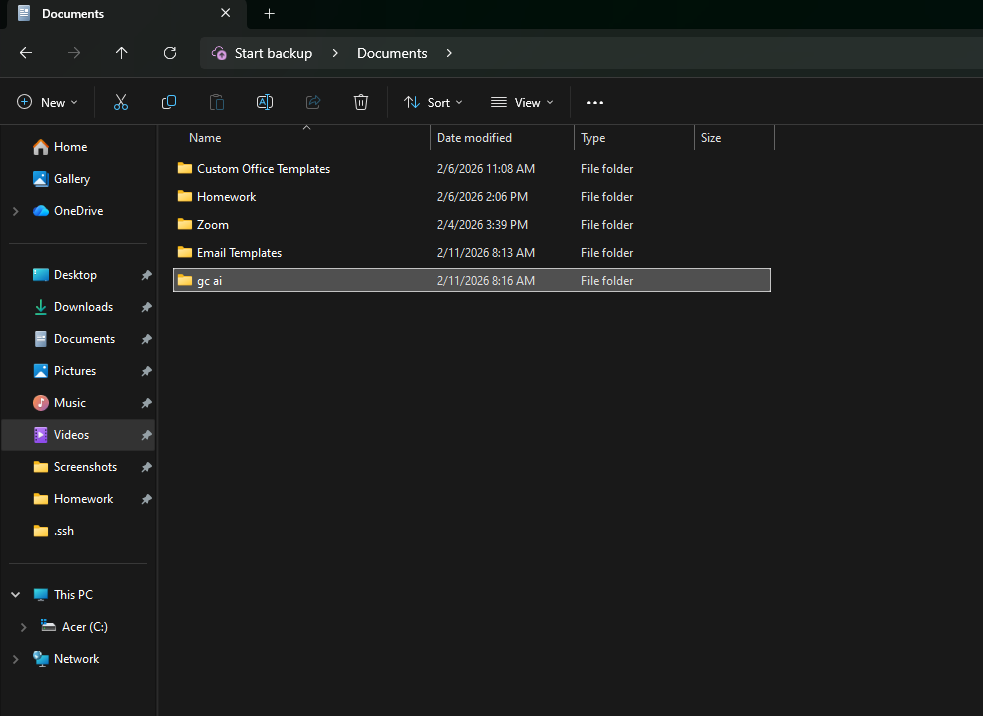
- Copy this file on the folder you created.
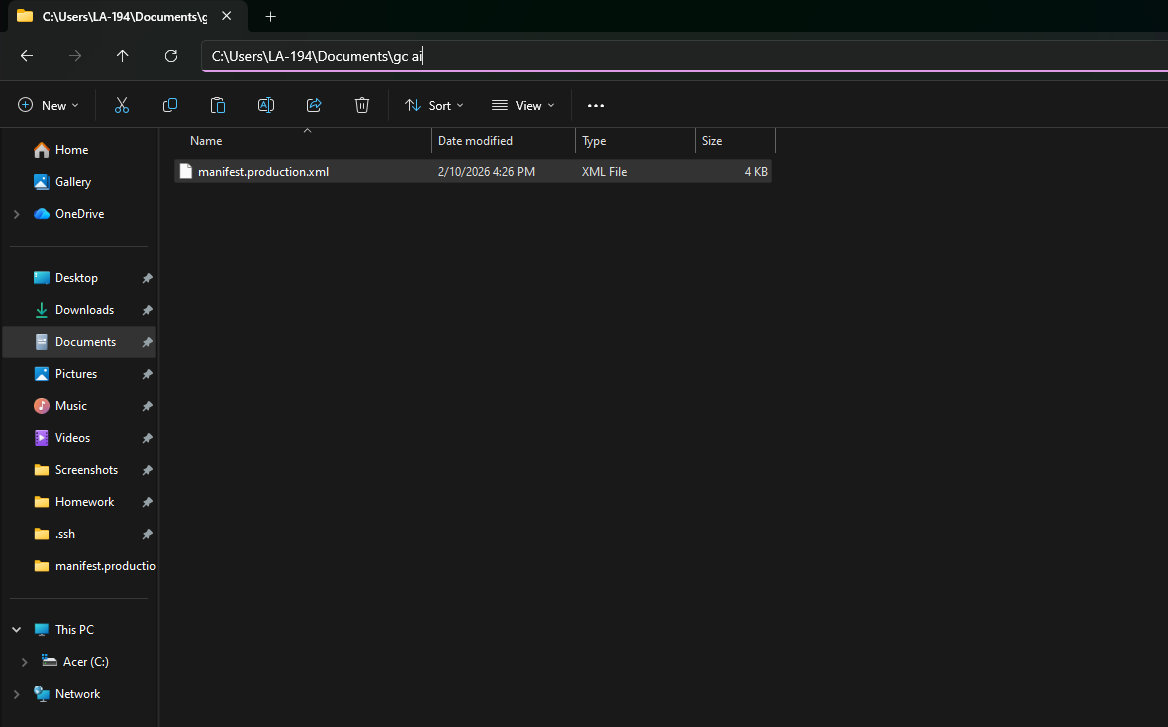
- Go back to Documents > Right Click the folder you created (in this example: gc ai) > Select Properties. The folder Properties window will open > Go to the Sharing tab.
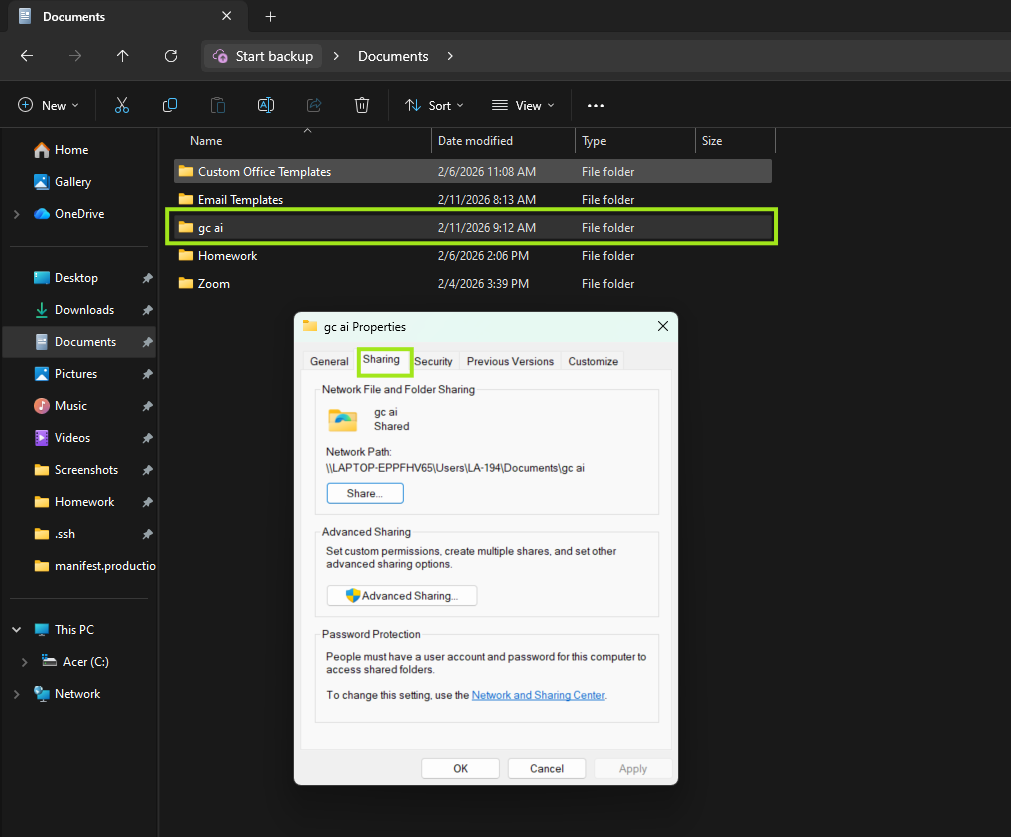
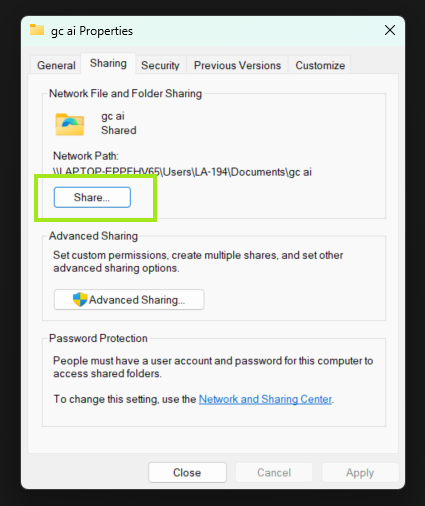
- Click on the Share button.
- You will see the Network Access window next > Look for your username in the dropdown list > Click on Add.
- You should see your username added in the box. My username in this example is LA-194.
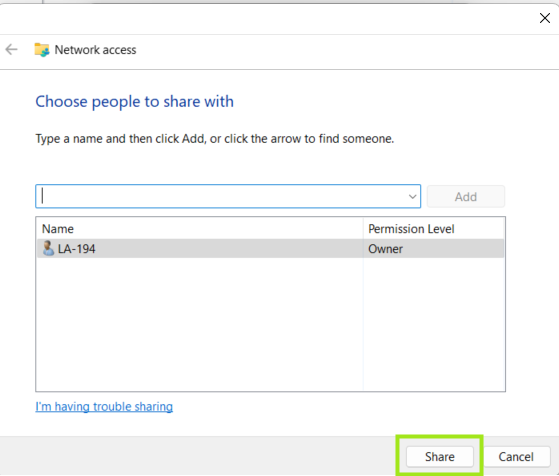
- Click on Share > Another window opens > Click Done.
- Close the Properties window as well.
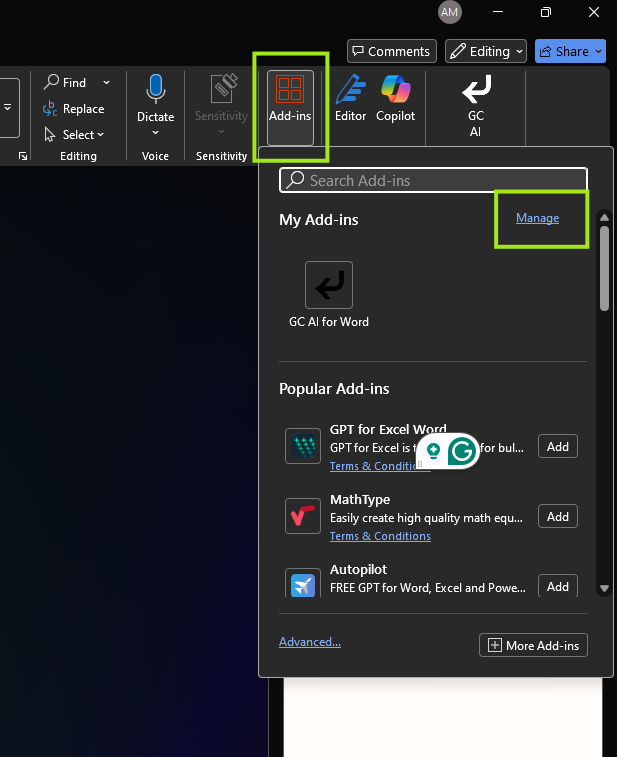
- Open Word, we will uninstall the current GC AI Add-in. Click on Add-ins on the upper right area.
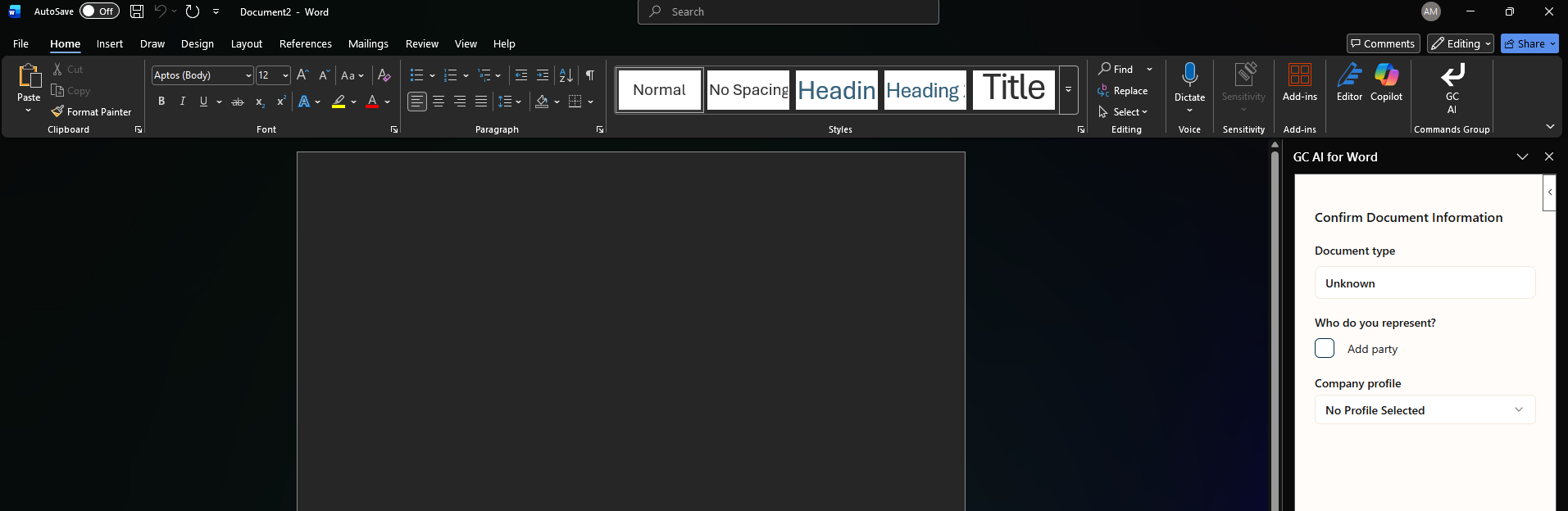
- You should see the GC AI add in in the menu > Click on Manage
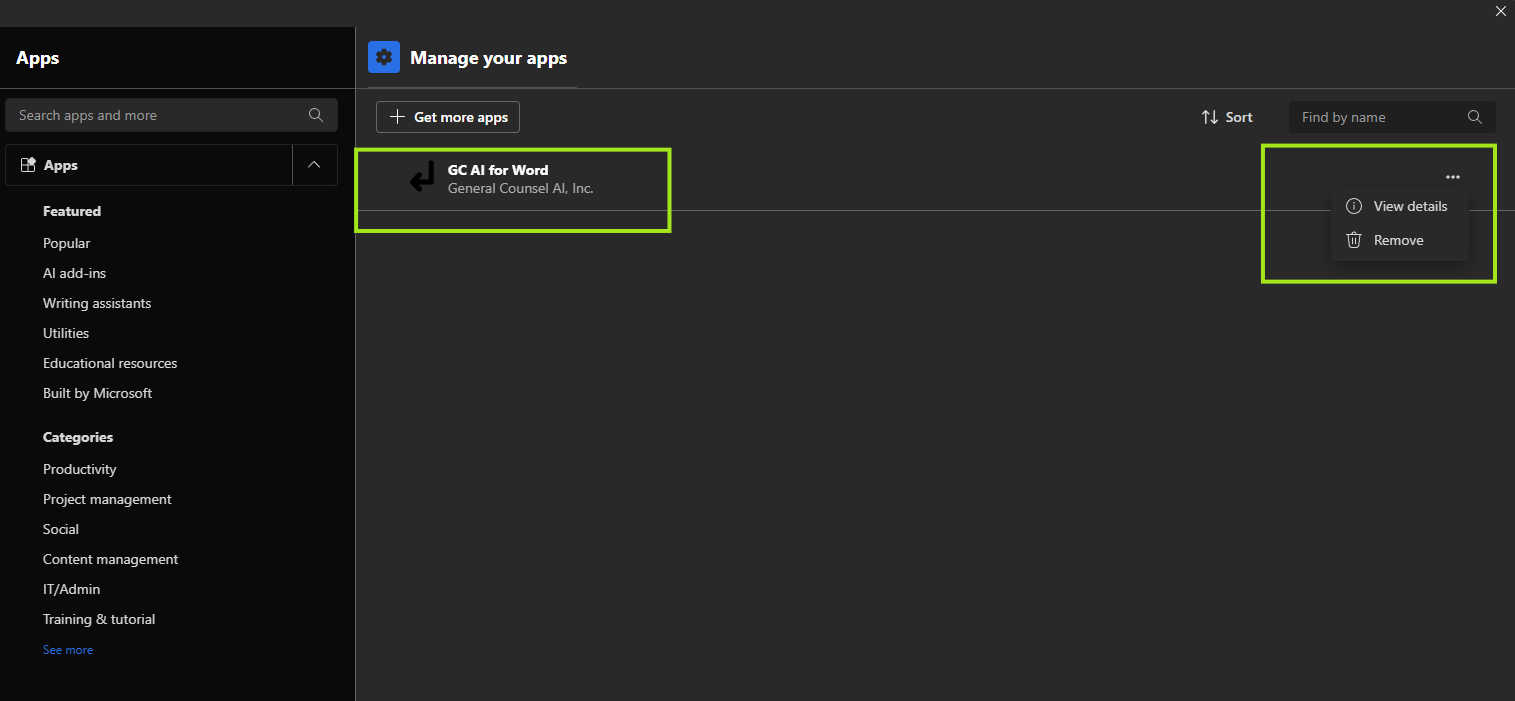
- Click on the three dot menu > Click on Remove. > You will be prompted to confirm the removal, accept it.
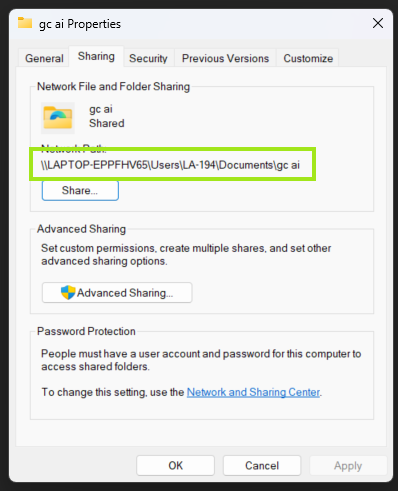
- Go back to your Documents folder > Right click on the folder you created > Properties > Sharing > Copy the path to the folder for this example, the complete path to my gc ai folder is:
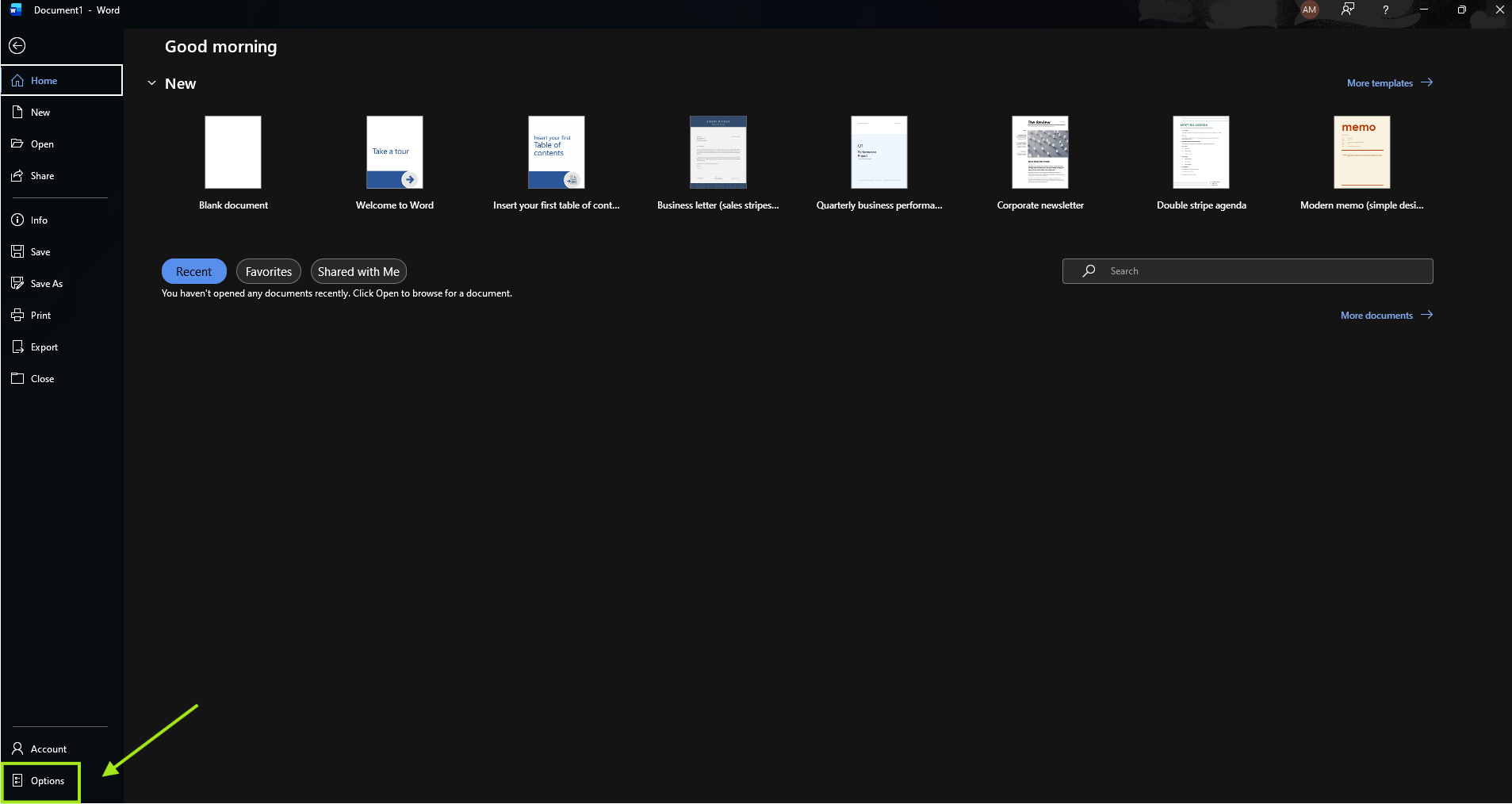
- Go back to Word. Navigate to: File > Options
- Click on Trust Center > Trust Center Settings
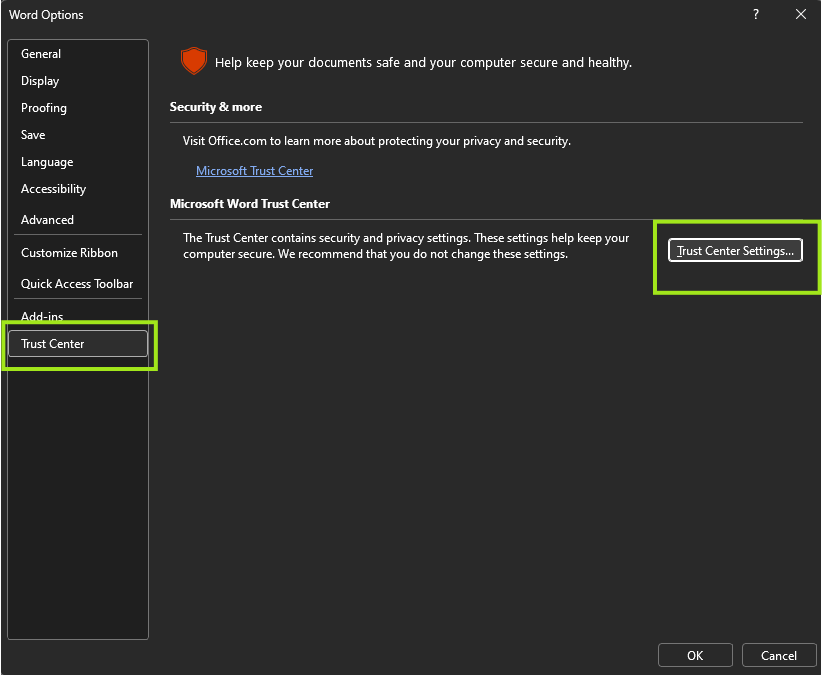
- In the Trust Center Settings > Select Trusted Add-in catalogs > Copy the path to the folder you created in the Catalog URL field > Click Add Catalog.
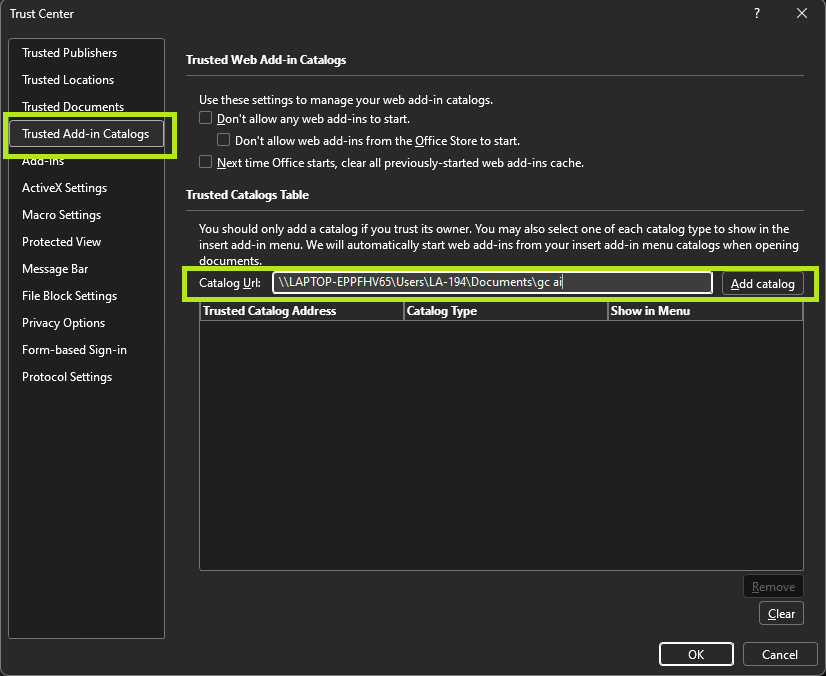
- You will see the URL added to the box in the window > Click OK > Click OK on the message that pops up and restart Word.
- When you open Word again you will see the GC AI Add in on the bar.