

Report an entire chat
Use Report chat when the problem affects the whole conversation. This works even when GC AI never sends a first reply.- Open the chat where you saw the issue.
- Select Chat settings (⋯) in the chat header.
- Select Report chat.
- Describe what went wrong in the text box.
- Select Submit report.
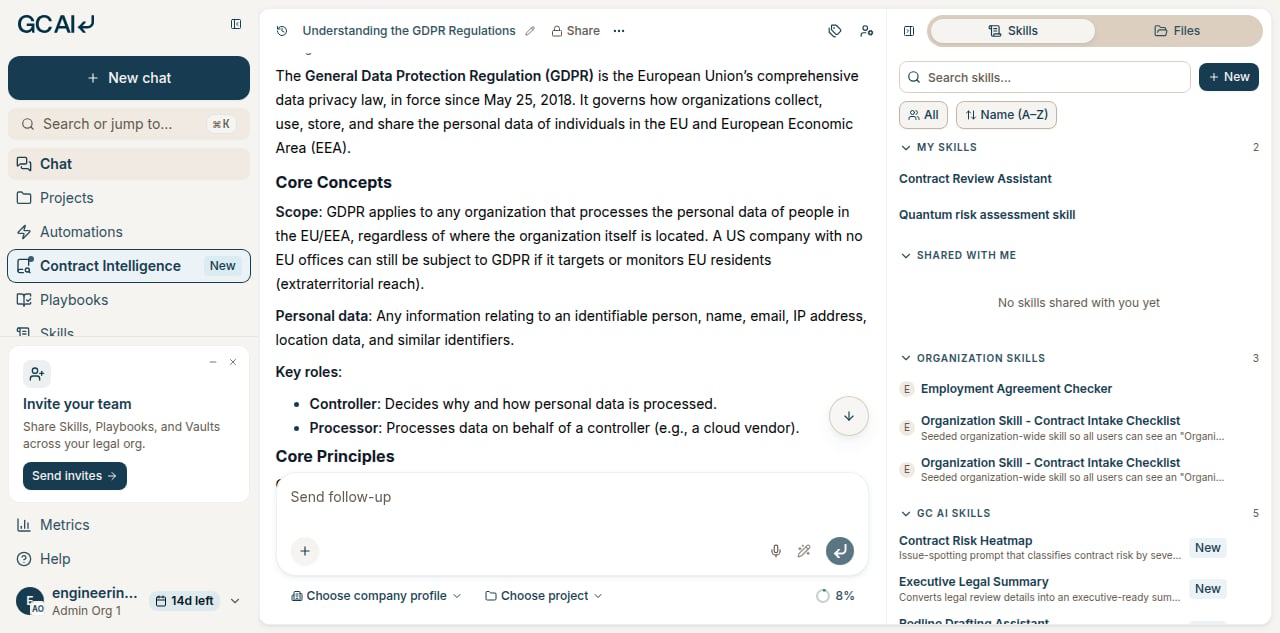
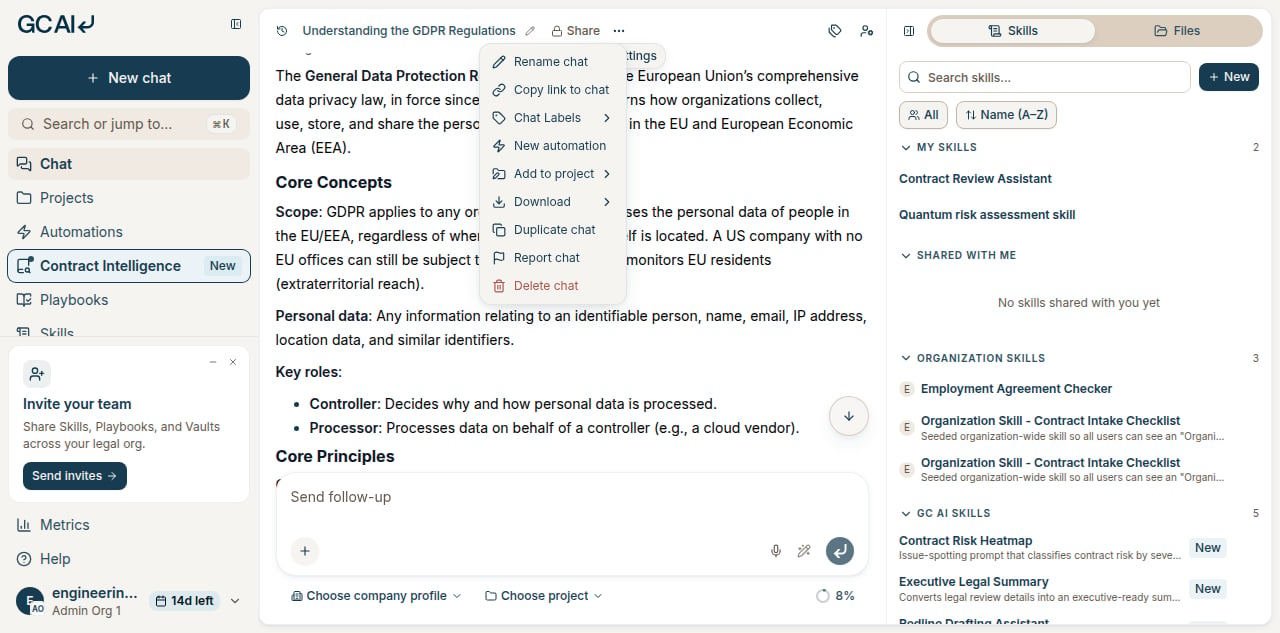
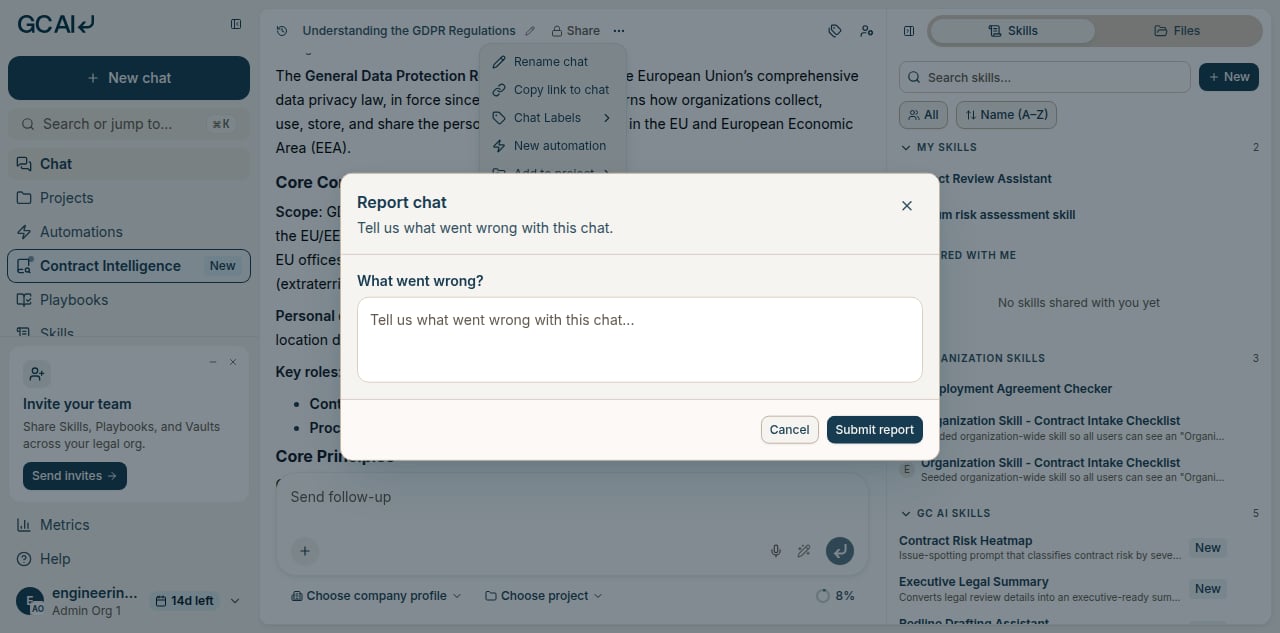
Report chat is available as soon as the chat has a title in the header. You do not need to wait for an assistant reply.
Report a specific response
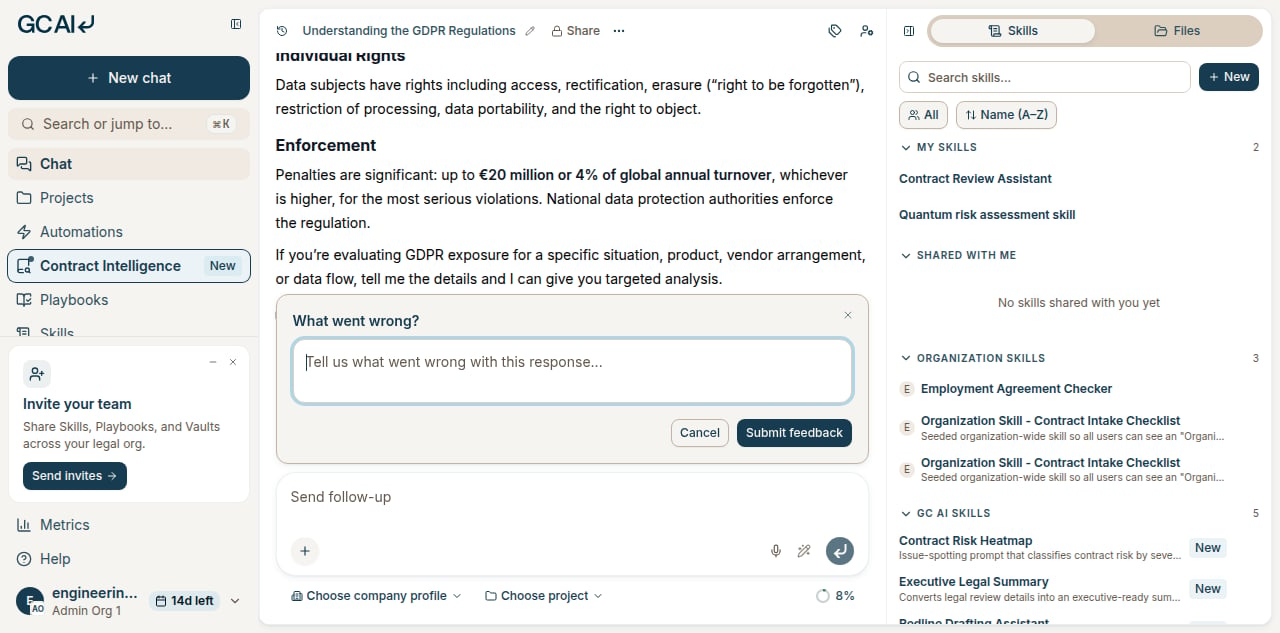
When one answer is wrong but the rest of the chat looks fine, rate that message instead of reporting the whole chat.- Find the assistant message you want to flag.
- Select the thumbs down icon under the message.
- Describe what went wrong.
- Select Submit feedback.
Add a screenshot
Screenshots help when the issue is visual: a broken layout, a missing button, or an error banner.- Capture the screenshot on your computer.
- Open Chat settings (⋯) and select Copy link to chat so our team can open the same conversation.
- Email support@gc.ai with:
- The chat link you copied
- A short description of what went wrong
- The screenshot attached to the email
Do not include client-confidential document text in screenshots unless your organization allows it. Crop or redact sensitive content when you can.
What to include in your report
Helpful reports usually mention:- What you expected GC AI to do
- What happened instead, including any error text
- When it happened, if timing matters (for example, right after you attached a file)
- A screenshot, when the issue is visual (see above)
Other ways to get help
- For product how-to questions, ask in any chat at app.gc.ai. GC AI searches docs.gc.ai and links you to the right page.
- For billing, access, or add-in issues, see Get Support.
- Before you contact support, check the GC AI status page for ongoing incidents.